
Lookup Codes allows the user to add new codes, edit existing codes, define new code categories and edit existing categories. It replaces the table editor.
Lookup Codes is located under the System menu in Q.
To add codes to an existing category or edit existing codes:
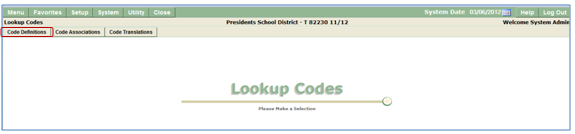
- Click Code Definitions.
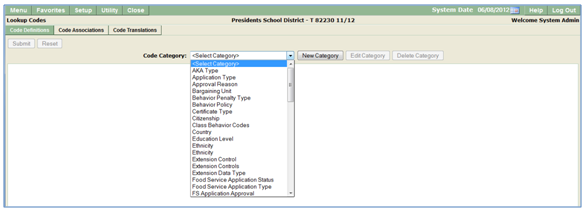
- Select desired Category from drop down list.
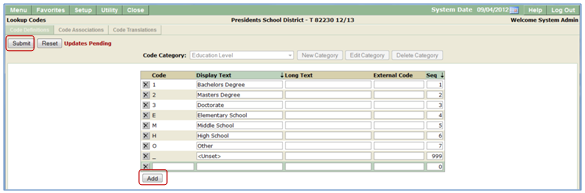
- Click Add:
- Enter Code.
- Enter Display Text.
- Enter Long Text.
- Enter External Code.
- Enter Sequence.
- Existing codes may be also be edited from this screen.
- Click Submit when all desired information has been entered.
To add a new code category:
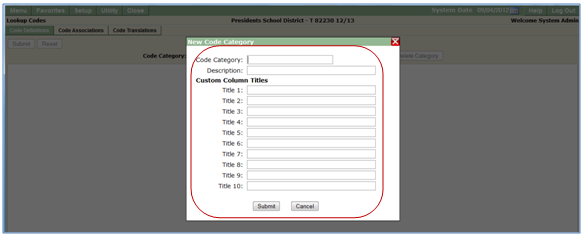
- From Code Definitions, Click New Category button.

- Enter new category name in Code Category.
- Enter Description.
- Enter custom column titles to add additional columns if desired.
- Click submit when finished.
To edit an existing category:
- From Code Definitions, select code category to edit.
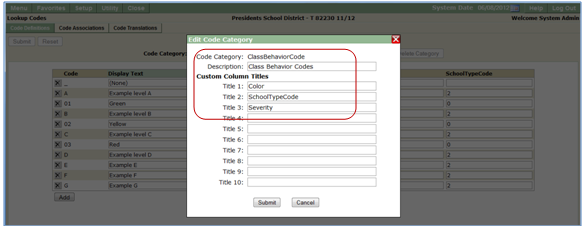
- Click Edit Category.
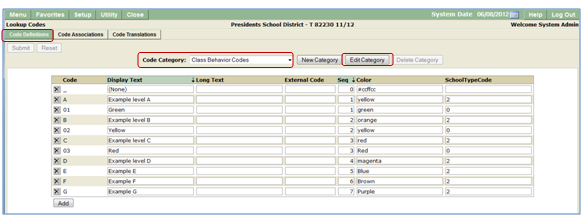
- Add information to Custom Column Titles to add information to the table, in this example we’ve added Severity to the Class Behavior Codes.
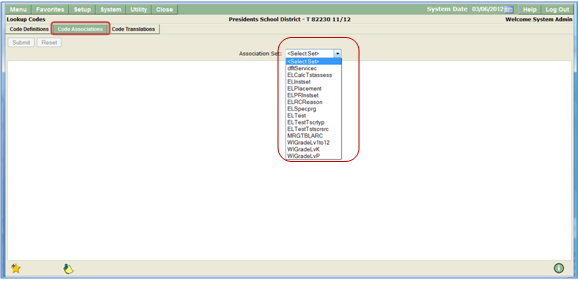
Code associations can be used to tie scripts together. It gives the user the ability to choose the table scripts pull information from and apply business rules for extracts and jobs.
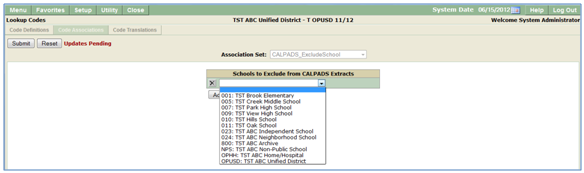
For example, CALPADS scripts can be associated with a school table to exclude schools or tracks from the extract.
- From Code Associations:
- Select Association Set from list.
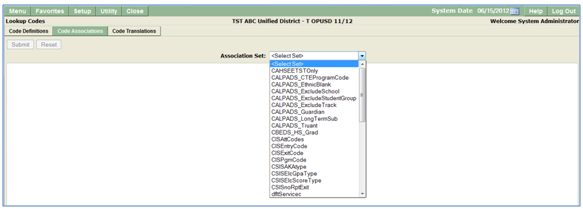
- Select school to exclude from extract.
Codes may be added to existing translation sets. New Translation sets may also be defined here.
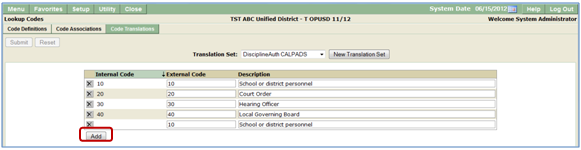
Add new codes to an existing set:
- From Code Translations
- Select Translation Set.
- Click Add.
- Enter code and description.
- Submit.
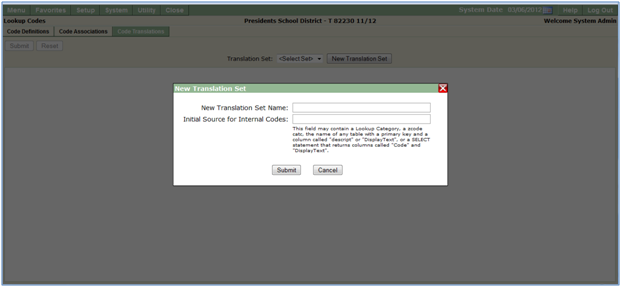
Create a new translation set:
When a new translation set is created it’ll copy based on the select statement you put in then you can edit and customize.
- From Code Translations
- Select New Translation Set.
- Enter initial source for internal code. This field may contain a Lookup Category, a zcode catc, the name of any table with a primary key and a column called "descript" or "DisplayText", or a SELECT statement that returns columns called "Code" and "DisplayText".
- Submit.
CA (ONLY) Review of Code Associations (CALPADS) - Q Ti
Lookup Codes and School Editor in Pre-Enrollment - Q Tip
Health Document Setup - Q Tip
Track When Documents Have Been Viewed in ParentConnection - Q Tip
Translating Extension Drop Down Lists (Without Creating A New Lookup Code Category) - Q Tip
