
Placement records are used in Student Program History, English Learner, Student Special Education, and Caseload Manager applications.
With the release of Q 3.8.1, the Caseload Manager may be used to manage staff caseloads for students in any program, not just Special Education programs. As part of this change, the type of placements available to a program may now be filtered based on Placement Type and need to be selected for the program for the option to ‘Add New Placement’ to appear in the program record.
We’ll configure a 504 Plan program to show only related placements and appropriate providers.

Setup
Placement Type & Placements
In Lookup Codes, define the Placement Type and then Placements, referencing the placement type code (‘placmntypc’ column) in the placement record, shown highlighted.
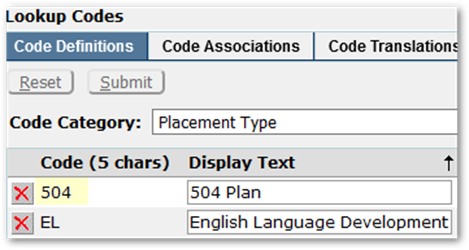

We’ll discuss the ‘faccertc’ column when we talk about certifications, shortly.
Program
In Program Editor, for each program, select the Placement Types to be made available for students in the program. In this example, a 504 Plan program has only ‘504 Plan’ Placement Types selected so only placements with a Placement Type (placmntypc) of ‘504’ will be available in the application for students, i.e., 504-Nursing Services, 504-Psych Services.


With ‘504 Plan’ Type selected, only the services or placements with that associated type in the Placement Lookup Code record appear in the drop-list.
Location
Placement locations are configured in Lookup codes under ‘Placement Locations’. If a district is considering using Caseload Manager to manage placements, transfer services from one staff member to another, or add services / placements to students, then we highly recommend adding the district’s schools to the Placement Location lookup codes. Use the school code as the placement location code.
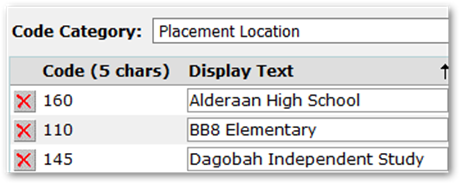
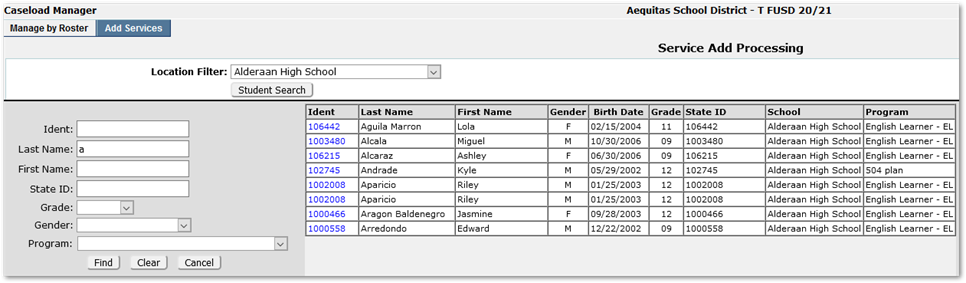
In Caseload Manager there is an implicit filter of ‘Location’ as ‘School’ designed to make the use of this application easier.
How to get faculty members to appear in the Provider selection list
It can be frustrating to setup programs and placements, enroll a student in the program, only to find that no providers appear in the drop-list.

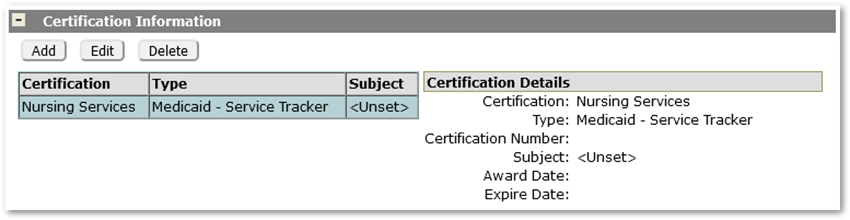
Providers need to have active status on the system date to be available for selection. In addition, each provider needs to have a Certification record, set in the Staff Editor, with a certification associated with the placement code. (The award and expire dates in the Certification record do not affect the eligibility of the staff member to appear in the Provider list.)
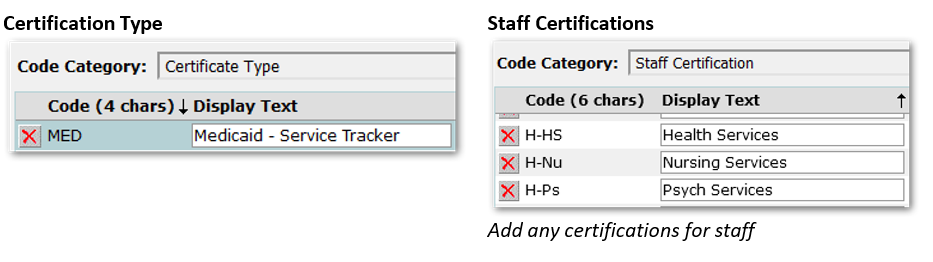
For providers that will be using Service Tracker, the Certification Type needs to be ‘MED’ – Medicaid.
The related underlying code tables are:
Mapping Certifications & Placement Certifications
Each certification in effect for placements needs to be mapped in Lookup Codes. With release 3.8.1 the mapping of certifications moved from ‘zcerttrans_converted’ under Lookup Codes to ‘Additional Code Tables – Certifications & Placements’.
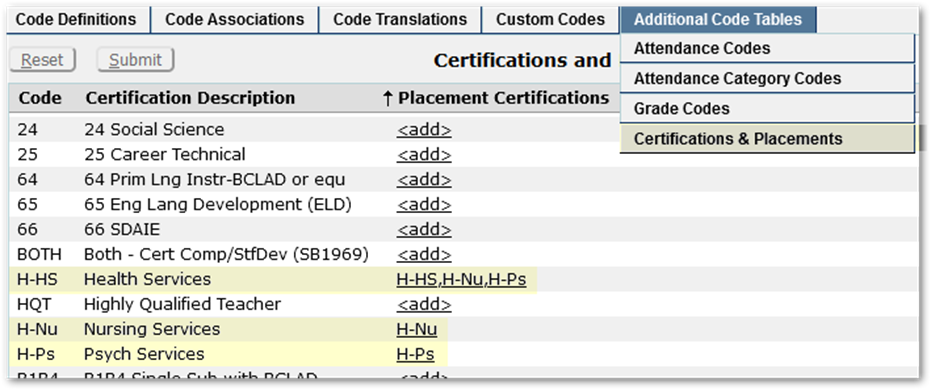
Staff certification codes are listed down the left. Map the certification codes to the placement certifications by clicking the <Add> link for the row in the ‘Placement Certification’ column.
In the Placement Lookup category, specify in the faccertc column, the certification code staff members need to have mapped to be eligible to provide the service.

Results
When all these factors align, providers with active status and mapped certifications that correspond to the selected placement will appear in the provider drop-list.
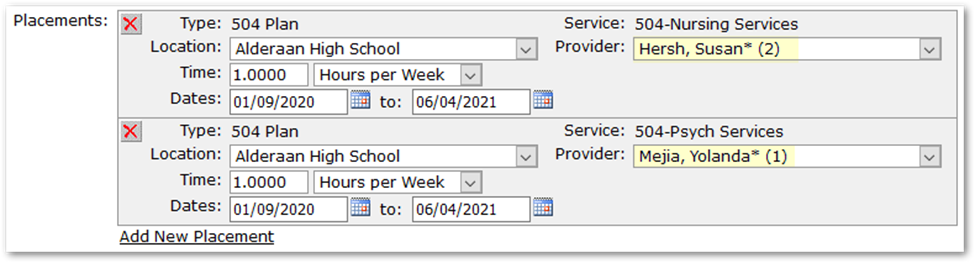
The asterisk beside the provider’s name indicates the provider has status in the district track, and the number in parenthesis indicates the number of students this provider has in their caseload for the selected placement.
Mapping Certification: Impact in Detail
When mapping certifications and setting the faculty certification value in the Placement Lookup category, its possible to be explicit and exclusionary to only enable staff with a specific certification to appear in the drop-list, or to use a certification value that is mapped to multiple certifications.
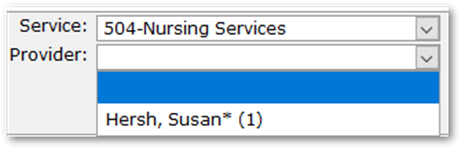
In our example of the student with two placements: 504-Psych Services and 504-Nursing Services. The providers each have a single Medicaid certification: one certified with H-Nu (Nursing Services) ‘Hersch, Susan’ and the other ‘Mejia, Yolanda’ with H-Ps (Psych Services).

The placements map explicitly Nursing Services to the H-Nu certification.

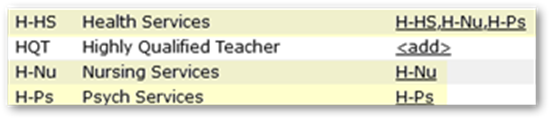
When this is the case, only the faculty with the Nursing certification appears in the list:
Alternatively, we could associate each 504 placement with a common general certification, ‘H-Hs Health Services’. This decision will affect the set of providers in the list. When mapped to the most specific certification, above, only the provider with that specific certification, Nursing in this case, will show in the list. But, if we change the faccertc in the Nursing Services Placement to the more general ‘H-HS – Health Services’ certification, below, then providers with a certification that maps to the more general certification will also appear in the drop-list.

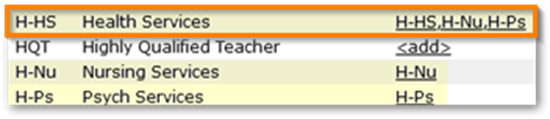
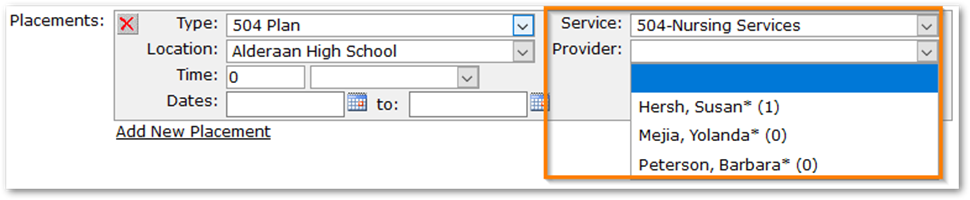
With the Nursing placement mapped to H-HS Health Services, we are seeing providers that have any one of the certifications listed or mapped for H-HS:
- H-HS - Health Services
- H-Nu - Nursing Services
- H-Ps - Psych Services
Note: The (0) after Meija’s name indicates she has no students in the ‘Nursing Services’ placement; she has 1 in the ‘Psych Services’ placement, shown earlier.
The mapping mechanism provides flexibility to approach managing the staff who should appear as potential providers for student placements.
Troubleshooting
If a provider appears in the Placement record browse detail, but then when editing the Program History record, the provider field appears blank, it’s important to look at the dates and compare the system date, the program and placement start dates, and the provider’s status record entry date.
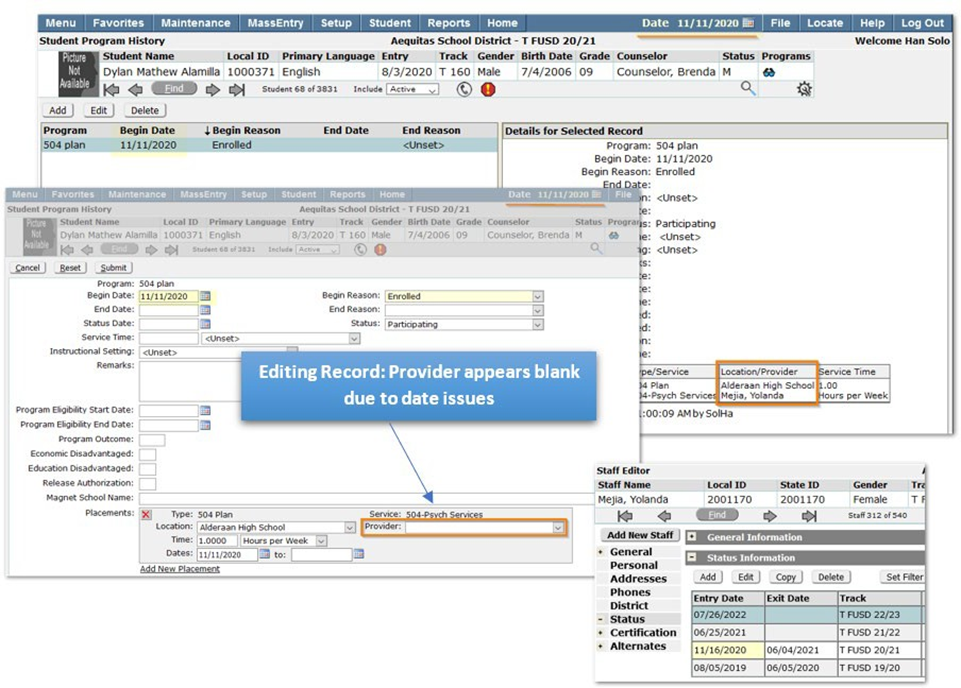
In this example, the provider does not have active status on the system date. Either change the system date or back date the provider’s start date.