
Summer School Enroll provides for one page enrollment and scheduling of summer school students. Enrollment records can be added in mass. (Ex. Selecting all students in a grade level, track or group. Then enrolling all students with one click.)
This module has been updated to allow for enrollment and scheduling even after the term has begun.
Setup:
- School – Track Editor
The summer school track must have the checkbox on indicating it is a summer school track.- Allows the track dates to extend outside the district track dates.
- Allows for part-time status records associated to a summer school track to extend beyond the active status record.
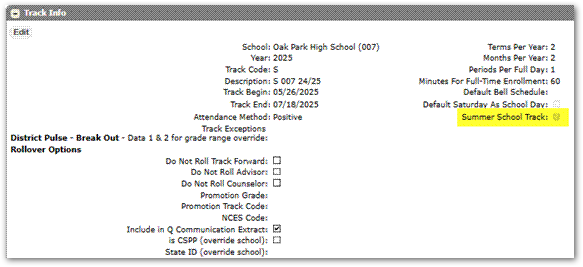
- Schedule – Determine summer school courses and build a master schedule.
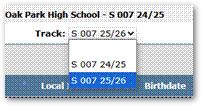
Access the Summer School Enroll Module – Menu – Enrollment – Summer School Enroll. Logged into the current year, user can select current year or future year tracks. If logged into the future year, only future year tracks will be an option. Select the track to enroll students into.
Enrolling:
- Search to display students.
The search features returns students in all tracks and can include Inactive and Active records. This can be filtered to return only active students.
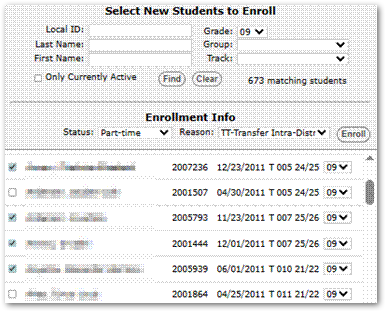
- Select Students to Enroll.
This allows for mass selection and enrollment of students. - Select Enrollment Status
If summer school track dates overlap an Active enrollment record, the student will not be available to enroll with an Active status; these students will need to be enrolled with a Part-Time status. Students will be greyed out that can not be added with Active status. - Select Enrollment Reason
- Click Enroll
Students are enrolled for the entire duration of the track calendar.
To remove a student from the summer school track. Click the Red X to the left of their name. This will delete the summer school track and any schedule records in that track.
Scheduling:
Once enrolled, students will display on the right side of the screen.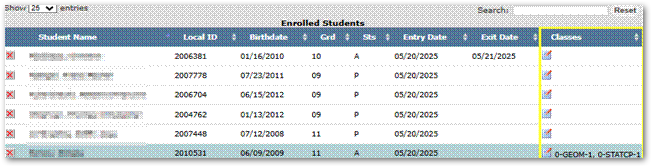
- Select the scheduling icon under Classes
- Select sections to be Added or Dropped


- Submit