
The Student Lockers application allows users to assign, unassign, and set locker combinations for individual student lockers. These operations can be performed en masse using the Locker Assign application.Student Lockers is located under the Enrollment menu in Q.
The Student Locker application can be used to assign and search for student lockers for individual students.
To add a new locker assignment:
- Select the student for which a locker assignment should be added.
- Enter the dates for the locker assignment in the From Date and To Date fields. Dates can be added using a MM/DD/YYYY format, or by clicking the calendar shortcut located to the right of the date fields.
- Click Add. A list of student lockers will be displayed. Click the column header to sort the locker list by Id, Type, Location, Level, and/or Max Occupants. To search for a specific locker by Locker Id, click Find By Locker ID.
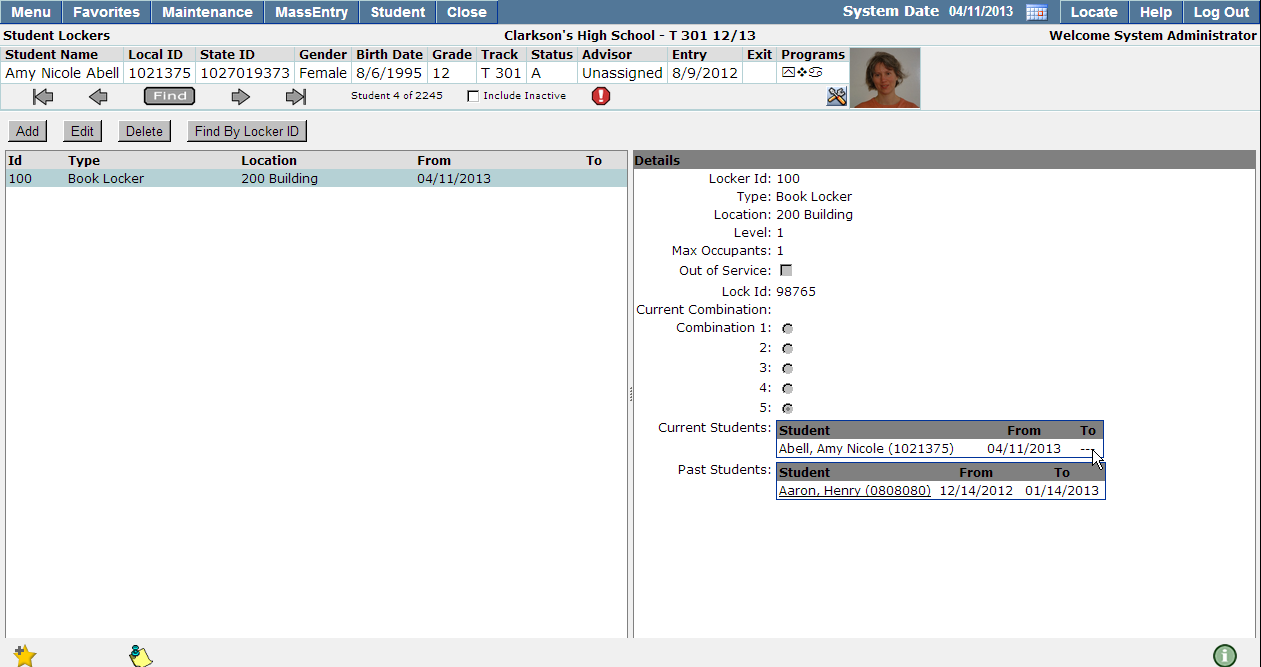
- Click on a locker to display locker details.
- Enter criteria in the drop down lists to filter the locker list to display only those lockers which should be displayed.
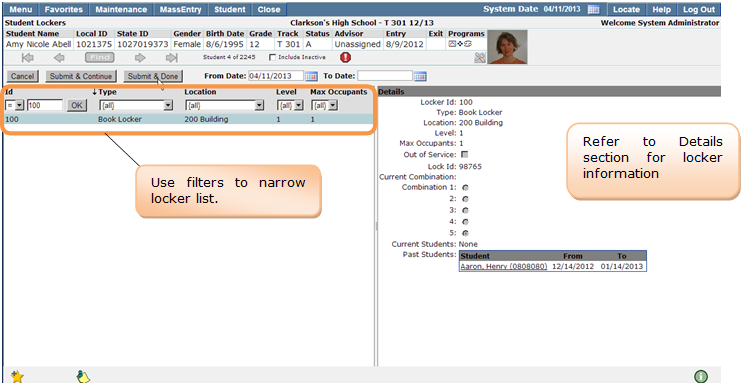
6. Once a locker selection has been made, click Submit & Continue to complete the assignment and continue adding locker assignments for the selected student or click Submit & Done.
7. The student locker assignment will be displayed in the Details section.
To edit student locker assignment details:
- Search for the student whose locker assignment you would like to edit using the student banner, or the Find By Locker ID features.
- If the student has multiple locker assignments, click on the locker assignment that you would like to edit.
- Once the locker assignment has been selected, click Edit.
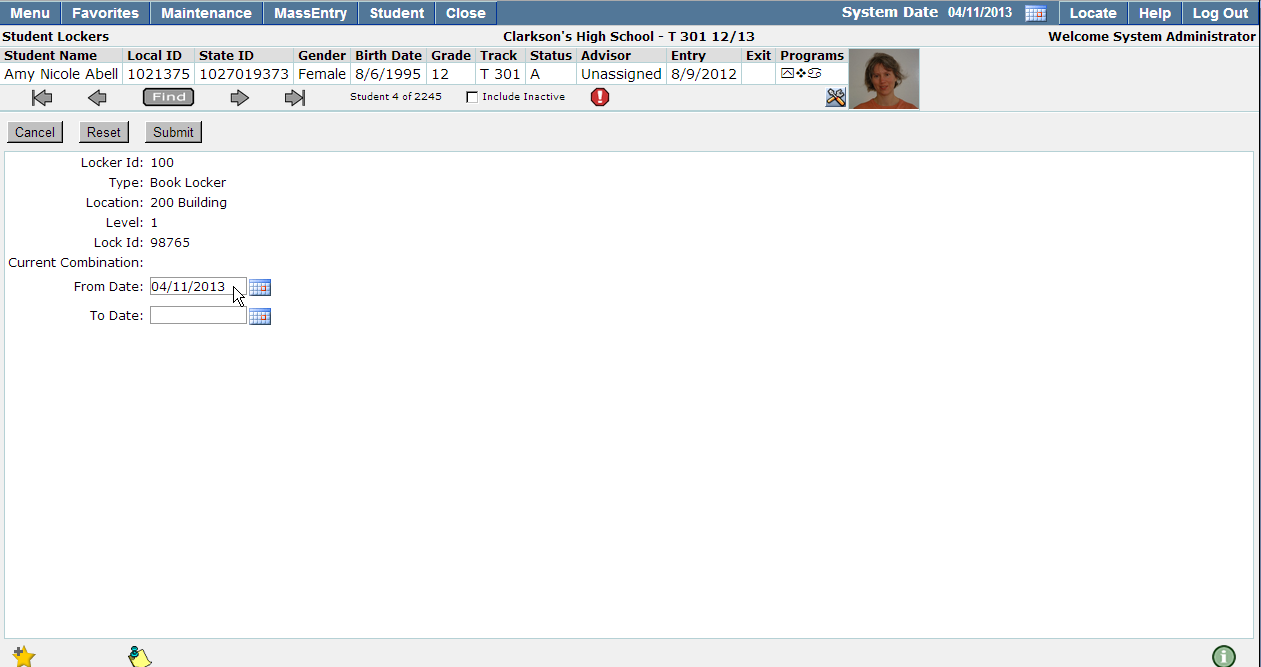
Edit the locker assignment dates using calendar icons which are located to the right of the date field, or enter a date using a DD/MM/YYYY format.
Once all details of the locker assignment are correct, click Submit. To undo any changes made since the last save, click Reset. Or, click Cancel to return to the previous screen.
Find By Locker ID
The ‘Find By Locker ID’ feature may be used to search for lockers when assignment details are not known.
- Click Find By Locker ID
- Enter locker details in the Type, Location, and/or Locker ID fields.
- Click Find
- A list of lockers will be displayed based on your entries.
- Single click the locker you would like to edit. Any students assigned to the locker will be displayed.
To delete student locker assignments:
- Search for the locker assignment using the student banner, or the Find by Locker ID option.
- Select the locker assignment you would like to delete by high lighting it in the locker listing.
- Click Delete
- A confirmation window will appear. Click OK to continue, or Cancel to return to the previous screen.
