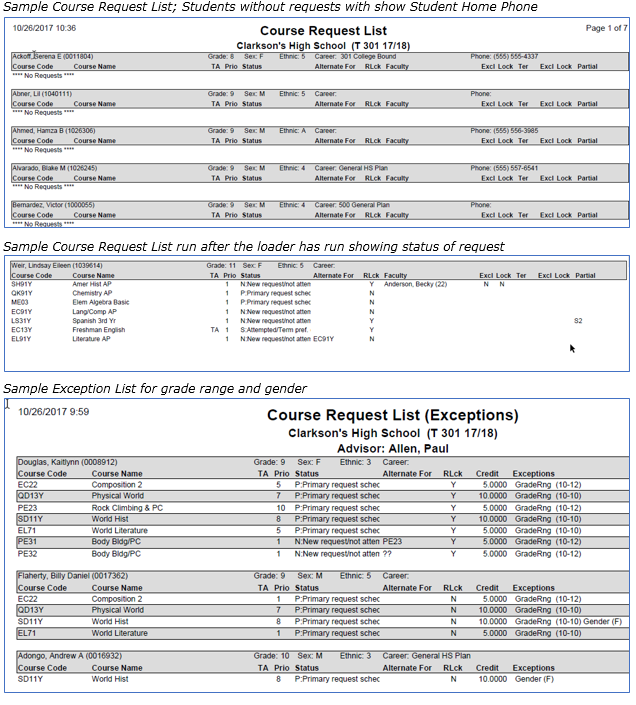
The Course Request List Report prints a list of course requests by student including team requests. The report is used in the scheduling process to list students and their requests, students who have no requests and students who have too many or too few requests.
While details specific to this report will follow, users can find general information about reports within the Reports documentation.
Course Request List Report is located within Reports in the Schedule menu in Q.
Report Options
The Course Request Report may be generated in two different ways:
- The Course Request List provides a list of students, optionally grouped by advisor, with a sub list of the courses requested by each student.
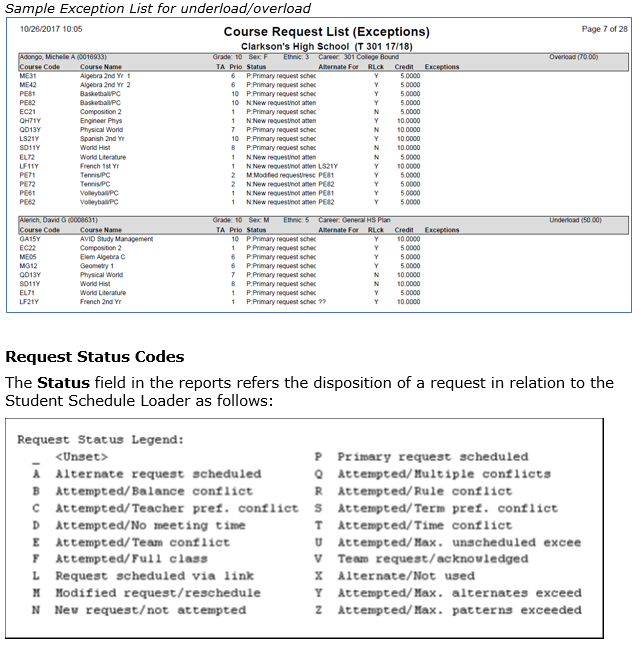
- The Exception Listprovides a similar list of students as above, but identifies the requests that violate the rules that are being checked such as:
- Requested courses that are not available in the student’s grade level
- Requests that violate the gender constraints
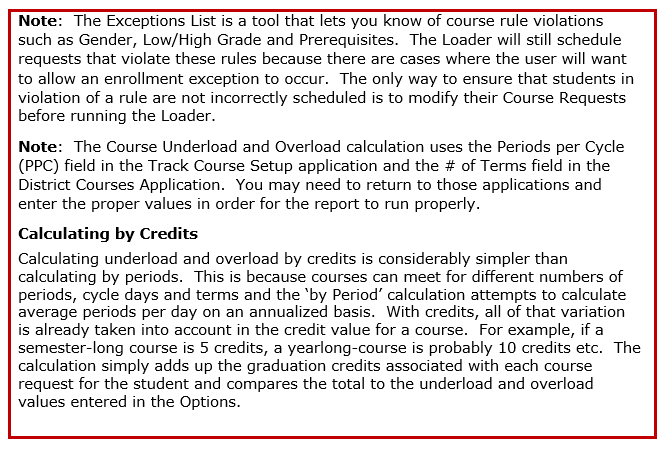
- Course underload (too few requests)
- Course overload (too many requests)
- A sub-option allows the user to determine the method of calculation of underload and overload; by periods or by credits
- Unfulfilled prerequisite courses
The Q Course Request List Report offers the following options:
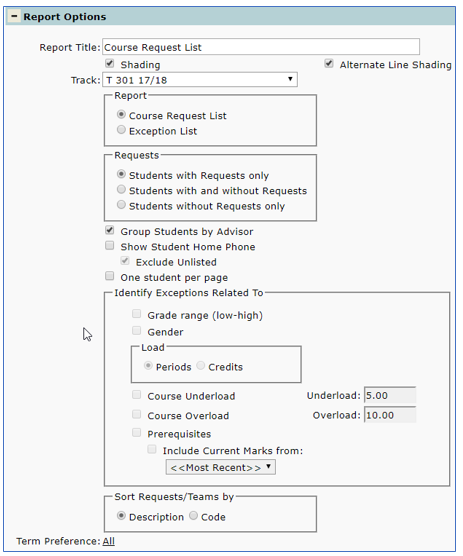
- Report Title—The default title of the report is Course Request List but may be edited by the user
- Shading—Select to include shading on the report
- Alternate Line Shading—Check box to enable shading on alternate rows
- Track—Select the desired Track from drop down list
- Report—Select which type of report to produce
- Course Request List—This report provides a list of students with sub lists of Course Requests for each student
- Exception List—This report provides a similar list of students as above but with the requested courses that violate the rules that are being checked. When Exception List is selected, the Identify Exceptions Related To option group will be enabled. Continue by selecting the options that define which rules will be checked by the Exception List
- Requests—Select one option for inclusion/exclusion of student records based on their status, as follows:
- Students with Requests Only
- Students with and without Requests
- Students without Requests only
- Group Students by Advisor—This option causes students to be grouped by their assigned advisor. After this point they are sorted according to the sort order defined in the sort options
- Show Student Home Phone—Select this option to include each student’s phone number in the list
- Exclude Unlisted—Check this if you want to hide student phone numbers that are flagged as ‘unlisted’ in the Student Editor
- One Student Per Page—Check this option to print one student’s request list per page
- Identify Exceptions Related To—This option group is enabled when the Exception List option is selected as the Report Type. Check which type of exceptions to report:
- Grade range (low-high)—Reports course requests by students who are not in the required grade range of the course as defined in the District Courses application
- Gender—Reports course requests by students who are the wrong gender for a course offering as defined in the District Courses application
- Load—When Course Underload or Course Overload options are checked choose one of the following methods used to calculate course loads
- Periods
- Credits
- Course Underload—This option will check for students who do not have enough course requests. Enter the minimum number of requests required per student. If a student has too few requests the resulting schedule will have holes.
- Course Overload—This option will check for students who have too many requests. Enter the maximum number of request allowed per student. If students have more course requests than periods in the day the loader can take longer to run and possibly error out.
- Prerequisites—When this validation is turned on the validation process automatically checks the student’s Academic History records (transcript) for prerequisite courses. However, not all of a student’s marks are necessarily posted to their transcript. There may be occasions where a counselor would want to check if a student has any prerequisite courses in progress. In this case, check this option and select a marking term you want to audit in the drop down field
- Note: Course prerequisites must be defined for courses in the District Courses application in order to use this option
- Sort Requests/Teams by—Select the primary sorting field for request records reported:
- Description
- Code
- Term Preference—If desired a specific term may be selected from the Term Preference drop down list
Example Reports