
Q allows you to record Program History entry and exit records for multiple students at a time. These program records can encompass practically any type of program history record. Tracking program history records can aid in understanding how much time students spend participating in programs in and outside of the classroom.
There are many times when it is necessary to record program history records for a group of students en masse. Examples of this might include documenting who is participating in a specific program due to low test scores or documenting how many gifted students or accelerated learners spend time out of the classroom participating in a gifted program.
Mass Programs is located under the Programs menu in Q.
The Program Information section allows you to record detailed Program History information for multiple students.
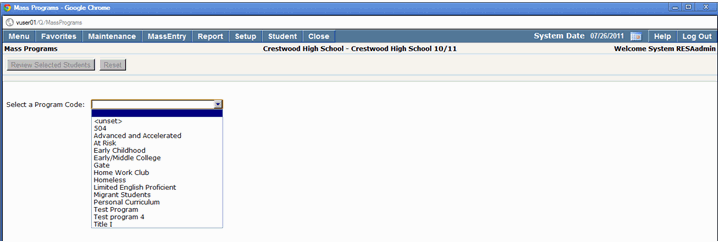
1. Select a Program Code: The system automatically defaults to a blank field. You must click to select a program code. The program code drop down list will include a variety of district defined programs.
Note:
The Program Code selected defines the options available in the Begin Reason field. After a program code is selected, the Mass Program entry data fields will display. You may then begin entering program history information for students.
2. Begin Date: The date can be entered in a MM/DD/YYYY format or click on the calendar icon to select the desired date.
3. Begin Reason: The options in this field will be filtered by the program you have selected to enter for students.
4. Optional / End Date and End Reason: If you are entering a program history record from which students have already been exited, enter the last date the students were enrolled in the program and the reason they were exited.
Note:
You should also enter an end date and end reason for existing records once a student has completed a program.
5. Optional / Status Date and Program Status: Enter the date and program status for the students for which you are entering a program history record. This status date should correspond with the program entry date and/or exit date.
6. Optional / Service Time: If the students are completing service time while being enrolled in a program enter the time units in the Service Time field. This will help you track how much time students could potentially spend out of class participating in specific programs.
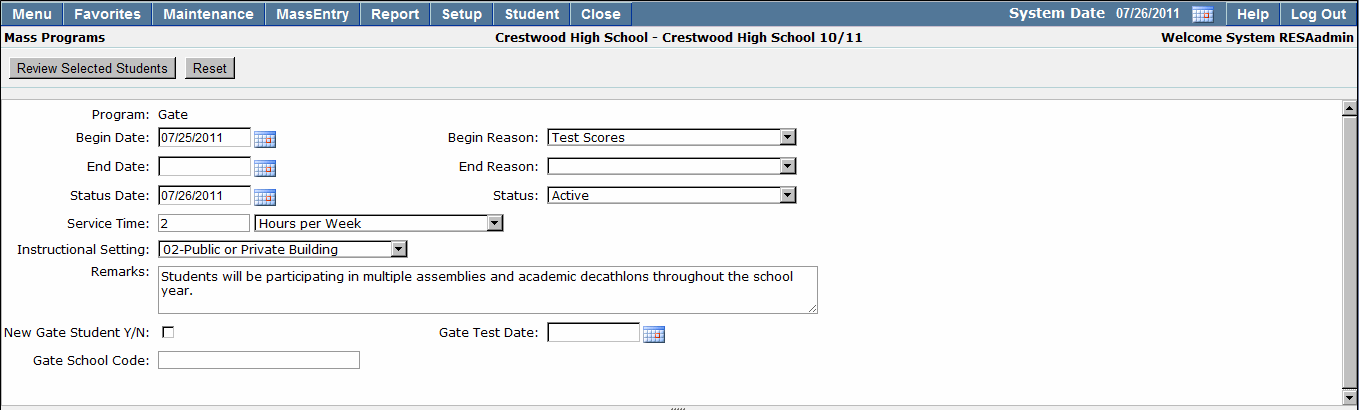
7. Optional / Instructional Setting: Enter the Instructional Setting where students will be participating in the program for which they are enrolled.
8. Optional / Remarks: Fill in the Remarks field with any details that might be helpful when reviewing the program later.
9. Optional / Extension fields: Extension fields may have been configured for data entry by your district. These fields will change depending on the program you are currently working in. Entering information in these fields will assist you in reviewing program history records in the future.
This application utilized Selection filters. Users can learn more about this in the Selection filters documentation.
The selection information section allows you to select which students should receive the program history record you have selected.
Note:
The system will only add the selected program records for students who are not currently enrolled in the program or any conflicting program.
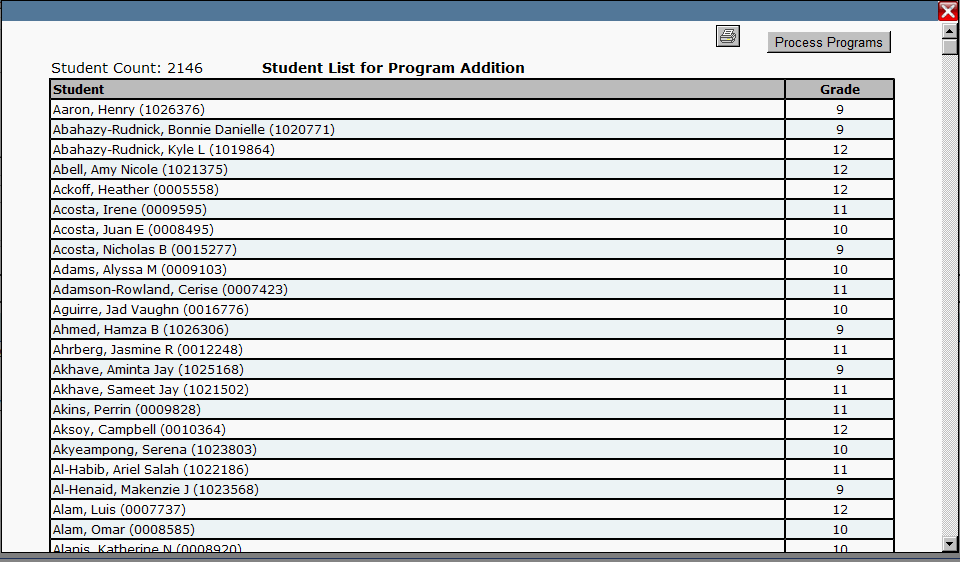
Prior to saving the program history record for students you should review the student selection to insure you have selected the correct students. To do this click on the Review Selected Students button at the top of the application. You will then be shown a list of all of the students you have selected.
After completing Steps 1 & 2 above you are ready to save the program history record for students.
1. Click on the Process Programs button at the top of the application. Depending on how many students you have selected you may see the message “Please wait…” at the top of the application.

2. When the program history records have been successfully saved, you will see a message at the top of the application that reads Processing Complete. When you see this message you have successfully completed your task.

