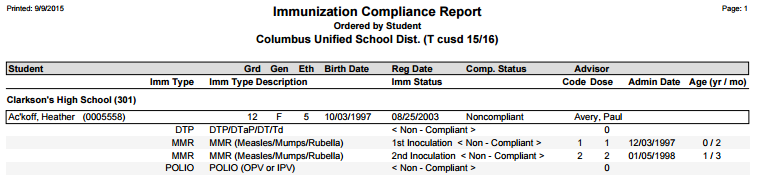
This report prints Immunization Compliance records for a defined set of students.
While details specific to this report will follow, users can find general information about reports within the Reports documentation.
Immunization Compliance Report is located within Reports in the Health menu in Q..
Report Options
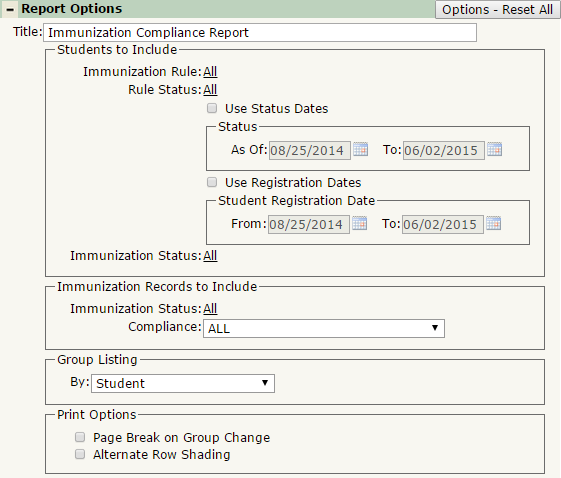
The Q Immunizations Compliance Report offers the following report options:
- Title: Displays at the top of the printed report. Rename here if necessary.
- Students to Include
- Immunization Rule: Select an Immunization Rule to filter the report by. Defaulted to ALL.
- Rule Status: Select a Rule Status to filter the report by. Defaulted to ALL.
- Use Status Dates: Used in conjunction with the Rule Status filter, if checked, the report will return students that have a status set between defined set of dates. For example: You can return only students that became compliant between the beginning of the school year and today.
- Use Registration Dates: If checked, the report will only return students that have registration dates between the selected From and To dates. Default dates are from the beginning of the track to today (system date).
- Immunization Status: Select an Immunization Status to filter the report for students that have the selected status. Only students that have the selected Immunization Status will appear on the report.
- Immunization Records to Include
- Immunization Status: Select the Immunization status(es) that you’d like to appear in the report. Only the selected Immunization Statuses will be displayed.
- Compliance: Select from ALL, Only Compliant, or Only Non-Compliant Immunization Types to include in the report.
- Group Listing by: Choose between Student, Immunization Rule, and Rule Status. The report will group students based on this selection.
- Print Options
- Page Break on Group Change: If checked, the report will jump to a new page when the group changes. This only takes effect if you’ve selected something in the Group Listing by section.
- Alternate Row Shading: If checked, the report will print shading between each section.
Example Reports
Report run from a school track with default settings:
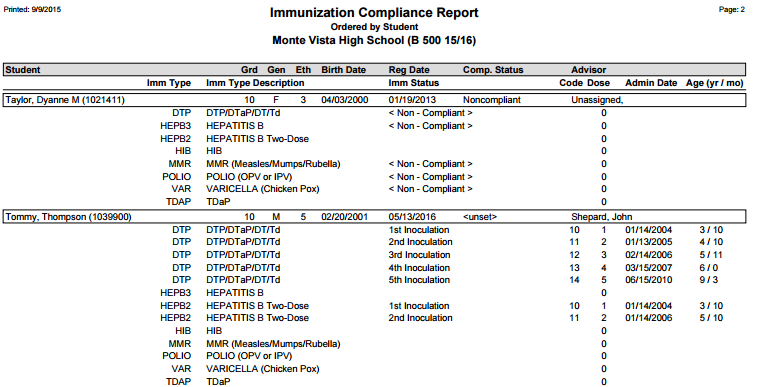
Report run from a school track with Alternate Row Shading ON and for only Non-Compliant Immunization Records: