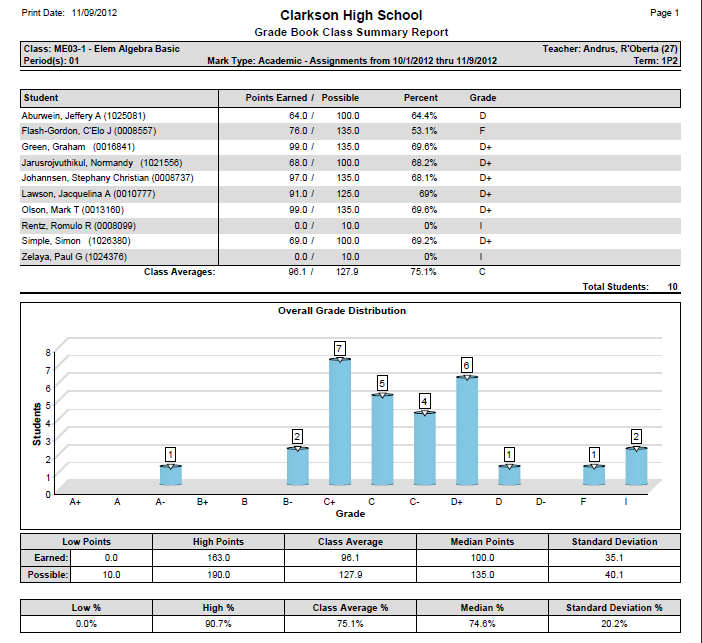
The Grade Book Class Summary report prints students’ scores for a selected Class.
While details specific to this report will follow, users can find general information about reports within the Reports documentation.
Grade Book Class Summary Report is located within Reports in the Marks menu in Q.
The Grade Book Class Summary report provides the following options: 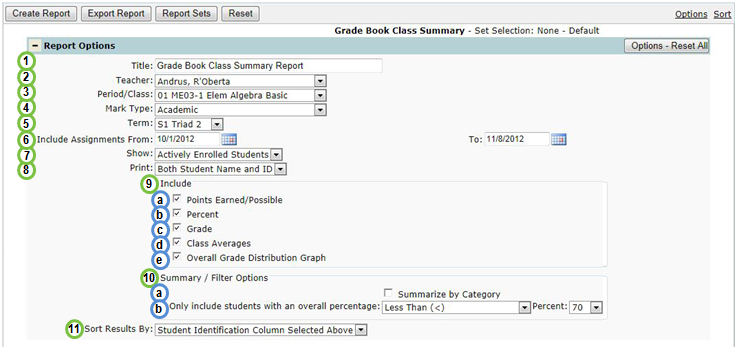
1. Title - include a custom title or leave at its default title.
2. Teacher - select a desired teacher. NOTE: Only teachers who have set up their gradebook will be available.
3. Period/Class - select all classes or a desired class.
4. Mark Type - from the selected class, select the desired Mark Type thtat will be summarized on the report. NOTE: When < All Classes > is selected, a < Default Mark Type > is the only option available.
5. Term - select a term.
6. Include Assignments From and To Dates: upon selecting a term, the date range will auto-populate with the term begin and end dates. For a custom date range, manually enter or select a date range of Assignments to be reported.
7. Show - select All Students scheduled in class or Actively Enrolled Students.
8. Print - select how student(s) will be identified. By default, both the Student Name and ID# will be printed. For confidentiality puposes, students can alternatively be identified by ID or Row Number.
9. Includable fields for the selected Class(es):
- Points Earned/Possible - points earned and possible for each assignment.
- Percent - student's percentage.
- Grade - student's grade received.
- Class Averages - display class averages.
- Overall Grade Distribution Graph - grade distribution bar char and statistical results such as low & high scores, mean and standard deviation for selected class.
10. Summary / Filter Options:
- Summary By Category - group by assignment categories and display category specific included fields. NOTE: When selected, the Only include students with an overall percentage option is replaced with Only include students with a category percentage.

11. Sort Results By - sort by either the Print option selected or by the student's overall class/category percentage.
Grade Book Class Summary Report