
This report differs from the Mailing Labels in that it uses Household addresses to generate labels instead of individual student records.
While details specific to this report will follow, users can find general information about reports within the Reports documentation.
Household Mailing Labels is located within Reports in the Enrollment menu in Q.
Report Options
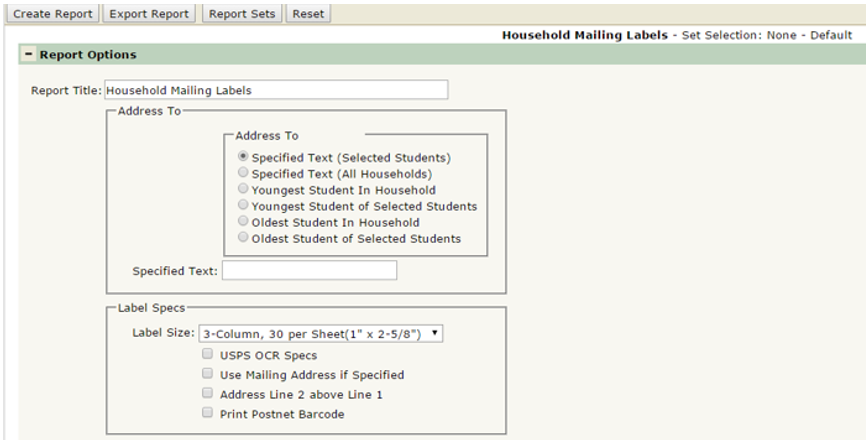
- Report Title: the report title defaults to ‘Household Mailing Labels’. This title can be edited and a user-defined title can be entered.
- Address To:
- Specified Text (Selected Students) – when this option is selected, the salutation entered in the Specified Text field will appear on the first line of the household label. Labels will be addressed to the households of the selected students in the Student Filter only.
- Specified Text (All Households) – when this option is selected, the salutation entered in the Specified Text field will appear on the first line of the household label. Labels will be created for all households in the database, whether or not they have students assigned to them. When this option is selected, you cannot select students in the student filter.
- Youngest Student In Household – When this option is selected, only households in the logged in school will be retrieved and the first line of the label will contain the name of the youngest student in the household. If the youngest student of a household is not enrolled in the logged in school or among the students selected in the Student filter, then no label will be created for that household (unless the Youngest of Selected Students option is checked).
- Youngest Student of Selected Students – When this option is checked a household label will always be created for a household, even if the youngest student in that household is not enrolled in the logged in school or among the students selected in the Student filter. When this is the case the label will be created instead for the youngest student of a household among those selected in the query.
- Oldest Student In Household – When this option is selected, only households in the logged in school will be retrieved and the first line of the label will contain the name of the oldest student in the household. If the oldest student of a household is not enrolled in the logged on school or among the students selected in the Student filter, then no label will be created for that household (unless the Oldest of Selected Students option is checked).
- Oldest Student of Selected Students - When this option is checked a household label will always be created for a household, even if the oldest student in that household is not enrolled in the logged in school or among the students selected in the Student filter. When this is the case the label will be created instead for the oldest student of a household among those selected in the query.
- Specified Text: This is what will appear on the first line of the mailing labels when 'Specified Text' radio buttons are selected.
- Label Specs:
- Label Size – select which size labels you wish to print
- USPS OCR Specs – Checking this field will automatically convert the address labels to a format preferred by the United States Post Office for scanning with an optical character reader: all caps, no punctuation, etc.
- Use Mailing Address is Specified – When checked the report will print the Household Mailing Address if one is specified in the database.
- Address Line 2 above Line 1 – The United States Post Office will sometimes offer special bulk mailing rates if the unit number comes before the street address. Checking this option will reverse the default order of Address Line 1 and Line 2 on the label to fulfill this requirement.
- Print Postnet Barcode – Select this option to print the PostNet Barcode on each label (ZipCode scan).
Example Reports
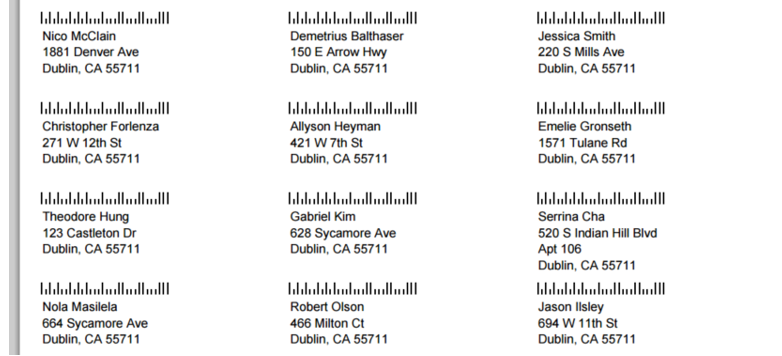
(Sample Household Mailing Labels report with print PostNet Barcode turned ON)
Videos
