
Selection Filters are used throughout multiple Q applications to define which students, classes, or groups should be included in a process or report.
Selections provide filtering options that allow users to narrow results to a specific subset of records based on defined criteria such as grade level, track, group, or teacher.
Example of a Student Selection Filter:
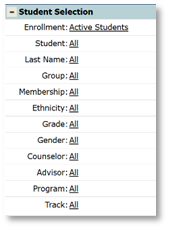
Selections can be accessed by clicking the + sign next to Selections, or by selecting the Selections link on the upper right-hand side of the screen within any supported application.
Individual filters can be reset by clicking the Reset arrow next to the filter name or by clicking Reset within the drop-down menu.

To reset all filters, click Filter Reset All in the upper right-hand corner of the screen.
Preference Settings
In some applications, such as Mass Activities and Mass Visits, users may choose to filter by student or class: click the Preferences icon, at the bottom of the Mass Activities screen, select the desired filter (if available), and click Submit to save the choice.
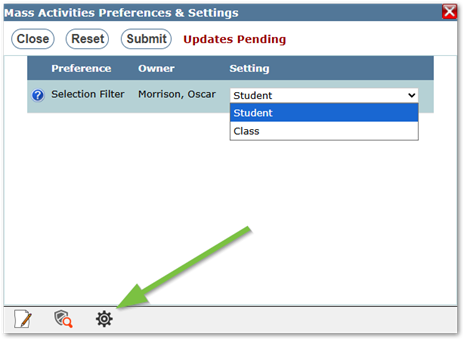
Notes:
- Filters can be combined to narrow or broaden results as needed.
- Some filters and lists are dependent on user permissions.
- Selections persist for the duration of the current session.
- Changes to one filter may affect the available options in others.
Student selection filters are used to define which students are included in a report, process, or batch operation.
Filters below are listed alphabetically and may appear in a different order within applications.
- Advisor– Filters by assigned advisor.
- If advisors are assigned to students, the list displays available advisors for selection.
- Counselor– Filters by assigned counselor.
- Only staff flagged as Counselor in the system will appear in the Counselor list.
- Enrollment – Typically defaults to Active Students. Additional options include:
- All Students This Year
- Inactive Students
- Exclude Part-Time Students
- Ethnicity – Filters by ethnicity as defined in the Student Editor.
- Gender – Filters by gender.
- Grade– Filters by grade level.
- Multiple grade levels can be selected as needed.
- Group – Filters by static or dynamic student groups created in the Group Editor.
- Last Name– Filters by a range of last names.
- Enter name ranges in the From and To fields.
- Membership – Filters by membership sets as defined in the Student Editor.
- Program– Filters by the program in which the student is currently enrolled.
- The program list displays only programs that the user has permission to view.
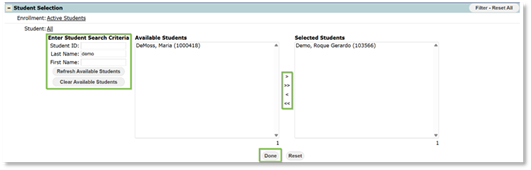
- Student: Selects individual or multiple students by Student ID, Last Name, or First Name.
- Click the Student link to open the selection box
- Enter identifying information (ID or name).
- Click Refresh Available Students to display a list of available students.
- To move a student to the Selected Students list, double-click the name or highlight it and click the single right-arrow button.
- Click the double right-arrow button to move all available students at once.
- To remove students, use the single or double left-arrow buttons.
- Click Done when all selections have been made.
- Track– Defaults to all tracks of the logged-in school.
- Use the track filter to limit selections to specific tracks.
- Only tracks that the user has permission to access are displayed.
Class selection filters define which teachers, classes, or course groups are included in a report or batch process.
These filters are cascading. Selecting one filter (for example, Teacher) may change the options available in others (for example, Class).
Filters below are listed alphabetically and may appear in a different order within applications.
- Class – Filters by specific class.
- If a teacher is selected, only that teacher’s classes are displayed.
- Course – Filters by specific course.
- Course Group – Filters by static or dynamic course groups created in the Group Editor.
- Cycle Day – Filters by specific cycle day.
- Department – Filters by department.
- Period – Filters by specific period.
- Student – Filters by individual student name.
- Subject – Filters by subject.
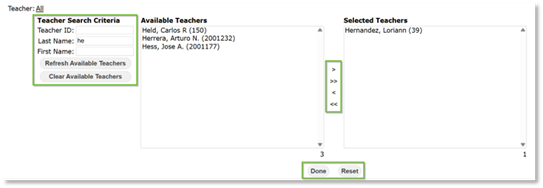
- Teacher – Filters by teacher name or ID.
- Click the Teacher link to open the selection box.
- Enter identifying information (ID or name).
- Click Refresh Available Teachers to display a list of available teachers.
- Move selections between Available and Selected lists using the single or double arrow buttons.
- Click Done when selections are complete.
- Teacher Group – Filters by static or dynamic teacher groups created in the Group Editor.
- Term – Filters by specific term.
- Track – Filters by track.
- When logged in to a district track, all school tracks within the district are available.
- When logged in to a specific school, only tracks associated with that school are displayed.
