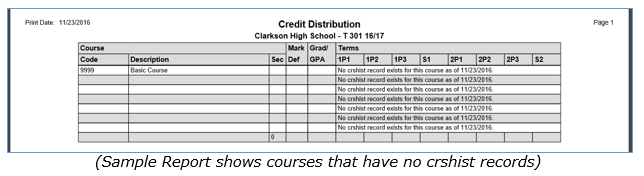
The Credit Distribution Report is an important component of Marks Processing. Schools should use this report to verify that all sections of all courses in the master schedule will use the correct credit/unit values in computing current term GPAs, and also that the correct credits/units will be posted to student academic history (Transcripts) and (Graduation Requirements).
When this report is run, the Mark Definitions for each section in the Master Schedule will be compared with the (course) credit/unit values in the District Courses application. The results of this process appear on the report. By checking the report carefully, section by section, users can insure that the Marks Processing application will apply the correct credit/unit values when computing GPAs, posting to history and graduation requirements.
This report should be run prior to scheduling any students so corrections can be made without un-scheduling students.
In most cases, every section of a course should show the same credit/unit values for every Mark Definition. The report can thus be used efficiently to highlight any inconsistencies in the setup of any individual section in the Master Schedule.
Once any anomalies in the setup of any particular course section have been spotted and analyzed, adjustments can be made to the section as needed. The school can then be sure that, when Marks are entered and when the Marks Processing application is run, the correct credit/unit values will be used in calculations.
While details specific to this report will follow, users can find general information about reports within the Reports documentation.
Credit Distribution Report is located within Reports in the Marks menu in Q.
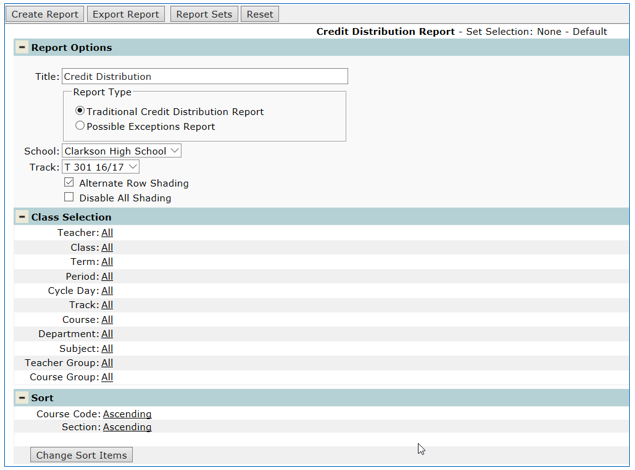
- Title: A user-defined title can be entered for the report.
- Report Type: Traditional Credit Distribution Report will return all courses and Possible Exceptions Report attempts to only bring back courses potentially scheduled with the wrong term resulting in credits distributed incorrectly.
Note: Possible Exceptions uses the same procedure used by the Master Schedule Manager - Schedule Repair.
- School: Select the school (Options if run from District) for which the user wants to run the report.
- Track: Select the track for which the user wants to run the report.
- Alternate Row Shading: Turns on shading for every other row.
- Disable All Shading: Turns all shading off for the entire report including headers and alternate shading on rows
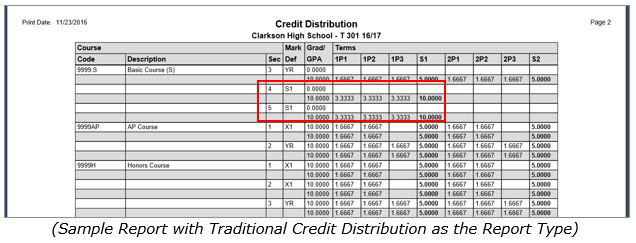
Above report shows all courses and the highlighted sections 4 & 5 have been scheduled for Semester 1 which will award all 10.00 credits at the completion of semester 1. These sections should have been scheduled with a term for yearlong.
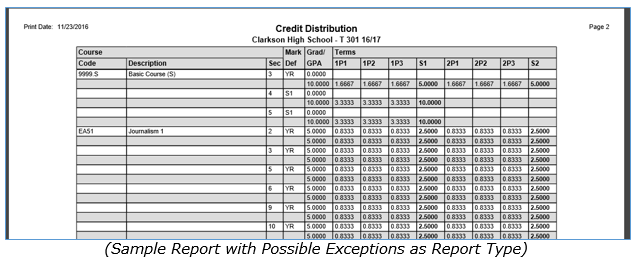
Above report shows ONLY courses that reflect errors in the term the sections were scheduled for and how the credits will be distributed.