The Food Service Accounts application is a tool for viewing and managing consumer transaction records, account settings, and free/reduced/paid status records. Consumer account types are Student, Staff, and Patrons and records are also maintained for cash and visitor transactions. All changes made to transaction records are recorded in security logs and using the Security feature allow users to audit changes made to food service transaction records after they are initially recorded.
Food Service Accounts is located under the Food Service PoS menu in Q.
As with all Q Apps, the Application permission controls access to the app, with the Administrator permission controlling the administrative processes.
Access to features in Food Service Accounts is governed by Permissions and Role Restrictions in the Q Permissions Editor. All the available permissions are listed below.
Food Service POS: Food Service Accounts [Administrator]
Food Service POS: Food Service Accounts [Application]
Food Service POS: Food Service Accounts [Cash Tab]
Food Service POS: Food Service Accounts [Cash Transactions]
Food Service POS: Food Service Accounts [Patron Eligibility]
Food Service POS: Food Service Accounts [Patron Settings]
Food Service POS: Food Service Accounts [Patron Tab]
Food Service POS: Food Service Accounts [Patron Transactions]
Food Service POS: Food Service Accounts [Security]
Food Service POS: Food Service Accounts [Staff Settings Tab]
Food Service POS: Food Service Accounts [Staff Tab]
Food Service POS: Food Service Accounts [Staff Transactions]
Food Service POS: Food Service Accounts [Student Eligibility]
Food Service POS: Food Service Accounts [Student Settings Tab]
Food Service POS: Food Service Accounts [Student Tab]
Food Service POS: Food Service Accounts [Student Transactions Tab]
Food Service POS: Food Service Accounts [Student Documents Tab]
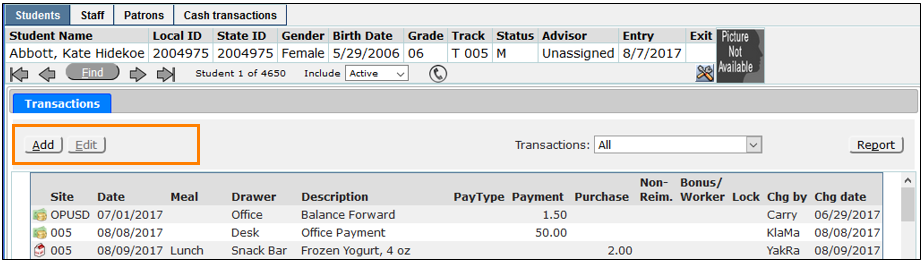
Because of the many different tabs and options available, the best way to describe how permissions work in this application is to define the tabs at the top as the Main Tabs.

And the tabs below as the Sub Tabs

In the example below, the user has access to the main tabs Students and Account Reconciliation and the sub tabs Eligibility, Transactions, and Account Settings.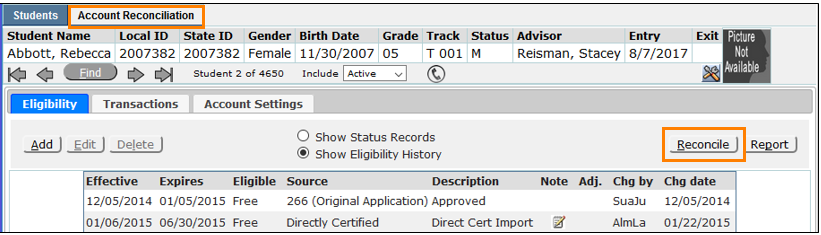
These are the permissions for this example:
- Food Service POS: Food Service Accounts [Application]
- Food Service POS: Food Service Accounts [Student Tab]
- Food Service POS: Food Service Accounts [Student Eligibility]
- Food Service POS: Food Service Accounts [Student Transactions Tab]
- Food Service POS: Food Service Accounts [Student Settings Tab]
- Food Service POS: Food Service Accounts [Administrator]
(For access to the Reconcile features)
General Permission Guidelines:
- A Main tab permission must be granted to have access to any of the sub tabs. Likewise, to remove access to a main tab and all sub tabs, just remove the main tab permission.
- To remove a sub tab, remove its permission.
In the example below the user needs to be able to handle transactions for all consumers. They don’t need to have access to Eligibility or Settings.
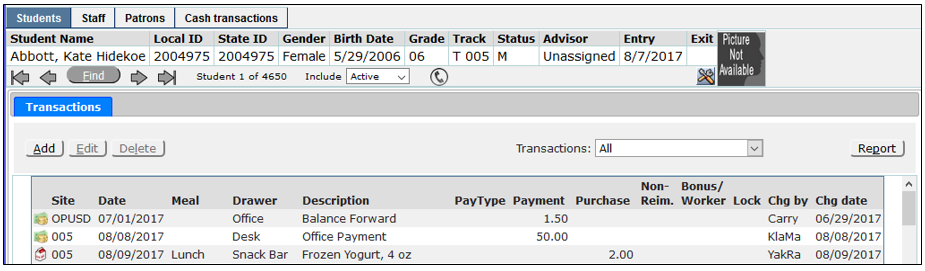 These are the permissions for this example:
- Food Service POS: Food Service Accounts [Application]
- Food Service POS: Food Service Accounts [Cash Tab]
- Food Service POS: Food Service Accounts [Cash Transactions]
- Food Service POS: Food Service Accounts [Patron Tab]
- Food Service POS: Food Service Accounts [Patron Transactions]
- Food Service POS: Food Service Accounts [Staff Tab]
- Food Service POS: Food Service Accounts [Staff Transactions]
- Food Service POS: Food Service Accounts [Student Tab]
- Food Service POS: Food Service Accounts [Student Transactions Tab]
Role restrictions are available for all the Food Service Accounts permissions. Use these to ‘fine tune’ the permissions.
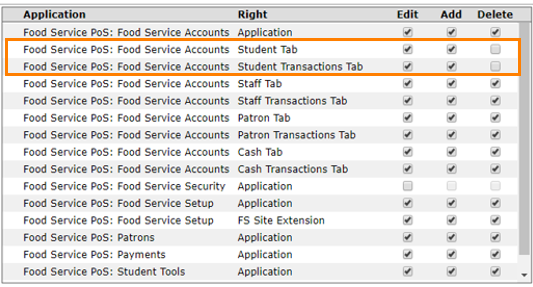
For example, to remove the delete button from the transaction sub tab, uncheck Delete from the Student Tab and Student Transaction Tab Rights.
The application opens with 5 different tab choices:
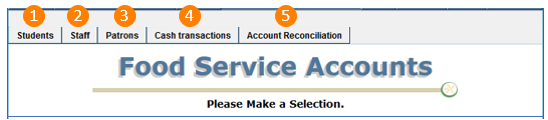
Students
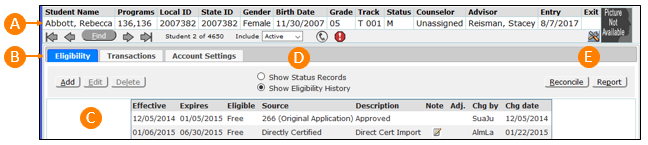
A. Food Service Accounts is a Student Banner application so it includes all the functionality of other Student Banner applications: navigation through Find Filters, Arrow Keys, Group By, Active/Inactive/Both views and the ability to configure the banner components using the banner tools.
In addition, at the bottom of the screen are: Favorites, Sticky notes, Application History and Widgets Subscriptions buttons.
B. By default, the Student tab opens to the Eligibility Tab, however when browsing through records using the arrow keys, the application will stay on whichever tab is currently selected. For example, to review the transaction records of a group of students the user would click the Students Tab, find and group the students, click the Transaction Tab, and then go from student to student.
Note:
All settings used in any of the sub tabs will stay in place when browsing through students until the application session is ended.
C. When the Eligibility Tab is open, the student’s Free/Reduced Eligibility records are displayed in ascending date order and can be resorted by clicking the various column headers.
Click Add to create a new Eligibility record.
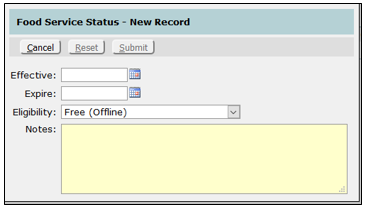
- Enter Effective and Expire Dates.
- Choose the Eligibility from the drop-down list.
- Add notes as needed.
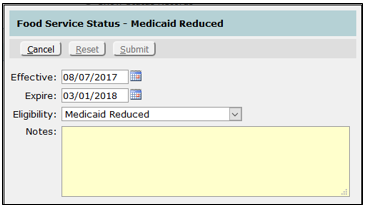
Highlight an eligibility record and click Edit to change it.
- Enter the new information in the boxes provided.
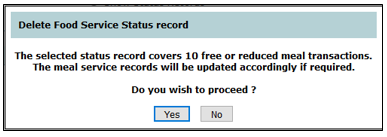
Highlight an eligibility record and click Delete to remove it.
- When meal transactions are affected, a message will appear with details.
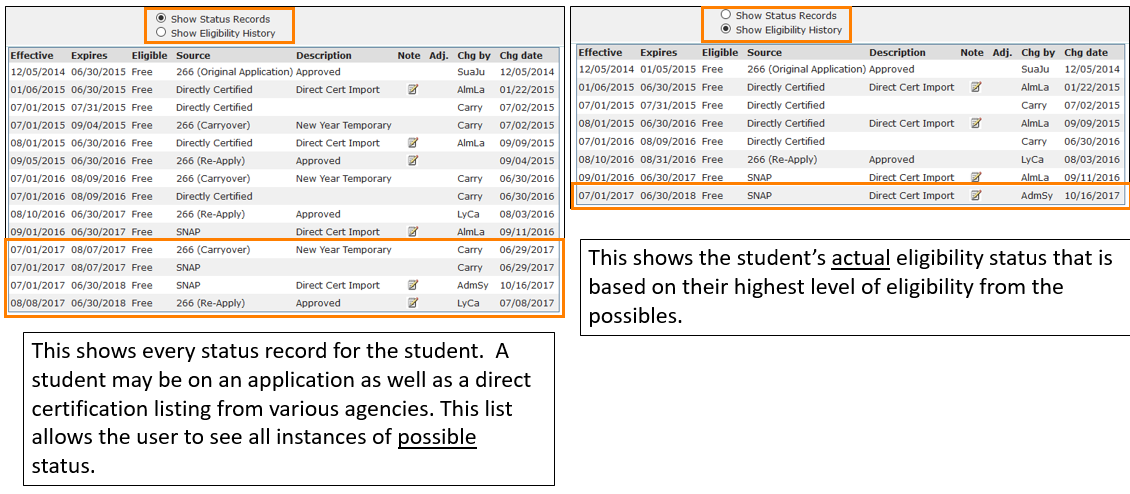
D. By default, the Eligibility Tab opens with Show Eligibility History selected. This listing is the record of the actual eligibilities for the student.
The difference between Show Status Records and Show Eligibility History
- Reconcile and Report
Reconcile
- When the Reconcile button is clicked, the system checks the student’s eligibility status and dates and all their meal transactions to make sure the eligibility is correctly applied to each meal.
- If errors exist, a message will describe the adjustment needed. Click Yes and the update will be confirmed.
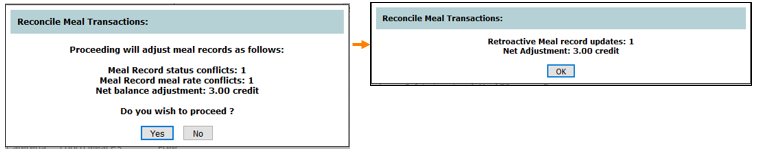
- If no errors are found, a verification message appears.
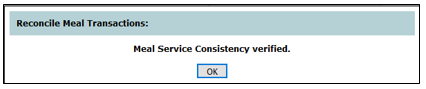
Report
- Click Report and select the date range.
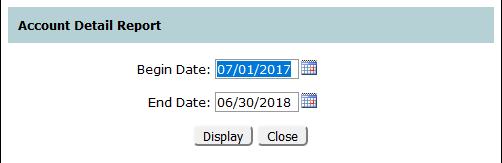
- The Student Account Detail Report contains information about all of the student’s transactions, eligibilities, and balances.
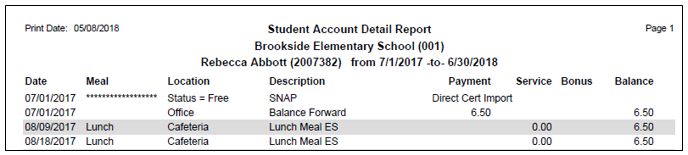
F. By default, the List Options will show all Eligibility History in a list from oldest to most recent. By clicking on the up arrow you can choose to show only current year’s eligibility history, last 2 years – 5 years, or all history. You can also choose to order a student’s eligibility records in ascending or descending order.
From the Transactions Tab users can manage and report on all food service transactions.
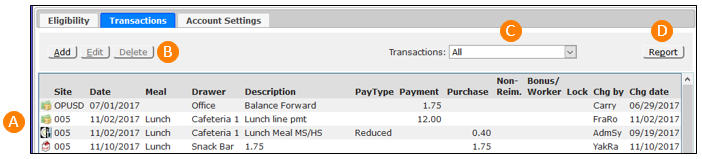
- A listing of all transactions in ascending order. To sort by any column just click the column header
- Add, Edit or Delete transactions.
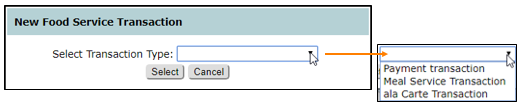
Click Add and select the Transaction Type.
- Payments
Adding or Editing Payments shows the same screen. Fill in or select the desired information and click Submit.
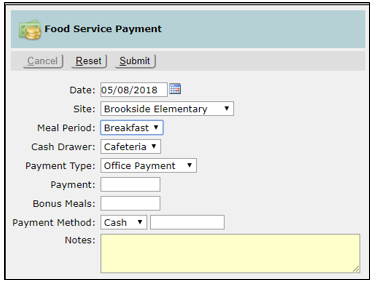
To delete a Payment, highlight the payment on the list and click Delete.

- Meals
Adding or Editing Meals shows the same screen. Fill in or select the desired information and click Submit.
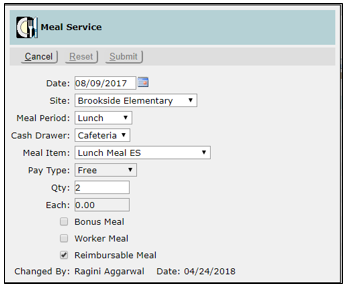
To delete a Meal Service, highlight the meal on the list and click Delete.

- Ala Carte
Adding or Editing Ala Carte items shows the same screen. Fill in or select the desired information and click Submit.
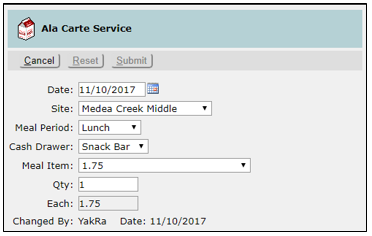
To delete an Ala Carte item, highlight the item on the list and click Delete.

C. The transaction list can be filtered by choosing the type from the drop-down menu. You can also choose to only view transaction records for this month, the last 2-6 months, or all transaction records.

D. Click Report to view the same Student Account Detail Report shown above.
The Transactions tab has an additional feature that may be used to view and audit changes made to food service transaction records after they are initially recorded. The security process logs changes whether made by food service applications or outside processes. Changes made to transactions in or by Food Service apps, including Account editing or Reconciliation, Cafeteria, Payments, Data Entry, Verification, Direct Certification and Student Merge are all captured in log files.
This feature is available to the user with the Food Service POS: Food Service Accounts [Security] permission and displays Security filters that allow the user to view changed or deleted transaction records.  In the example below, a check in the Deleted security filter shows a deleted transaction for this student.

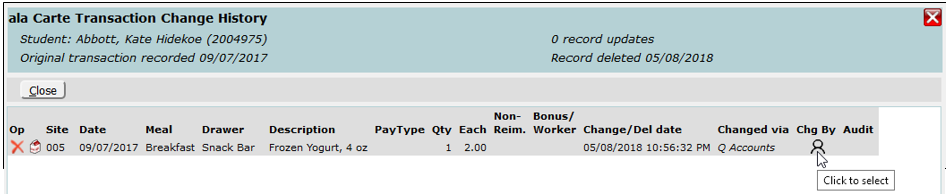
Click on the deleted record to show the Change History for that record. Change History shows the original transaction details, when it was deleted, and in what application (in this example, Q Accounts).
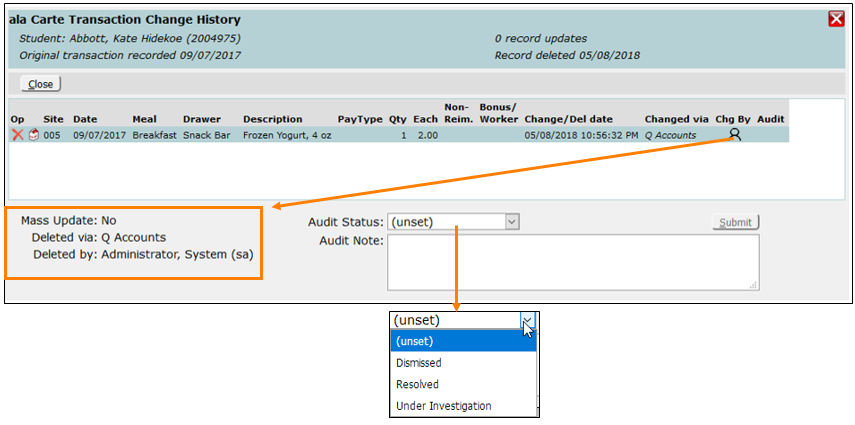
 Change History also shows the username of the person who deleted the record and allows administrators to use the Audit Status box drop down to assign a status (these can be customized in Lookup Codes, FS Security Status) and add Audit Notes as needed.
Resolved/Unresolved
The Resolved and Unresolved check boxes reveal transactions that have been changed. These flags are seen as additional columns to the far right of the transaction list. A number in the Green Check column indicates the number of changes that have been Resolved while a number in the Red Check column indicates the number of changes Unresolved. Transactions can be sorted by these columns by clicking on the column header.
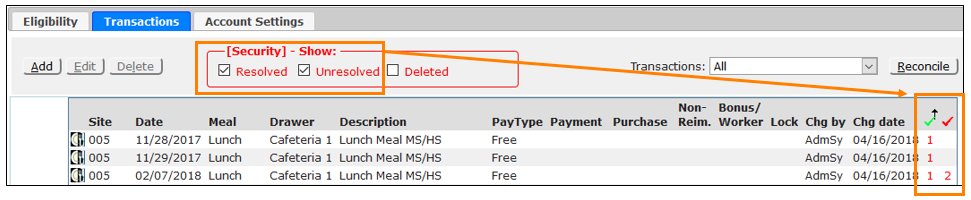
Green Check column is Resolved | Red Check column is Unresolved
Audit Status categories can be added/edited in Lookup Codes with the option of designating them as being resolved or unresolved.
 Changes to transactions are highlighted in yellow (as shown below).
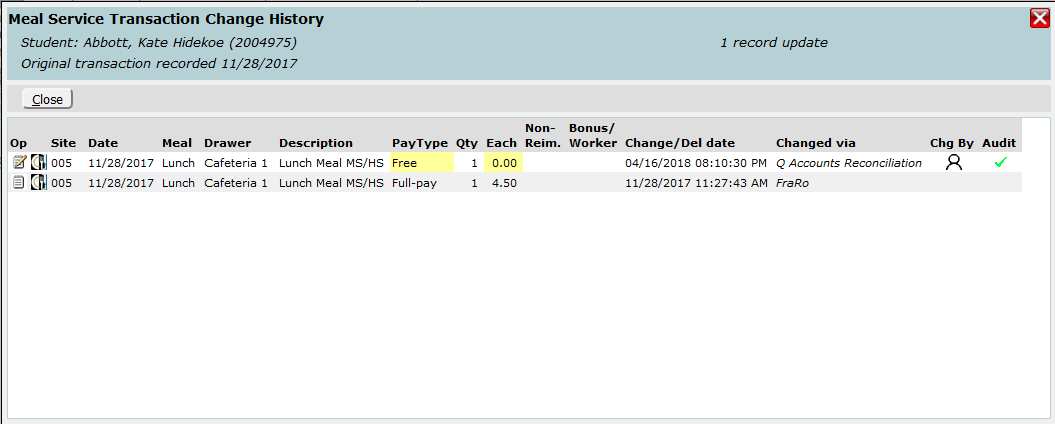
In the example above, the meal served was changed from Full Pay to Free, causing a change to the meal cost. Updated and deleted transactions are recorded with a time stamp and change method (this transaction was changed by the Q Accounts Reconciliation process).
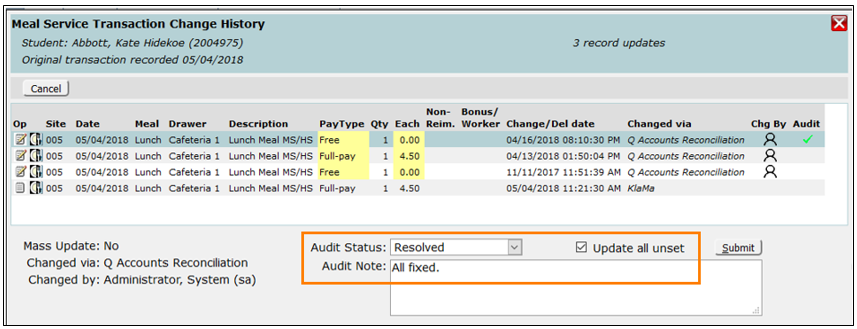
Any and all changes to transaction records are logged. The example above/below shows a single transaction changed in multiple events. Each event may be selected and audited individually, or a single audit may be recorded for all of the unset events by checking the Update all unset checkbox. When this is checked and the record is submitted, the contents of the Audit Status and Audit Note fields will be populated to all the lines of the audit history for this item that are unset.
Account settings can be created and used to set alerts, restrictions and create food service settings for all Food Service Accounts. Settings are primarily in effect in the Cafeteria application but are visible in other Food Service Applications

Add, Edit or Delete Settings
Adding or Editing Settings shows the same screen. Select Alert, Restriction, or Setting. Each item triggers different Setting Types and Settings and Values.
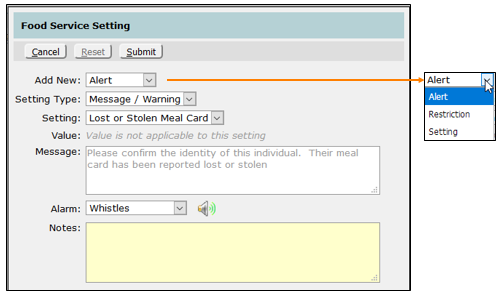
See Food Service Setup for a complete listing of all the available Cafeteria Policies.
Letters produced and printed from Food Service Notices (based on applications), Verification, and Direct Certification will be automatically stored in the Documents tab for future printing. Clicking on the paper icon will open the document.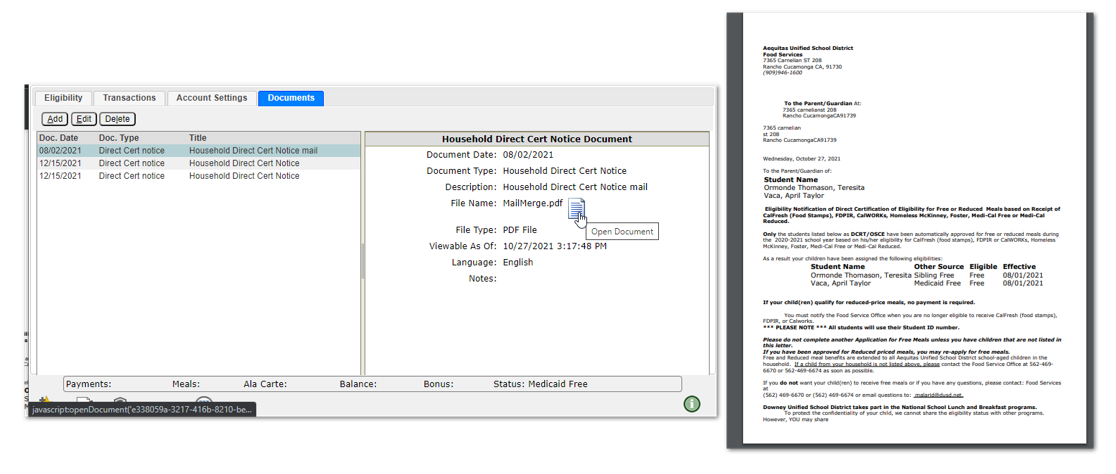
Districts may enable other Food Service documents to be archived and maintained as Student Documents by adding additional Archive Document Types in the Lookup Code Editor using the ‘FS Archive Document Types’ Lookup Code Category.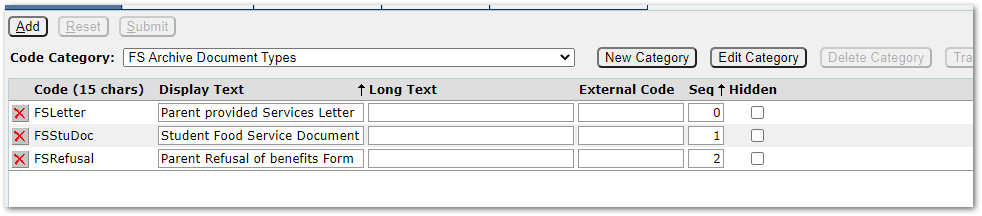
Click Add to add a new document or Edit to edit an existing document. Documents added by the system may not be edited or deleted. 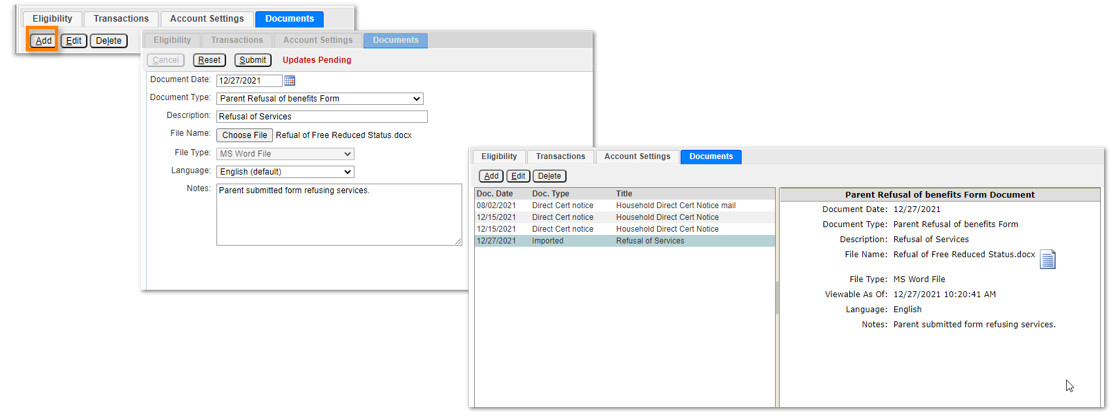
For more information about managing documents for students please see our documentation on Student Documents.
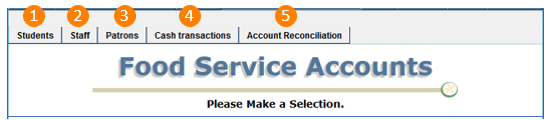
- Staff – The menus, functions and screens shown above for the Student Accounts are the same for Staff except that staff members do not have the Eligibility Tab.
- Patrons – The menus, functions and screens shown above for the Student Accounts are the same for Patrons.
- Cash Transactions – this tab allows the user to view and manage cash transactions.
Choose the Transaction Date and Consumer Type to view.
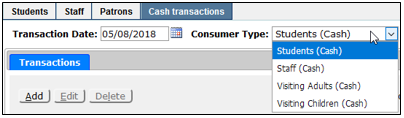
The Transactions menus, functions and screens are the same as described above.

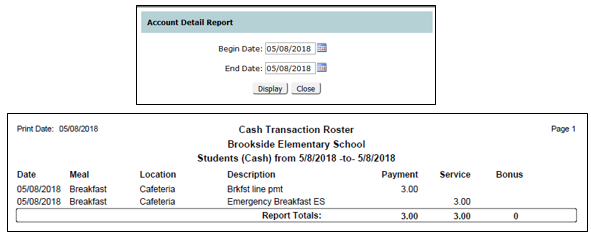
The Report button generates a Cash Transaction Roster based on a selected date range.
5. Account Reconciliation
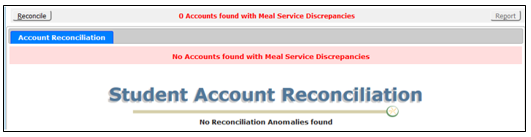
The Account Reconciliation tab is only available to those with the Food Service PoS: Food Service Accounts [Administrator] permission and allows the user to mass reconcile accounts for the site or district wide.
When the tab is opened, the reconciliation process automatically begins to analyze student accounts and transactions and will show a progress bar with discrepancies found.
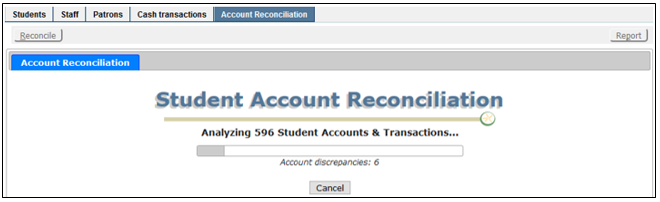
If there is a need to interrupt this process, it can be stopped by clicking the Cancel button and the application with show how many records it has evaluated and those can still be selected for reconciliation.

When the analysis is completed, a summary of findings will show in the header.
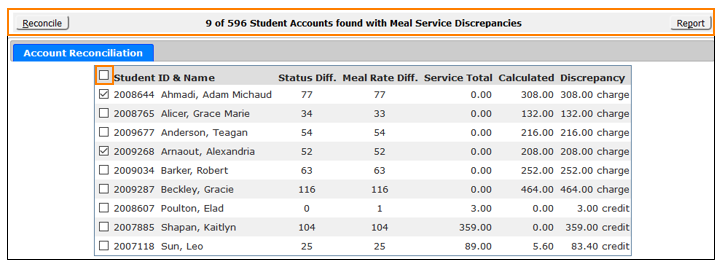
Check the box for individual students or select all by clicking the top checkbox in the header. As soon as any box is checked, the Reconcile button becomes available.
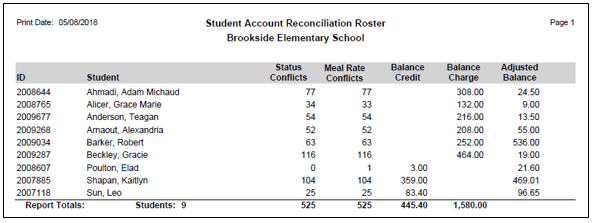
Click the Report button to review and save the students that are listed for account reconciliation. Once reconciled, this report will no longer be available.
Click the Reconcile button.

Reconciliation prompts will display based on the number of checked boxes.
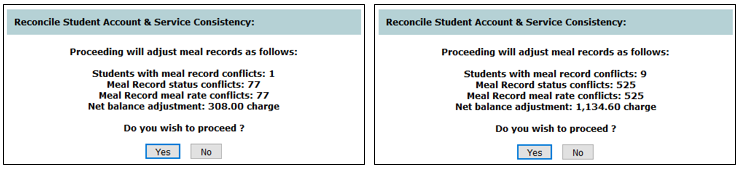
Click Yes. A progress bar will show the details of the process and when done, click OK.
Messages will display when reconciliation is done.