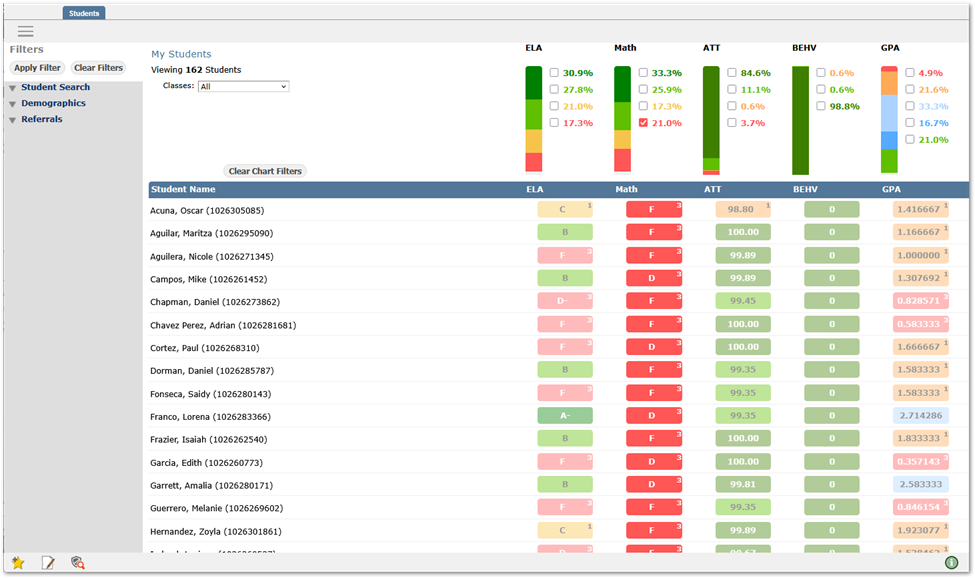
District-defined indicators enable educators to see at a glance their students’ performance across academic areas, attendance, behavior or other data the district has opted to highlight. The data displayed is not live data. It is calculated at a frequency determined by the district (typically once per night). The MTSS application is intended for teachers to identify students in need of targeted intervention and support. MTSS is located under the Analysis menu in Q.
On the Students tab, teachers may quickly filter their students by selecting color performance bands in the indicators, selecting a class, or using filters in the left panel to narrow the list of students. Once they’ve identified students to work with, selecting a student opens the MTSS Student Profile view displaying data areas selected by the district for view. In addition, teachers may enter observations and referrals for intervention.
Filtering
Teachers, based on standard permission configuration, see only their own students. They may filter the view using:
Chart Filters - Users may click on any color or associated checkbox to filter the list of students.
As the user hovers over a color band, a pop-up will appear showing the meaning, the number of students currently at this level and the Success Indicator values for the level, as shown below.
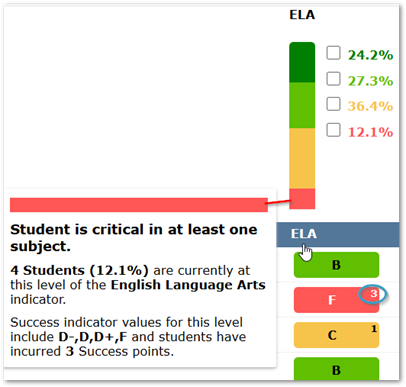
The points an individual student has incurred based on the rubric for the indicator will display in the upper right corner of the student’s box. In the example shown above the student with an F has 3 points.
Multiple color bands or their corresponding checkboxes may be checked to view students who need attention in ELA and Math for instance. In the example below, the red ELA checkbox or band was selected. This filters the list and will grey out the other indicators for selected students not in play. Use the ‘Clear Chart Filters’ button to clear the selections.
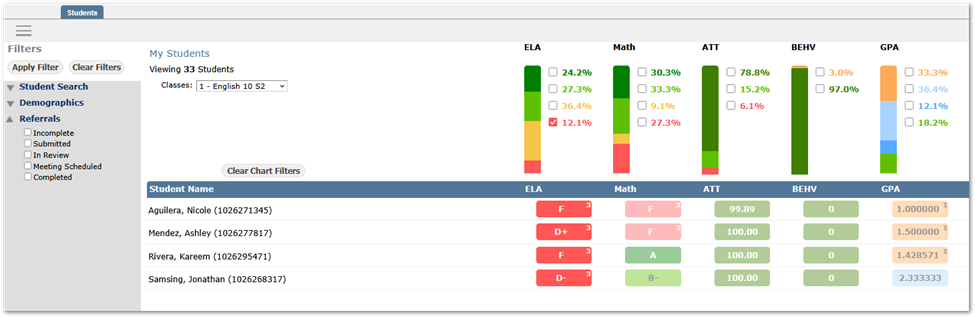
‘Classes’ drop-list - For teachers only, their classes will appear in a drop list, and they may select from among them to focus on one group of students at a time. Other users will not see a ‘Classes’ option.
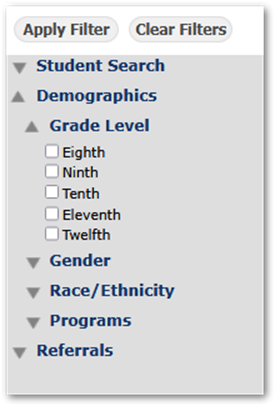
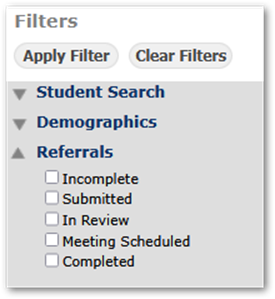
Filter options in left side panel: When these filters are selected, click ‘Apply Filter’ to apply, or ‘Clear Filters’ to reset.
- Student Search – specific students may be searched using ID, Last or First name.
- Demographics – select any combination of grade, gender, race/ethnicity, and program options to narrow the list of students. Note: When multiple items are selected within an area like 9th and 10th grade, it is treated like an ‘or’ and will filter the students to those in 9th or 10th grade. When items in another area are selected i.e., students in a specific program such as ‘English Learner’, this will be treated as an ‘And’ and the result would be a list of students in 9th or 10th grade who are all also in ‘English Learner’.
- Referrals – To see students based on referral status, select the status, i.e. ‘Incomplete’ to continue working on those referrals.
MTSS Student Profile
Mousing over a student in the list will open a small popup window with their photo, if available, and some basic demographic information about the student.
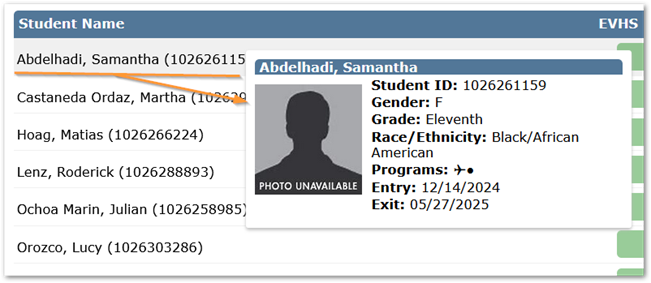
Click on a student to select them and open their MTSS Student Profile view.
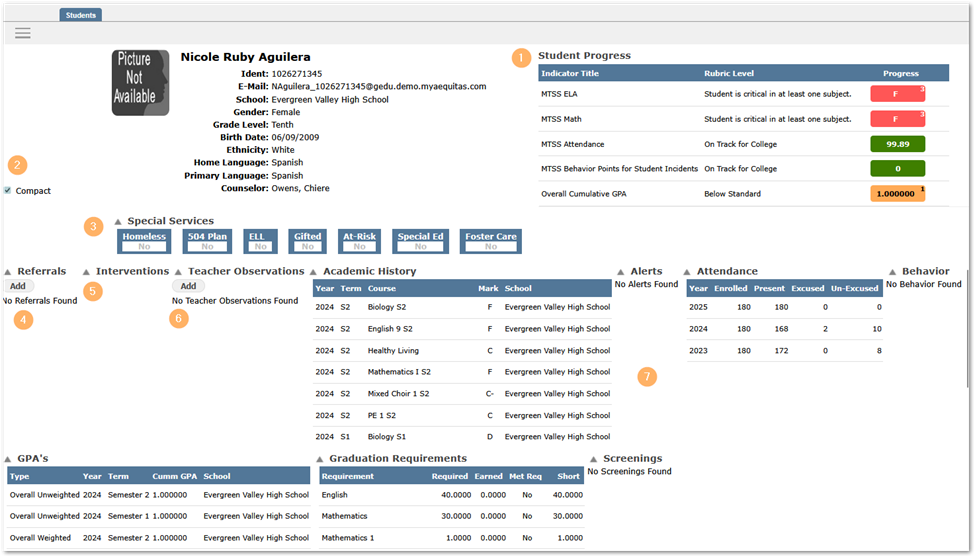
In addition to the students’ demographic information, this view shows:
- The student’s performance indicator values
- Compact checkbox – when checked the Profile areas are displayed one after another, wrapping across the screen; when unchecked the areas are displayed one after the other vertically down the page.
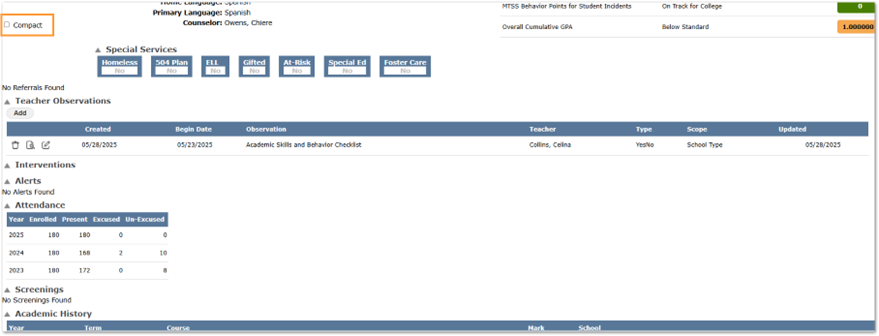
- Status in Special Services defined by the district for view
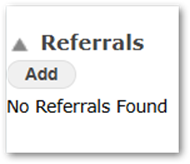
- Referrals – If one or more Referrals existed, the records would display. The option to Add a referral is available through the ‘Add’ button.
- Interventions – When interventions exist for a student, they will display here.
- Teacher Observations – Teachers may add Observations using the ‘Add’ button. Existing records would be displayed here if they existed and may be viewed.
- Profile Areas – The areas displayed are configured by the district for display by school, potentially by specific types, and for specified number of years of data.
Adding an Observation
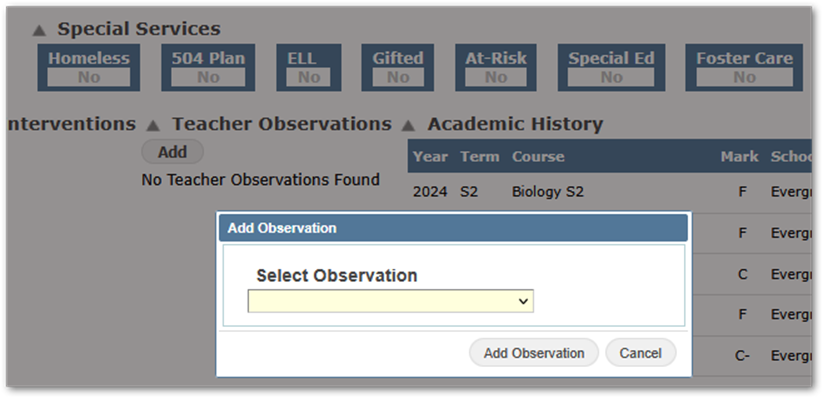
From the Teacher Observation segment, click ‘Add’ and select an Observation from the drop-list and click ‘Add Observation’.
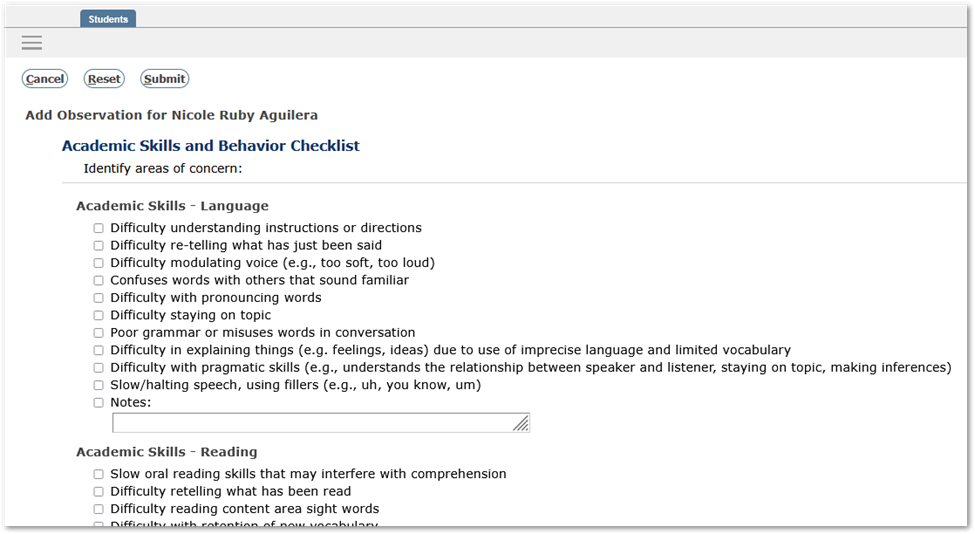
Complete the Observation survey form entering any notes desired and click Submit.
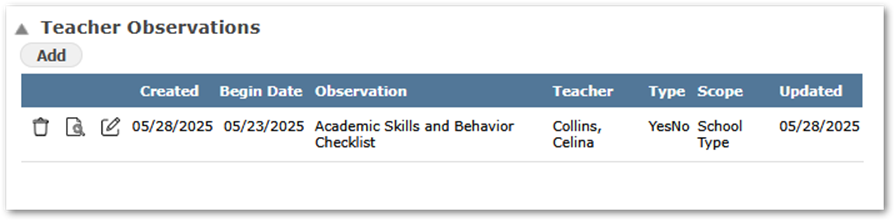
When the Observation has been completed, it will appear in the Teacher Observation area and may be viewed using the magnifying glass icon. It may be edited (by the teacher who created it) using the pencil icon. And it may be deleted using the trash can icon which will only appear if it is not associated with a Referral. Once associated with a Referral, it may not be deleted.
Adding a Referral
From the Referral area, click ‘Add’ to create a new Referral.
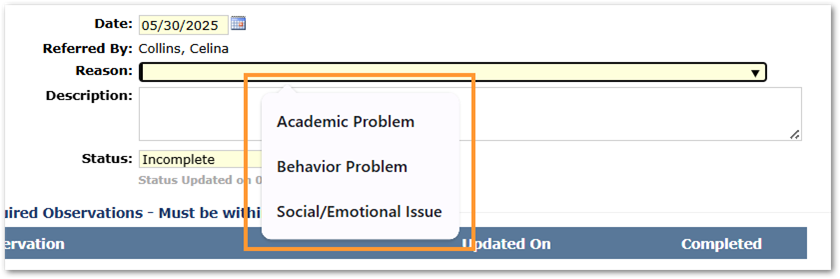
Select a reason from the suggested list or enter your own reason and enter a description. The Status will default to ‘Incomplete’. It is recommended this be left as ‘Incomplete’ until all aspects are completed.
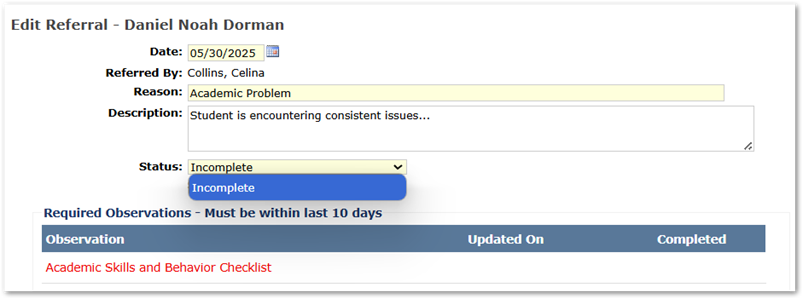
Observations may be required by the district and may be required to be updated within a district-specified number of days, in this case 10 days. If they are not present, or within the required time window, the Referral status will not be eligible to be set as ‘Submitted’ until they are. In the example below, the required Observation ‘Academic Skills and Behavior Checklist’ has not been submitted so the only available status is ‘Incomplete.’
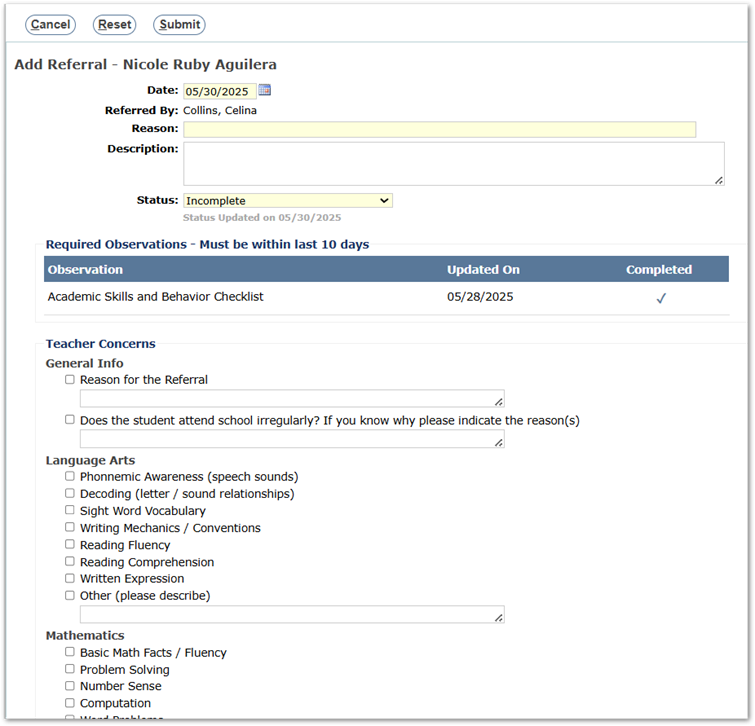
Complete the Teacher Concerns portion of the form. A sample form is shown. Observation forms are definable by the district.
When all elements of the Referral are complete, change the status to ‘Submitted’. The Referral may be edited by the teacher up until its status has been changed by a Facilitator.

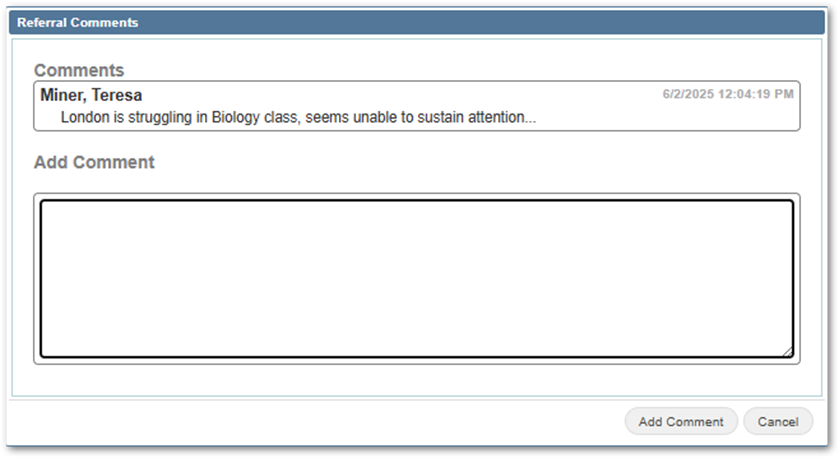
Comments may be added to a referral by any user, including other teachers, by clicking on the Comment icon. Any existing comments will be displayed, and a new comment may be added by entering the text in the Add Comment box and clicking the ‘Add Comment’ button.
Facilitators will have a ‘Referrals’ tab enabling them to see pending referrals and those in progress. They will be able to view referrals teachers have started but that are incomplete. And they will be able to edit pending referrals with a status of ‘Submitted’. They may change the status of a Submitted referral to ‘In Review’ and proceed with the referral.
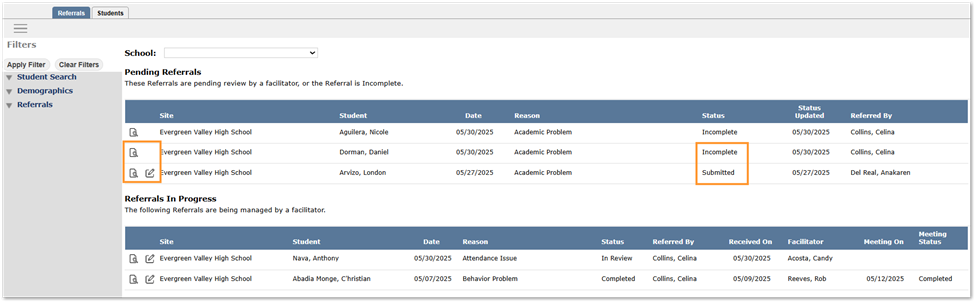
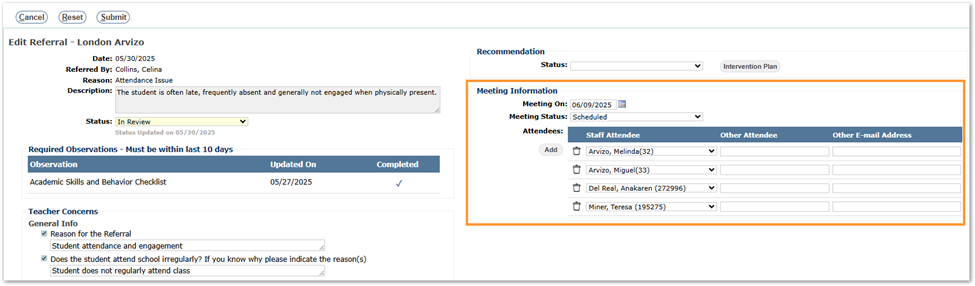
In the example below, a facilitator named Candy Acosta has moved the Referral to ‘In Review’ and the trash icon and edit icons are no longer available to the teacher, though staff may continue to add comments to the referral.

The facilitator may then schedule a meeting setting the date and adding the attendees.
The district-defined Referral Worksheet will appear within the Referral enabling the facilitator to take notes during the meeting or record them afterwards.
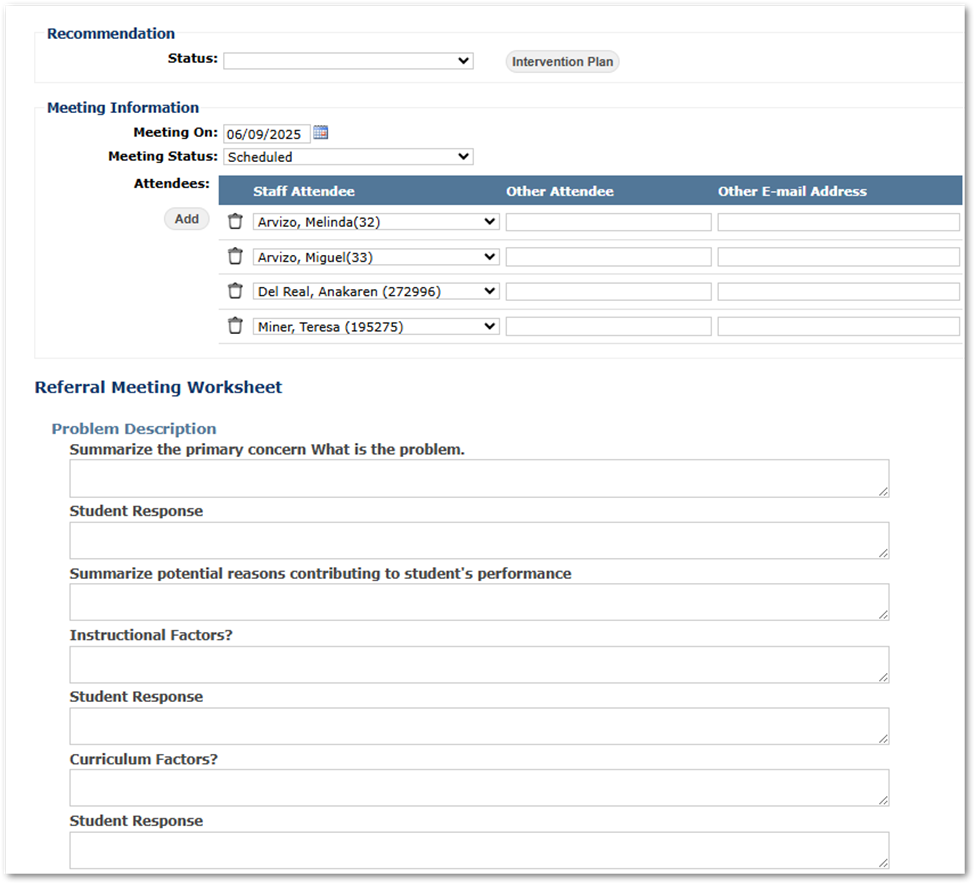
When the meeting completes, a Recommendation may be selected and an Intervention Plan added.