
The Report Writer application is the perfect tool to handle those specialized reports or district letters that may be requested.
From any Q Category, click Reports.
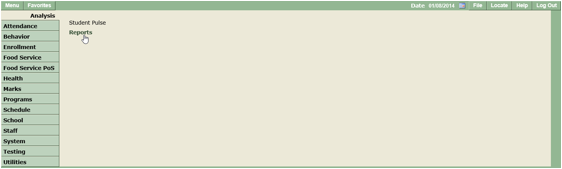
Note: By Default, the Reports menu is available in Q Categories where there is at least one Standard report. For the Q Categories, Staff and System at least one Report Writer report must be created to enable the Reports menu.
Upon entering the Reporting window, a tree menu listing the pre-canned and shared Report Writer reports grouped by Q Category.
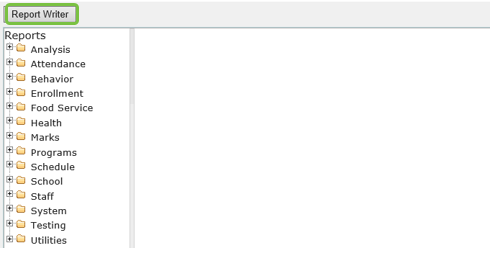
Click on Report Writer to open application and display the following page:
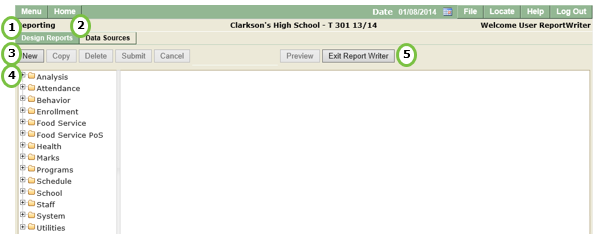
Report Writer has several areas:
1. Design Reports: Report Writer tab where users can create reports.
2. Data Sources: Permission-based Report Writer tab that allows users to establish Q Data Objects, Views or Stored
Procedures for use with Report Writer reports.
3. Command Buttons: Functionality that llows users to create, copy, and delete reports.
4. Report Tree Menu: Displays all report writer reports you have created or have been shared for you.
5. Exit Report Writer: Exits out of the application.
Navigating within Report Writer
When navigating between reports or data sources, users must either click Cancel or Done prior to accessing and modifying another report or data source in the reporting tree menu.
The Done button will only be available after updating your report or data source.

In general, there are 3 steps that are needed to publish a Report Writer Report and can be easily described using the following diagram:
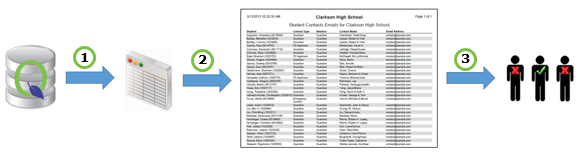
1. Create a data source using a view, stored procedure, or Q Data Designer.
2. Create a report.
3. Share report according to web role, school, and/or individual faculty.
Each step will be explained in detail in the following sections.
Before a Report Writer report can be created, data must be created and made available to users. To access Data Sources, click on the Data Sources tab.
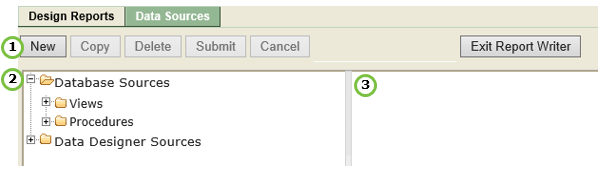
The Data Sources page consists of three sections:
1. Command Buttons: similar to the Design Reports application, they provide the ability to create, copy, delete and submit
changes to new and existing data sources.
2. Tree Menu: display existing data sources.
3. Data Sources Details: provides data source definition such as Role Access and Available Data Source Fields.
Using a View
To create a view-based data source click New from the command buttons to display the Data Source Details section.
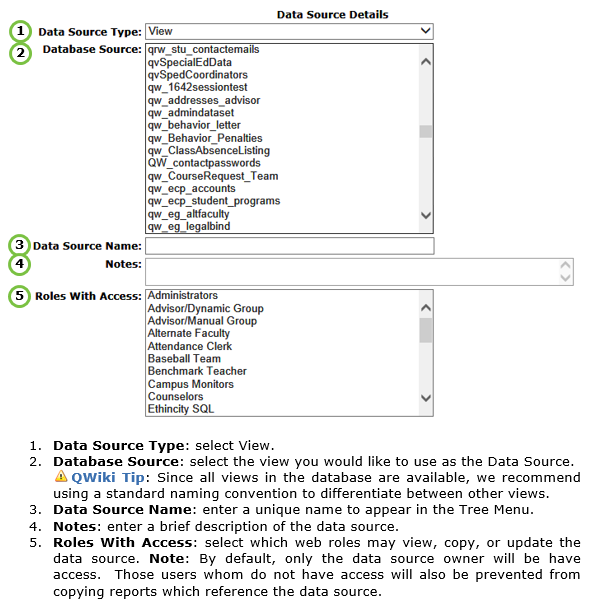
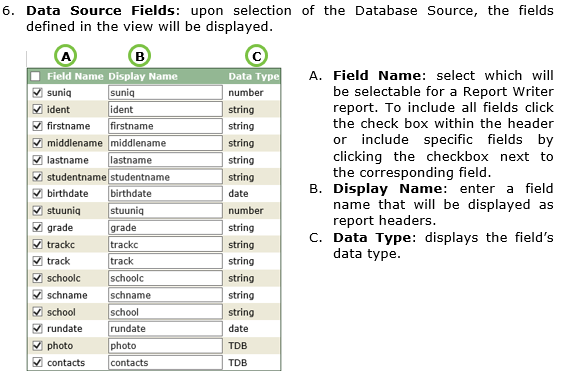
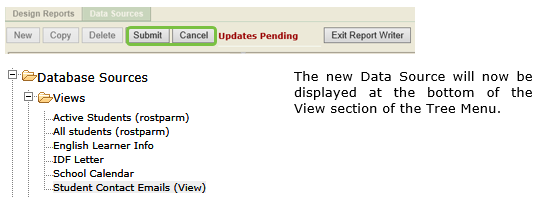
To save the Data Source, click Submit or Cancel to exit the Data Source Details section.
NOTE: Please make sure the view or procedure data source column names do not contain spaces, decimals, more than 20 characters or start with a number. If any of these conditions apply the data source will not be saved.
Using a Stored Procedure
Stored procedure-based data sources require knowledge of creating stored procedures, however, can provide faster data retrieval when compared to a view. Click New to create the Data Source.
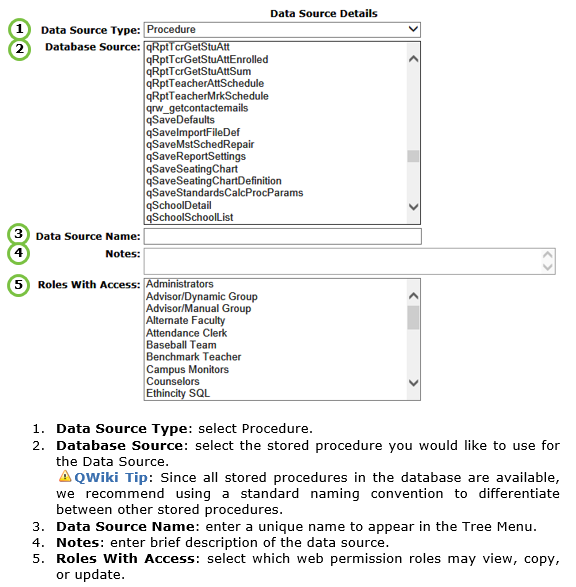
Defining Parameters
Parameters are required values needed to successfully execute the selected Stored Procedure. By default, the following Parameters entry area is provided:
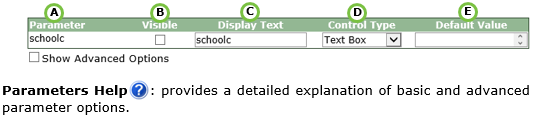
A. Parameter: required value(s) needed to execute stored procedure.
B. Visible: enables field to be displayed or hidden from report users..
C. Display Text: enter prompt to be displayed instructing users to enter the value.
D. Control Type: select how the parameter will be collected.
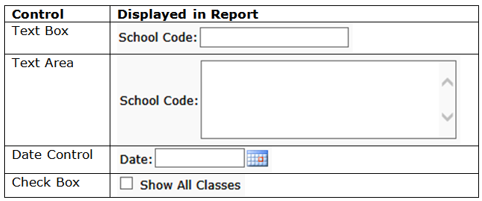
E. Default Value: value set that is used if user entry will not be needed (e.g. - hidden value) or as an example displayed.
Parameter Advanced Options
Parameters, included in the Report Properties, can be defined and configured with ease of use in mind. Check the Show Advanced Options to display additional Parameters:

A. Row Pos: indicate the row the parameter should appear.
B. Col Pos: indicate the column the parameter should appear.
C. Col Span: indicate how many columns the parameter will take.
D. Additional Control Types: when Advanced Options is checked, the following extra control types are available:
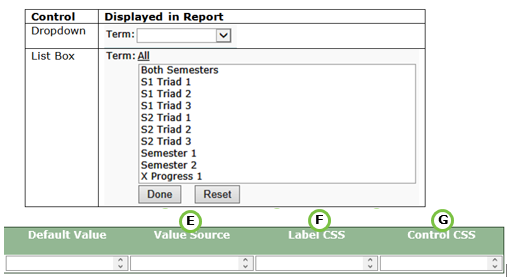
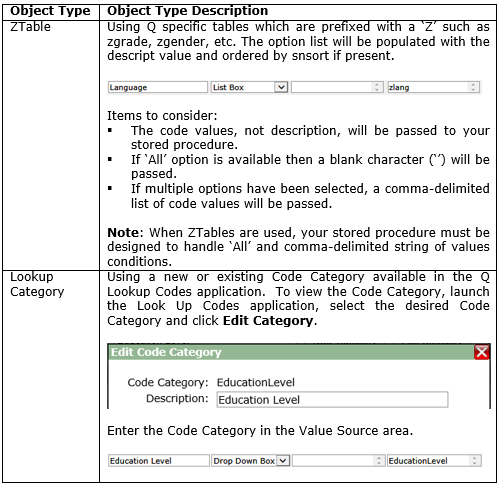
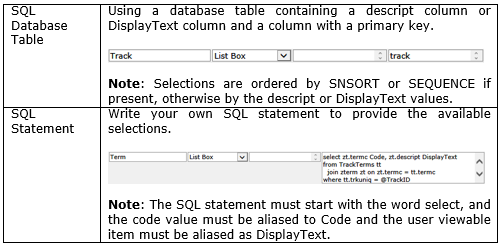
E. Value Source: used in conjunction with the Dropdown and List Box control types, the value source defines the option lists used by either control type. The options lists can be created using one of the following Object Types:
F. Label CSS: Alter the labels of the controls such as change of color of the label or make it bold. For example: color:#FF0000;
font-weight:bold; Will change the label color red and make the style bold.
G. Control CSS: Alter the style of some of the controls such as the width of a text box or drop down list. For example: width:200px
will change the width of the text box to 200 pixels.
Note: The Date and List Box control will not honor the CSS you enter.
Using Data Designer
For those not familiar with Q database tables or with using SQL, the Data Designer component is another method to create a data source. The following table lists the available objects that can be used.
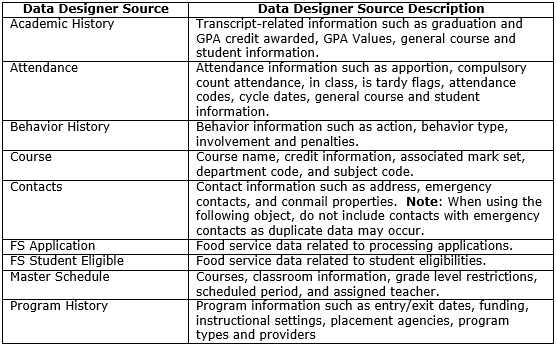
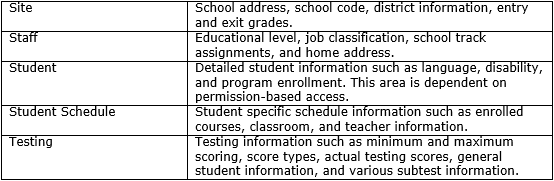
Data Designer Objects (DDO) are web-role based and require special consideration in determining which roles should have access to sensitive data fields such as Social Security Numbers, Free / Reduced identifiers, etc.
To view and modify a DDO, select and click the desired Data Designer Source from the Tree Menu to display the Data Designer Object Details:
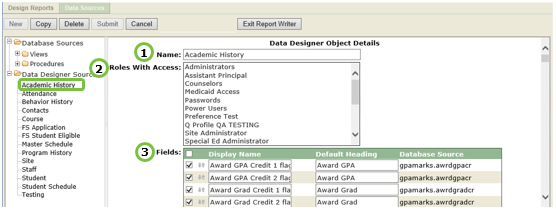
Data Designer Objects Details area consists of the following fields:
1. Name: the name that will be viewed in the Tree-Menu.
2. Roles With Access: a list box displaying the available web roles that can have access the selected DDO. While holding the CTRL key, click the web role(s) you would like to grant access.
3. Fields: the available fields for the selected DDO. The following attributes may be changed:
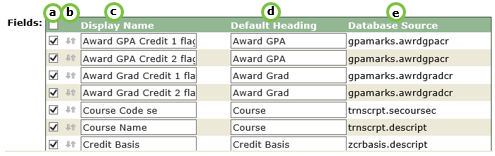
a. Visibility: hide or display fields by either clicking the Header checkbox or clicking on an individual field's checkbox.
b. Field Order: arrange the way the fields will be displayed by using up and down icon.
c. Display Name: field name used to identify the Database Source.
d. Default Heading: name to be used as the default header for the Report Writer reports.
e. Database Source: actual table and fieldname associated to the field.

Once DDO's have been properly configured the Data Designer can be directly used from the Design Reports Tab.
1. Select Data Designer as the Data Source.
2. The Data Designer window will display:
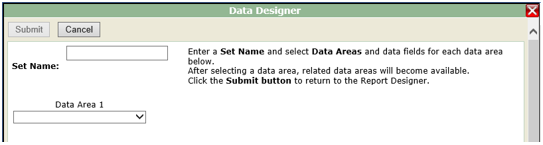
3. Set Name: Enter the Set Name to be used for the report.
4. Data Area 1: Select from a list of Data Designer Sources.
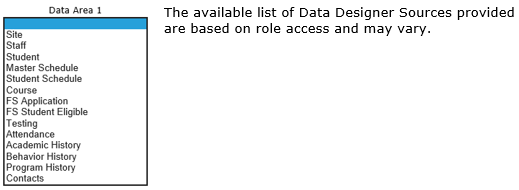
Upon selection of the Data Designer Source, the following field list will be displayed:
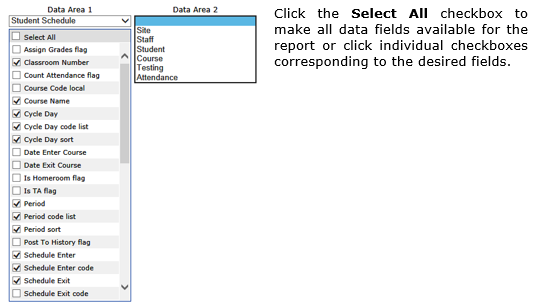
5. After the first Data Designer Source has been selected, another Data Area will be presented providing a list of Data Designer Sources that are directly related to the primary selection. If needed, select another Data Designer Source and repeat the above steps.
6. Click Submit to save the custom data set.
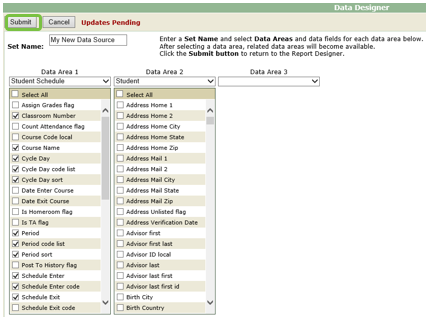
Upon submission, the Data Source field will reflect the new data set.

To modify the Data Set, click on the Edit icon to return to the Data Designer window.
7. Click Cancel to return to the Report Writer without a new data set.
Once you have created a data source, there are several available report types ot choose from:
- Roster – a simple table listing report.
- Mail Merge – a Microsoft Word-based report.
- Pivot Table – a Microsoft Excel-based report.
- Multi-Line – a flexible report allowing more various reporting objects such as embedding images, barcodes, and even html. Also allows the addition of sub-reports.
Depending on the report type selected, the Design Reports page will render differently and may require additional steps to create the report. To begin, click on the Design Report tab and New.

Using Roster Report
Once you have launched the Design Report tab the following entry form will be displayed:
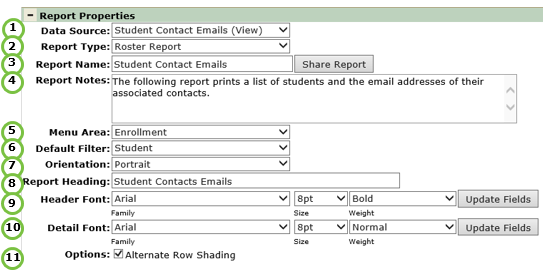
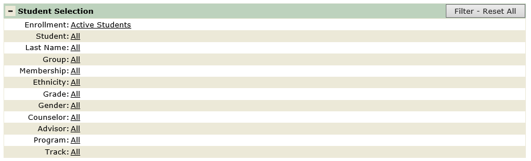
Incorporating the Student Filter will present users the Student Selection section:
7. Select Orientation. Either Portrait or Landscape options are available.
8. Enter Report Heading. This will be printed below the School Main Header.
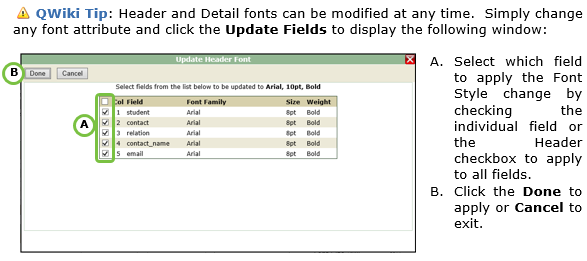
9. Define the Header Font to be used. The type and style will be used for all report headers.
10. Define the Detail Font to be used. The type and stule will be used for all report details.
11. Check the Alternate Row Shading option to alternate shading between each data row.
Selecting and Customizing Fields
Once a Data Source has been selected the Field Selections section will be displayed:
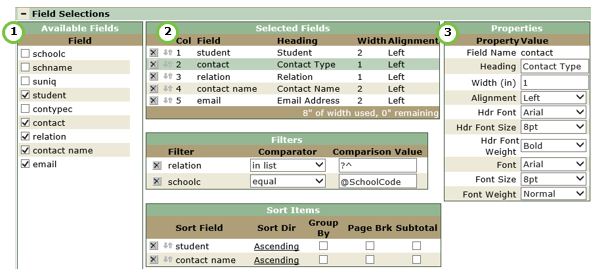
There are three areas in the Field Selections section that are used to select and customize the fields that will be printed on the report.
1. Available Fields: fields retrieved by the data source that can be printed, used as a Filter and /or Sort Item.
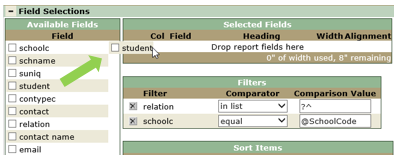
2. Selected Fields: selected fields that will printed on the report. There are two methods to select fields:
a. Checking the field(s) in the Available Fields area will automatically move the field to the Selected Fields area.
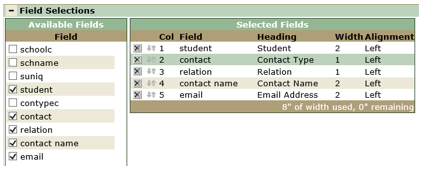
b. Click, hold the left mouse button and drag the field from the Available Fields to the Selected Fields areas.
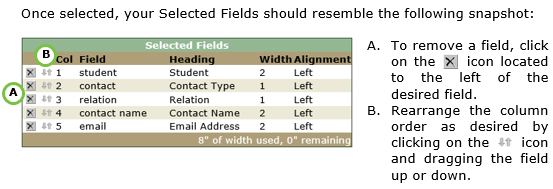
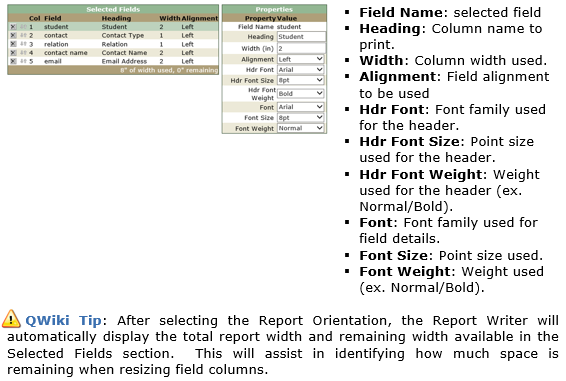
3. Properties: allow you to modify the Font Properties for an individual field.
Adding Filters
Once you have selected the fields, reordered the fields, and applied the desired font properties for your report, you can include the filters to prompt report users. There are two filters that can be included: Report Filters and Sort Items.
Report Filters
As with the pre-canned Q Reports, Report Writer reports can contain various filters for the purpose of generating precise reports.
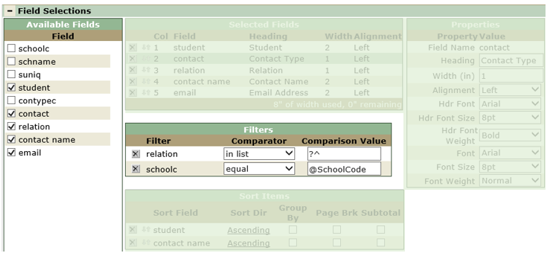
Similar to selecting fields, they can be added by clicking on the field from the Available Fields section, holding the left mouse button, and dragging the field to the Filters section. To remove a field, click the X icon next to the field.
Using Comparators
Comparators are available in the Filters' area and are dependent on the field's data type. Below are the poosible Comparators for each data type:
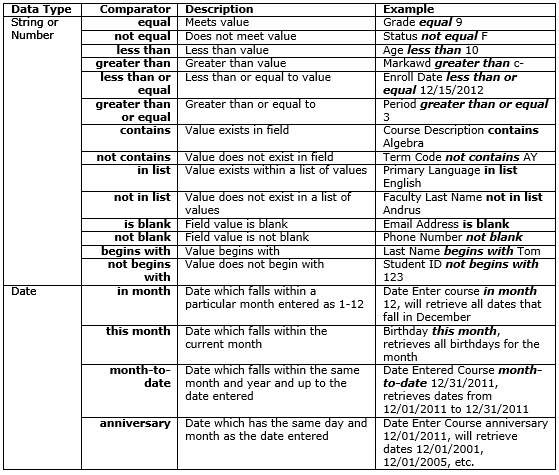
1. Select the desired Comparator and enter the Comparison Value.
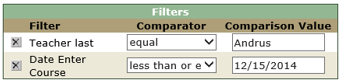
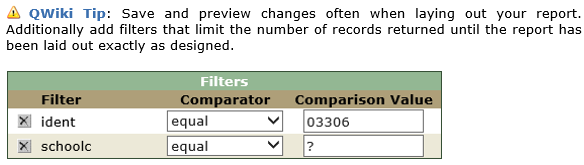
For example, the above Comparison Values would retrieve information associated with the faculty member whose last name is Andrus and whose course entry date is 12/15/2014 or earlier.
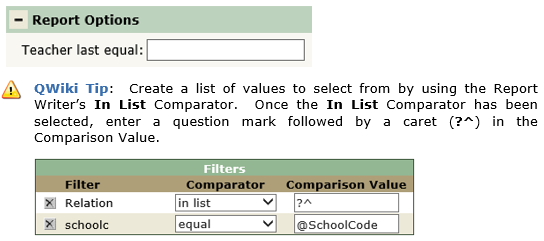
To prompt a user to enter a value, enter a question mark (?) within the Comparison Value field.

The following filter would prompt a user to enter a teacher's last name and retrieve data specifically for that teacher.
The following Relation filter will result in a select list of relationship types.
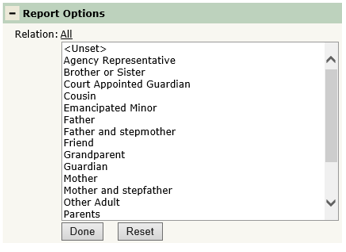
Special Note: Using the in list comparator may decrease report performance if used with a View or Stored Procedure that retrieves large amounts of data.
Sort Items
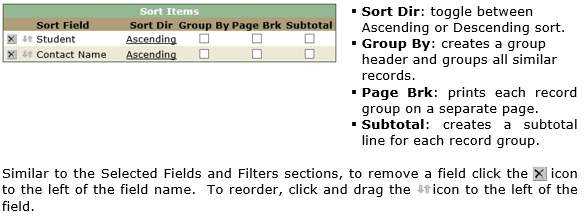
In addition to Report Filters, you can also select fields to be used as an available sort option. Again, place desired fields by clicking on the field, holding the left mouse button, and dragging the field to the Sort Items section.
Saving a Report
After formatting the report, save the format settings by clicking Submit.

Once submitted an 'Updates Saved' message will display.

Previewing Report
After the report format is complete, users can preview the report by clicking Preview.
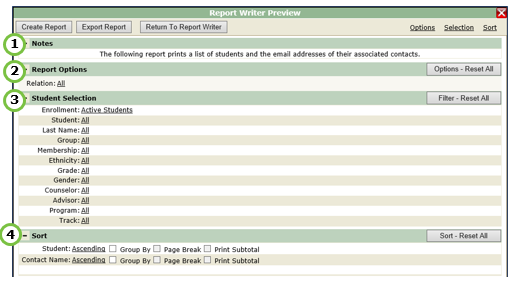
1. Notes: provides general description of report as entered in the Notes field.
2. Report Options: select the desired Relationship Type.
3. Student Selection: If a Student Selection section was added to the report, select any additional filters needed.
4. Sort Item: Modify the available sort items or leave at its default values.
After options have been specified click Create Report to run the report.
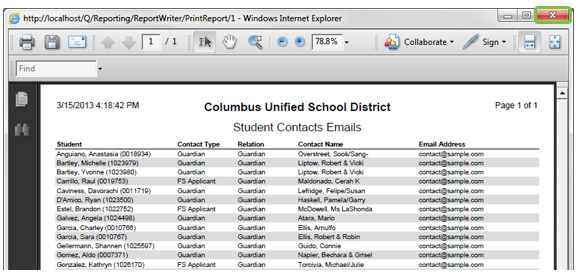
Click the X located at the top-right hand corner of the report to close the report window.
To export to Excel (*.xlsx), click Export Report.
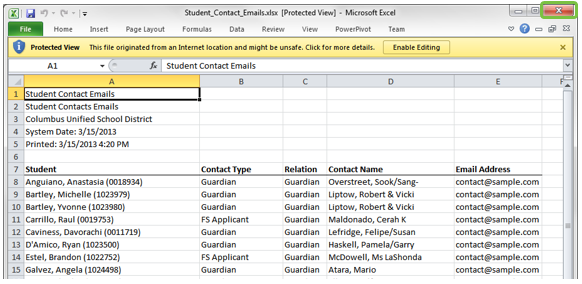
Click the X located at the top-right hand corner of the Excel application to close the window.
Click Reset to reset Report and Student Selection options to their default values. Click Return to Report Writer at any time to exit the preview window.
Using Pivot Table
Pivot Table reports are created following the same general steps as used in creating Roster Reports but the selected Report Type is Pivot Table.
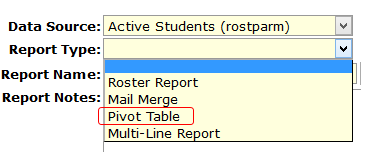
Once all fields have been selected from your data source for the report, you may select which fields to view in the pivot table.
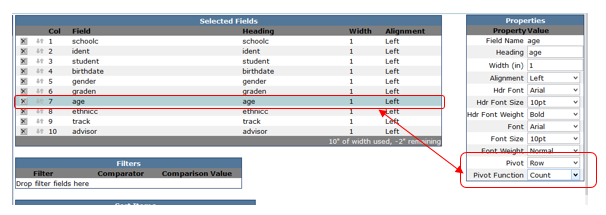
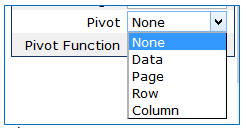
To select which fields to view in the Pivot table, highlight the field and select the Pivot location in the Properties box from the Pivot drop down list. The selections include:
- Data-default selection when adding a field, in order for the field to be available in drill down view, data must be selected. If data is selected a pivot function may also be selected from the Pivot Funciton drop down list.
- None-If none is selected the field will be not be available in the pivot table field list nor display when drilling down the data.
- Page—will appear as a filter on the top of the page.
- Row—good for data that is text.
- Column—good for data that is numeric.
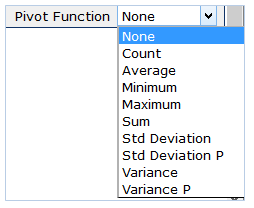
To use a function the data field must be numeric. Pivot functions available are:
- Count—The number of data values.
- Average—the average of the values.
- Minimum—The smallest value.
- Maximum—The largest value.
- Sum—the sum of the values.
- Std Deviation—an estimate of the standard deviation of a population where the sample is a subset of the entire population.
- Std Deviation P—The standards deviation of a population, where the population is all of the data to be summarized.
- Variance—an estimate of the variance of a population where the sample is a subset of the entire population.
- Variance P—the variance of a population, where the population is all of the data to be summarized.

When creating a Pivot Table report at least one field must have a pivot selection other than data. Only one item may have a function selected.
Using Mail Merge
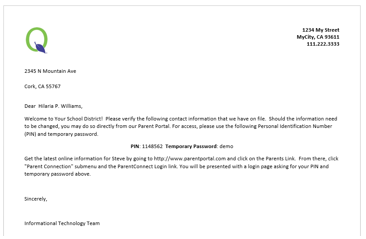
On occasion schools create various letters that must be sent to students or parents such as Attendance, Behavior, or Welcome letters. Using the Mail Merge report type allows users to develop templates in Q for use with Microsoft Word's Mail Merge function on Office 2007 or greater.
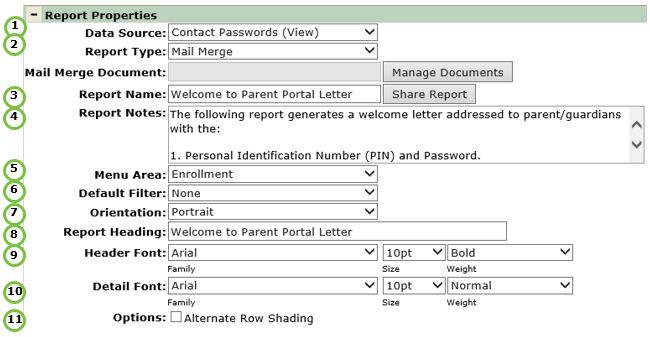
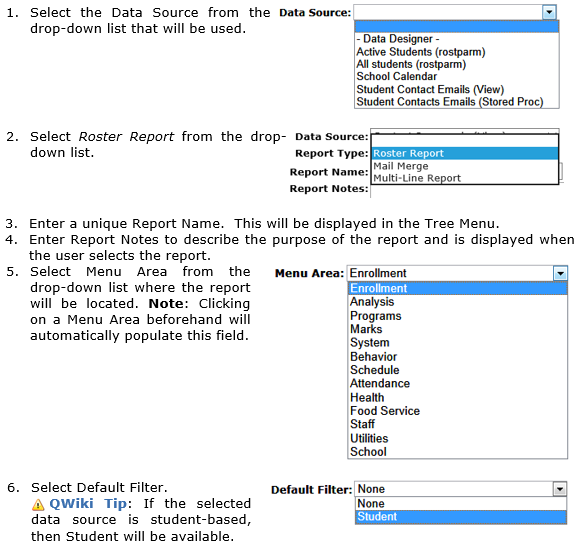
1. Select the Data Source from the drop-down list that will be used.

3. Enter a unique Report Name.
4. Enter Report Notes.
5. Select Menu Area from the drop-down list where the report will be located.
6. Select Default Filter.
7. Select Orientation.
8. Enter Report Heading.
9. Define the Header Font to be used.
10. Define the Detail Font to be used.
11. Check the Altnerate Row Shading option if desired.
12. Select and customize the fields, filters and sort items:
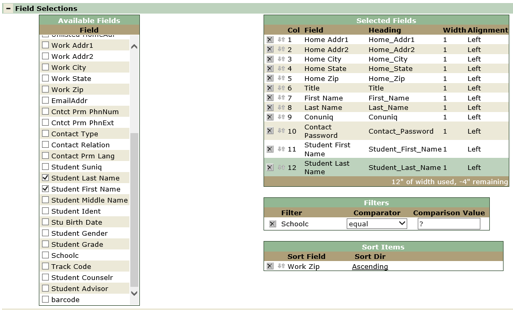
13. Click Submit to save report.
Mail Merge Document Options
After you have defined the general report information and selected the merge fields, the actual document must be laid out.

Click Manage Documents provide the Mail Merge Documents window:
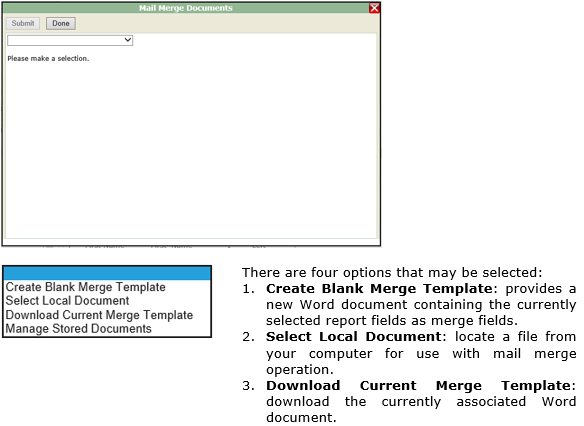
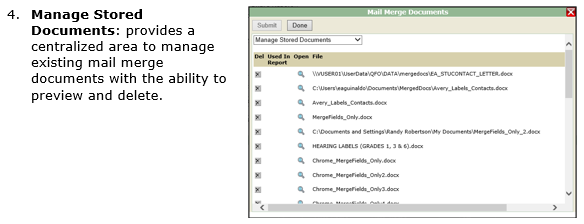
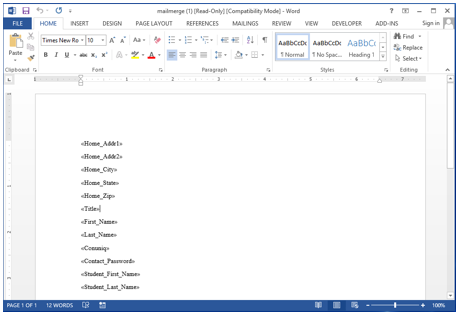
1. Select Create Blank Merge Template option when creating a new mail merge document and click Submit to provide the following mail merge document:
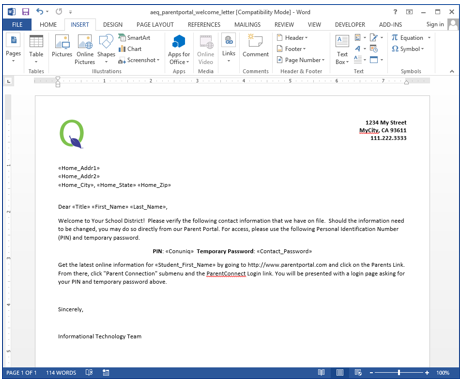
2. Position the various merge fields as desired and save the mail merge document to your local drive:
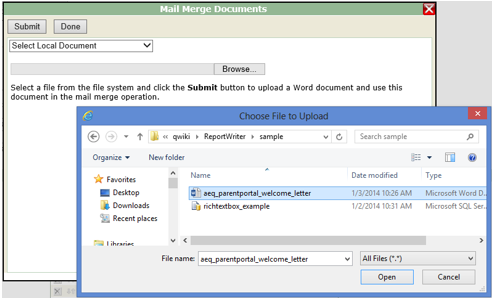
3. Click Manage Documents again and select the Select Local Document option to upload the recently created mail merge
document by clicking Browse and locating the desired file.
4. Once the mail merge document has been referenced, click Submit to return to the main Report Writer page.
5. Click Submit to save entire report.
6. Click Preview button to display the report:
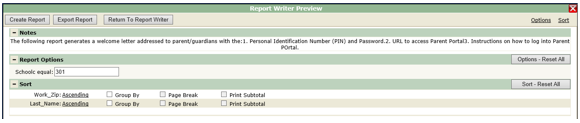
From the Report Writer Preview window, click Create Report to run report and provide the mail merge document.
Using Multi-Line
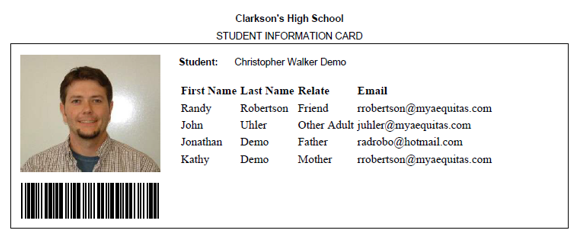
When given a more sophisticated report request that cannot be accomplished using a Roster or Mail Merge report, the Multi-Line report can be used. This report type is exceptionally powerful and does require additional thought when designing. To illustrate the process the following Student Information Card will be created:
As with the Roster, Pivot Table and Mail Merge reports enter the general information about the report:
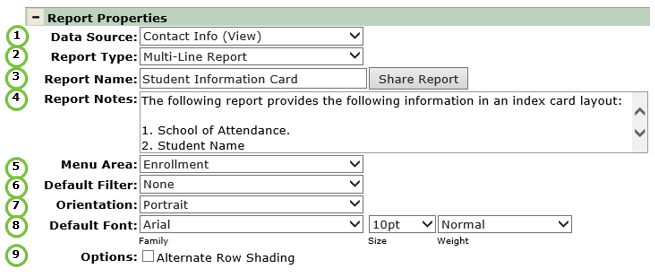
1. Select the Data Source from the drop-down list that will be used.

3. Enter a unique Report Name.
4. Enter Report Notes.
5. Select Menu Area from the drop-down list where the report will be located.
6. Select Default Filter.
7. Select Orientation.
8. Select Default Font.
9. Check the Alternate Row Shading option if desired.
10. Click Submit to save general report information.
Field Selection Area
When laying out report fields, the Multi-Line is quite different than the Roster, Pivot Table and Mail Merge reports. The following Field Selections area is displayed upon selecting the Multi-Line.
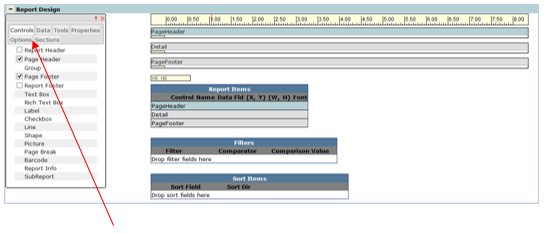
- Controls: report elements needed to design the report. Detailed information about each control will be explained in the subsequent section.
- Data: displays all data fields related to the selected data source which can be included on the report.
- Tools: design tools that can be used to expedite the definition and positioning of fields within the report.
- Properties: provides all related elements for a given reporting object.
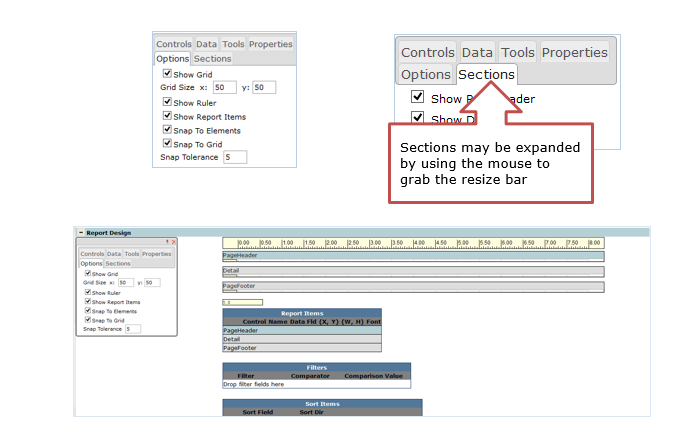
- Options: allows user to customize what sections are displayed on the report layout area.
- Sections: allows user to select which sections of the report are visible on screen.
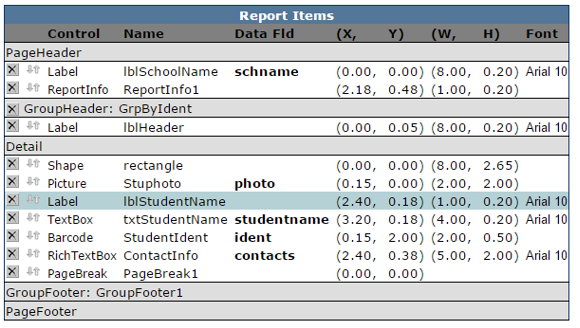
- Report Items: listing and position of each report object included in report.
- Filters: optional section allowing for conditional filtering to retrieve data.
- Sort Items: optional section allowing to define sorting functionality.
Designing Report
Users can choose which sections to display and additional screen options by making selections in the options and sections areas.
A Multi-Line report is comprised of the following sections:
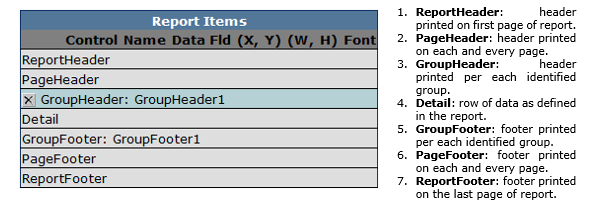
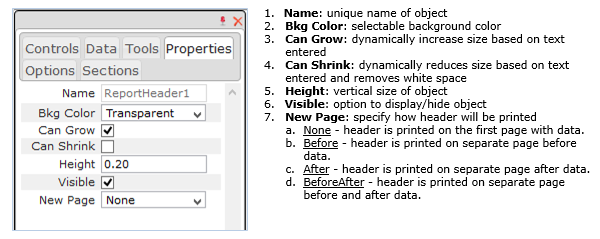
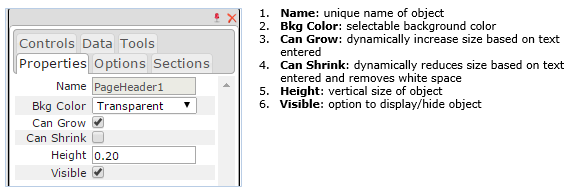
Section Control Properties
Report Header
Page Header
Group Header
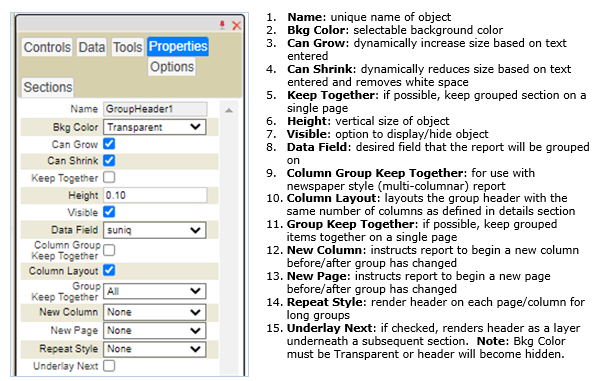
Detail
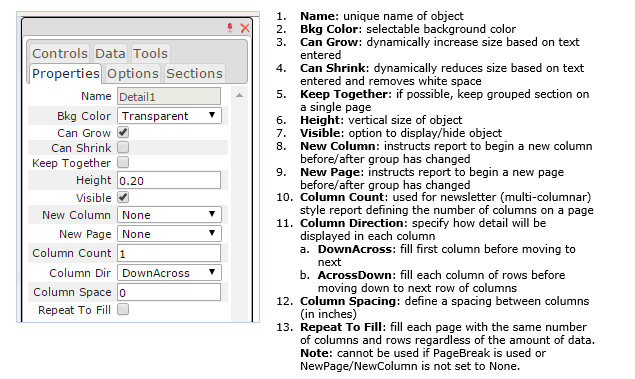
Group Footer
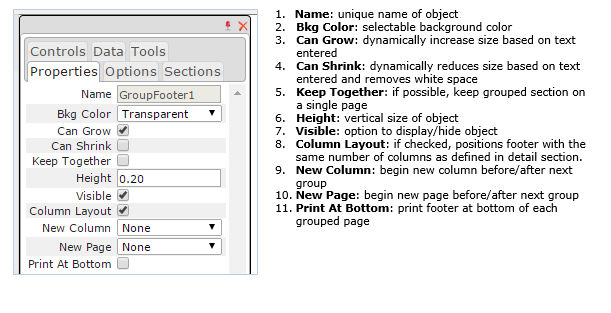
Page Footer
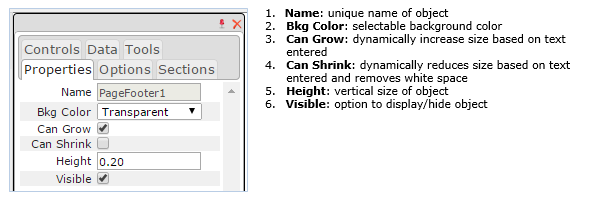
Report Footer
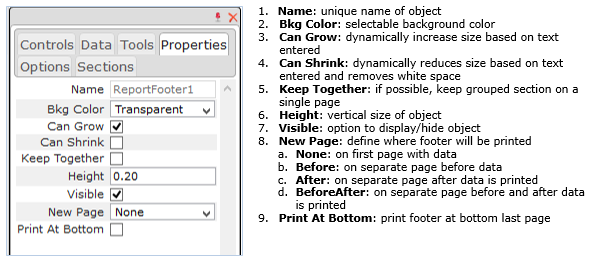
Report Object and Properties
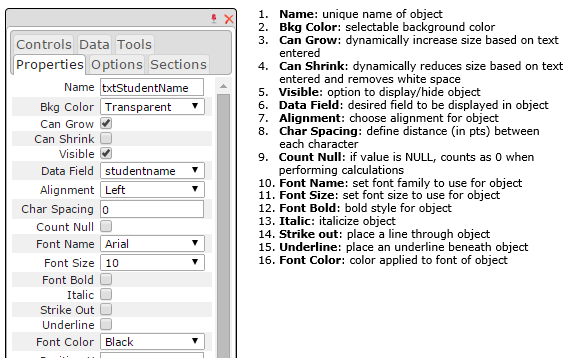
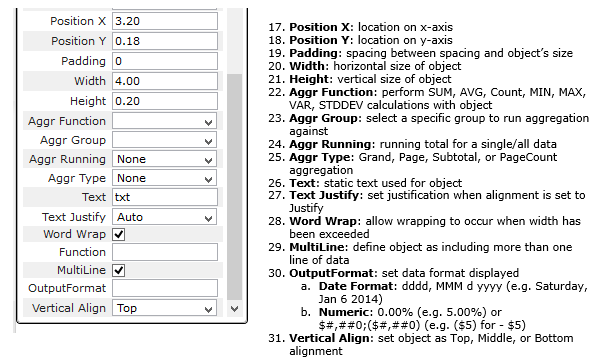
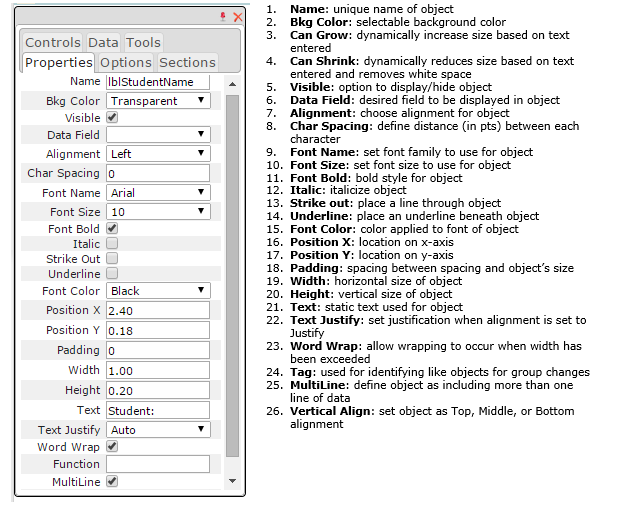
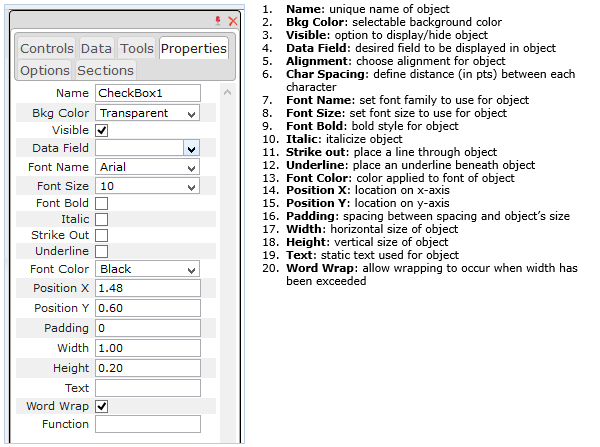
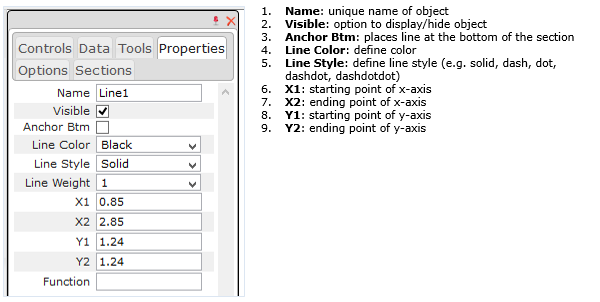
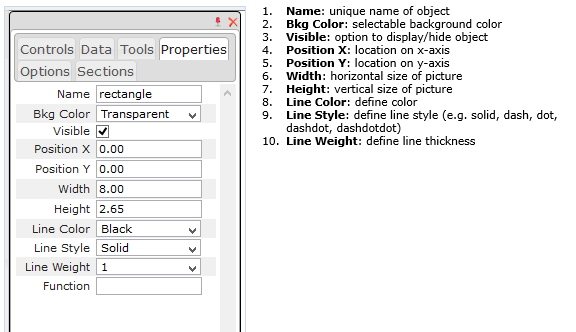
There are nine available report objects that can be utilized, each object has varying properties that may be changed.
Text Box
Rich Text Box
The following object is similar to the Text Box, however, the Rich Text Box can display special characters or even include embedded HTML. Formatting such as Font can also be part of the actual data.
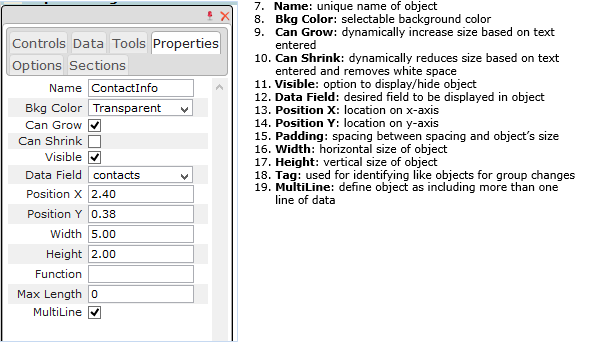
Label
Checkbox
Line
Shape
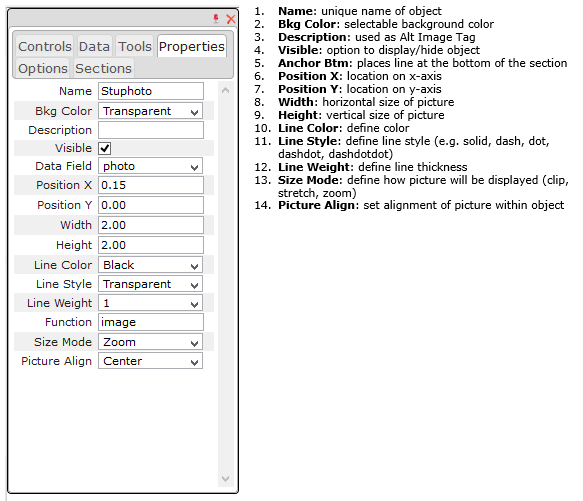
Picture
The following object is used when displaying database stored images.
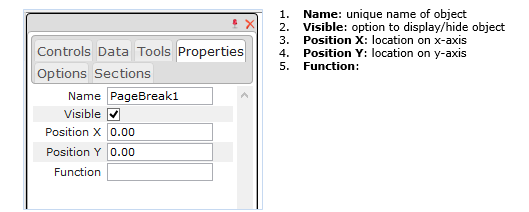
Page Break
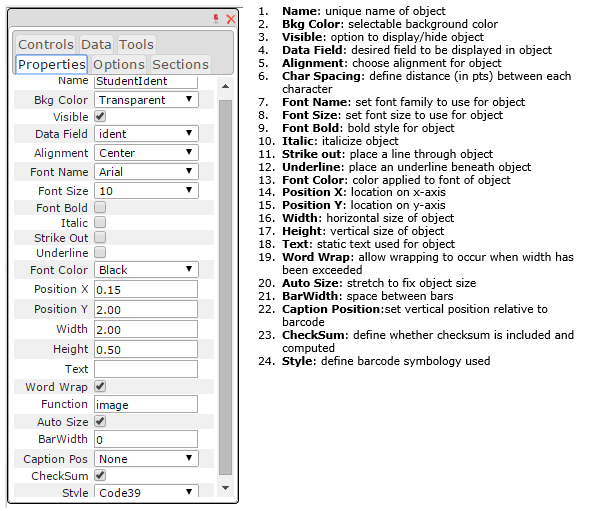
Barcode
Adding/Removing Report Objects
Once you have completed entering the basic report properties, you can begin adding objects and laying out your report. There are two methods to add report objects:
Double-Click
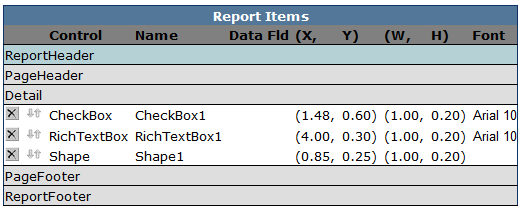
Select the Controls tab to display the list of available controls. Using your mouse, double-click the desired control and it will be displayed in the Detail Section. Clicking the desired report section before double clicking the control will place the control in the section. For ease of layout, sections may be expanded by using your mouse to make the window bigger
Click-and-Drag
Using your mouse left-click button click and hold the desired report object and drag to the desired section.
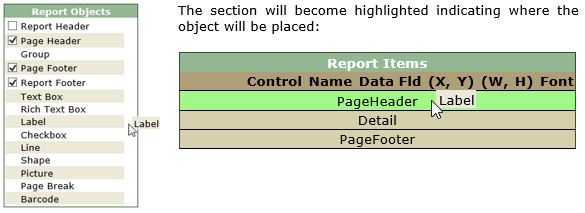
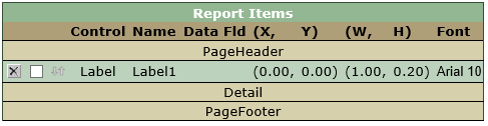
As you let go of the mouse button the Report Items section will position the report object:
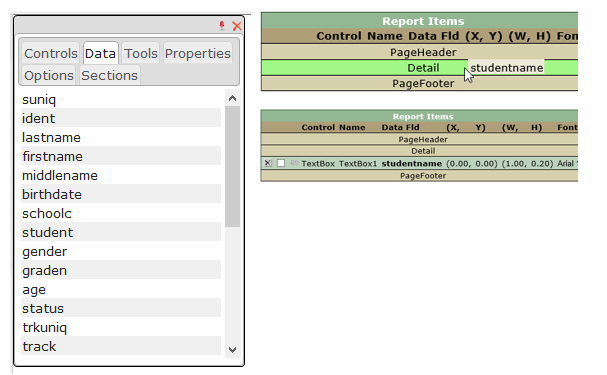
Available fields can be clicked and dragged to the desired section as well.
Using a sample layout, add and position the desired report controls and/or data fields to your report.
Using the Tool Bar
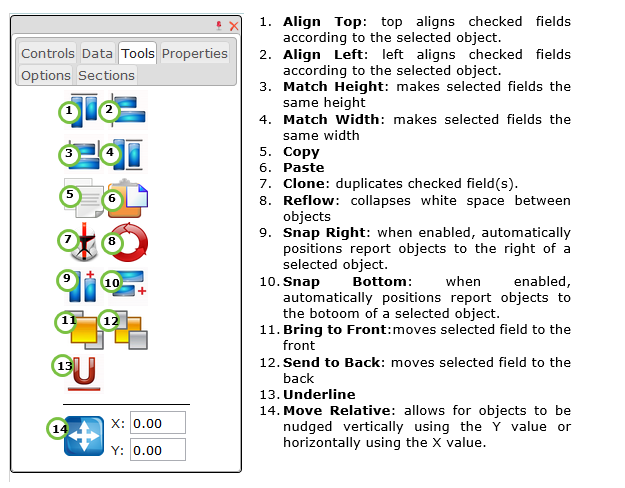
To expedite the layout design the following Tool Bar can be used in conjunction with the adding of report controls:
Subreports
Report Writer reports can only use one data source per report. With the addition of the abiity to add subreports to Report Writer Multi-Line reports additional data sources may be used. A subreport is used to embed a report within a report with each subreport having it’s own data source.
When creating a Multi-Line Report with subreports there are some rules you must keep in mind:
- All subreports must be based on a stored procedure.
- Parameters of the subreport’s data source must have the exact same names as the columns of the data source of the master report.
When creating a Multi-Line Report with subreports each report must first be created as a separate report. Once the main report is created the subreport(s) is placed in the detail area of the main report.
To create a Multi-Line report with Subreports:
- Make sure these rules are followed:
- All Subreports must be based on a stored procedure.
- Parameters of the Subreport’s data source must have the exact same names as the columns of the data source of the master report.
- Create the individual Subreports with the report type of Multi-Line report.
- Create the Main report also with a report type of Multi-Line report.
Once all the reports are created the Subreports are added to the main report.
- Open the main report
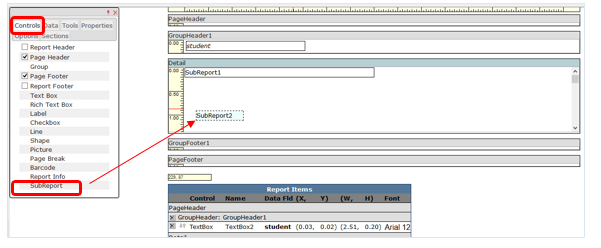
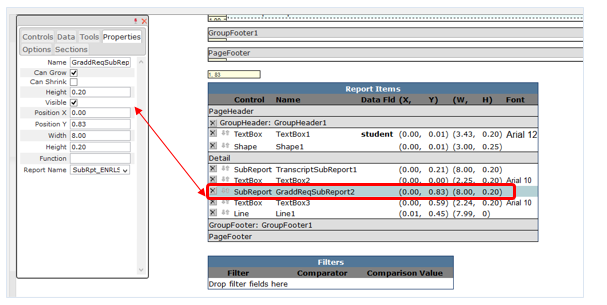
- On the Control tab select Subreport and place the Subreport control where you want it in the details area. Once the Subreport control has been placed, click the Subreport control (or highlight the control in the report items list) and go to the properties tab.
- On the properties tab select the Subreport you want included in the main report from the Report Name drop down list.
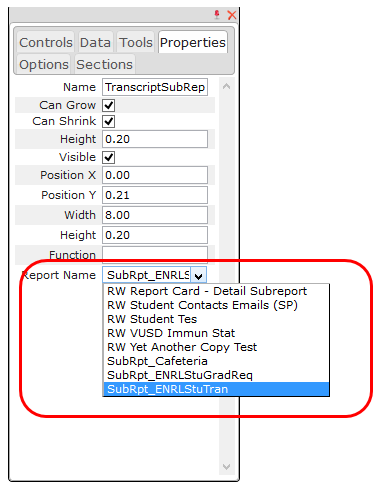
- In the Properties tab you can also give the Subreport a name and adjust it’s position and size.
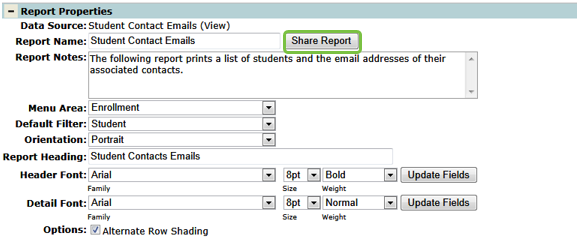
By Default, newly created Report Writer reports are Not Shared. Once you have formatted and tested your report, you can distribute the report by School, Faculty, or by Roles. Special consideration must be taken when determining how best to share reports as users creating reports may or may not have access to other sites. Additionally, Report Writer reports created at the School Level may not be available at other schools or district.
To share your report click on Share Report, from the Report Properties section.
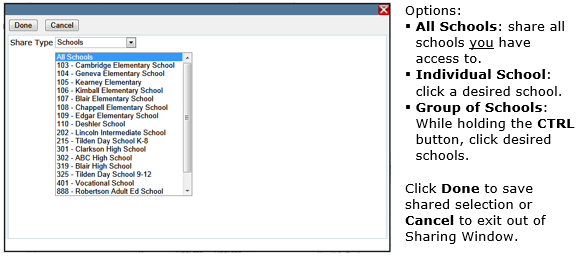
Sharing By School
To share by school select the Schools Share Type, where the following area will appear:
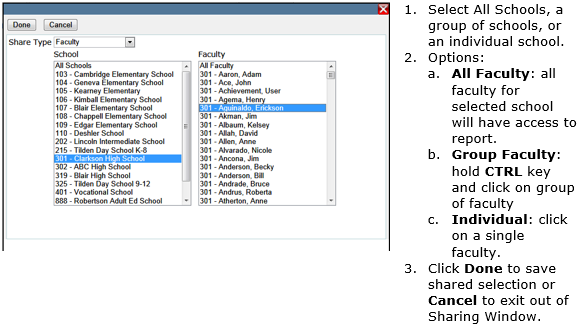
Sharing By Faculty
To share by faculty select the Faculty Share Type, where the following area will appear:
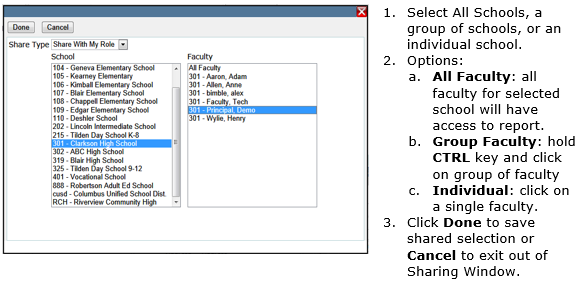
Share With My Role
Reports can also be shared with faculty who belong to your web permission roles. To share with your web permission role, select the Share With My Role Share Type, where the following area will appear:
Opting Out
Once a report has been created and shared, faculty who have access to the Report Writer application and to who the report has been shared, will receive the following option:
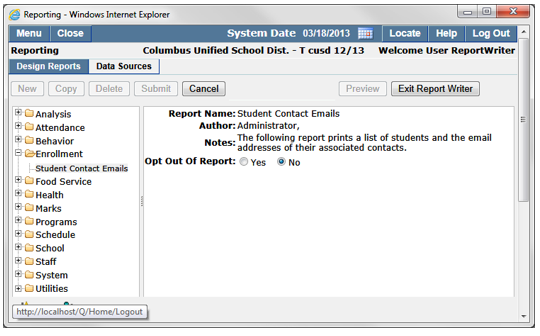
Selecting Yes, will hide the report from their list of reports and will prevent the ability to copy the report. Selecting No, Faculty will have the ability to accept shared report from their list of reports and the ability to create a copy of the report and modify it according to suit their needs.
Upon selection, click Submit to confirm and your Opt Out Of Report choice.
As you acclimate yourself with the general workings of Report Writer, there are several other features that assist in design, development and overall efficency of the Report Writer.
Copying and Deleting Data Sources/Reports
In the event a Data Source needs to be modified for various role access, use the Copy feature to create a duplicate data source and modify as necessary.
1. From the Database Sources Tree Menu, click on the desired data source. The Data Source Details page will display.
2. Click Copy.
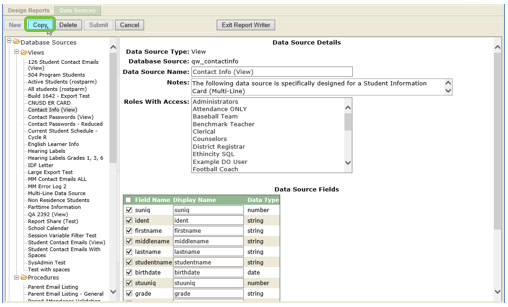
Once copied the Data Source Name will be prefixed with the words Copy Of:
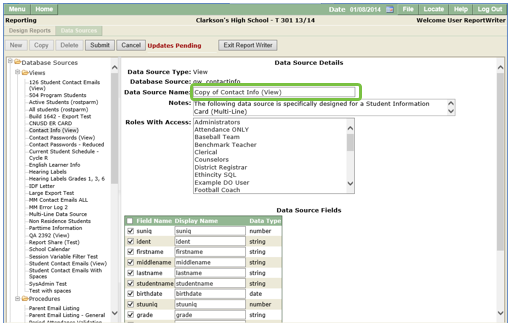
Rename the Data Source Name to differentiate between the original, make any modifications you would like, and click Submit to confirm and create the new data source.

Deleting a Data Source
1. From the Report Tree Menu, click on the Data Source to be deleted.
2. Click Delete; the following message will display:
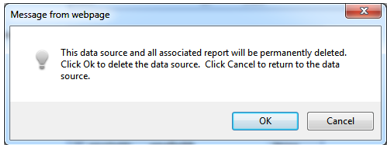
Click OK to delete the Data Source and all associated reports or click Cancel to return to the Data Source Details page.
The same process applies to Stored Procedure and/or Data Designer based data sources.
Copying an Existing Report
From the Design Reports section, click on the report you would like to copy.
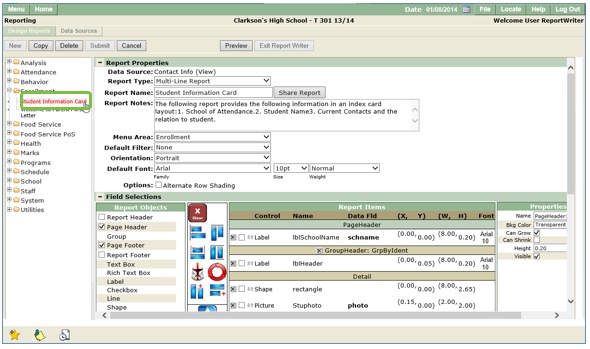
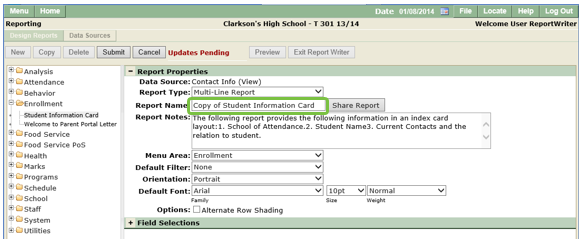
Click Copy to copy report. A copied report will be denoted by the word Copy in the report name. Replace the report name with a unique Report Name.
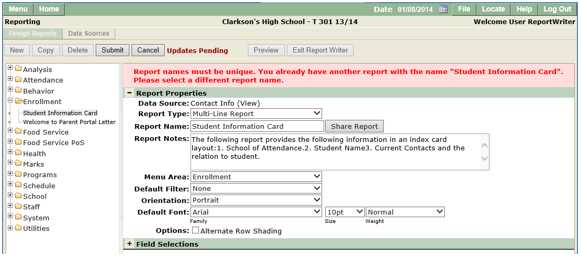
If the Report Name is not unique, you will be prompted with the following error message:
Make any changes you would like to the copied report and click on Submit, an "Updates Saved" message should be displayed.
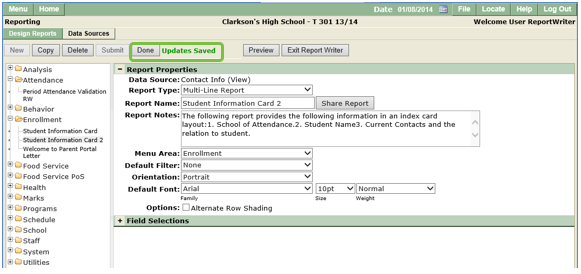
Deleting a Report
In the event you would lneed to remove a Report Writer report, select the report and click Delete. The following Confirmation Window should be displayed.
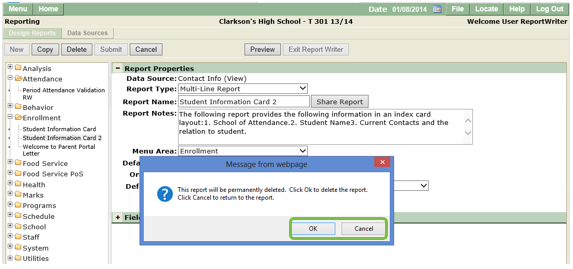
Click OK to permanently delete the report or click Cancel to return to the selected report.
Working with Session Variables
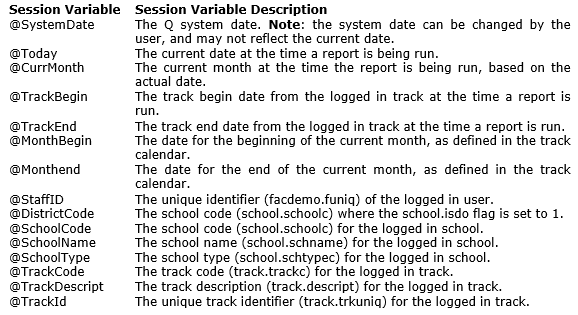
When a report is needed for more than one school, using Session Variables provides the ability to dynamically change the Report Header, Report Filters and Report Parameter values for use by view or stored procedure based Data Sources. As users log into Q, data is captured and stored in the following Session Variables:
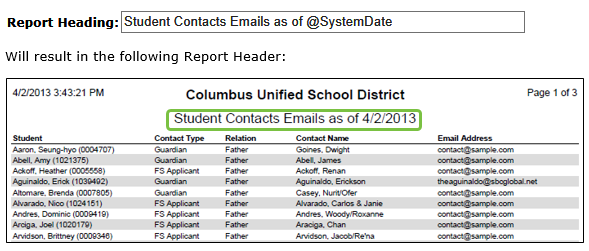
In the Report Heading
The Report Heading is the Report Title that is printed on a Report Writer Report. To include a Session Variable, simply add the session variable to the Report Heading text box as shown in the sample below.
In Report Filters
When using a view-based data source, report filters can be used to filter out school specific records.

In Default Values or Parameters
When using a stored procedure-based data source, session variables can be used as a default value or to generate the drop-down list or list box. To pass a value directly to a required parameter, insert the session variable into the Default Value entry.

The following will pass the logged-in School code to the school parameter required by the stored procedure.
To generate a selection list for drop down or list boxes, create a SQL statement and include a where condition equal to an appropriate session variable.

The following Value Source will create a Terms list box, specific to the logged in track.
General
| Q - Report Writer [Application] | Launch the Report Writer application and:
|
| Q - Report Writer [Data Sources] |
|
| Q - Report Writer [Share faculty] |
|
| Q - Report Writer [Share School] |
|
| Q - Report Writer [Share Role] |
|
| System Administrators |
|
Setup
| For a user to: | The following are needed: |
| Run a report |
|
| Copy a report and modify for themselves only |
|
| Copy a report, modify the report, and share the modified copy with others |
|
| Create new reports for themselves only |
|
| Create new reports and share them with others |
|
| Manage reports |
|
