The School News application allows school site administrators to create, edit, and delete school news articles which can be viewed by parents and students of the school. School news items can be created to inform parents and students of upcoming school events, holidays, exam dates, etc.
School News is located under the School menu in Q.
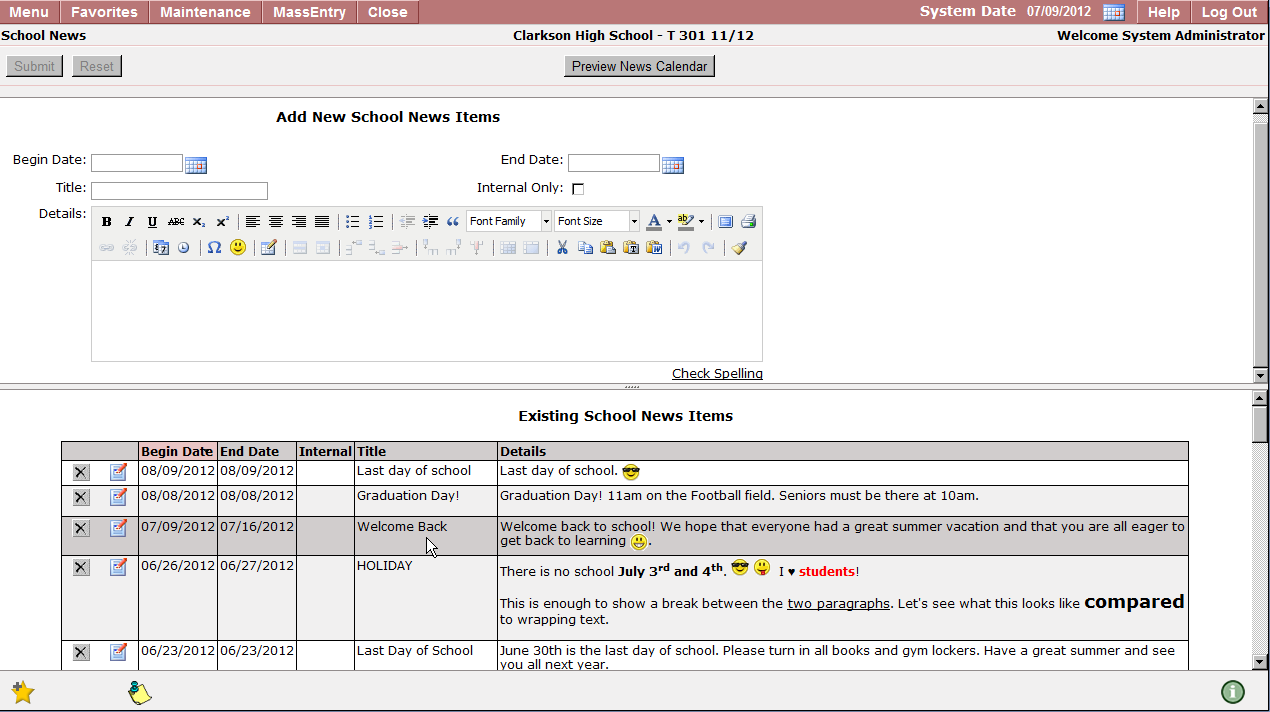
School site administrators can create School News items for parents, students and staff to view in the QParent, QStudent applications or the Q Main Menu Calendar. The top portion of the School News application allows users to create news items for the logged in track. Users can preview the existing news calendar by clicking on the Preview News Calendar button. The lower portion of the application screen allows users to view, edit, or delete existing news items. Click on the date headers to filter school news items by ascending or descending dates. 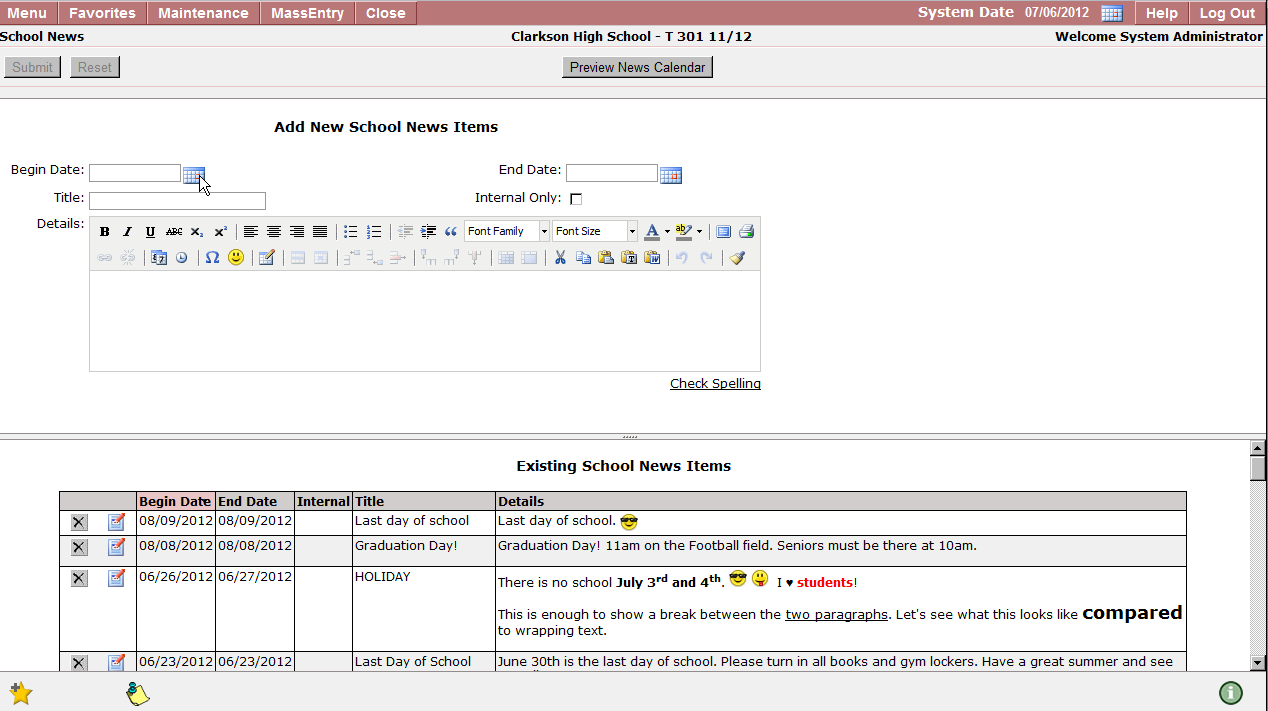
Previewing News Calendar
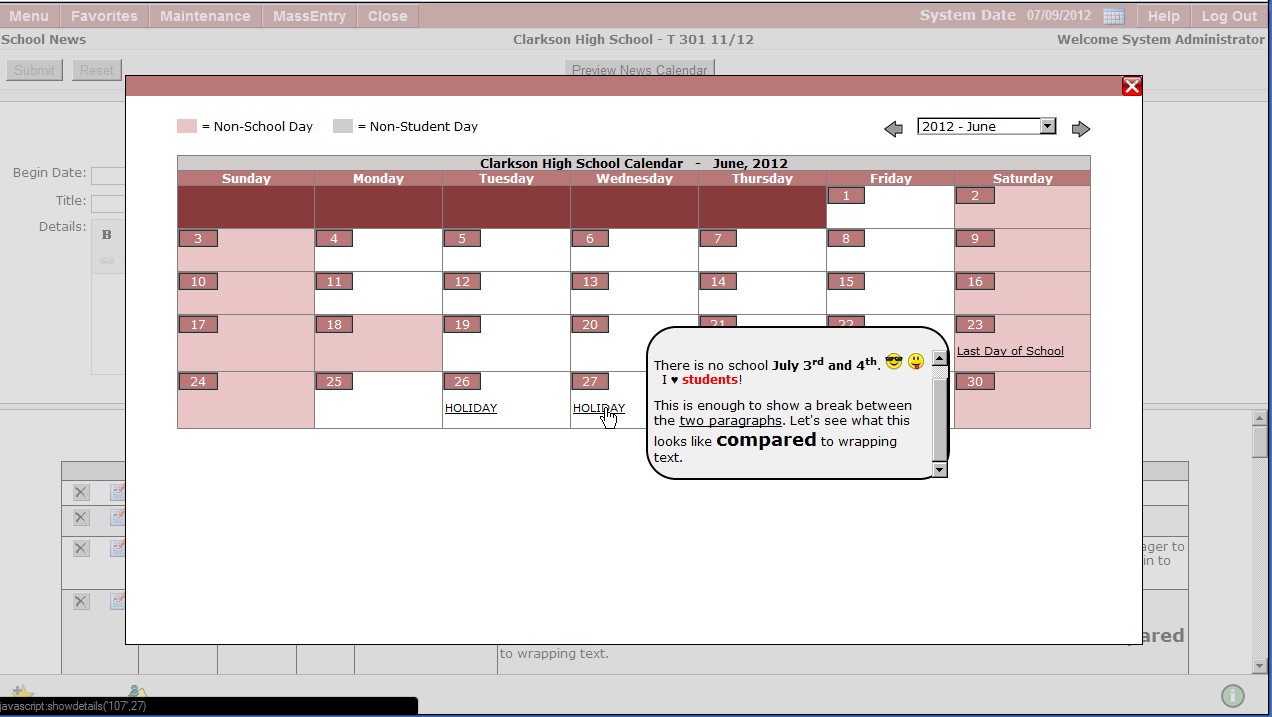
To preview news events which have already been added to the calendar, click Preview News Calendar located at the top of the screen. The title of the news item will be displayed as a hyperlink, click the link to display details.
Users who have been added to the correct permission set can create news items for the logged in track.
- Begin Date: Beginning date of the school news item. The begin date corresponds to the dates which the news item will be displayed in the QParent, QStudent applications or the Q Main Menu Calendar. Enter a date using the MM/DD/YYYY format, or by clicking on the calendar icon located to the right of the date field.
- End Date: The end date entered will be the final date the news item is displayed in the QParent, QStudent applications or the Q Main Menu Calendar.
- Title: The title of the school news item will be displayed in the school calendar. The title should correspond to the school news item content.
- Internal Only: Check the ‘Internal Only’ flag if you would like the news item hidden from the QParent, and QStudent portals. School News items which are flagged as ‘Internal Only’ will appear in the School Calendar flagged as (private) allowing school site staff to easily identify which items are internal only and should not be shared with parents and students.
- Details: Enter details for the school news item being created. The task bar at the top of the text box allows users to change font styles, sizes, and to include emoticons in school news items. Click Check Spelling once you have entered all school news item details to perform a spell check.
- Click Submit to save the news item, or Reset to undo any changes made before the previous submit.
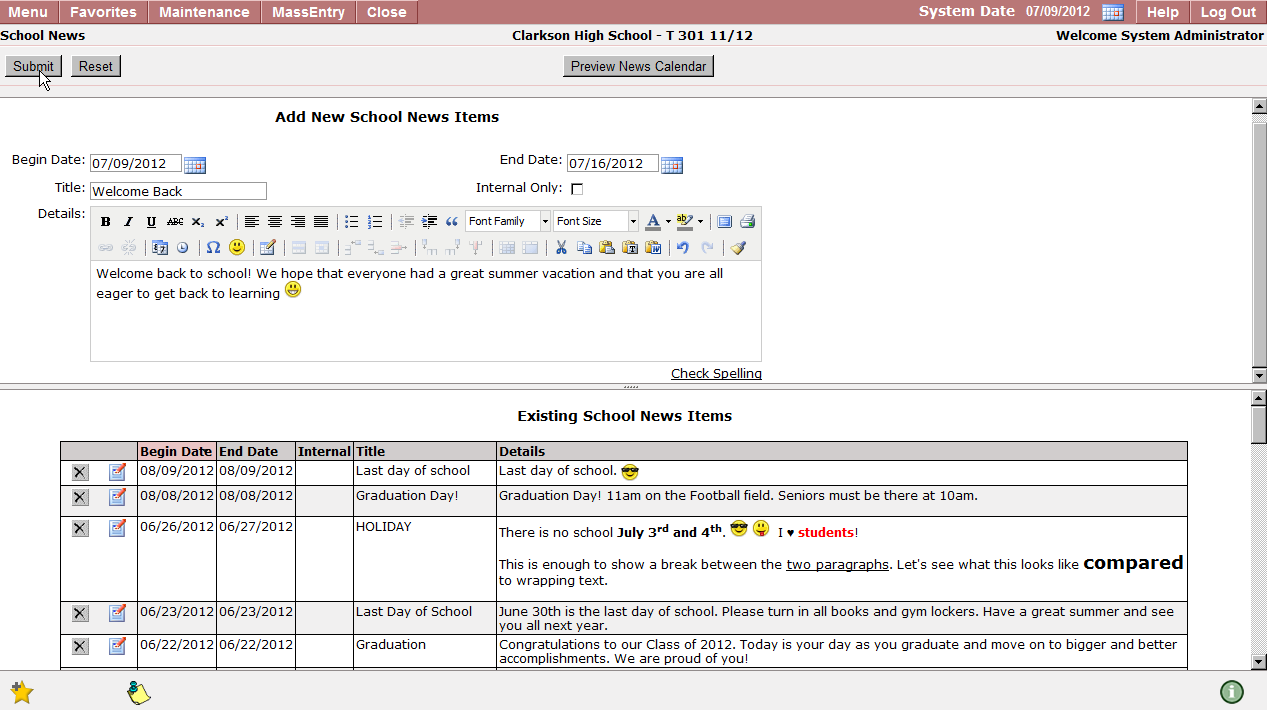
7. Once saved, the news item will appear in the ‘Existing School News Items’ list.
To edit an existing school news item:
- Open the School News application.
- Select the news item you would like to edit from the list.
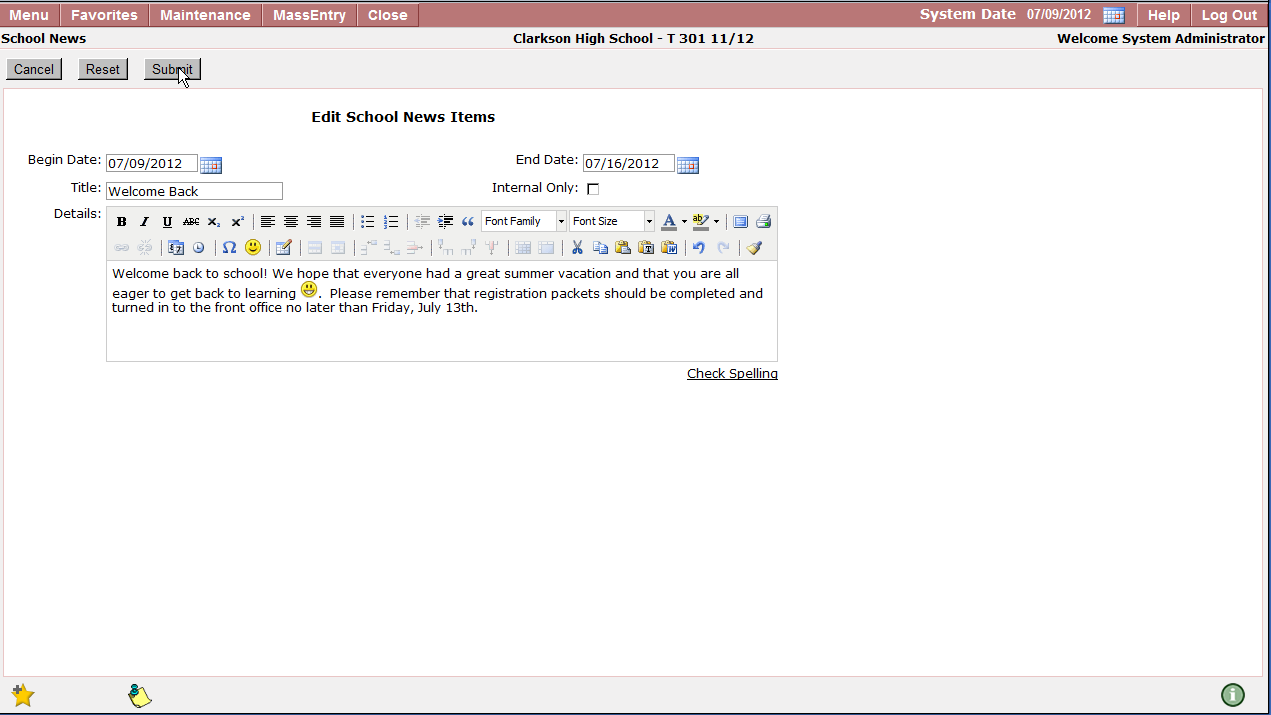
- Click the notepad icon in the ‘Existing School News Items’ list located to the left of the begin date field to expand the news item.
- Make the desired changes to the existing news item and click Submit to save.
- The edited news item will be displayed in the existing school news items list.
To delete an existing news item:
- Select the school news item you would like to delete from the existing school news item list.
- Click the X to delete the news item.
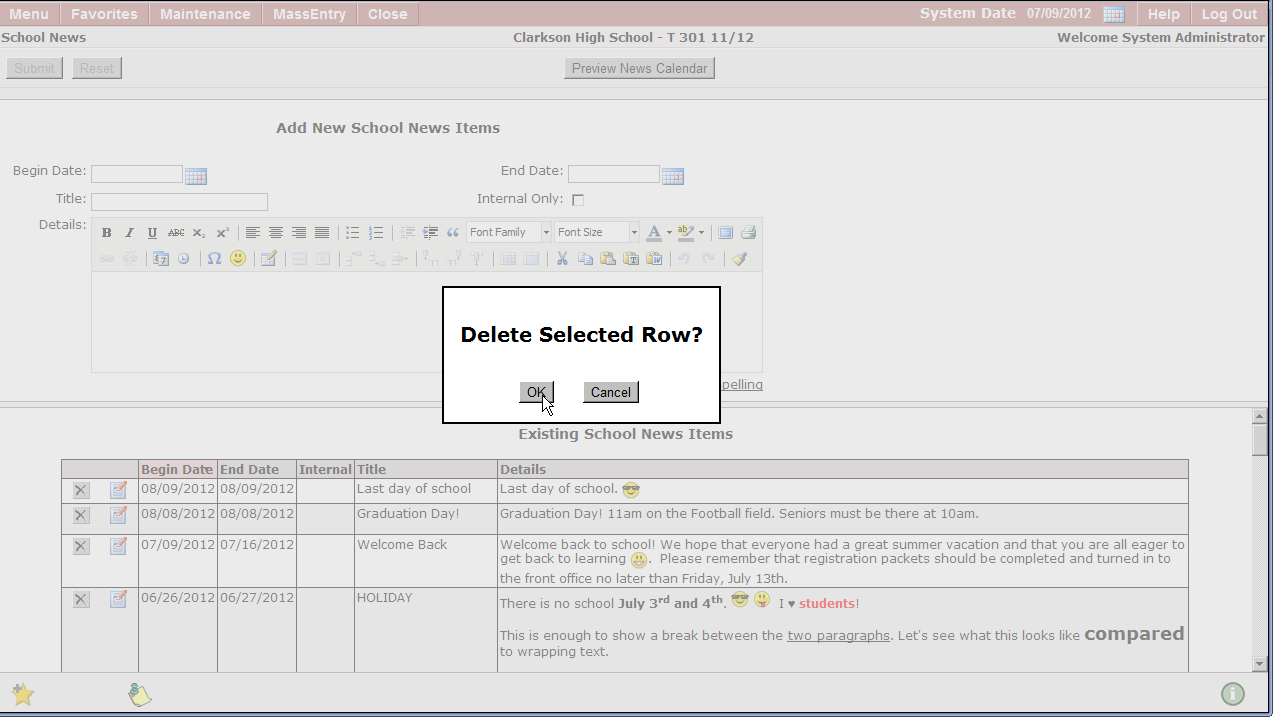
- You will receive a pop up window, confirming whether or not you would like to delete the selected row. Click OK to confirm, or Cancel to return to the previous window.