
The Q Home Page contains blocks of content relevant to a user’s role, called widgets.
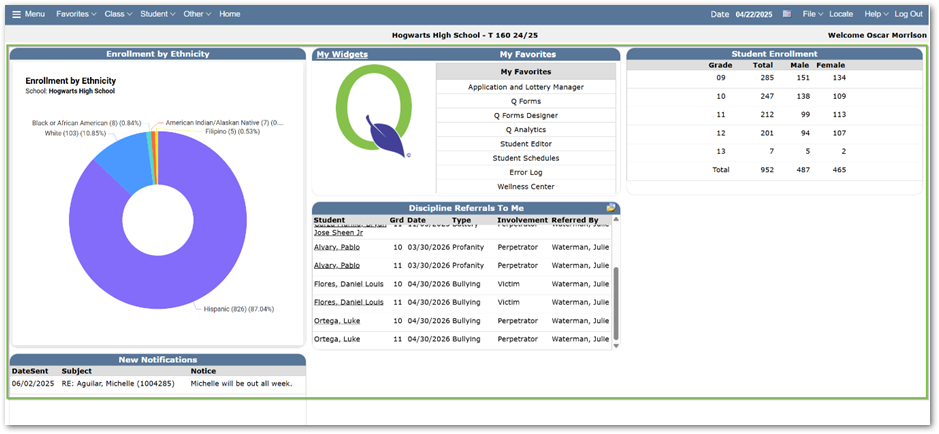
Users may subscribe to, unsubscribe from, and arrange the widgets. However, some widgets are required by the district and may not be removed. Widgets are permissionable and not all users will have access to the same set of widgets. In addition to a wide variety of widgets that come standard with Q, it is possible for districts to create their own custom widgets.
Some widgets include a folder icon at the top right, which, when clicked, opens to the relative Q application. Additionally, student names in a widget may link to an application, such as Student Profile, with that student pre-selected. Widgets can be set to show on the Home Page only if content is available to display.
While on the homepage, click the ‘Widget Subscriptions’ icon  at the bottom of the browser window.
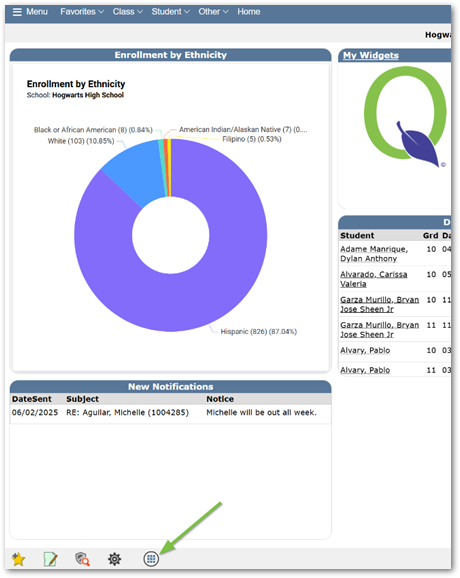
This will open the Widget Subscriptions & Configuration window.
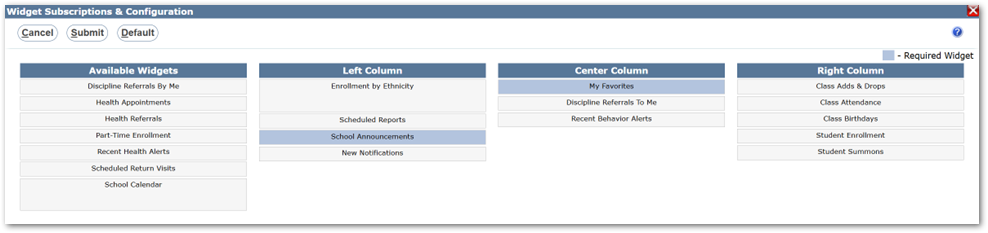
The widgets listed under ‘Available Widgets’ are not displayed on the user’s home page but are available if the user wishes to subscribe. The widgets listed under ‘Left Column’, ‘Center Column’, and ‘Right Column’ do appear on the user’s home page in the respective column.
To subscribe to an available widget, or rearrange widget placement:
- Click and hold, then drag the widget to the desired position in one of the columns.
- When a yellow line appears in the desired location (pictured below), release the mouse button to place the widget in that location.
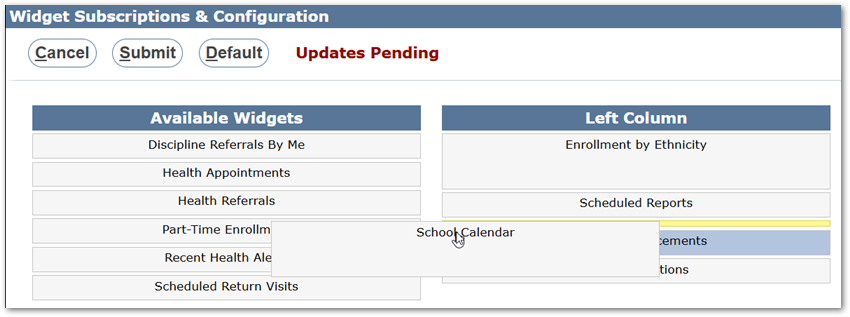
- To unsubscribe from a widget, drag and drop the widget into the list of ‘Available Widgets’.
- To arrange widgets on the home page, users may move widgets to any of the columns and organize them in the desired order.
- Click Submit to save your changes.
Note
Widgets with the light blue background are required and may only be moved. It is not possible to unsubscribe from a required widget.
Note
Q offers users the ability to set regularly used applications as favorites. Applications designated as a favorite appear as links in the “My Favorites” Widget. See Favorites documentation for more details.
