
The Grid Master Schedule Report is laid out in a "traditional" grid - with some advanced, optional features. Grid-style master schedule reports are used often during scheduling processes to:
- Check for teachers who have 'holes' in their schedules (unscheduled periods),
- Examine faculty assignments (for instance by Team or Department), and
- Analyze seat counts.
A grid-style master schedule report is also handy as a faculty locator (or "road map") and for various other purposes.
While details specific to this report will follow, users can find general information about reports within the Reports documentation.
Grid Master Schedule Report is located within Reports in the Schedule menu in Q.
Report Options
The Q Grid Master Schedule report offers the following options: 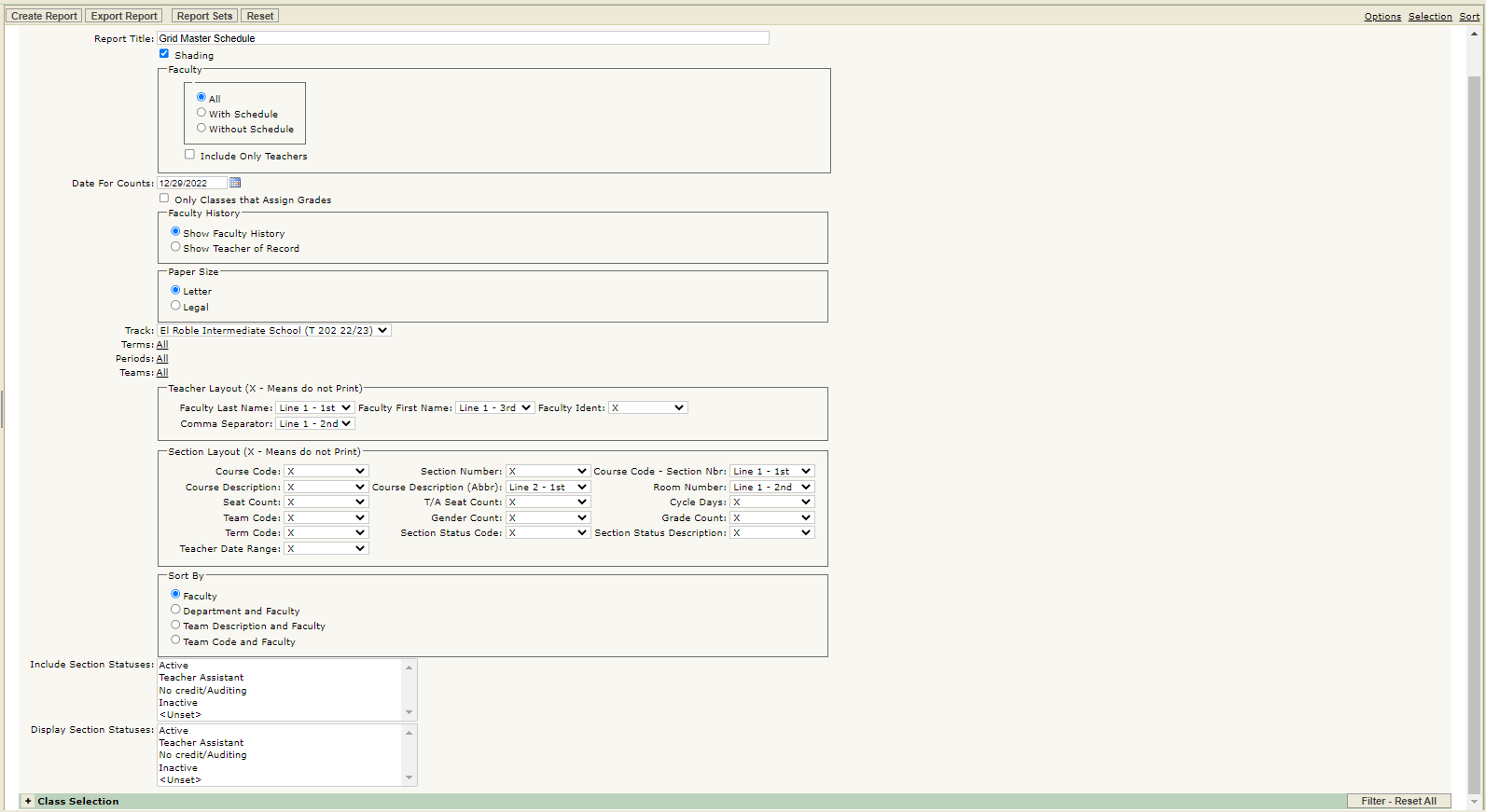
- Report Title—The default title of the report is Grid Master Schedule but may be edited by the user
- Shading—Select to include shading on the report
- Faculty—Select which staff members to include on the report
- Date For Counts—Specify the effective enrolled date if including seat counts
- Only Classes that Assign Grades—Select to exclude sections that do not assign grades
- Show Faculty History—Select to associate sections on the report with teachers from the section’s Faculty History
- Show Teacher of Record—Select to associate sections on the report with the section’s current teacher
- Paper Size—Select the size of paper to print the report on (if the report will include more than 7 periods legal size paper must be selected)
- Track—Select a track to for the report
- Terms—Choose the terms to include on the report (overlapping terms are not permitted, sometimes it’s best to select the year long term and then select term in the section layout)
- Periods—Choose the periods to include on the report
- Teacher Layout—Select the layout options for teacher fields. If you do not want to include a specific item on the report select X
- Section Layout— Select the layout options for section fields. If you do not want to include a specific item on the report select X. If including seat counts, be sure to set the desired Date For Counts above
- Sort By— Select how to group the data
- Include Section Statuses— Select to filter sections by section status
- Display Section Statuses— If Section Status Code or Section Status Description are set to display in the Section Layout options, you may use this option to display only particular statuses. For example, if the majority of the sections in your Master Schedule have an Active status and you want the Teacher Assistant sections to stand out when viewing the report, you may choose to display only the Teacher Assistant statuses.
Example Reports
Note: Reports may look different depending on options, selections, and sorting.
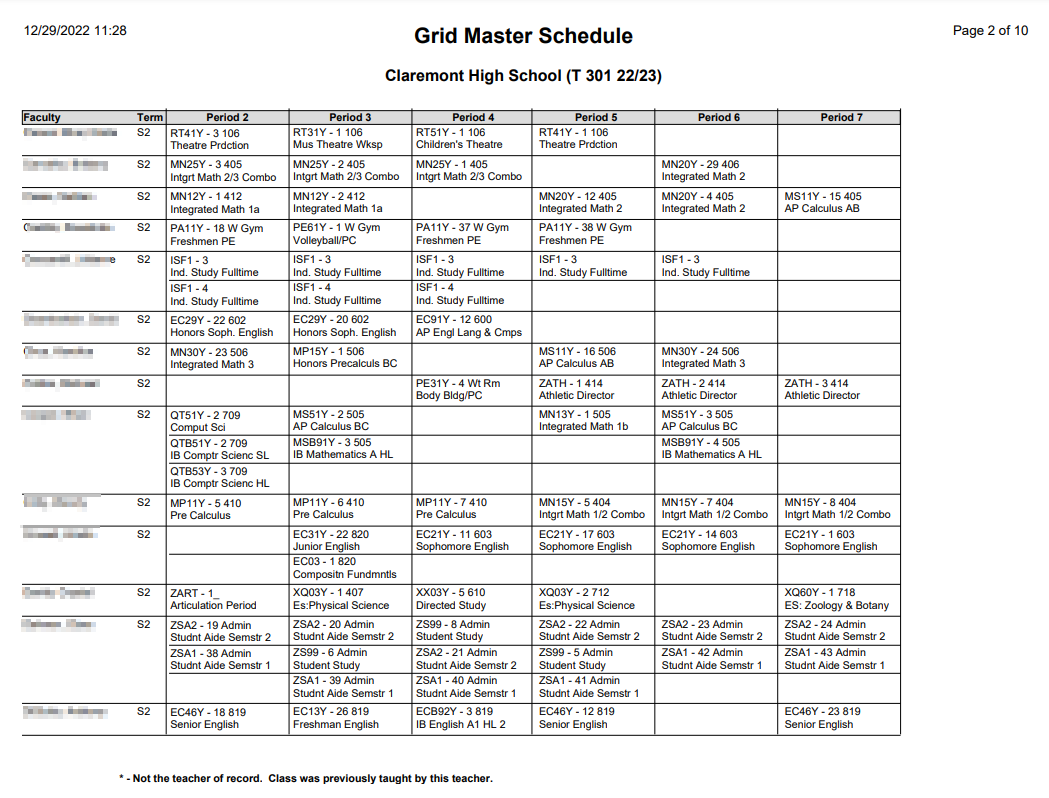
Grid Master Schedule report
Q Academy Live
