Drop-In Attendance application allows teachers to add students on the fly to the roster and record their attendance including beginning and end times, an optional attendance code, if configured, and notes.
Drop-In Attendance application may be used for California Attendance Recovery but has specific configuration requirements to meet CA Attendance Recovery requirements. See Attendance Recovery documentation.
The application may be used by districts in any state to record student drop-in attendance for specific district situations, like detention, latchkey programs, etc.
Drop-In Attendance is located under the Attendance menu in Q.
Select the Drop-In class from the list of classes for today’s date.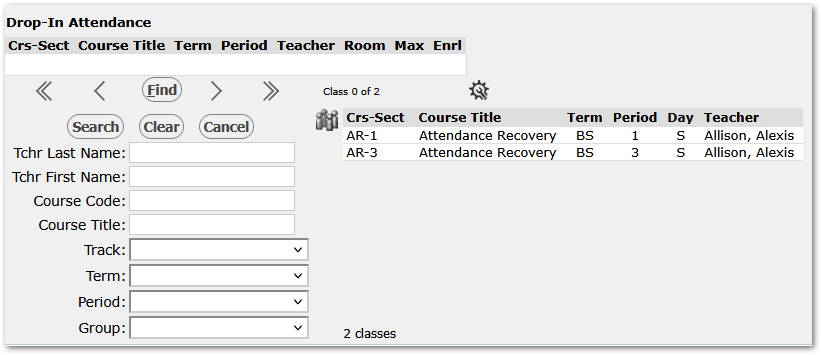
Adding Students to the Class
When a class is selected, on the left the teacher may quickly search for and select students to add to the day’s class roster shown on the right. Note above the roster, shown below, displays the day’s date, number of students currently on the roster and the max class size, in this example 20. The application will not allow more students to be enrolled for the days’ meeting than the maximum to support California Attendance Recovery rules where the number of students per certificated teacher ratio is 20:1 for grades 1 through 12, and 10:1 for grades Transitional Kindergarten (TK) and Kindergarten. For districts using the application for purposes other than Attendance Recovery, the maximum class size may be adjusted in the Master Schedule Manager, if needed.
To add students to the class, enter search criteria and hit enter.
In this example, the Student Search focus field is ‘Last Name’. Student Search Focus defaults based on a preference which may be changed by the user by clicking the gear icon at the bottom of the screen and selecting another choice. The options are Last Name, First Name, or ID.
Focus will stay in the field for the next search.
Active or Inactive students may be added to the roster. For shorter lists, the search can be filtered to ‘Only Currently Active’ using the checkbox in the Select Students area.
The ‘School’ field will only be enabled making other schools selectable if the district has enabled a Drop-In Attendance preference to allow students from other schools. In the example shown, the preference is off and the school defaults to the logged in school.
When a list of students is returned by the search, they may easily be selected and added using the keyboard arrow keys:
- Up and down arrows change the selected row,
- Right arrow key will move the selected student to the roster.
- Clicking on any row will also move the student to the roster.
Navigation Information is available by clicking on the blue question mark.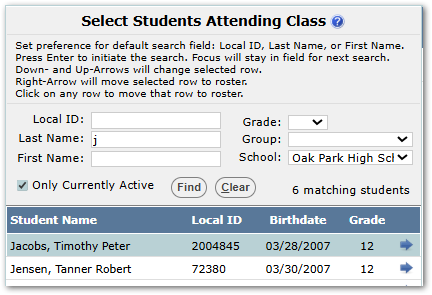
Recording Attendance
Today’s date is shown above the roster along with the number of students on the roster, and the maximum class size setting for the course section.
The Begin and End times default to the Bell Schedule, if configured.
The Attendance Code drop-down will appear if Drop-In Attendance codes are configured in the Lookup Editor. If not configured, this field will not appear.
Notes may be added.
Users may use the blue Fill arrows in the column header to fill the selected value down the column or click individual blue field arrows to set the value for specific students. In the example below, we’ve filled the columns with the default bell schedule time and adjusted the begin time by setting it at the top and clicking the field arrow for individual students as they arrived. Similarly, we’ve set the attendance code to ‘Engaged in learning activity’ for all students and adjusted for the exceptions.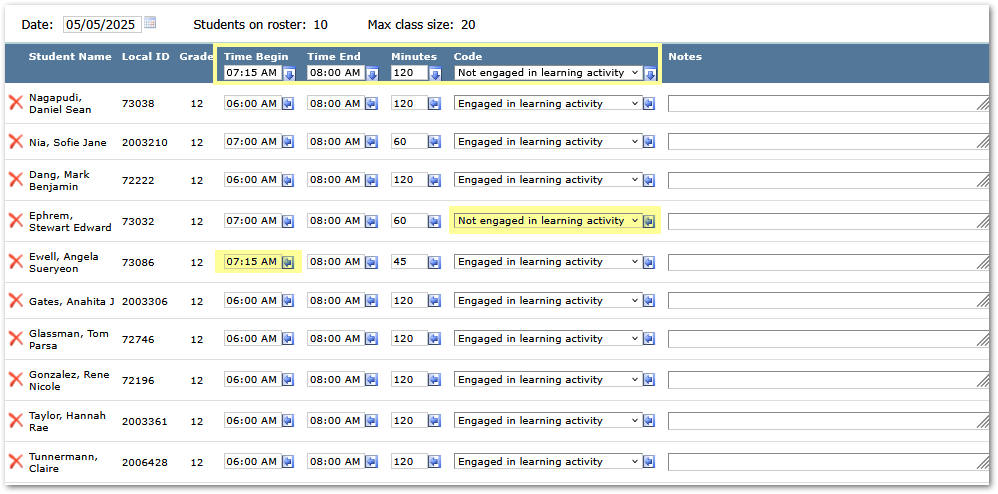
Submit to save the roster and attendance throughout the period, as adjustments are made.
Course Configuration
Classes added in the Master Schedule Manager with the Drop-In Section flag and Attendance Taken boxes checked will appear in Drop-In Attendance.
If using the California Attendance Recovery calculation, the ‘Count Attend’ flag must be checked also.
When a section is flagged as a Drop-In Section, it may not also be flagged as a Scheduled Section. In addition, Drop-In sections may not have ‘Assign Grades’ or Post to History’ checked. Attempting to set any of these flags will result in an error when saving the record.

Drop-In Attendance Lookup Codes
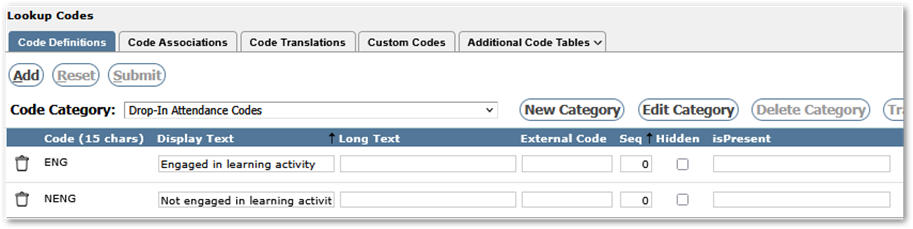
Drop-In Attendance codes may be defined in the Lookup Codes application, but they are not required to log drop-in attendance. If they are not defined, no Code option will appear in the application.
Example in the application:
Defining the Lookup Codes:
Preferences

Allow Students from Other Schools
To enable teachers to add students to the roster who attend other schools, set the ‘Allow Students from Other Schools’ preference to Yes.
Student Search Focus
The Drop-In Attendance application has a Student Search Focus preference to enable teachers to set the search focus. They may set the focus to be either Last Name, First Name or ID.
Permissions
Drop-In Attendance has its own permission item: ‘Attendance: Drop-In Attendance [Application]’. Teachers assigned to Drop-In class sections will need this permission item.