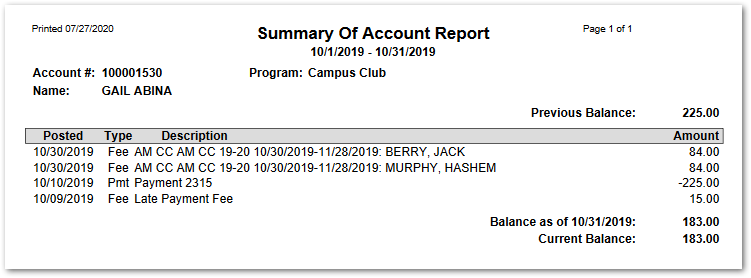
The EC Summary of Account Report produces a variety of report formats depending on options selected. It may be used to print a report similar to EC Print Bills using ‘Mail To’ options and grouping by transaction type. Alternatively, by not grouping by transaction type, it will produce a transaction list report for selected accounts like the report on the EC Account Charges/Payments tab.
While details specific to this report will follow, users can find general information about reports within the Reports documentation.
EC Summary of Account is located within Reports in the School menu in Q.
EC Summary of Account Report Options enable the user to select:
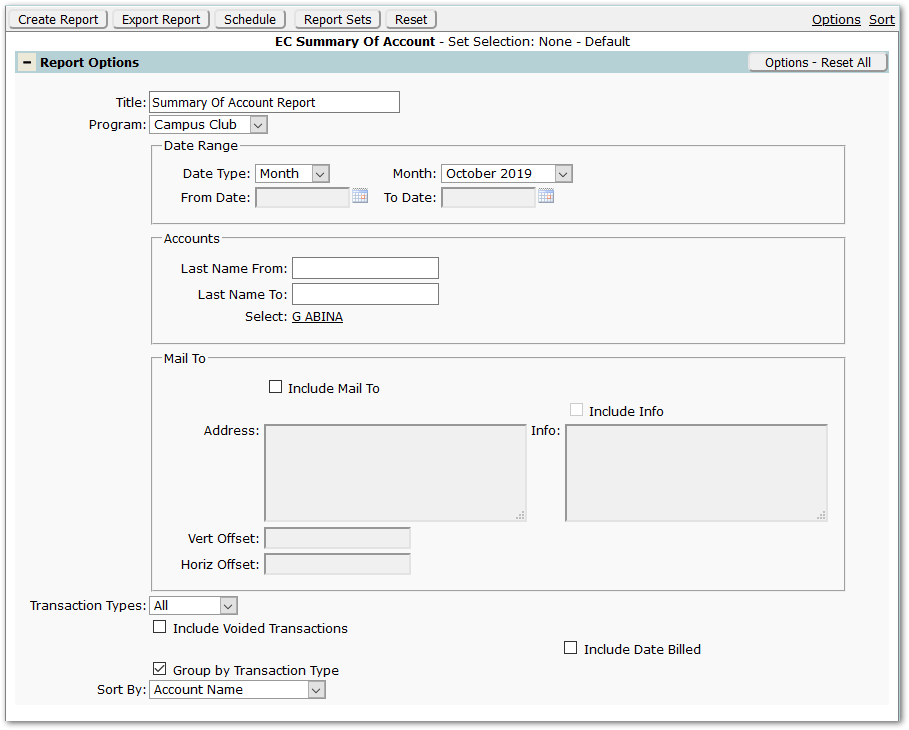
- Title – The default title ‘Summary of Account Report’ will appear, but it may be edited and revised.
- Program – A program must be selected. <All> programs is available for selection, if desired, but is not the default.
- Date Range
- Select Date Type of ‘Month’, shown above, or ‘Custom’, shown below. Correspondingly, select specific month or date range.
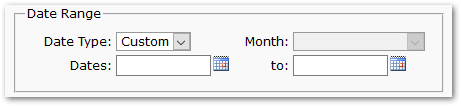
- Select Date Type of ‘Month’, shown above, or ‘Custom’, shown below. Correspondingly, select specific month or date range.
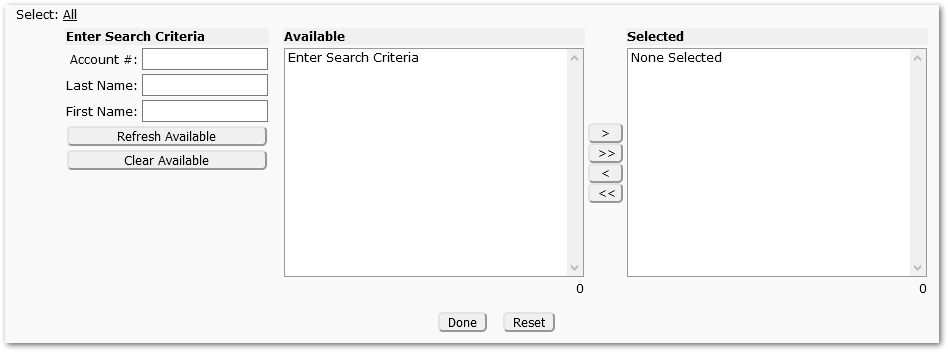
- Accounts – Select accounts, if desired, by either entering values for a range of last names or selecting specific accounts by clicking Select: ‘All’ and searching for and selecting specific accounts. Click Done when all desired accounts are selected.
- Mail To – Check ‘Include Mail To’ to print the Address information comparable to the Print Bills report.
- Transaction Types – This will default to ‘All’, but ‘Payments’ or ‘Charges’ may be selected.
- Include Voided Transactions – Select if desired.
- Include Date Billed – When checked, a ‘Billed’ column will appear, with Date Billed information.
- Group By Transaction Type – This setting defaults to being checked. To print a report like the Transactions report from the Account Charges / Payments Tab of Extra Curricular, uncheck the 'Group By' setting.
- Sort By – The report defaults to sort by ‘Account Name’, but may be changed to ‘Program, Account Name’.
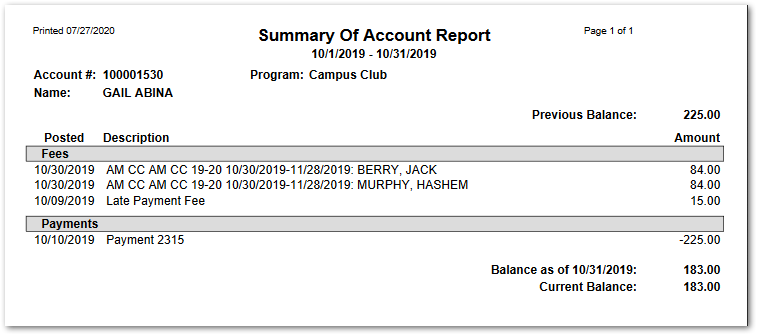
The sample below shows EC Summary of Account Report with ‘Grouping by Transaction Type’ ON and no Mail To options selected:
Report Sample with ‘Group By Transaction Type’ not selected: