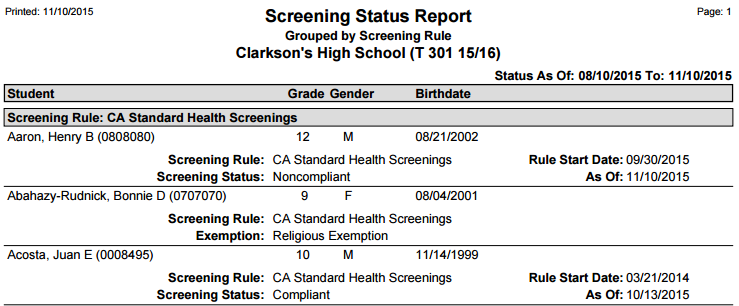
The Q Screening Status Report produces a list containing the Health Screening Status code assigned to each student, as stored in the Student Health application. Because this report returns data regarding a student’s Screening compliance, it is important to run the Calculate Compliance command before running this report, in order to return updated data.
While details specific to this report will follow, users can find general information about reports within the Reports documentation.
Screening Status Report is located within Reports in the Health menu in Q.
Report Options
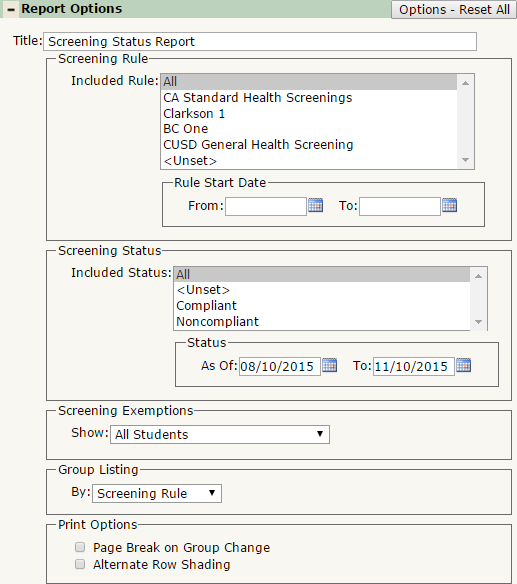
The Q Screening Status Report offers the following report options:
- Title: Displays at the top of the printed report, rename here if necessary.
- Screening Rule
- Include Rule: Defaulted to ALL, you may select which Screening Rules to return data on. Control-Click to select multiple Rules.
- Rules Start Date: Defaulted to be blank, you may select a date range to filter the report on when the students received their Screening Rule.
- Screening Status
- Included Status: Select which Screening Statuses to include in the report. This is defaulted to ALL, but you may select a single status if necessary.
- Status As Of: You may further filter the report by selecting a date range for when the student received their Compliant or Noncompliant status.
- Screening Exemptions: Select one of the following options to show All Students, only Students without an Exemptions, or only Students with an Exemption.
- Group Listing By: Select to group the report by Screening Rule, Screening Status or
- Print Options
- Page Break on Group Change: Select this to jump to a new page when the group changes.
- Alternate Row Shading: Select this to print shading between records. This is useful when printing a large data set for an easier viewing experience.
Example Reports
Report printed with default settings for 3 students: