
The Q Class Item Order Count Report will print the counts of all Items by School, teacher, period on the effective date selected for the logged track. The report includes a legend reflecting the items counted in the page footer. An option will allow the user to print the summary only, without the detailed breakdown per teacher. Users may select the classes to be included using the standard Class Selection filter which includes Teacher, Class, Period etc. if there is a need to filter to a set of classes, etc. In cases where food items or lunches are being counted, this is the report that would be useful for the cafeteria staff.
Class Item Order Counts are defined by the School staff under School menu in the application, Class Count Items. Once defined, teachers may log the count of students ordering the item (e.g. lunch) in the Class Attendance application under the Counts button for the specified date.
While details specific to this report will follow, users can find general information about reports within the Reports documentation.
Class Item Order Counts Report is located within Reports in the School menu in Q.
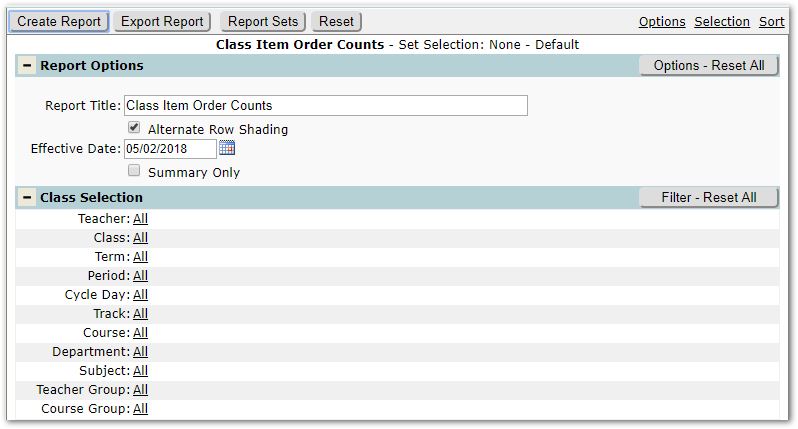
The report offers the following options:
Report Title – The report title will default to ‘Class Item Order Counts’ but may be changed as needed.
Alternate Row Shading – Alternate row shading applies to multiple classes by teacher and defaults to being set on. If you would like not to have alternate row shading, uncheck.
Effective Date – The effective date will default to Today. To run the report for a different date, set that date here.
Summary Only – If you wish to run the report without teacher level detail, and want to only report total items by school for the selected date, check ‘Summary Only’ on.
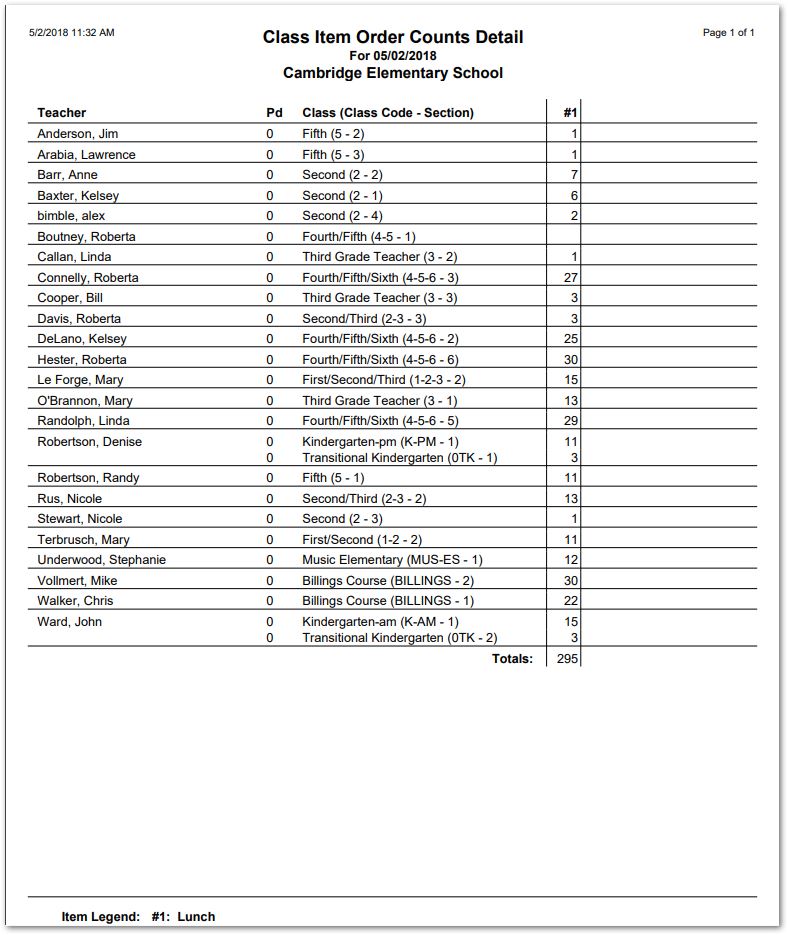
Detailed Report Sample without Alternate Shading
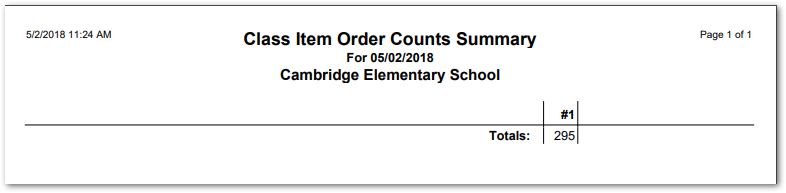
Report Sample – Summary Only
