
Q has the ability to display Facebook and Twitter feeds in the Home page widgets. This can be useful for displaying your tech department, school, or district’s feed. You can also combine all your district-related Twitter feeds into one using the Twitter Lists feature.
Note
Some districts have Facebook and/or Twitter blocked on the district networks. So, if you are setting this up at the office and you can’t normally access Twitter/Facebook at the office, you might not see the feeds.
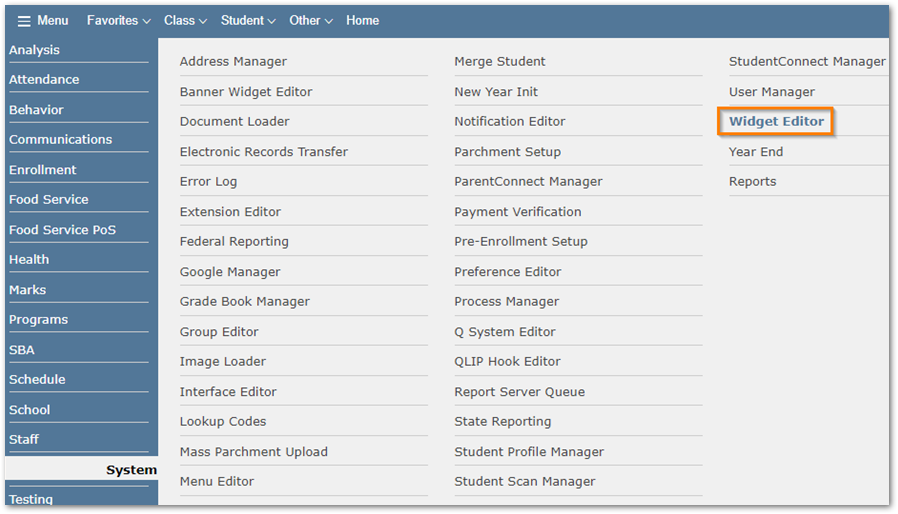
First, navigate to the Widget Editor app:
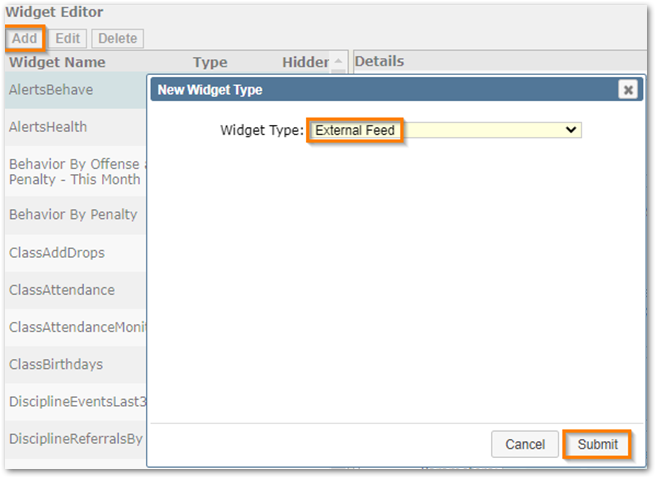
Click Add then choose External Feed as the Widget Type. Click Submit.
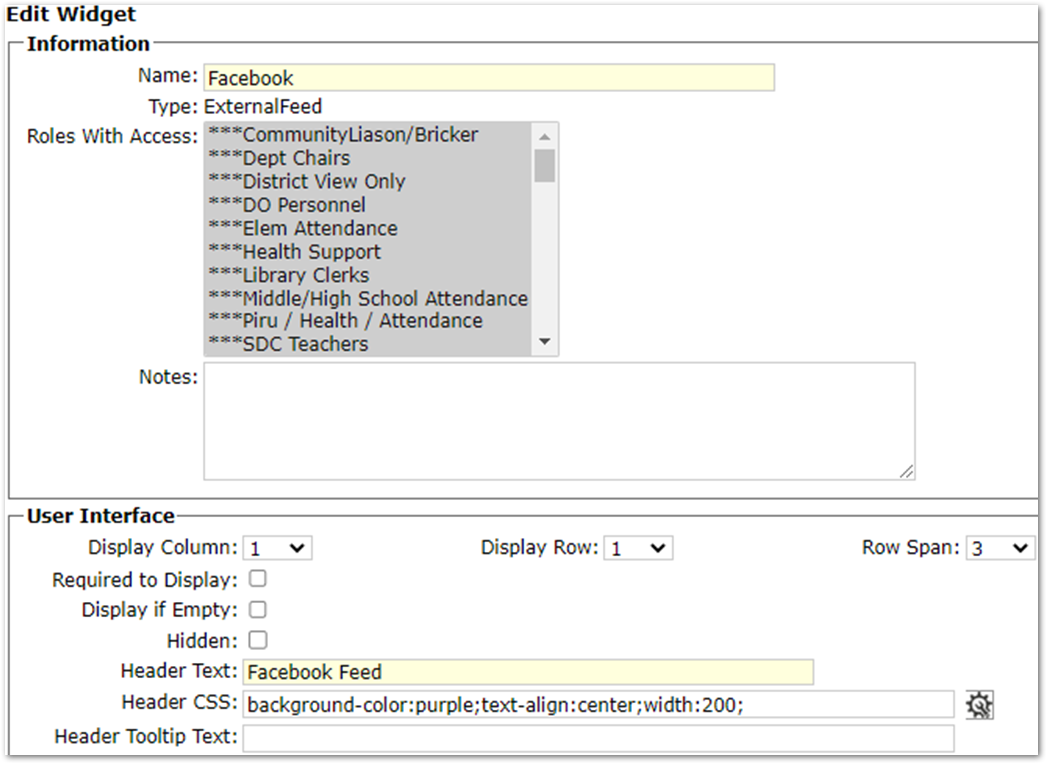
Fill out the Information and User Interface areas. Refer to documentation for help with the Information and User Interface areas.
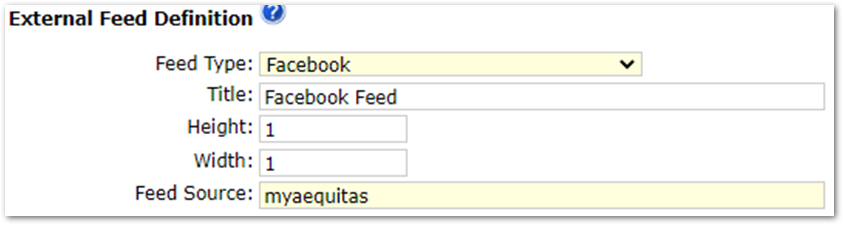
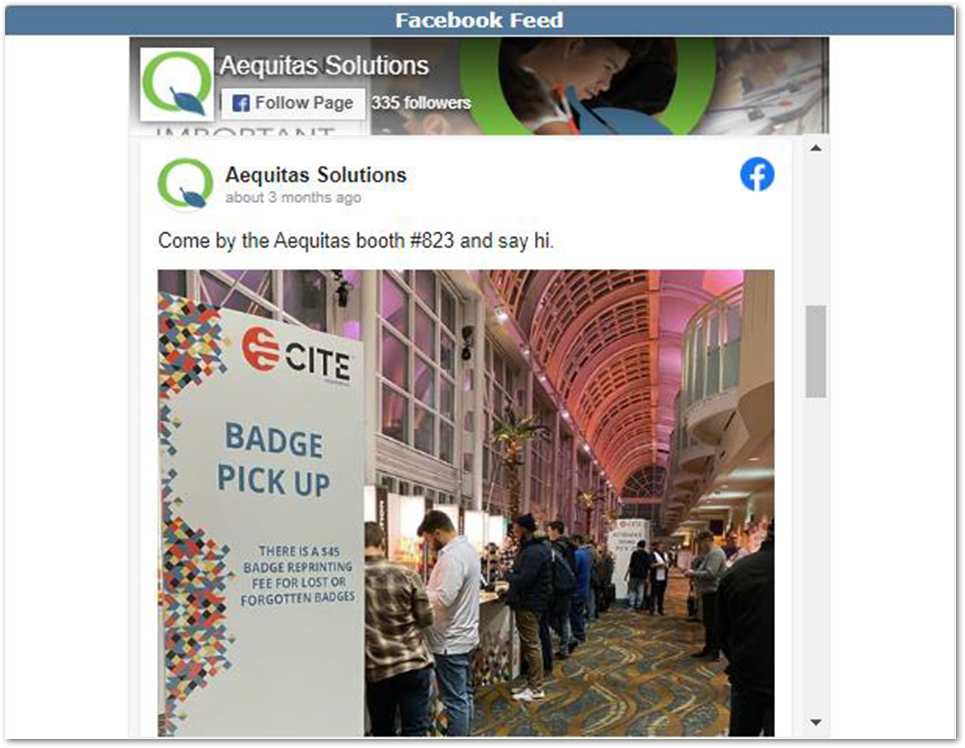
To have the widget display a Facebook feed choose Facebook for the Feed Type.
Enter the Facebook page (everything after www.facebook.com/) you wish to display in the Feed Source field.
Click Submit and your widget has been created:
Twitter – Single Feed
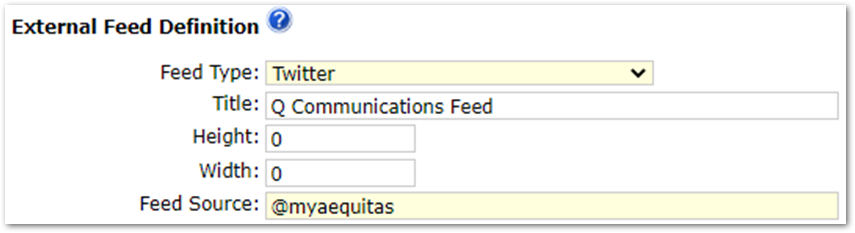
To have the widget display posts from a single Twitter account choose Twitter for the Feed Type. Enter the Twitter handle as the Feed Source:
Click Submit and your widget has been created:
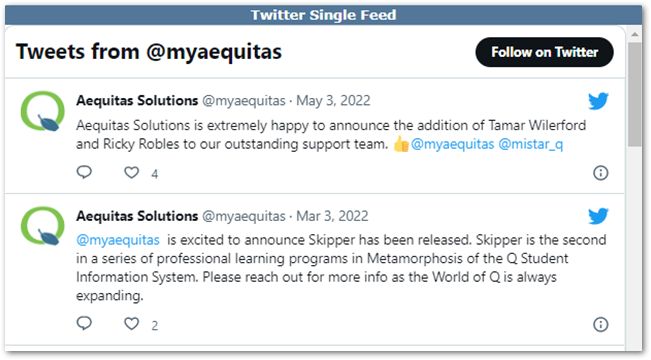
Twitter – Multiple Feeds
To have the widget display posts from multiple Twitter feeds you must have created your own Twitter List in the Twitter app.
Refer to Twitter documentation for how to make Lists (if you need help making a Twitter List please put in a Helpdesk ticket and ask that it be assigned to me (Rob)).
Once you have your List, take note of the List URL:
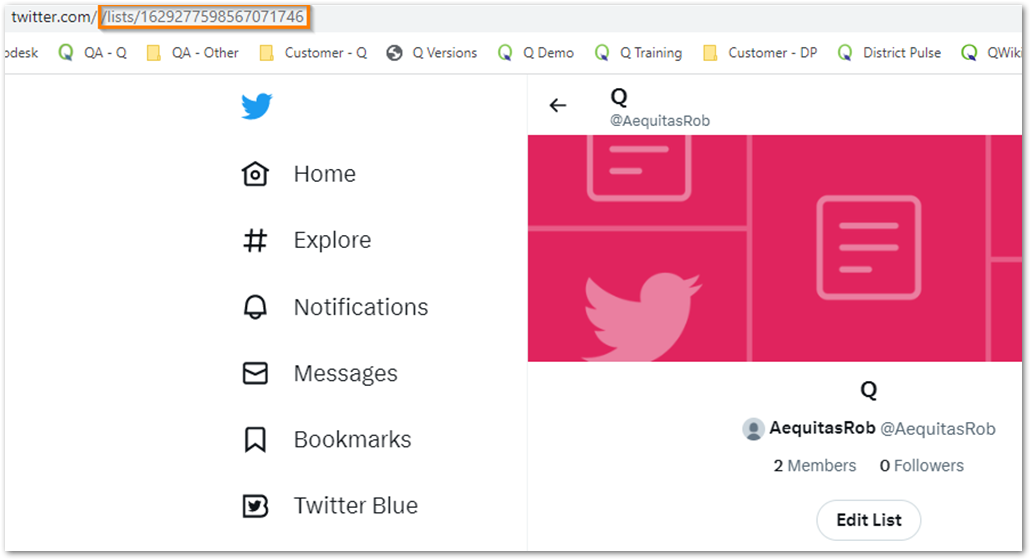
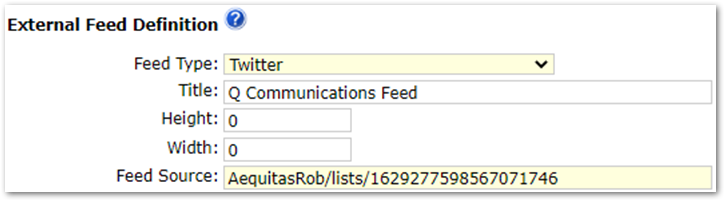
In the Feed Source field, enter your Twitter handle, followed by the /lists/#### from your list URL:
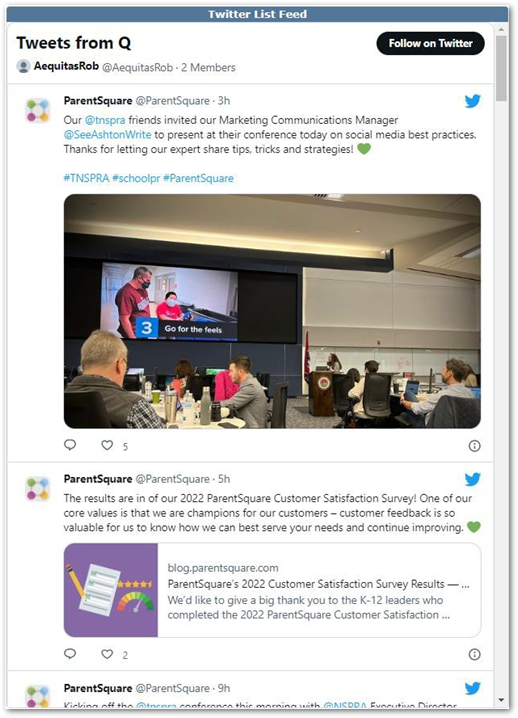
Click Submit and your widget has been created:
If you have any questions, please put in a ticket with the helpdesk.