
The Grade Book Student Progress Report produces a list of assignment scores for selected student(s), in a selected class, and generates a report card style report. The format is comprised of five available sections:
- General Class Information: includes the class name, teacher, period, term date range, and counselor / advisor.
- Calculated Grade: a “Current (Term) Report Card Grade” which can be positioned at the top, bottom, or both of the report.
- Assignment Listing: includes scored and missing assignments.
- Attendance Summary (optional): includes attendance detail for the student(s).
- Grading Scale Legend (optional): provides a list of grades and associated percentages.
While details specific to this report will follow, users can find general information about reports within the Reports documentation.
Grade Book Student Progress Report is located within Reports in the Marks menu in Q.
Report Options
The Grade Book Student Progress report provides the following options:
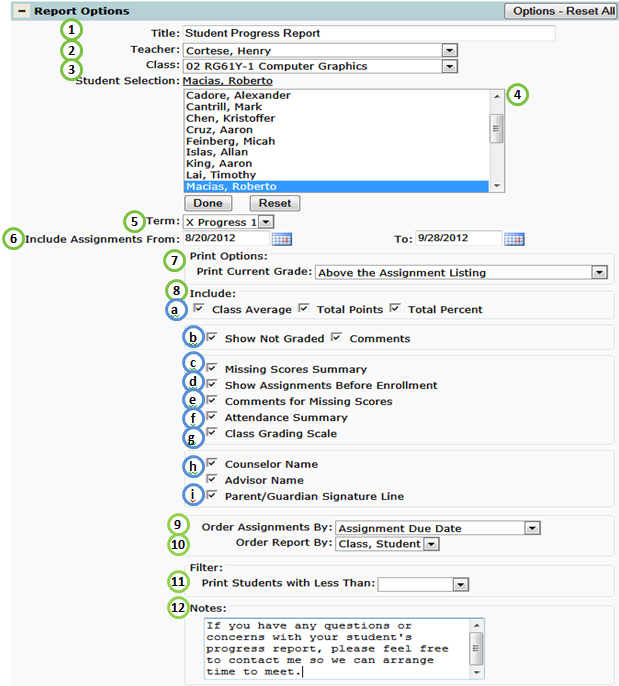
- Title – include a custom title or leave at its default title
- Teacher – select a desired teacher. NOTE: Only teachers who have set up their grade book will be available.
- Class – select all classes or a specific class. NOTE: Only classes who have at least one grade book assignment will be available.
- Student Selection – select student(s) by holding the CTRL key and clicking each student you would like a report for. Click Done when student list is complete, or Reset to close the list box and print report for all students.
- Term – select a term.
- Include Assignments From and To Dates: upon selecting a term, the date range will auto-populate with the term begin and end dates. For a custom date range, manually enter or select a date range of Assignments to be reported.
- Print Current Grade – select Above, Below, or Both Assignment Listing position where you would like the Current Grade to be printed.
- Includable Fields:
- Class Average, Total Points, and/or Total Percent information preceding the Current Grade.Show Not Graded and Comments: include ungraded assignments and associated comments.
- Missing Scores Summary: include report section displaying all assignments that have not been scored and an assignments subtotal.
- Show Assignments Before Enrollment: include assignments that have been given prior to student(s) enrollment.
- Comments for Missing Scores: include comments added to missing scores assignments.
- Attendance Summary: include report section displaying attendance counts for selected student(s).
- Class Grading Scale: includes the associated grading scale
- Counselor / Advisor Name: include assigned counselor or advisor for selected student(s).
- Parent / Guardian Signature Line: include signature line at the footer of the report.
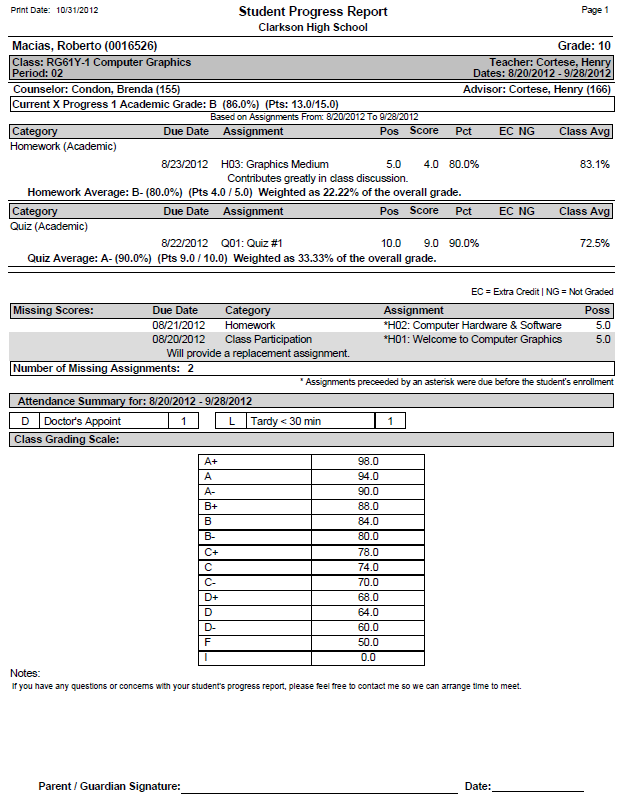
- Order Assignments By: sort assignments by due date or group by assignment category. NOTE: If the selected class uses the Percentage Calculation Method, a weighted percentage for each category, on the overall grade, will be included.
- Order Report By: sort generated Progress Reports by class, then student or vice versa. NOTE: Student, Class sorting is only available when < All Classes > is selected.
- Filter – Print Students with Less Than: include a percentage cutoff point to filter only student(s) who have a Current Grade Equivalent less than selected percentage.
Example Reports
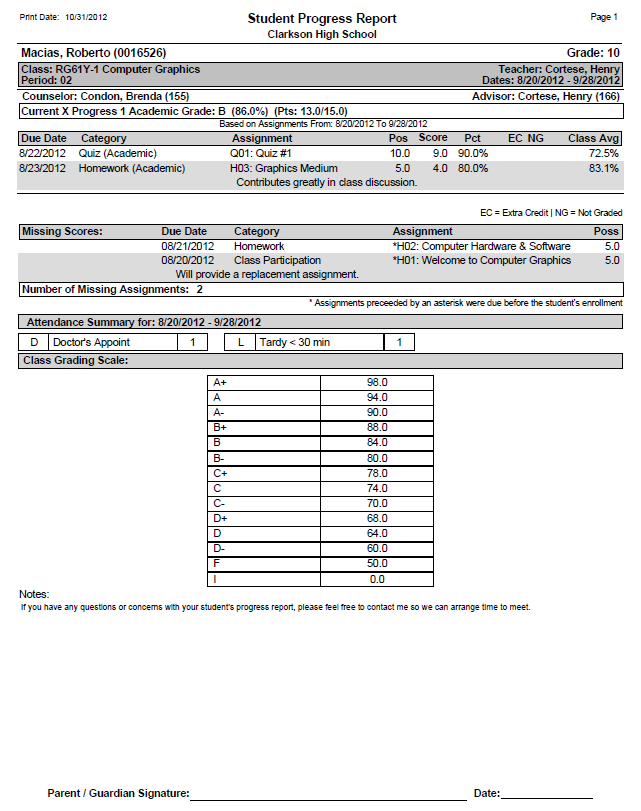
Grade Book Student Progress Report (Grouped by Category)
Videos
