
The CERS Group Builder application is used to create and post student groups for use in CERS (California Educator Reporting System). The groups are posted to CERS using an API provided for that purpose. Groups may be defined using Class Rosters or a Student List. Once groups have been sent to CERS they will be available for use in Group operations such as “Search by Group” when reviewing test results in the CERS system.
CERS Group Builder is located under the Testing menu in Q.
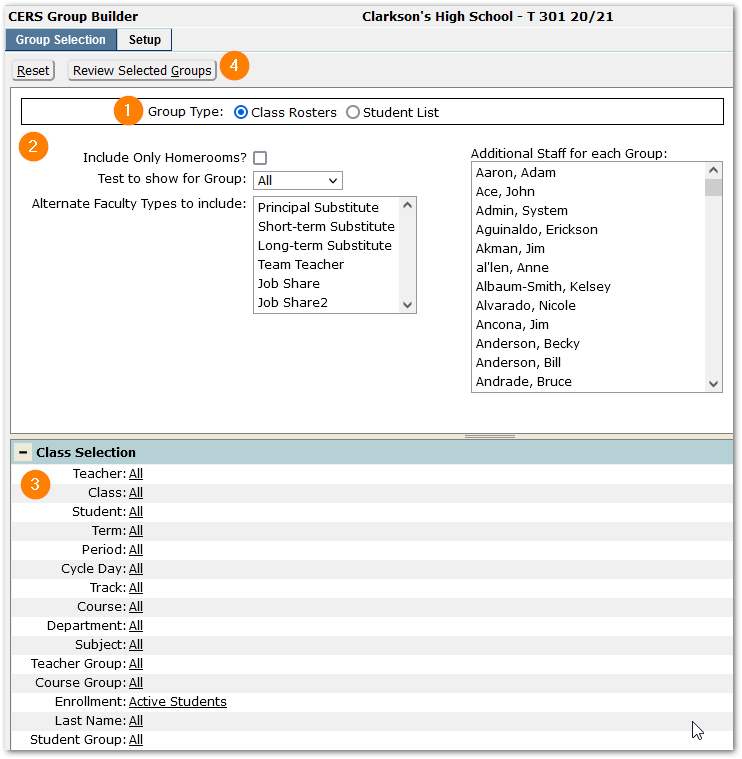
- To define groups, select a Group Type: ‘Class Roster’, the default, or ‘Student List’.
-For Class Roster Groups, a group will be created for each section from the Course Selection. By default, the teacher(s) of the section will be added as group owner(s) in CERS.
-For Student List groups, a Group Name needs to be specified and at least one staff member that will be designated as the group owner, and a group with that name will be created for each school.
- Proceed to complete the other selection options:
When selecting Class Roster:
- Include Only Homerooms – Check if desired, such as for elementary schools.
- Test to show for Group – Defaults to ‘All’ tests, but a specific test may be selected.
- Alternate Faculty Types to Include – Select any appropriate alternate faculty type such as ‘Long-Term Substitutes’, etc. that should have access to the group in CERS.
- Additional Staff for each Group - Select any ‘Additional Staff’ who will need access to the group in CERS.
When selecting Student List:
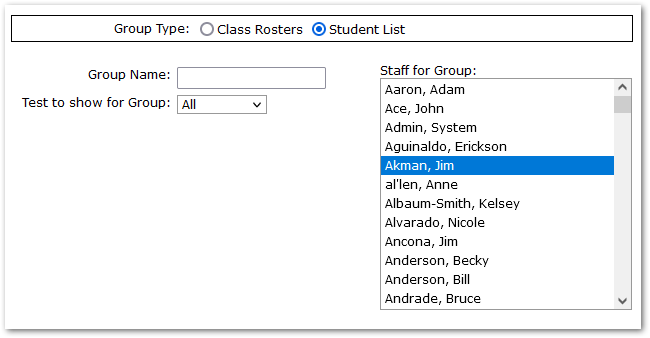
- Group Name – give the group a name.
- Test to show for Group – Defaults to ‘All’ tests, but a specific test may be selected.
- Staff for Group – Select the staff who will need access to the group in CERS.
- Use the standard Class Selection filter to select the classes and/or students to be included in the groups. A few things to note:
- Groups sent with the same name as an existing group will automatically replace the existing group. This allows the system to accommodate enrollment changes easily.
- Sending an empty group with the same name as an existing group will remove the group from CERS. They can also be removed through the CERS interface.
- Do not select individual students if you are using the Class Roster option. Doing this will send groups named after the student’s scheduled sections and replace the existing groups with only the students you select.
- Click ‘Review Selected Groups’ to build the groups. A dialog will open showing the list of groups, including the count of groups and records. The list may be printed by clicking the printer icon at top right corner.
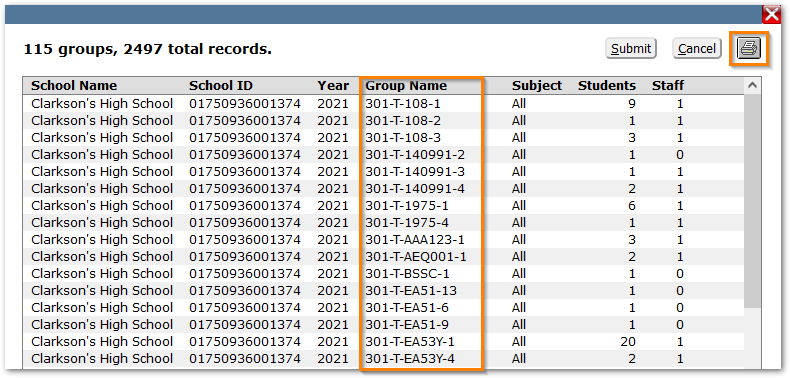
Class Rosters groups will be created for each section from the Course Selection and named with School Code – Track code – Course and Section number, i.e., ‘301-T-EAS1-9’.
NOTE: If any class exceeds 200 students, the group will not be submitted, and a message will be returned with the course group highlighted.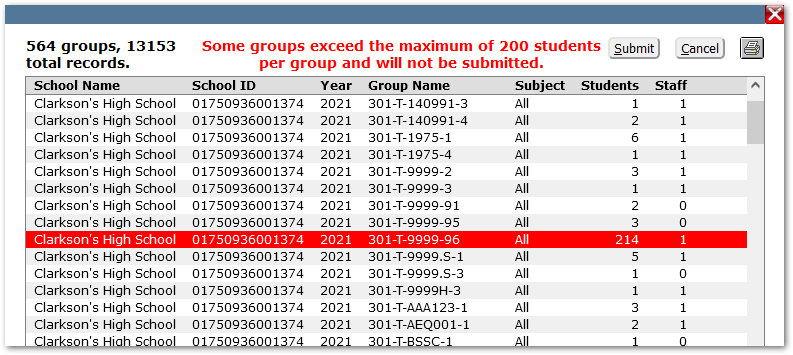
Click Submit to create the groups.
Next Steps
After the submission is processed, the groups will be available to the associated staff in the California Educator Reporting System (CERS) application.
There is no “live” connection between the rosters in Q and CERS. Each submission of a group is a total replacement based on the School, Year, and Group Name. It does not automatically update the groups as rosters change. You must resubmit the entire group including the previous and additional members.
To implement CERS Group Builder, configure the application setup.
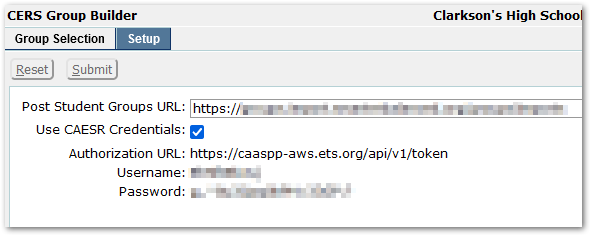
If you have already configured Q to show the electronic CAASPP scores in ParentConnect Manager, checking the “Use CAESR Credentials” will automatically use the account info specified in the ParentConnect Manager. We highly recommend using this feature so that account info always remains in sync and there is only a single place (ParentConnect Manager) that must be used to maintain account info.
If for any reason your district is not showing electronic CAASPP scores or your district is provided a separate account by the state for the CERS group uploads, unchecking the “Use CAESR Credentials” will allow a user with permission to update the Groups endpoint (this is prepopulated) as well as the username and password of the account that will be used to post groups to the CERS system.
The application tabs, ‘Group Selection’ and ‘Setup’, are permission-driven. Once the application is configured, the application permission ‘Testing: CERS Group Builder [Application]’ could be given to teachers if they want to upload their own groups, since it provides access only to the Group Selection Tab. The Group Selection tab uses standard Class Selection filtering. As a result, the application does not need to be restricted to site administrators or testing coordinators. Groups can also be uploaded at any time.
