
The Q Mass Email application allows users to compose and mass email students and/or their contacts. The application will mass send emails based on the selected Sender and creation of a Recipients List.
Mass Email is located under the School menu in Q.
The Mass Application will default to a blank form consisting of three areas:
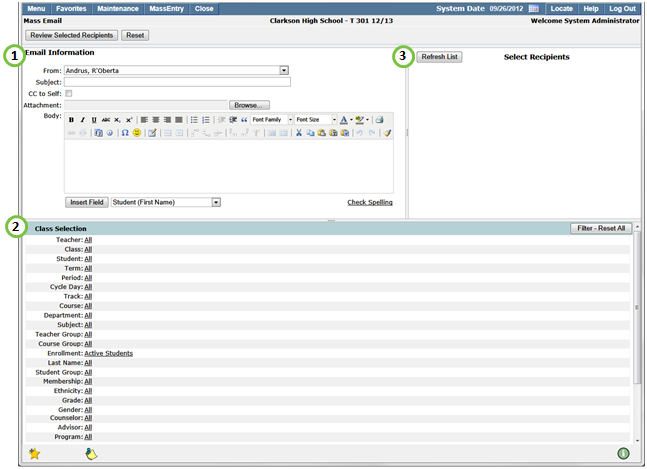
- Email Information – allows users to select the Sender and compose an email.
- Class Selection – provides a list of class and student filter options to assist in creating a Recipients List.
- Select Recipients – allows the user to create a list of students, contacts, and relationship types whom the email will be sent to.
From within the Email Information area, compose the email you would like to send.
1. Select a staff member that will be used as the Sender (From).
2. Enter the subject for the email.
3. Click the CC to Self checkbox if you would like a copy for each email being sent.
4. To add an attachment, click Browse and search for the desired file to attach.
5. Create the body of the email using the Email Composer:
Email Compose Features
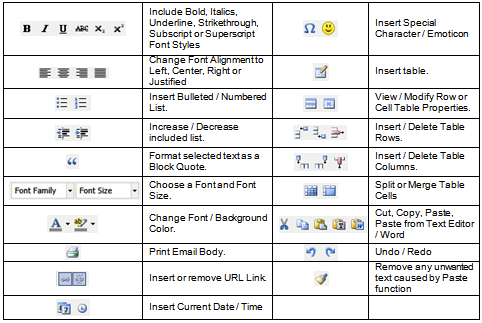
6. Optional: Include Student Name by selecting format and clicking Insert Field. Doing so will include the student's name in the body of the email for each Mass Email Recipient.
7. Optional:Verifiy correct spelling by clicking Check Spelling.
After composing your email, a Recipients list must be created.
1. From the Class Selection area, filter your list using the available Class and/or Student Filters. 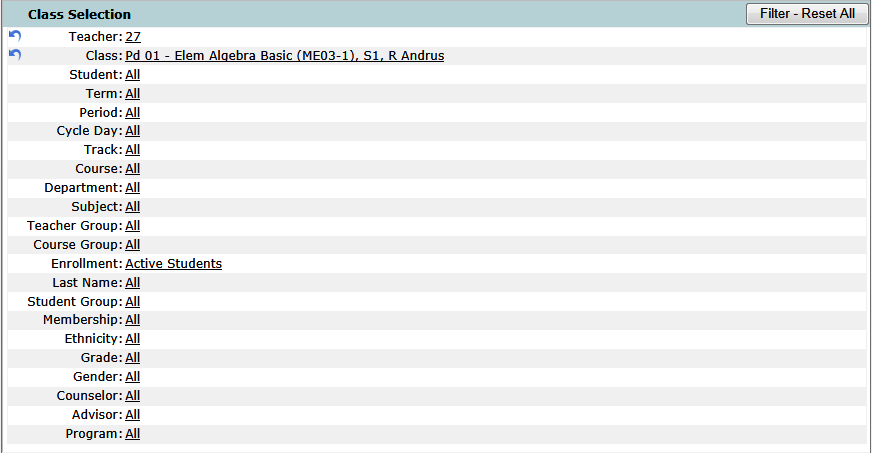
2. Click Refresh List, in the Select Recipients area, to generate your list.
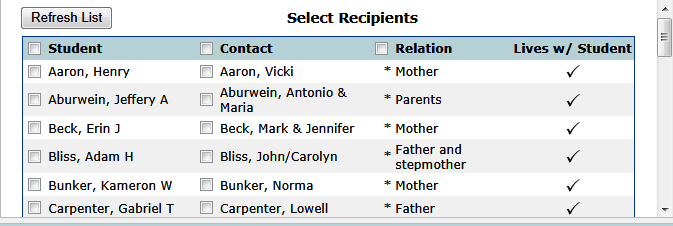
- To select all students, contacts and relationship types, click the Student, Contact, and/or Relation checkbox located in the Recipient List header.
- To select an individual student, contact and/or relationship type, click on the individual checkbox. NOTE: The asterisk before a relation type indicates the contact is the primary contact for the student.
Sending Email
Once you have created your Recipients List, review the list and send the email.
1. Click Review Selected Recipients to display the list of recipients to be sent the composed email. 
Click  to print the list of email recipients.
2. Click Send Email to send email to list of email recipients. NOTE: The error message below is displayed above the Email Information and Selected Recipients areas if the Mass Email application attempted to send an email to an invalid email address.

After the Mass Email application has completed its task, you will see a Process Complete message.

