
The English Learner application is used to track the progress of students that are learning English as a second language. The application can track the student's current and historical English proficiency levels, EL test history, EL program history, student/parent communication, and EL reclassification status. It may also be configured to track state/federal reporting information.
English Learner is located under the Programs menu in Q.
Q English Learner is a student banner application. When English Learner is accessed by a user, they will have access to all students in their banner (if they have rights to the English Learner app to begin with).
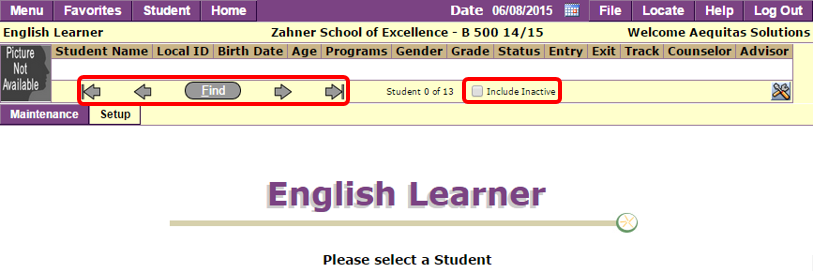
View the Student Banner documentation for more information about using the Student Banner.
Q English Learner app allows users to track and edit a student’s progress in learning English. The 3 tabs located on the left hand side of the screen are used to navigate to:
- Maintenance – Main tab
- Test Calculator – Note: only available if the student has 1 or less English Learner tests
- Setup
When English Learner is initially launched (after a student has been designated as an English Learner), the default view is the Maintenance tab, displaying the student’s EL Status, Proficiency, and Test History. Additional sections are collapsed on launch but may be expanded by clicking the + sign or clicking Expand All. Sections may be collapse by clicking the – sign or by clicking Collapse All. 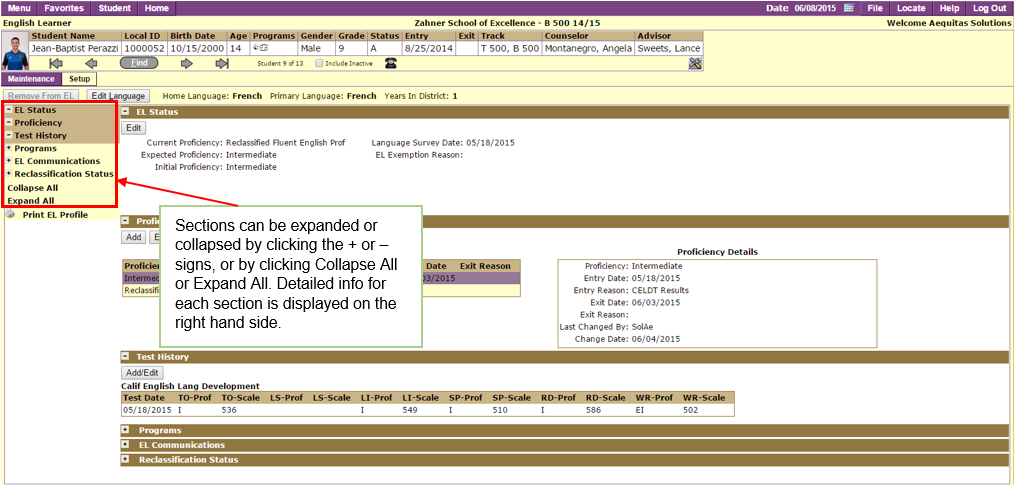
The Maintenance Tab includes:
- EL Status
- Proficiency
- Test History
- Programs
- EL Communications
- Reclassification Status
- Reclassification Followup
Test Calculator
The Test Calculator is a useful tool for logging test results quickly by entering in raw scores, and the test calculator will run the necessary calculations and post the results to the Test History tables. This tab is only available if your district has enabled it, and if the EL student has 1 or less EL test records. Detailed instructions on using the test calculator are below.
Setup
The Setup tab is where the district or admin can customize what information is displayed and if certain sections are allowed to be edited or added. A detailed explanation of the Setup tab is located in the Setup section of this documentation.
The Q English Learner application allows users to enroll students into the English Learner program, while logged in at the district or at their school. Even though all students in the logged-in school will be viewable in the EL application banner, they are not actually part of the EL system until an EL record has been created for them using the Designate EL procedure.
- Determine Eligibility
This is a step that is done outside of the EL application. Use a language survey or other method to determine which students in your school are eligible for English Learner
- Find the student
Open the EL application- Use the arrow keys or Find function to locate the student you are entering into EL. 
- Create the new EL record
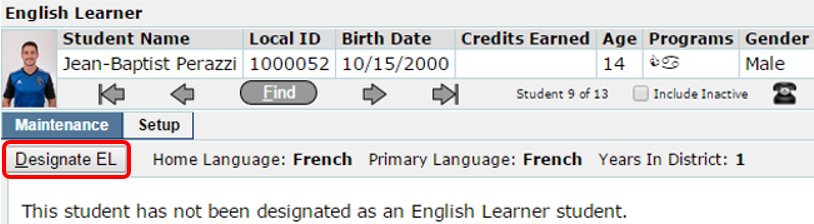
Once you’ve selected the student, click the “Designate EL” button. If there is no “Designate EL” button available, that student has already been enrolled into English Learner and you’ll only be able to edit the existing record.
- View and Edit the new record
The EL record has been created for the student, but it is virtually empty. From here, you have 2 options to enter in information for the student.
- Use the Test Calculator to auto-populate the record (more on this below) or
- Manually enter in information for the sections: Test History, Proficiency, EL Status, and Programs
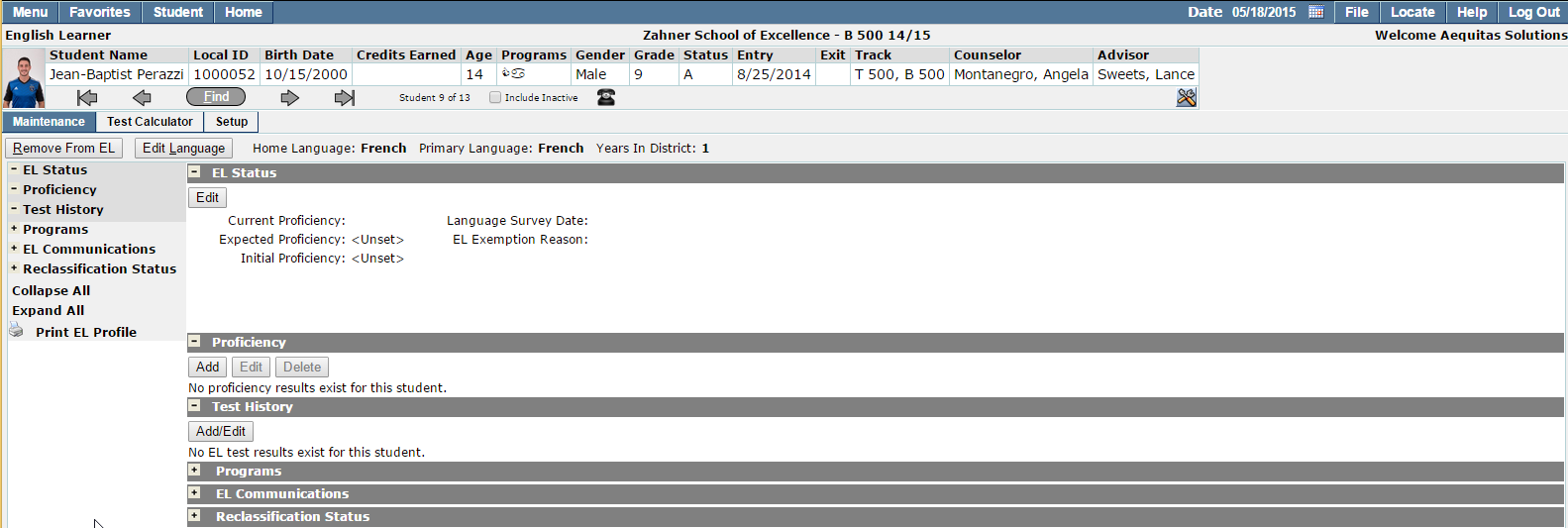
*above is an example of the EL app after enrolling a student – the record is open, but it is empty*
- **If Necessary** Set the student’s Home and Primary Language.
If this has not already been done in the Student Editor, or when the student was enrolled, you are able to change the student’s Home and Primary Language by clicking the “Edit Language” button.
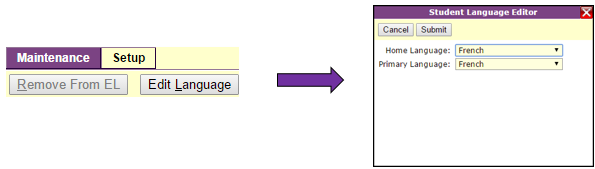
Select the appropriate language from each drop down menu and click Submit to save your changes.
After designating a student as English Learner, enter in information in the Proficiency, Test History, EL Status, and Program sections.
Alternatively, if your district has enabled it, you may input the student’s test scores through the Test Calculator and these fields will be auto-populated.
TEST CALCULATOR:
To use the Test Calculator, press the Test Calculator tab, located in the top left of the EL app.
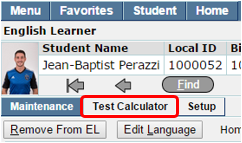
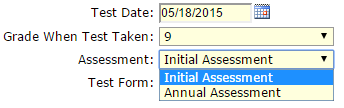
In the Test Calculator tab, select from the below options to choose the correct test form:
- Add/Replace Test – Select whether this test is new for the student, or if it is replacing a previously saved test. Only the first test (chronologically) can be replaced.
- Test Date – Date that the test was taken
- Grade When Test Taken – If entering an older test, enter the grade of the student when that test was taken
- Assessment – Either Initial or Annual - can be restricted to either of these from the Setup tab
- Test Form – Tied to ‘Grade When Test Taken’ so that a student can’t use a test form for a lower or higher grade than when they were assessed
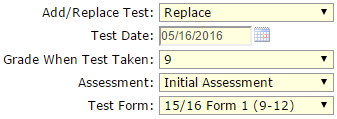
Select the appropriate test from the list of Test Forms before you enter in any scores. The list of scores are tied to each grade. So, you can’t have a 10th grader accidentally taking a 5th grader’s test.
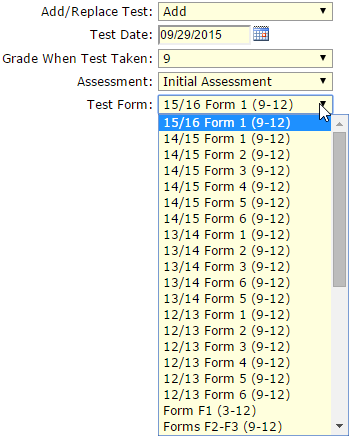
You may also choose whether the test that you are logging is the initial assessment for the student, or the annual assessment. (This can be changed in the Setup Tab)
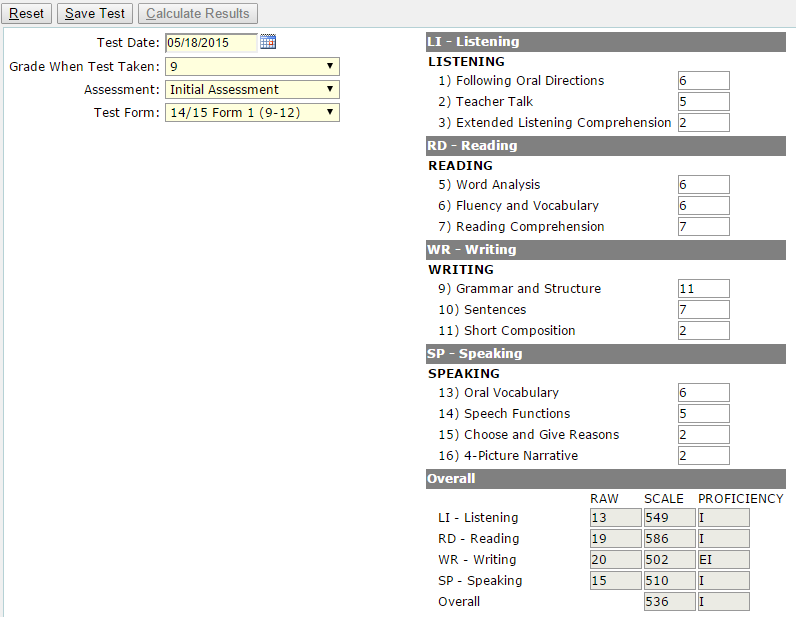
The Test Calculator will looks like the following, once you have selected a test to enter:
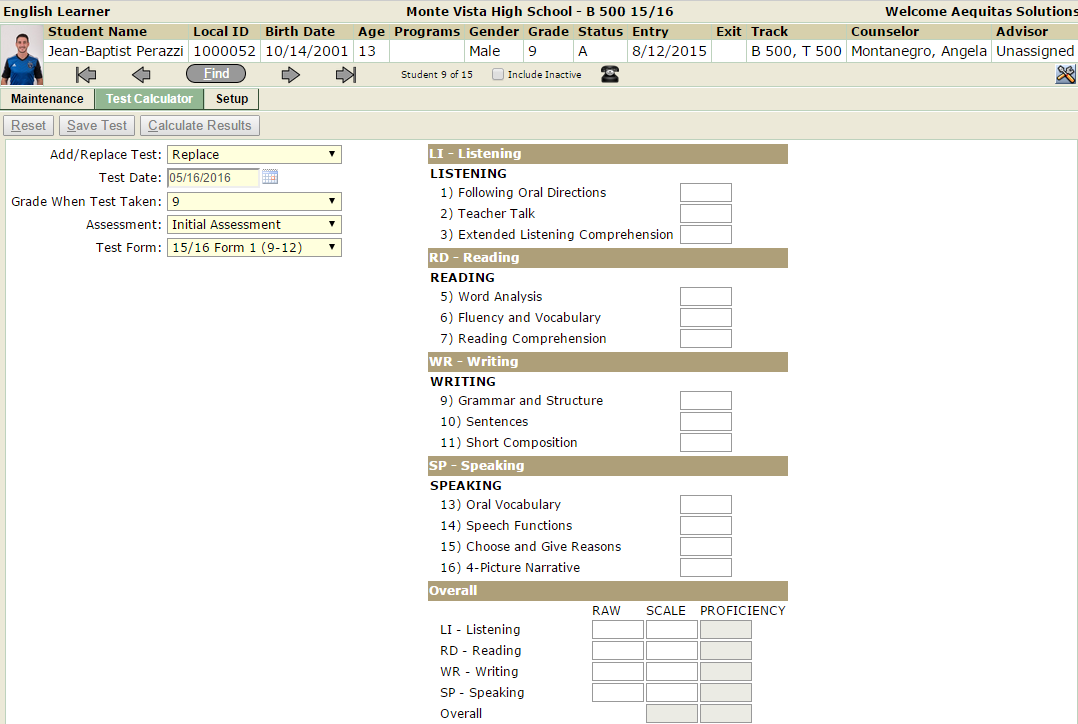
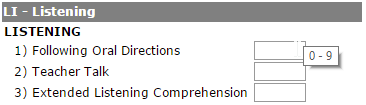
Enter in your scores for each individual section, or enter them in under ‘Overall’ in the RAW scores section. As you mouse over each field, a tooltip will pop up to let you know what range of scores are allowed to be entered in each field.
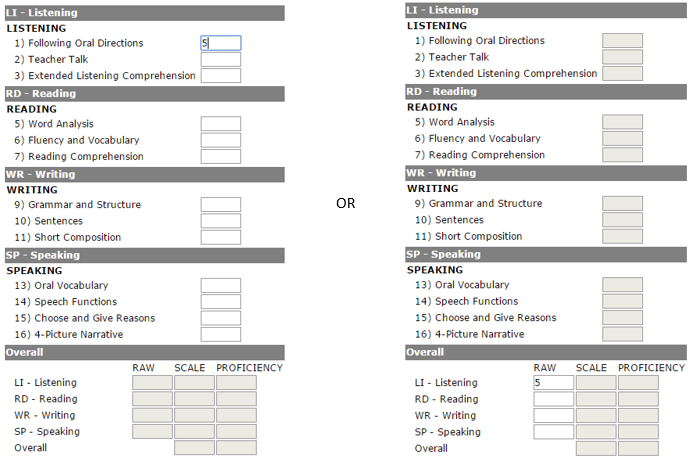
Note:
once you start entering scores in either the individual subject fields or in one of the ‘Overall’ fields, the other will be grayed out and you will not be able to enter in any scores:
After entering in the scores at the subject level, press ‘Calculate Results’ to run the test calculator. You’ll then have the option to Save the results, or reset the test calculator. Pressing ‘Save Test’ will set the student’s EL Status, Proficiency, and put this test into the test history section.
EL Main Menu after clicking ‘Save Test’ – EL Status, Proficiency, Test History and Programs (not shown) have auto-populated:
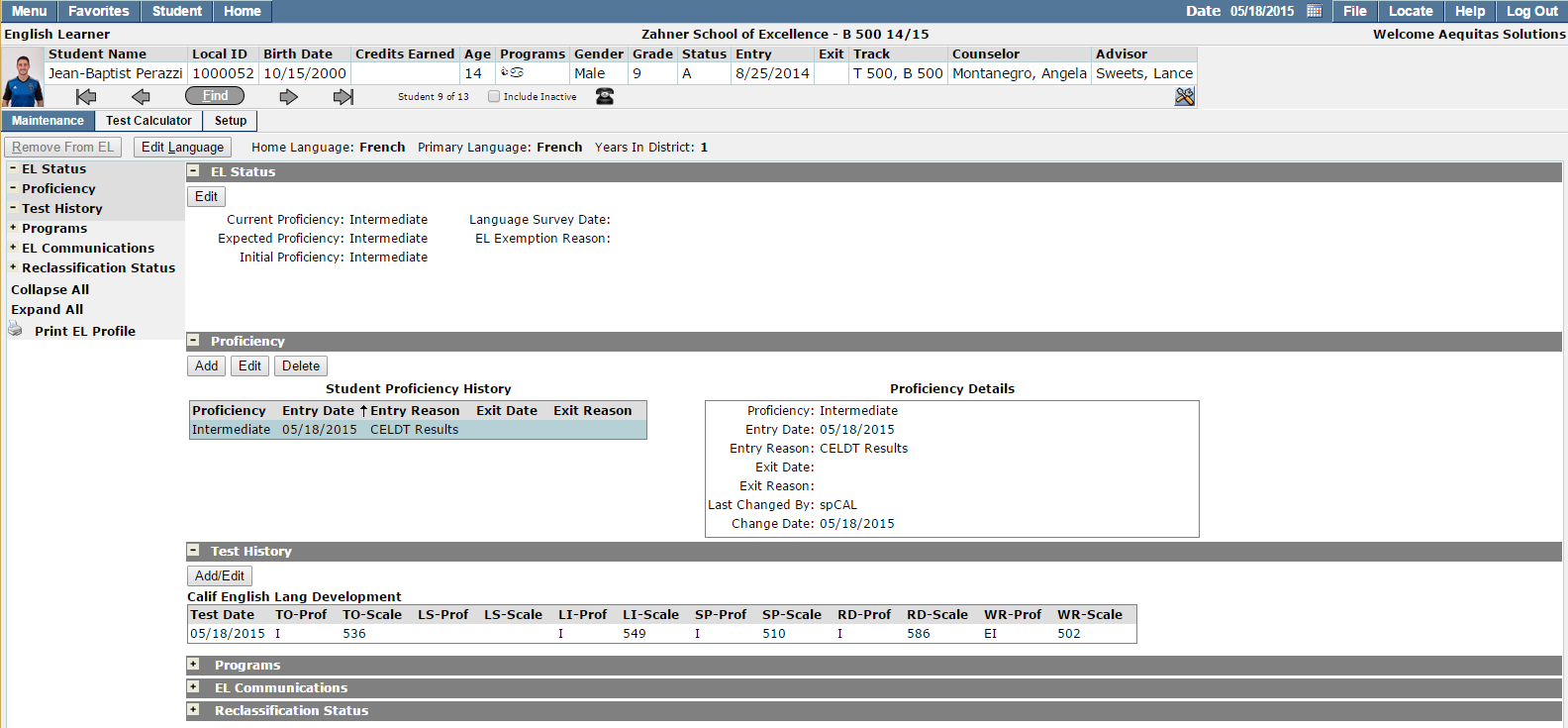
From the Maintenance tab (the main EL menu), you are able to view and maintain each section of the English Learner Program.
EL Status:
The EL Status section displays the student’s Current, Expected, and Initial proficiency in the English Learner Program:
- Current Proficiency – reflects the most recent proficiency for the student. Can only be changed by adding/editing a proficiency record in the Proficiency section.
- Expected Proficiency – The proficiency that the student is currently expected to be in.
- Initial Proficiency – The proficiency that the student began the program in. Can be edited by clicking the Edit button in the EL Status section
- Language Survey Date - The date a language survey (or its equivalent) was sent out to parents for the purpose of qualifying candidates for EL.
- EL Exemption Reason – Used if a student has no language skills (typically a physical/mental disability), the student might be classified as Not Assessed Special Education (NASP or its equivalent) and would be exempt from the testing process.

Proficiency:
This section tracks the student's evolving English proficiency level, and should be kept up to date. An initial Proficiency record should be entered for a new EL student as soon as their English Proficiency level can be assessed. Then, whenever the student's proficiency level changes as measured by testing or other criteria, their old Proficiency record must be closed and a new record created. The date ranges of these status records cannot overlap.

In most cases, a Proficiency Status will have to be updated manually. The exceptions to this are reclassifying a student, and after using the Test Calculator for their initial assessment. Both of these scenarios will automatically populate the appropriate proficiency status.
Note:
If there are any entries in the proficiency section, the ‘Remove from EL’ button will not be available.
Test History
The Test History section is used to view, add, edit, and/or delete English Learner Tests. Test types that should be considered EL Tests are defined in the Setup tab.
Note:
Test records must have the extension Score Source field populated in order to appear in the Test History band.

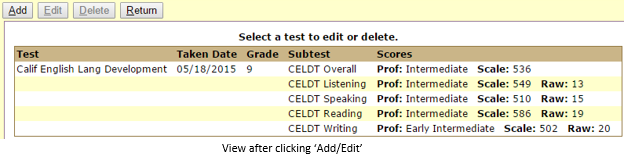
- Add- Clicking Add brings up a window to input a new EL test. Select a test from the drop down bar in the Test-Editor popup window, and enter scores for the selected test. Click ‘Submit’ or ‘Submit & Continue’ to save the new test.
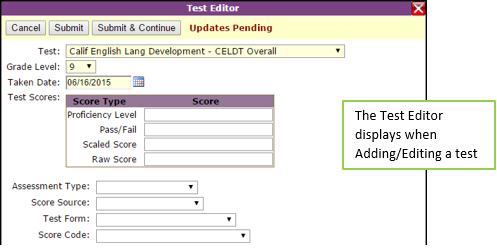
- Edit- Select the test you wish to edit, then click the ‘Edit’ button in the header. Make any necessary changes in the popup Test-Editor window, and click ‘Submit & Return’ or ‘Submit’ to save your changes.
- Delete- Select the test you wish to edit, then click the ‘Delete’ button in the header. You’ll be prompted with a popup message to confirm you want to delete the record.
- Return- Brings you back to the main EL menu.
Programs:
English Learner students are enrolled in special EL programs to improve their English proficiency. The Programs section contains a student's EL program and placement information. The assigned services and placements of each program are displayed in the Program Details box on the right side of this section. If given access, you may add, edit, or delete any EL programs or placements for an EL student.
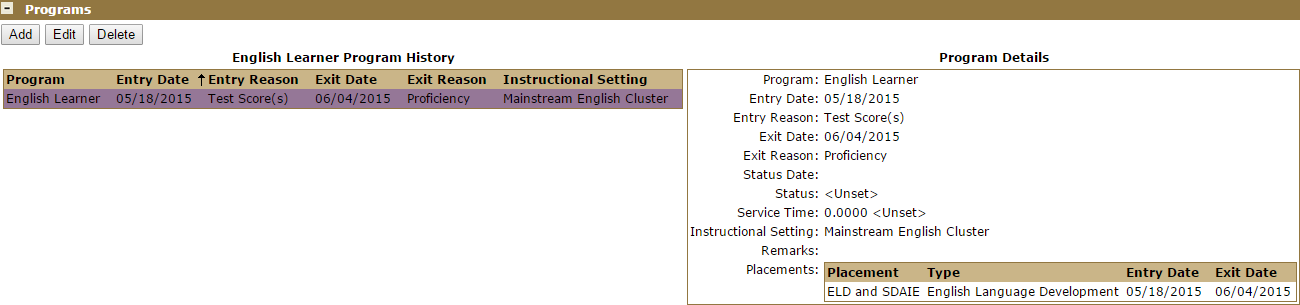
To add a new program, click the ‘Add’ button under the Program section header.
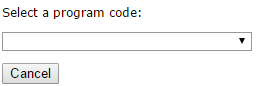
Select the new program from the drop down list. Once a program has been selected, the new program menu will appear with blank fields ready to be filled in.
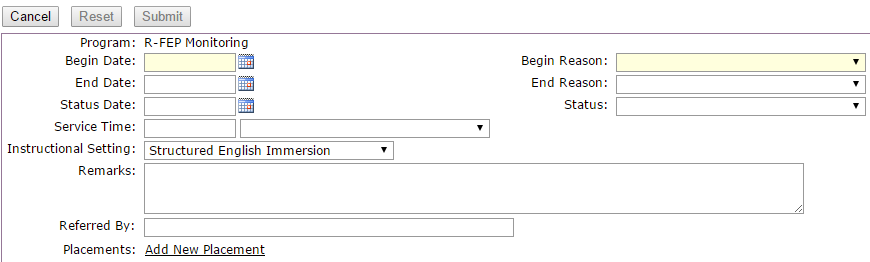
- Begin Date: Enter the start date of enrollment in Program
- End Date: Enter the date the student exited the program. Leave blank if currently enrolled
- Status Date: Enter the date of current status
- Service Time: Enter duration and select time unit from drop down menu
- Remarks: Enter any notes here
- Begin Reason: Select entry reason from drop down menu
- End Reason: Select end reason from drop down menu
- Status: Select status of student from drop down menu
- Instructional Setting: Select venue from drop down
- Referred By: Enter who referred student to the program
Note:
Begin Date and Begin Reason are the only required items for entering a new program.
Placements:
To add a placement (a subset of an EL Program, which outline specific services rendered in the EL Program enrollment), Add or Edit a Program, and click Add New Placement

- Type: read-only field, based on zplacement code table
- Location: Select where services will be provided from
- Time: Enter duration and select time unit from drop down menu
- Service: Name of the service being provided
- Provider: Select who is providing the service
- Dates: Enter in dates for the services provided
Multiple placements for one Program can be added if necessary.
EL Communications:
The Communications section is used to record correspondence between school staff and any parties associated with the English Learner student. This includes other students, other staff/faculty, and the student’s contacts. All significant communications should be recorded and saved in the EL Communications section. Details of each communication record are displayed on the right side of this section when selected.
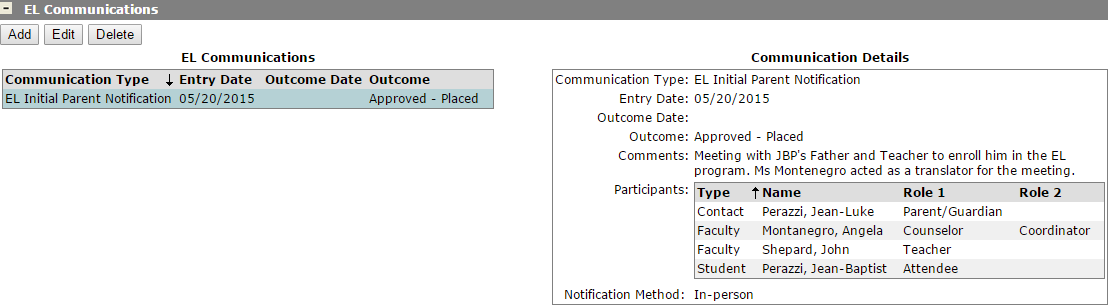
If you have access, you may Add a new communication, Edit an existing record, or Delete a record. Permissions for EL Communications are located in the Permissions Editor, and Add/Edit/Delete capabilities can be restricted in the Role Restrictions tab.
Add/Edit a Communication
Click add/edit to open the Communication Editor. This window is used to record the following types of communication:
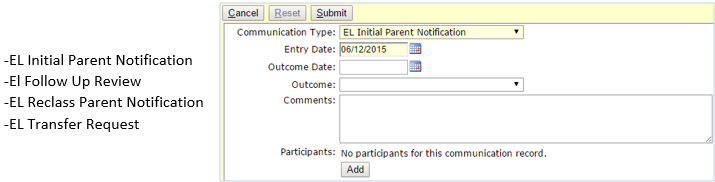
Only Communication Type and Entry Dare are required, but you have the ability to enter the following:
- Communication Type: Select appropriate communication type from the drop down menu
- Entry Date: Defaulted to today, enter day that communication took place
- Outcome Date: Defaulted blank, enter date for the outcome of the communication
- Outcome: Select result of communication from drop down menu (acceptable, unacceptable, pending, etc.)
- Comments: Record any comments about the communication
- Participants: Clicking ‘Add’ opens the ‘Add Participants’ popup.
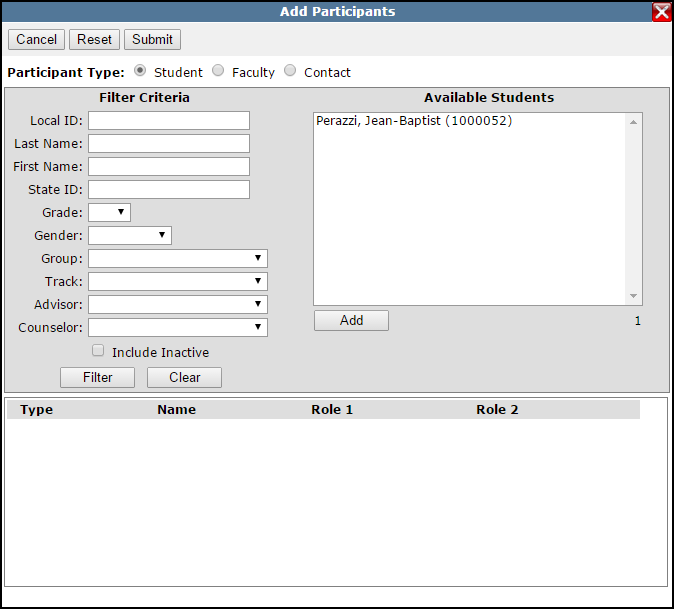
The Add Participants window uses a look up function much like the Find function in the student banner. Select any Contact for the EL student, any Faculty member, and any student as participants for this meeting.
Once added, choose the participants’ role for the communication (not required).

Click Submit in the Add Participants window to save your selections, then Submit again in the EL Communication window to save the whole record.
Reclassification Status:
Once a student has been deemed fluent in English, they can be Reclassified as Fluent English Proficient (R-FEP). To reclassify an EL student, press the ‘Reclassify Student’ button in the Reclassification Status section.
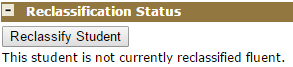
From here you may input the Reclassification Date and the Primary Reclassification Reason from the drop down menu. Additional Reclassification Reasons are also available.
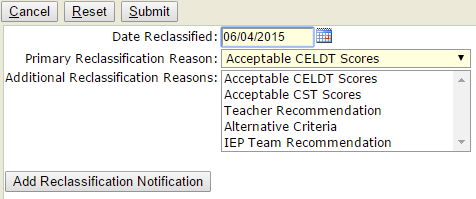
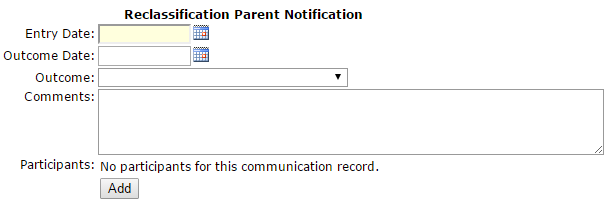
Pressing the Add Reclassification Notification button will bring up a new communication edit window, to enter a Reclassification Parent Notification without having to go back into the communications band. Enter communication data the same as you would in the communication band.
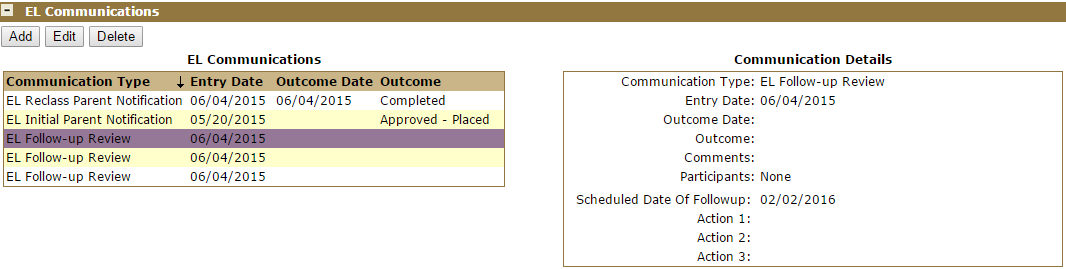
After reclassifying the student as fluent, you may add the EL Follow Up Review communication type in the EL Communications section. These can be edited by clicking on each individual communication and setting the ‘Scheduled Date of Follow-up’ to whatever days you’d like for your follow up.
You may edit this communication record like any other - the only field that cannot be changed is the Communication Type.
Reclassification Followup
Once a student has been declared R-FEP and the ‘Reclassify Student’ Button has been pressed, a new band called Reclassification Followup will appear. This band allow users to see follow-up communication records in their own section.

These communication records are the same as any other EL Communication, so you may edit or delete them as necessary. Generally, some sort of follow-up is required when a student is reclassified. The number of follow-ups and the interval between them is decided by district policy. After a student passes the follow-ups, they may be eligible to ‘graduate’ the EL program. This band is designed to track the student’s progress through the follow-up process.
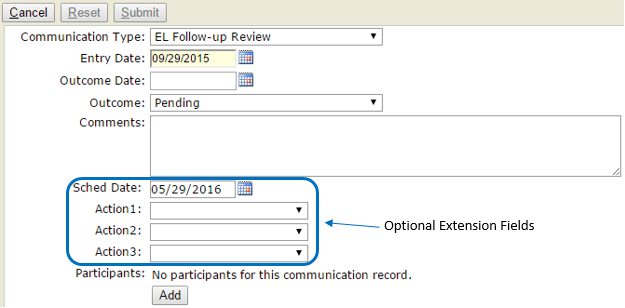
The Reclassification Followup tab is totally customizable by the district. The above example is hypothetical.
The Setup Tab is located within the English Learner app, next to the Maintenance tab, under the student banner. From here, you can customize how and what data users will enter.
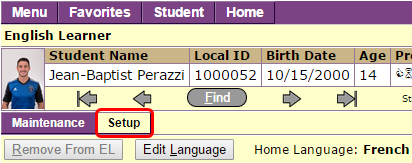
There are 7 sections within the Setup tab of which you may make changes:
- Mappings
- Test History
- Test Calculator
- Program History
- Parent Requests
- Reclassification
- Communication
Detailed Explanations for each section are below:
Mappings – Set district default proficiency status to identify initially fluent (IFEP) and reclassified fluent students (RFEP), and the scoring type for the proficiency tests here.
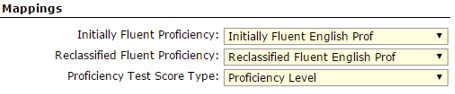
- Initially Fluent Proficiency – Select your district’s default proficiency level used to identify EL students classified as Initially Fluent.
- Reclassified Fluent Proficiency – Select your district’s default proficiency level used to identify EL Students Reclassified as Fluent – For student that have completed the EL program.
- Proficiency Test Score Type – Select the score type to be used for the initial Proficiency Test.
Test History – Turn on/off the editing of tests, distinguish what is an EL test and select settings for other EL tests.
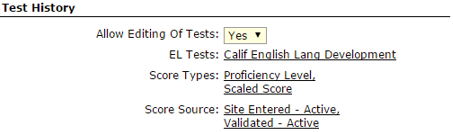
- Allow Editing of Tests – Flag as Yes or No.
- EL Tests – Classify what tests are considered to be English Learner tests. This affects what scores will be displayed in the Test History section. Additionally, if the student has more than one EL test, the Test Calculator will not be available.
- Score Types – Select which scoring types are available. Defaulted to Proficiency Level and Scaled Score.
- Score Source – Select options available for how the test score was entered. Defaulted to include both Site Entered – Active and Validated – Active.
Test Calculator – Turn on/off the Test Calculator, designate default test score source and determine what assessments are available.
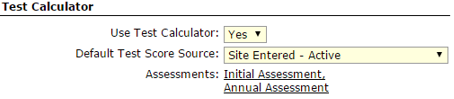
- Use Test Calculator – Turns the Test Calculator on or off.
- Default Test Score Source – select the default test score source, defaulted to Site Entered – Active.
- Assessments – select the available choices for assessment type. Defaulted to include both Initial and Annual Assessment.
Program History –Turn on/off multiple open Programs or Placements and designate what EL Programs, Placements, and Instructional Settings are available.
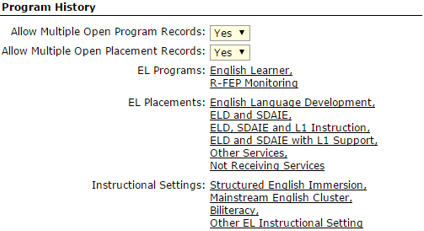
- Allow Multiple Open Program Records – Flag as Yes or No to allow/restrict multiple open program records.
- Allow Multiple Open Placement Records – Flag as Yes or No to allow/restrict multiple open placement records.
- EL Programs – define which programs are considered to be part of English Learner. Defaults are English Learner and R-FEP Monitoring.
- EL Placements – define which placements are available for English Learner students.
- Instructional Settings – define which instructional settings are available for EL students.
Parent Requests – Designate which Instructional Settings parents may request.

- Instructional Settings – select which Instructional Settings a parent can request in the Communications-El Transfer Request.
Reclassification – Select which program change codes are available

- Program Change Codes – Select which codes will be acceptable reasons for a change in an EL student’s reclassification.
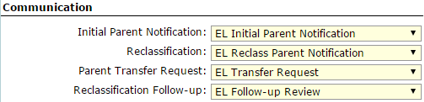
Communication – Select which communication type is used for each of the following communication records from the down down list of defined communication types.
There are 6 Application/Report rights available for English Learner:
Programs: English Learner [Application]
Programs: English Learner [Setup]
Programs Reports: EL Student Profile
Programs Reports: EL Student Roster
Programs Reports: EL Students Due Follow-Up
Programs Reports: EL Students Pending Testing
If a user is flagged as a System Admin (SA), or given access to Programs: English Learner [Setup], they will be able to view and make changes to any section of the Setup Menu. When saved, these changes will be district wide. Because of this, it is important to only give this right to authorized users.
If a user is flagged as an SA or given access to Programs: English Learner [Application], they will be able to view and use English Learner as intended. Each other right will give the user access to individual EL reports.
Role Restrictions
English Learner has 2 Role Restrictions for the Edit/Add/Delete functions.

A user can be given the English Learner application right with no Edit/Add/Delete capabilities. They will be only be able to view English Learner records but not change them.
Field Level Restrictions
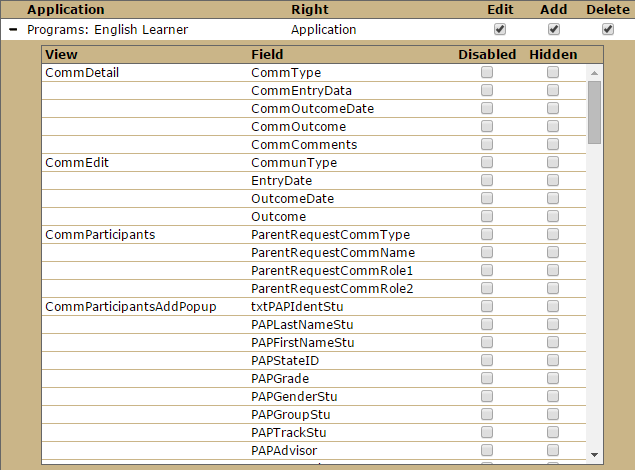
You may restrict user groups from using/viewing certain elements in the English Leaner app. To do so, access the Field Level Restrictions: Click the + sign next to Programs: English Learner.

Check ‘Disabled’ to disable a field, but still have it viewable. Check ‘Hidden’ to hide the field from the
Permission Role. The following are examples of views that can be restricted.
In the System – Preference Editor, there are 6 District Level Preferences (these can only be changed when logged in to the district track).

Use English Learner – Flag Yes/No. If set to No, English Learner program is disabled
Use Test Calculator – Flag Yes/No. If set to No, Test Calculator is disabled
Default Test Score Source – Select default score source
Use Test History Editor – Flag Yes/No. If set to No, Tests may not be edited in the Test History section.
Allow Multiple Open EL Program Records – Flag Yes/No. If set to No, only one EL Program records can be active at any time.
Allow Multiple Open EL Placements – Flag Yes/No. If set to No, only one EL placement can be active at any time.
