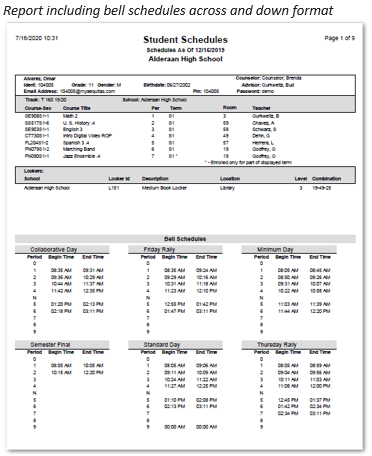
Q Student Schedules report may be configured to show the student’s schedule as of a selected date or for the entire year. Multiple options are available to control what displays on the report. Information available in addition to the student schedule includes, student locker information and school bell schedules. The report may be printed with the student’s mailing address formatted to be mailed in a window envelope or sorted by period for placement in teacher boxes to be distributed to classrooms. The Student Schedule report is also available to be printed for a single student from within the Student Schedules application.
While details specific to this report will follow, users can find general information about reports within the Reports documentation.
Student Schedules Report is located within Reports in the Schedule menu in Q.
Available options for the Student Schedules Report include: 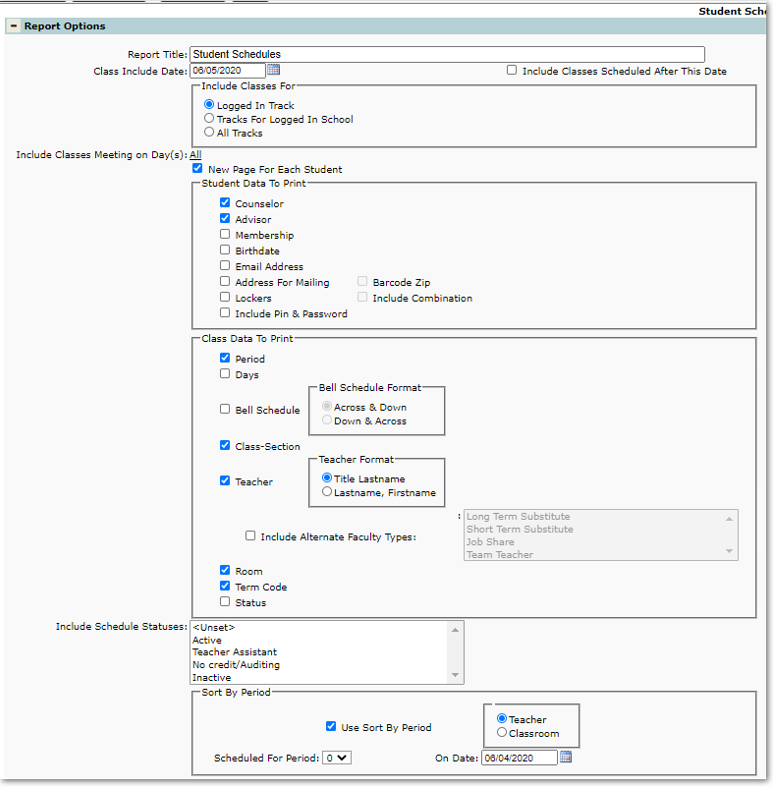
- Report Title – The default title for the report is Student Schedules but may be edited.
- Class Include Date – Defaults to system date but may be changed by the user, this date determines what classes display on the report.
- Include Classes Scheduled After This Date – Check this box to include any classes scheduled after the Class Include Date. For example, the date is for the beginning of the school year. There are classes scheduled in the second semester that starts in January, checking this box will also display those classes.
- Include Classes for:
- Logged in Track – Report will print only those classes scheduled for the track the user is logged in.
- Tracks for Logged in School – if the school has multiple tracks, the report will print all classes for students who have schedules in multiple tracks of the logged in school.
- All Tracks If a student has enrollments in more than one school and/or track. Checking this box will print all the student’s scheduled classes.
- Include Classes Meeting on Day(s): This defaults to All. If the track has multiple cycle days, the user may pick individual cycle days if desired.
- New Page for Each Student – Click this box if you want to print a new page for each student.
- Student Data to Print: Place a checkmark next to items to be printed on report.
- Counselor – Check to print counselor name.
- Advisor – Check to print advisor name.
- Membership – Check to print Membership information.
- Birthdate – Check to print student’s birthdate.
- Email Address – Check to print student’s email.
- Address for Mailing – When this option is checked the student’s mailing address is printed at the bottom left of the page so it will show through a standard window envelope when the report is folded for mailing.
- Barcode Zip – Check to print the postal barcode for zip code underneath the zip code.
- Lockers – Check to print student’s locker information.
- Include Combination – Check to print the locker combination for student’s locker.
- Include Pin & Password – Check to print the student’s pin and password used to access StudentConnection.
- Class Data to Print: Place a checkmark next to items to be printed on report.
- Period – Check to print class period.
- Days – Check to print days class meets (if school is using cycle days).
- Bell Schedule – Selecting this option will print all bell schedules defined for the school.
- Bell Schedule Format – Select how bell schedules should display on report.
- Class Section – Include the section with the Class.
- Teacher – Select to have teacher name print on report. Select format.
- Title, Lastname – Teacher name will appear for example, as Mr. Smith.
- Lastname, Firstname – Teacher name will appear for example, as Jim Smith.
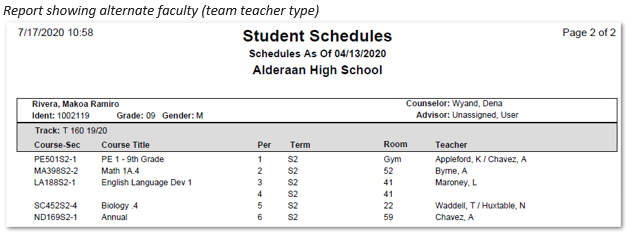
- Include Alternate Faculty Type – If school is using alternate faculty the user may choose which type from the list to display on report.
- Room – Check to have room number print.
- Term Code – Check to include term class is scheduled, for example Semester 1.
- Status –When this box is checked a Status column is added to the report. The default is “All” schedule status.
- Include Schedule Status – Make selection if desired.
- Sort by Period – This feature is useful if printing schedules to be distributed by teacher. Caution—This is checked by default and if it remains checked, the report will sort students by teacher or period with a distribution page printed between teacher names. When this is on the standard sorting options will be ignored.
- Teacher – Sort the report by Teacher name (makes it easier to distribute reports to Teachers for handing out to students).
- Period – Sorts the report by Period entered in Scheduled for Period.
- Scheduled for Period – Select period from drop list.
- On Date – Enter date to use for period sort.
Reports may look different depending on the options, selections and sort items chosen.