The Behavior Letters Report is used to generate form letters and emails to parents, guardians or contacts concerning a student’s behavior and/or disciplinary issues.
While details specific to this report will follow, users can find general information about reports within the Reports documentation.
Behavior Letters Report is located within Reports in the Behavior menu in Q.
Note
To Learn more about the Mail Merge function and other Message Editor features, see the Message Editor documentation.
Unique Report Options for Behavior Letters Reports
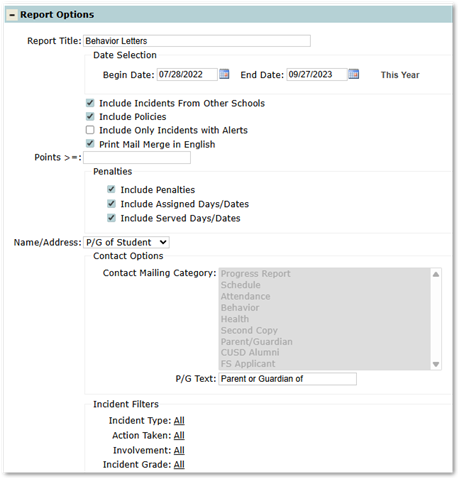
- Include Incidents From Other Schools: Will include all incident locations, as behavior incidents may have occurred at schools other than the one currently logged in.
- Include Policies: If the user’s district has defined behavior policies, this option will include policy references within the report.
- Include Only Incidents with Alerts: Includes only incidents that have been flagged with an alert.
- Print Mail Merge in English: Ignore a student’s or contact’s primary language and print’s the English version of the selected Mail Merge letter.
- Points >=: If a user’s district assigns points to incidents, this option will filter incidents by their point value. Only incidents assigned point values equal to or greater than the cutoff value will be returned in the report.
- Penalties Section:
- Include Penalties: Includes assigned penalties in the report. Selecting Include Penalties will then enable the Include Assigned Days/Dates and Include Served Days/Dates option.
- Include Assigned Days/Dates: The assigned days/dates for the associated penalty
- Include Served Days/Dates: The days/dates a student has completed penalty requirements.
- Include Penalties: Includes assigned penalties in the report. Selecting Include Penalties will then enable the Include Assigned Days/Dates and Include Served Days/Dates option.
- Name/Address: Section determines how many copies of the letter will print.
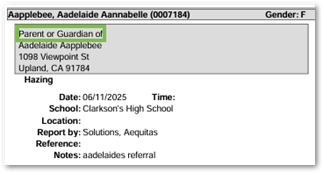
- P/G of Student: Select this option in conjunction with the P/G Text box. When this option is selected if an Addressee Name has been included as a merge field in the letter, the student’s name will print preceded by what is entered in the P/G Text box. This option might be used in a batch of letters when the parent/guardian information in the contacts database is incomplete.
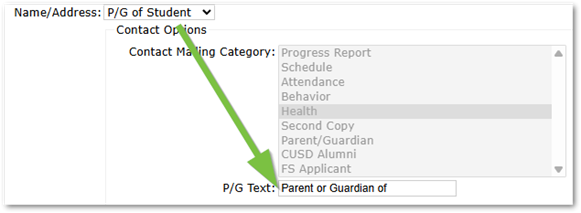
- Contact Only: When this option is selected, one or more contact mailing categories must be selected from the contact mailing category list. Contact mail categories are set in Student Editor or Contact Editor by checking the desired mail flags for each student contact. One letter will be generated for each contact that has the selected mailing category. No letter will be generated for students who have no contacts flagged with the selected categories.
- Contact or P/G: For students with one or more contacts of the selected categories this option will behave like Contact Only. For students with none of the selected contacts, this option behaves like P/G of student.
- Contact and P/G: This selection generates one letter as described in P/G of Student plus letters as described in Contact Only.
- P/G of Student: Select this option in conjunction with the P/G Text box. When this option is selected if an Addressee Name has been included as a merge field in the letter, the student’s name will print preceded by what is entered in the P/G Text box. This option might be used in a batch of letters when the parent/guardian information in the contacts database is incomplete.
- Incident Filters: The default selection for each Incident Filter is ALL, however, clicking ALL will display a list of available types. Multiple types may be selected using Ctrl-Click. Available filters:
- Incident Type
- Action Taken
- Involvement
- Incident Grade
Create Report
Videos