
If your district is thinking about implementing Q’s new MTSS module, a great place to start that is available now to all clients is to begin by implementing Success Plans.
The Success Plans by Class application is meant for teachers to see at a glance any of their students that need attention, based on data indicators defined by the district and could include things like academic performance in specific subjects (Math, ELA), attendance, behavior, etc.
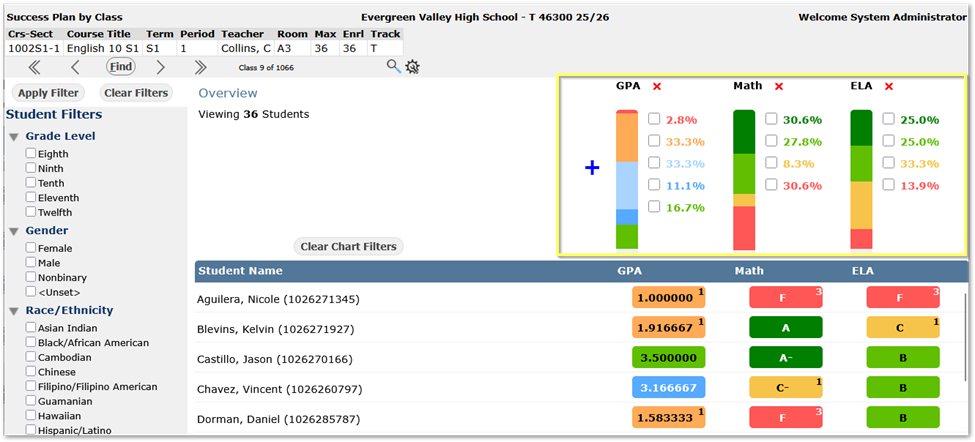
In this application teachers can add indicators at the top of the page using the blue plus sign icon and select from the Plans and Indicators the district has defined in Success Plan Manager. The indicators across the top show levels defined in rubrics and reflect the number of students that fall in that threshold. In the roster below, the status of each student is shown for each indicator. Teachers can filter their list of students quickly by clicking on the threshold levels of the indicators at the top to see students who fall in that threshold, i.e. clicking the red bars in ELA and / or Math will narrow the list of students who are struggling in those areas.
Our tip is about setting up the rubrics behind the scenes for the various indicators available. In this example, the GPA column has underperforming values shown at the top of the bar, but the Math and ELA columns have underperforming values at the bottom.
We recommend when setting up multiple rubrics that districts make their rubrics consistent with either all underperforming values at the top, or all at the bottom, to make it easier and clearer for users to assess at a glance the meaning and results of the indicators.
 Rubrics
Rubrics are defined (along with indicators and plans) in Success Plan Manager. When defining the rubric levels, use the mover arrows to adjust the position of the levels.
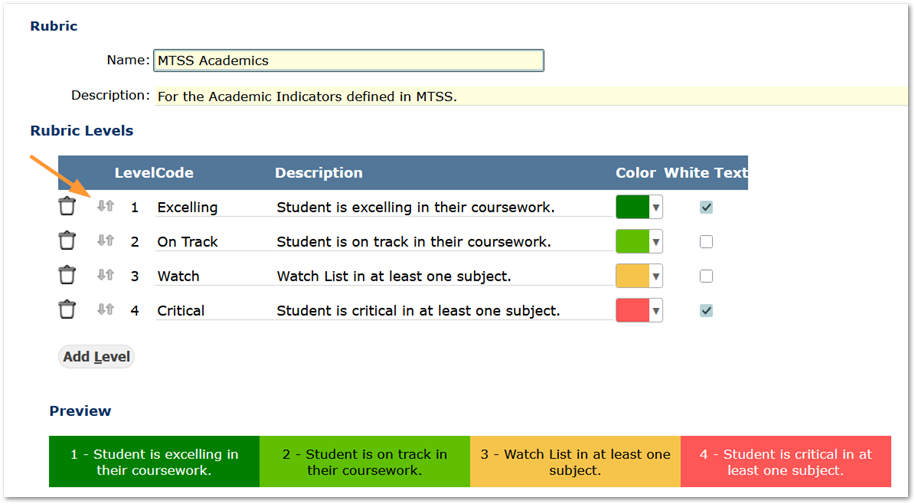 In our example, Math and ELA use the rubric shown above, but GPA used a 5-level rubric with the underperforming levels at the top, rather than the bottom like this one.
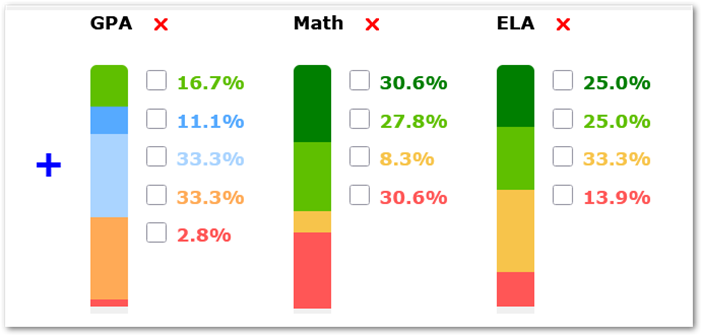
After adjusting the order of our 5-level rubric used for the GPA indicator so underperforming threshold levels are at the bottom. We now have the green level at the top across the indicators, but might consider making them more consistent with respect to color, number of levels, etc.
Help is available in the documentation on Success Plans. If you need additional assistance setting up Success Plans or are interested in MTSS, please reach out to us.