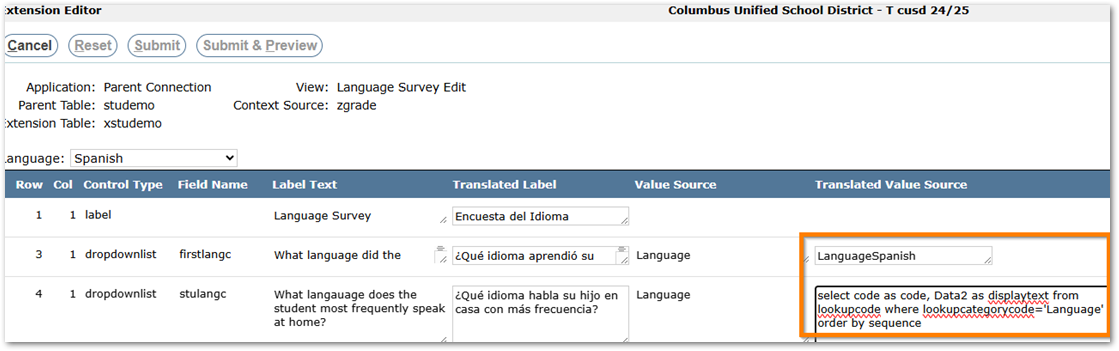
If a district does not use the Google Translate feature in Pre-Enrollment or ParentConnection, it is possible to manually translate extension field drop down lists for users whose language is not set to English. This Q-Tip walks through an example of providing translations for extension drop down lists when not using the Google Translate feature.
Lookup Codes
In this example, I wanted to translate a Lookup Code Category named Fall Sports to be used as the Value Source for an extension drop down list in Pre-Enrollment. Initially, the Translate button (highlighted below) was disabled.

To enable the Translate button, I updated the CanTranslate column to 1 in LookupCategory for the Code Category via SQL:
UPDATE LookupCategory
SET CanTranslate = 1
WHERE Code = 'Fall Sports'
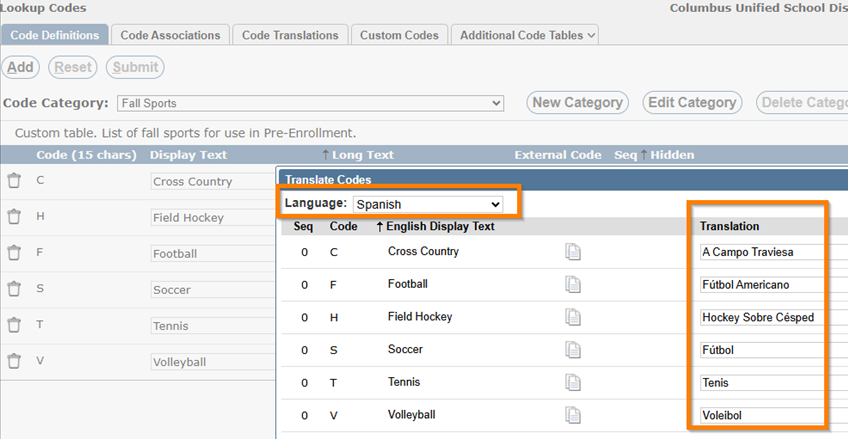
After the button was enabled, I clicked it to launch the Translate Codes window. Here, I provided the Spanish translations for the Display Text of my drop down list:
Extension Editor
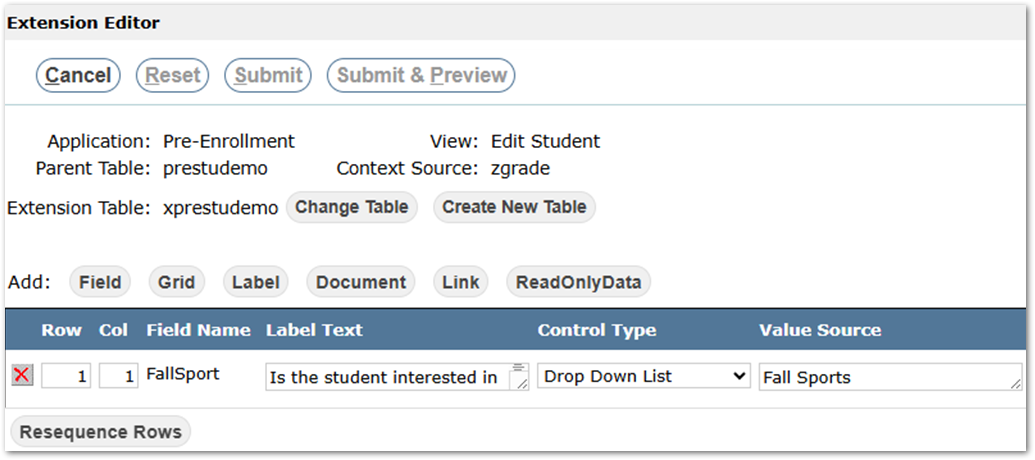
After adding the translations in Lookup Codes, I added my extension field to the Pre-Enrollment Edit Student view:
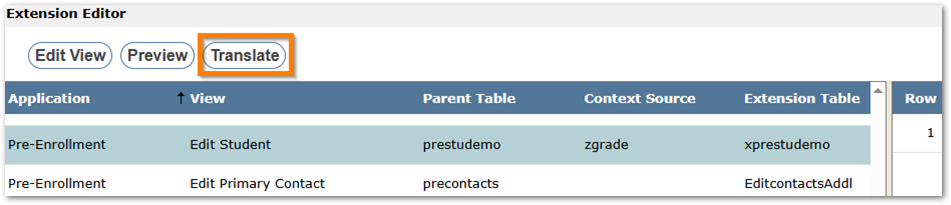
Once my extension field was added, back on the main Extension Editor screen, I clicked the Translate button for the Edit Student view:
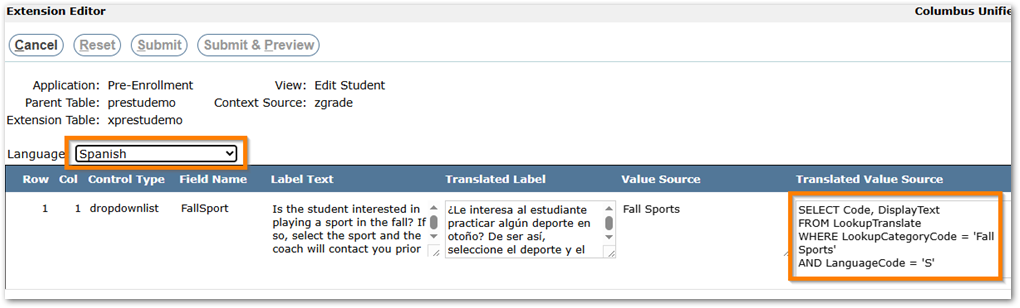
On the Translate screen, I set the Translated Value Source to pull the Spanish DisplayText I added earlier from LookupTranslate:
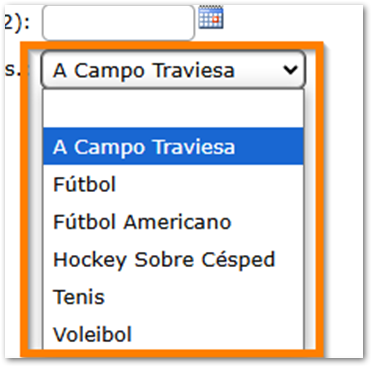
Now, when I switch to Spanish in Pre-Enrollment, I see the Spanish translations in the drop down list:
Note that you could also make a new Lookup Code Category just for the translated values, or even add custom columns to an existing Code Category to hold the translations, and pull those into the Translated Value Source: