
CTE Pathways Setup enables districts to define Career Technical Education (CTE) Pathways, with any sub-pathways, and associate the pathway with its industry sector. When defining a CTE Pathway, courses are selected, and for each course a level will be designated (e.g. Introduction, Concentrator or Capstone.) Examples of CTE Pathways from the ‘Business and Finance’ Industry Sector include: ‘Business Management’, ‘Financial Services’, and ‘International Business’.
Students may be enrolled in one or more CTE Pathways using the Student CTE Pathways application. The Student Course Plans application may also be used to set a student’s CTE pathway and courses.
CTE Pathways Setup is located under the Schedule menu in Q.
When initially setting up CTE Pathways, the CTE Pathway list will be empty.
- Click Add to create a CTE Pathway.

From the Add CTE Pathway screen, notice that CTE Pathway field and Year field are highlighted as required fields. CTE Pathways are uniquely identified by their name and year.
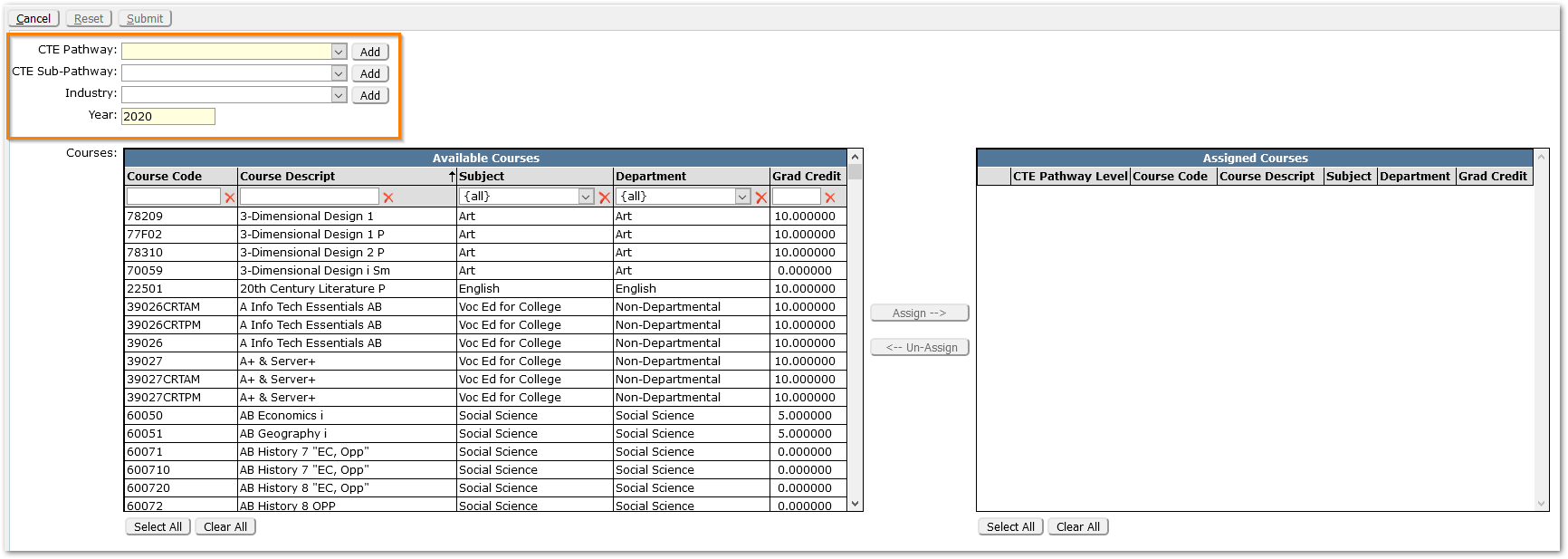
- Click the CTE Pathway dropdown to review the choices and select the desired one, if available.
If the desired choice is not available in the list, click the Add button to the right of the field and create the CTE Pathway Lookup entry.
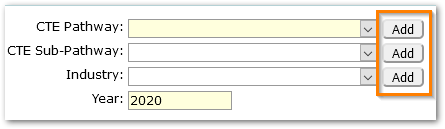
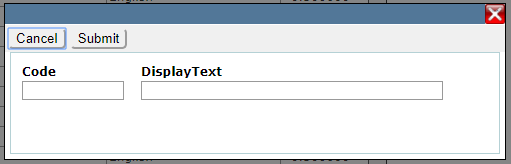
When the Add button beside the dropdown is clicked, the Lookup Code entry screen will appear, as shown. Enter the desired ‘Code’ and name of the value in the ‘DisplayText’ field. Save the change by clicking Submit.
Notes: Alternatively, the CTE Pathway related codes may be accessed through the Lookup Codes application.
For California districts, the state codes and pathways were provided with CTE Pathways Setup. For other states, it may be helpful when defining new CTE Pathways to use valid state codes for state reporting purposes.
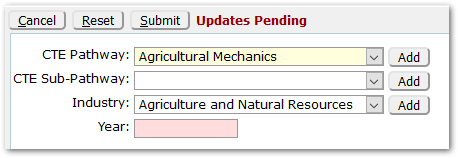
- Use the dropdowns and set the CTE Pathway, CTE Sub-Pathway if applicable, and Industry.
- Notice that the Year defaults to the current school year. CTE Pathway definitions may change over time. If a CTE Pathway’s course requirements change, make a new version of it, and set the Year to reflect the effective year for the requirements.
Note: When initially implementing CTE Pathways, districts may need to honor more than one version of a Pathway if requirements changed during the period of time that upper level students commenced a CTE Pathway and current freshman, or sophomores, began. In that case, define both versions of the CTE Pathway, setting each with appropriate year values, i.e. Financial Services, 2010 and Financial Services, 2018 or whatever year course requirements came into effect for the CTE Pathway.
In this example, we are setting the Year back to 2015 since the CTE Pathway requirements for Engineering Design, in our district, have been in effect since that time.
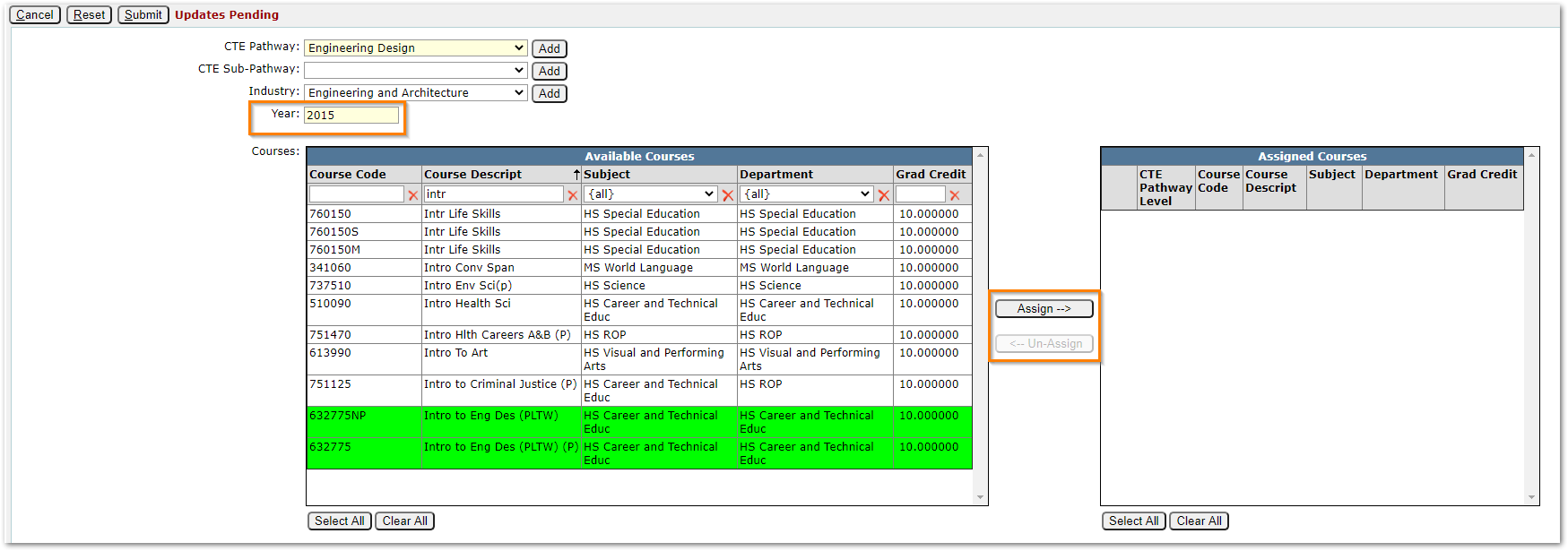
- Use the filter fields at the top of each column to find courses that apply to the CTE Pathway.
In this example, we are adding ‘Intro to Engineering Design’ to the ‘Engineering Design’ CTE Pathway. Districts often have multiple instances of a course reflecting differences, e.g. UC/CSU Approval, departments, etc. Be sure to include the correct versions or set of each course corresponding to those made available through Track Course Selection application to each School Track.
It’s important to be aware that during the process of assigning a student to a CTE Pathway, a counselor will be using either the Student Course Plan or Student CTE Pathways applications and may need to select not only courses the student will take, but also for upper level students, the courses the student has already taken and for which they have transcript records that apply. In that event, it is critical that all the variations of a course that apply to fulfill requirements are selected and assigned to the CTE Pathway.
- Select the courses and click the Assign
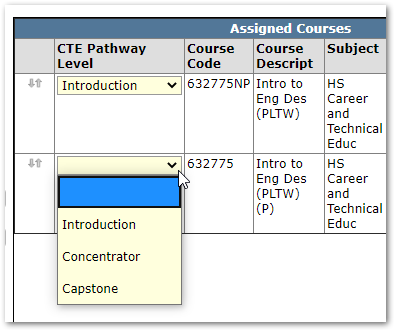
- Select the CTE Pathway Level for each course.
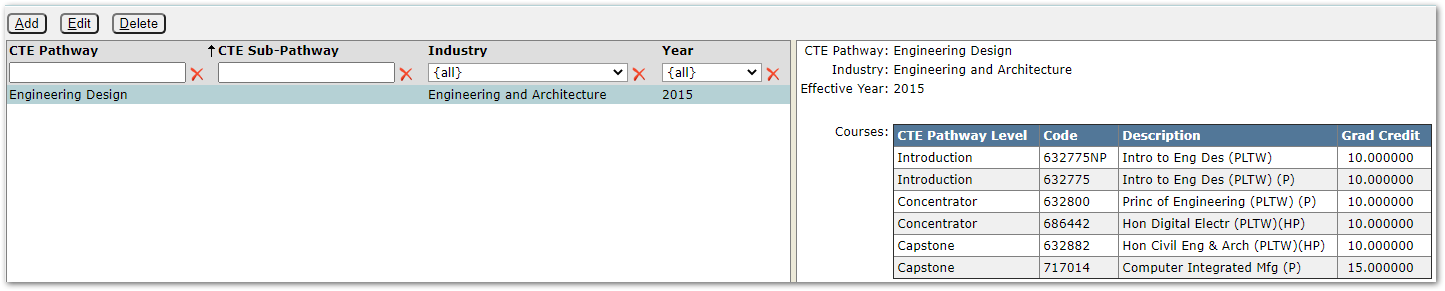
- After completing the CTE Pathway, click Submit to save the record. The CTE Pathway will display in a list at left, with details of Courses, Effective year etc. displayed at right.
- Repeat these steps to continue to add remaining CTE Pathways.
- To edit an existing CTE Pathway, click Edit and make desired changes.
The application will prevent the user from unassigning or removing a course if students in the CTE Pathway have completed the course or have the course as an item in their CTE Pathway.

When prevented from removing a course, the application will provide a list of students. To print the list, use the Printer icon in top right corner.
A Create New CTE Pathway option is available. To create a variation of the CTE Pathway, in the event of a change, use this function.
When Create New CTE Pathway button is clicked, a copy of the pathway with the same courses selected is presented, prompting the user for a Year.
- Set a new Year value, different from the original pathway. Make all course selection or level adjustments and submit changes to save the CTE Pathway.
In a situation where students have not yet completed a CTE Pathway course, but do have the course in their CTE Pathway as an item, a different message appears:
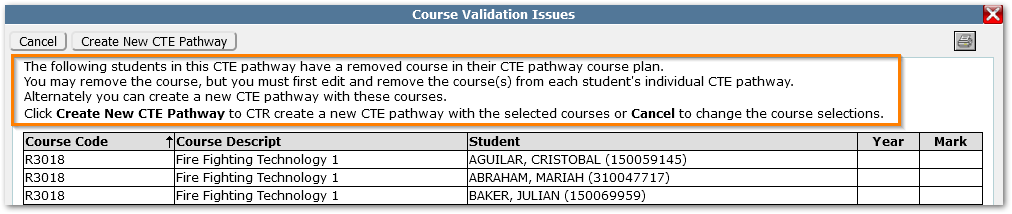
In this case, to remove the course, first edit and remove the course from each affected student’s CTE Pathway. Then proceed to remove the course from the CTE Pathway itself.
Alternately, use the Create New CTE Pathway function to create a variation of the CTE Pathway.
The Delete button for CTE Pathways is only activated when the deletion of the pathway would not affect any students.
