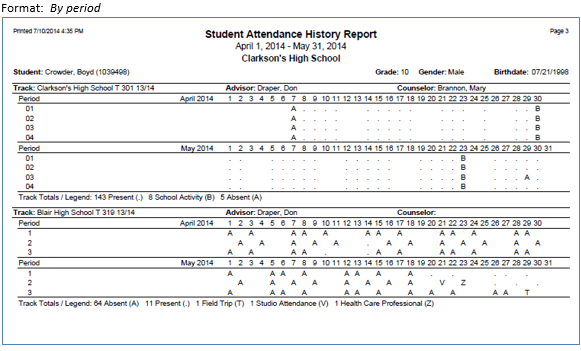
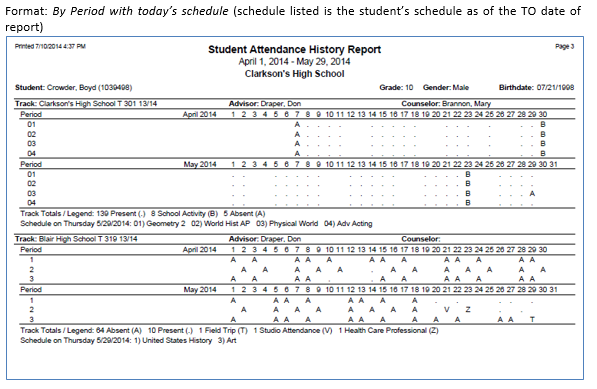
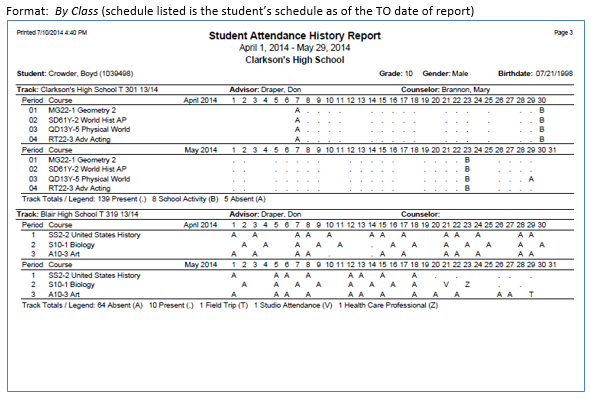
The Q Student Attendance History report displays student attendance in a grid type format which allows end-users to more easily identify patterns in student attendance. The student attendance displayed on the report may be printed in one of three formats; by period, by period with today’s schedule and by class. This report may also be launched from the Q Student Attendance application by clicking the print icon. The default attendance display format when launched from Q Student Attendance is by period. The district or school may change this default to any of the three choices by creating a report set named ExtDefault with their preferred attendance format. In order to have the student’s schedule and attendance print from the Student Attendance application the ExtDefault report set must be set to the format, by class. If the report set is set at the district level, this default will be in place for all users in the district. The ExtDefault report set may also be set at the school or user level. The report prints attendance for all tracks in which the student is enrolled with the student’s primary track listed first. Attendance totals for each track are listed in the footer with an attendance code legend. The report’s default date range is 31 days prior to the system date with only scheduled periods printed. The date range may be adjusted by the user.
While details specific to this report will follow, users can find general information about reports within the Reports documentation.
Student Attendance History Report is located within Reports in the Attendance menu in Q.
When the report is launched the default display has the Options expanded. Options may be closed by clicking the – (minus) sign and can be accessed by clicking the + sign next to Report Options, or by clicking the Options link on the right hand side of the screen.

The Student Attendance History Report provides the following options:
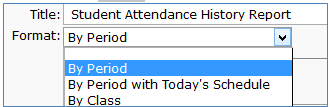
- Format
- By Period—prints one line per scheduled period
- By Period with Today’s Schedule—prints one line per period and includes today’s(system date) schedule in the track footer
- By Class—prints one line per course taken during the specified date range
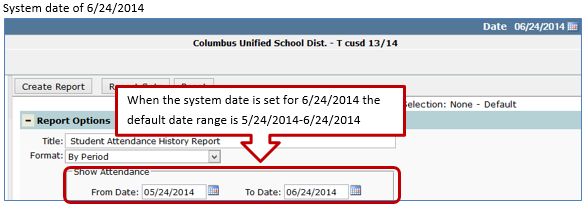
- Show Attendance date range:
- Enter a From date or select a date from pop up calendar. The report defaults to a date range of From (today – 31 days) To (today)
- Enter a To Date or select a date from the pop up calendar
- Future dates not allowed
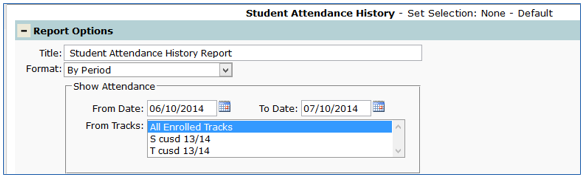
- From Tracks
- If logged in to a school all tracks defined for the school will display, select the tracks you’d like by clicking to highlight. Multiple tracks may be selected by holding the ctrl button while making selections
- When logged in to the district track all tracks the student is enrolled in will be printed
- Include—place a check in the box to include:
- Advisor—prints the name of student’s advisor in the report header
- Counselor—prints the name of the student’s counselor in the report header
- Student address—the student’s address prints in the report header, if the address has been designated unlisted in the student editor the description, unlisted will print instead of the address
- Primary Contact—the student’s primary contact and the contact’s phone number prints in the report header

Student Attendance History Report samples with student enrolled in multiple tracks: