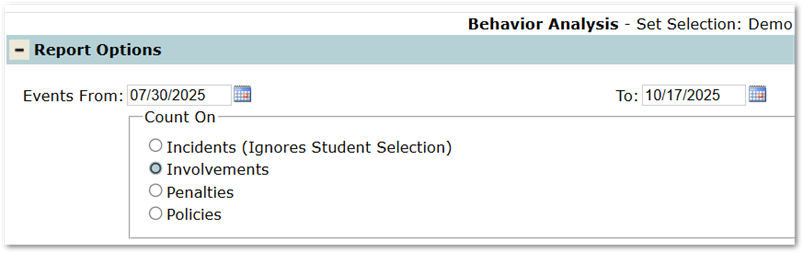
Report Sets are a great way to save the selected parameters of a report so it does not have to be rebuilt each time it is run. This will save all the setup including dates. Saving the date can be an issues as that then has to be edited each time the report is run. Here is a way to save a blank date, so that it will default to the current date when running the reports later.
If date fields are populated when the report set it saved, that will be the default date every time that report is opened. To save without dates; once all setup is completed remove the dates before saving the report set. Blank dates will default to dates within the current school year (system date, or year begin and end based on current year) each time the report is opened.
To edit current report sets and remove the dates follow the steps below:
- Load the set to edit. Open Reports – Reports Sets – Load Selected Set

- The report options will display with old dates.
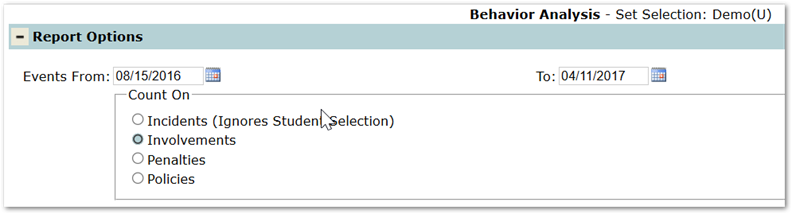
- Remove any dates set in parameters (highlight & delete) then click Report Sets
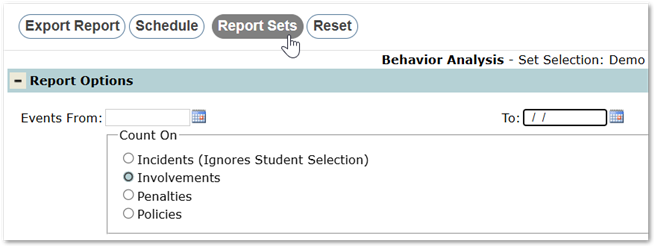
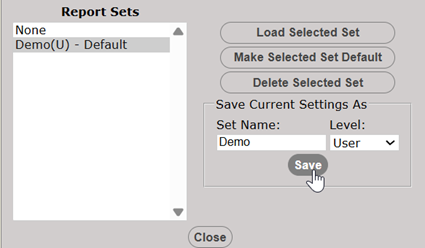
- Save
- Next time the report set is opened the dates are populated with dates within the current school year.