The Q Year End process provides a mechanism for closing out the school year that just concluded and sets up the database to begin the next school year.
Note: Prior to running the Year End process, we highly recommend that districts save a backup of their production database. In addition, if maintaining an archive database, the archive process needs to be run prior to running the Year End process.
Year End is located under the System menu in Q.
Before starting the Year End process, a couple of preferences need to be configured. To set up these preferences for Year End process, navigate to the Preference Editor.
Q > System > Preference Editor
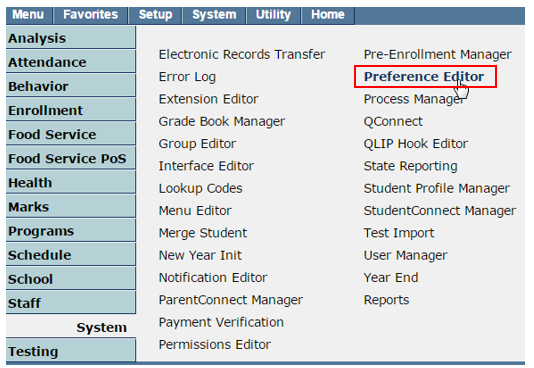
When the Preference Editor launches, select "Year End" from the list of applications and you will be presented with the two preferences pictured below.
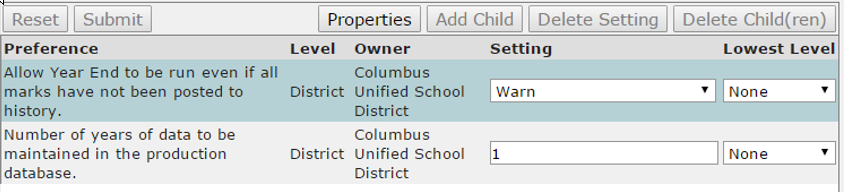
- Allow Year End to be run even if all marks have not been posted to history: This preference can either be set to Warn or Block. The "Block" setting prevents Year End from being run on schools where there are marks that have not yet been posted to history. In these cases, the Step 1 button will remain inactive until all marks have been posted. The "Warn" setting enables the Step 1 button even when schools have marks that are not yet posted to history, but throws a warning. As pictured below, users may choose to proceed with the Step 1 process.
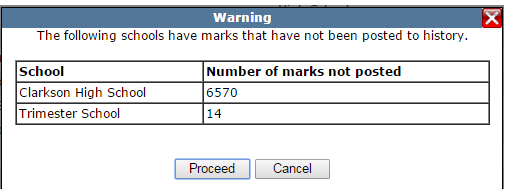
Example of when preference is set to Warn. - Number of years of data to be maintained in the production database: This preference represents lets you set the number of years of data to be maintained in the production database. When set to "1", only the current year’s data will be preserved in the database. A value of 2 will preserve data for the current and previous year.
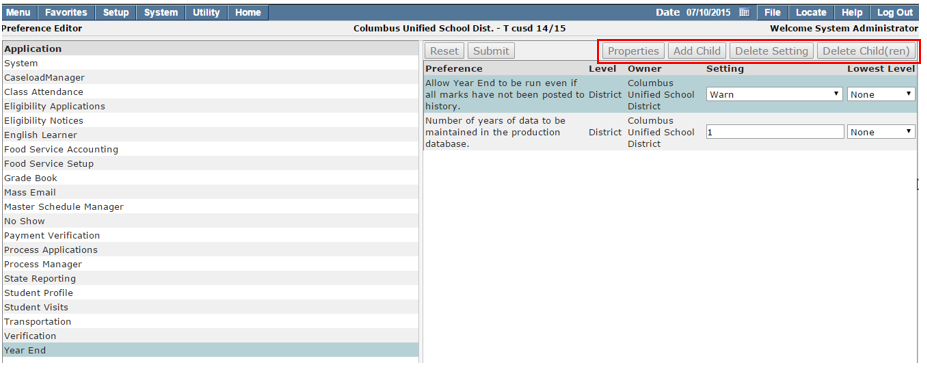
There are 4 buttons above the preferences (see image above) related to setting properties and the creation of child properties. Child properties allow different preference settings to be applied at the school or track level. For more information, see the article about the Preference Editor.
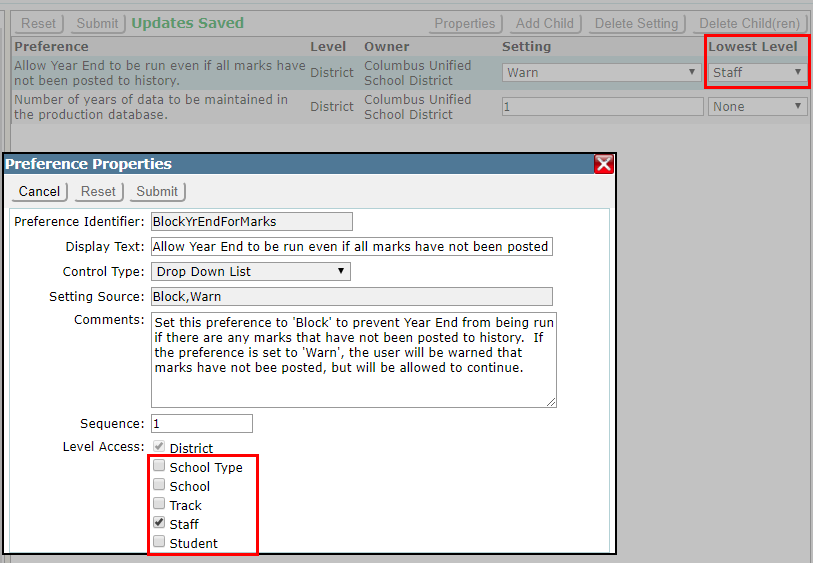
- Properties: Includes Display Text for the preference, Comments (explanation of the preference), Sequence value, and Level Access.
- Add Child: This button is available for use only if the property of the parent preference has a level access other than "District" checked and the Lowest Level is to set to anything other than "None". In the example below, "Staff" is checked for Level Access (Properties button) and the Lowest Level is set to "Staff". In this case, a child preference may be added to the parent preference.
 As an example, if the lowest level is set to school, you may add a child preference which would apply to individual school(s).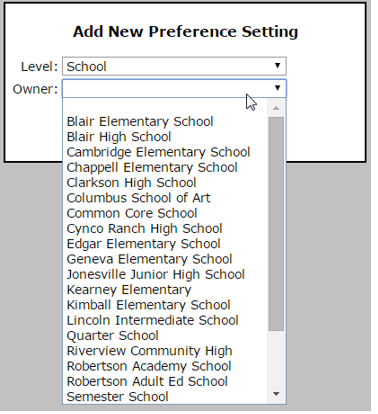
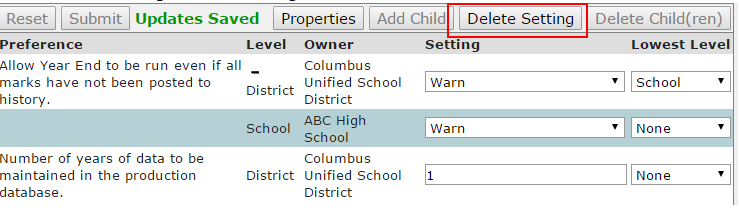
- Delete Setting: if a child has been added to a preference, users can delete that setting if it is no longer wanted. The Delete Child(ren) button allows you to delete the child of a child preference.
The Setup tab allows users to create Configuration Sets for running the three parts of the year end process: Process Graduates, Step 1 and Step 2. To create a set, first choose a configuration step from the first drop menu on the page.
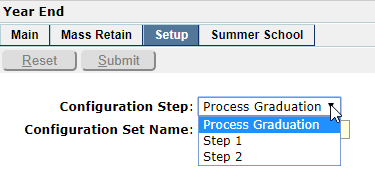
Let's look at how to create a set for each of the steps.
- Process Graduates Configuration Set
Process Graduates allows you to close out the status records of students graduating from a school or district before the other steps of Year End are performed. Choose "Process Graduation" from the Configuration Step menu. For this set, you can choose:- The configuration set name.
- Whether to include summer school tracks.
- Exit codes to close last year enrollment.
- Exit codes to close exit on exit programs
- Whether to add graduation activity records from school and from district.
Note: Process Graduates does not have to be completed prior to running Steps 1 and 2. This process should only be used if you are processing graduates prior to the rest of the students in the school.
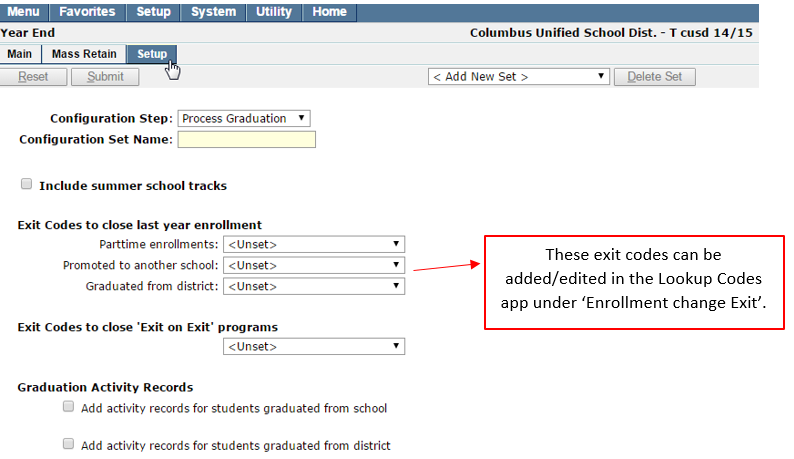
- Add activity records for students graduated from school - this option can be selected when students have reached a promotion grade for a school, but not the district. For example, this can be turned on when students are graduating from middle school and promoting to high school.
- Add activity records for students graduated from district - this would be selected when seniors are graduating from the district and have reached the promotion grade for the district. (The promotion grade for your district site should be set to 12 to ensure seniors are correctly processed when exiting from 12th grade.)
- Step 1 Configuration Set
Step 1 of Year End optionally removes all past track information that does not have to be maintain across multiple years. The process includes closing previous year’s faculty status records, closing locker records for students who will no longer be at a school, and incrementing the school year value in the school table. All data to be deleted is backed up before deletion.
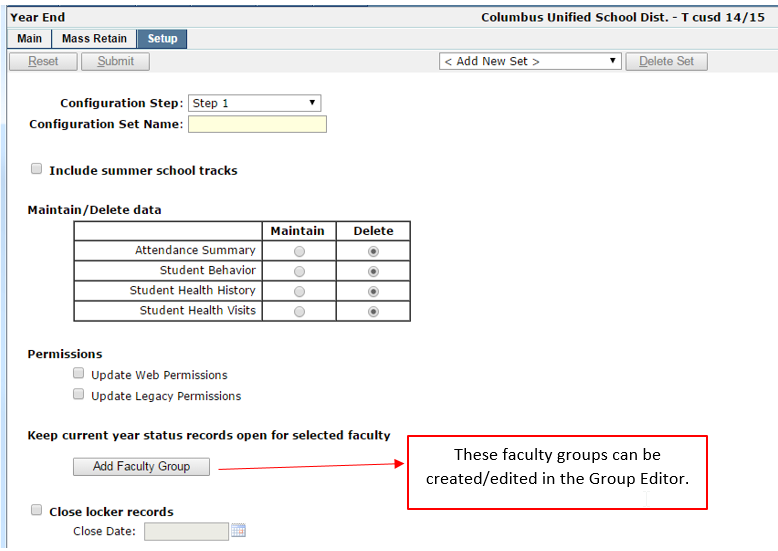
Choose "Step 1" from the Configuration Step menu. For this set, you can choose:- The configuration set name.
- Whether to include summer school tracks.
- Whether to maintain or delete the following data:
- Attendance summary.
- Student behavior.
- Student health history.
- Student health visits.
- Whether to update web and legacy permissions.
- Keep current year status records open for selected faculty by selecting a faculty group(s) to keep open.
- Close current locker records, and if so for what date, or users can select to leave current locker records open.
- Step 2 Configuration Set
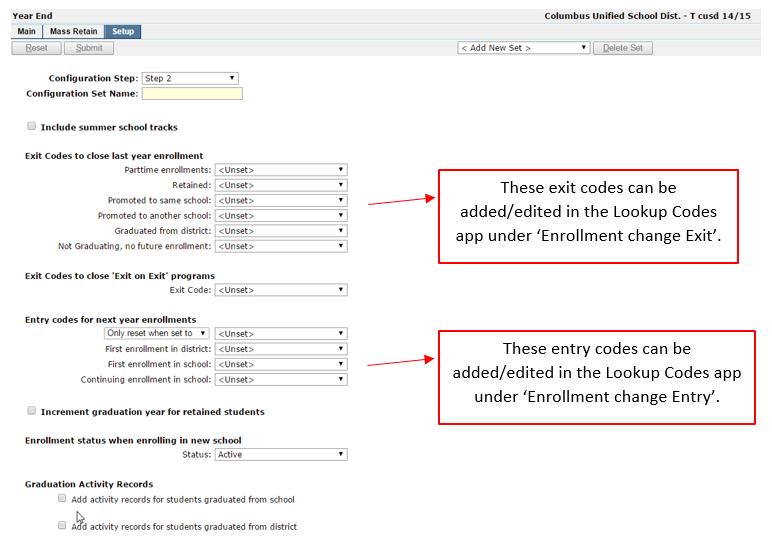
Step 2 of Year End closes current year student enrollment records. Choose "Step 2" from the Configuration Step menu. For this set, you can choose:- Configuration set name: Users can enter multiple configuration sets and name them accordingly; ex: for Middle School Tracks, High School Tracks, etc.
- Whether or not to include summer school tracks.
- Exit codes to close last year enrollment: Choose an exit code to close last year enrollment.
- Exit codes to close Exit on Exit programs: Choose the exit code for those programs that are flagged as Exit on Exit in the Program Editor.
- Enter codes for next year enrollments: Enter which code is to be set for each type of entry enrollment.
- Increment graduation year for retained students: Choose whether or not to have the Year End process increment the graduation year for all retained students.
- Enrollment status when enrolling in new school: Set an enrollment status for students enrolling in a new school.
- Add Activity record for students graduated from school: You can choose to have an Activity record added for those students that will graduate from the school. Graduating from a school means that the student’s current grade is equal to the promotion grade of the school.
- Add Activity Record for students graduated from district: You can choose to have an Activity record added for those students that will graduate from the district.
If logging in to a district, the Main Tab will display a list of all schools in the district. These schools can be sorted by School Code, School, and/or School Type. A green circle appears for schools that are ready for Step 1 or 2. A red circle indicates the school is not ready for that step. When one or more schools have been selected using the checkboxes on the left side of the page, users may choose one of the 3 process buttons as picture here:
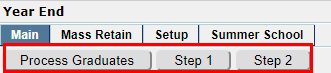
An inactive button indicates that the selected school(s) are not ready for that process. Let's examine each of these three processes of the Year End application.
- Processing Graduates
To process graduates prior to the rest of the school, select the schools to process using the checkboxes on the left, then click the Process Graduates button once it becomes active. If you created a configuration set for this process, you may select the set. Otherwise, leave the Configuration Set value set to "None".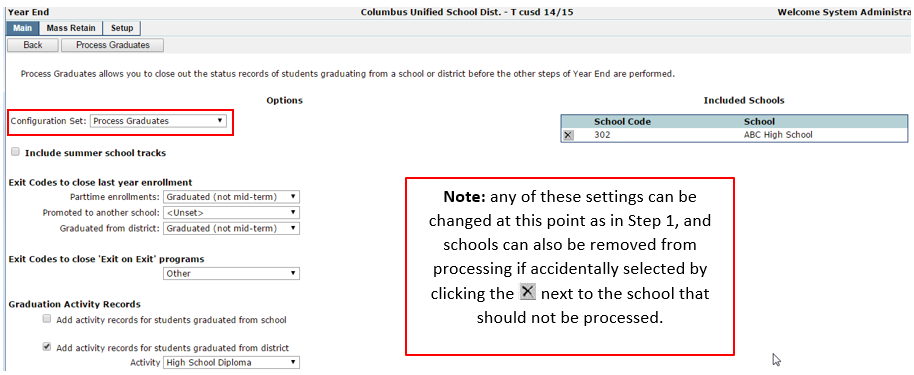
Once Process Graduates has been started, you will see the following message: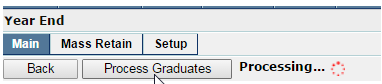
Once Process Graduates has finished, you will see the following message:
Reminder: If graduates are being processed along with the rest of the school, there is no need to process graduates first. This step is only to be used if graduates are being processed before the rest of the students in the school (e.g. for transcript reasons).
- Executing Step 1
To execute Step 1, select the schools to process using the checkboxes on the left, then click the Step 1 button once it becomes active.
If you created a configuration set for this process, you may select the set. Otherwise, leave the Configuration Set value set to "None". When ready, click the Execute Step 1 button.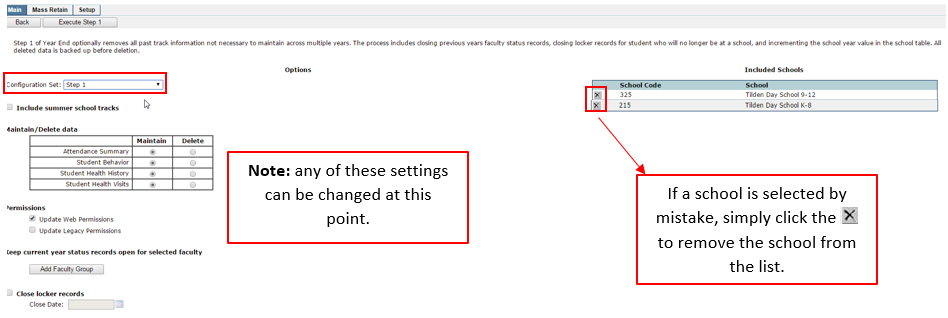 Once Step 1 has been started, you will see the following message:
 When Step 1 has finished, you will see the following message:
 Click the Back button and you will then see a checkmark next to the school under Step 1, indicating this process is complete.
 Note: A red circle will appear if the school is missing something that would allow that step to run.
 - Executing Step 2
To execute Step 2, select the schools to process using the checkboxes on the left then click the Step 1 button once it becomes active.
If you created a configuration set for this process, you may select the set. Otherwise, leave the Configuration Set value set to "None". When ready, click the Execute Step 2 button.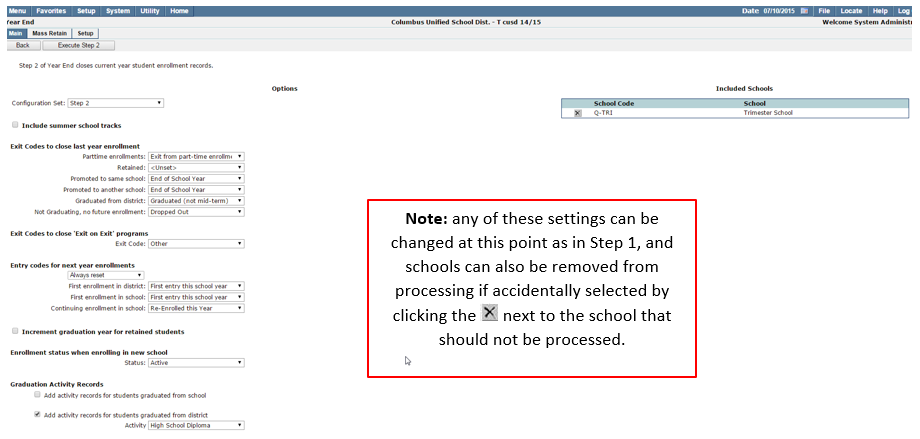 Once Step 2 has been executed, you will see the following message:
 And once Step 2 has finished, you will see the following message:
 Click the Back button and you will then see a checkmark next to the school under Step 1 and Step 2.
- Year End Reports
There are two report buttons located at the top right of the page. These buttons become available once you've selected 1 or more schools using the checkboxes on the left of the page.- Student Listing Report
The Student Listing Report generates a list of students that will be processed by the Year End application.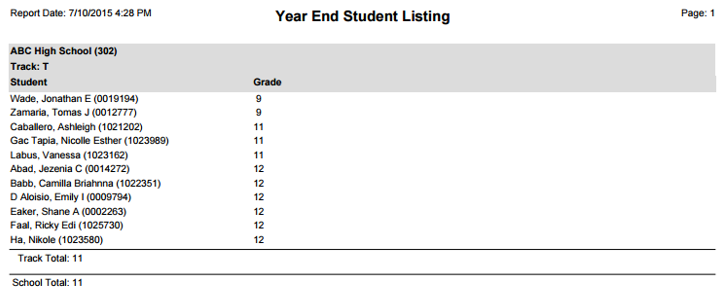
- Status Report
The Status Report gives an overview of student enrollment for the selected schools, along with the school year and whether or not the school has been New Year Initialized.
Note: If the "School Year" column is displaying the value for the upcoming school year, but there is no check mark in the "New Year Initialized" column, this means that the Year End process has already been run for that school (see sample below).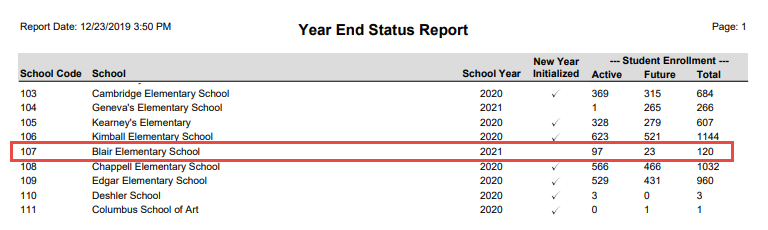
- Student Listing Report
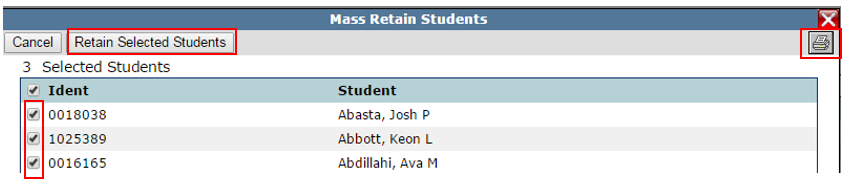
Select the students to be retained by searching for them using the Mass Retain feature. Once students have been selected to be retained, users can then review those students by clicking the Review Students button.
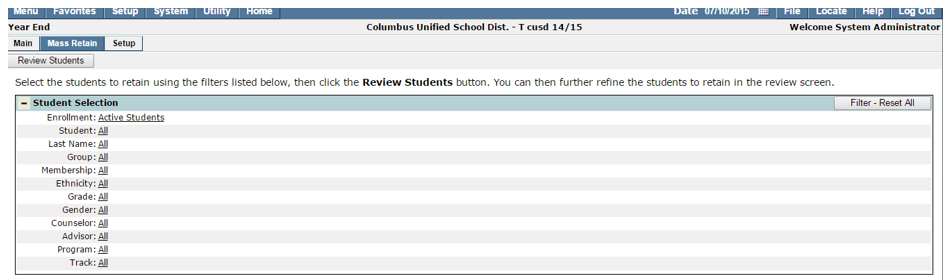
Once the Review Students button is clicked, users can:
- Deselect students that should not be retained.
- Print a list of students to be retained by using the print icon in the upper right corner.
- Click the Retain Selected Students button to process the retentions.
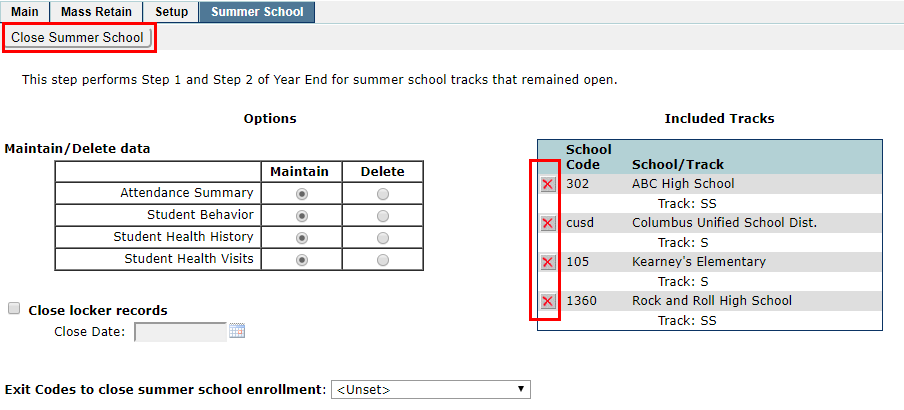
This tab appears only if your district has tracks flagged as summer school. For these tracks, both Step 1 and Step 2 of the Year End process are run with the click of a single button. The options on this tab include types data that may be maintained or deleted, the ability to close locker records as of a specified date, and the exit code used to close summer school enrollment. You may also exclude tracks using the red x icons on the right side of the page. Click the Close Summer School button to run the Year End process for the included tracks with your desired settings.