
The Re-Enrollment Manager application allows staff to monitor the progress of ParentConnect Re-Enrollment. The app lists the students enrolled for the re-enrollment school year, shows which sections still need to be confirmed, and displays the student and contact information from Re-Enrollment. Staff with permission can also mark an update step as confirmed if the parent/guardian has not done so.
This application is not to be confused with the ParentConnect Manager application, which is where the re-enrollment preference is set. The preference must be set to Yes to use this application. If the preference is set to no, a message will appear in Re-Enrollment Manager indicating that it needs to be set to yes to use the application.
Re-Enrollment Manager is located under the Enrollment menu in Q.
The Incomplete Re-Enrollments tab lists students enrolled for the re-enrollment school year who still have unconfirmed sections. A section is an update step the parent/guardian is required to confirm. (Students with no unconfirmed sections are displayed on the Complete Re-Enrollments tab.) The tab is only available to users with the ManageIncompleteReenroll or Administrator right.
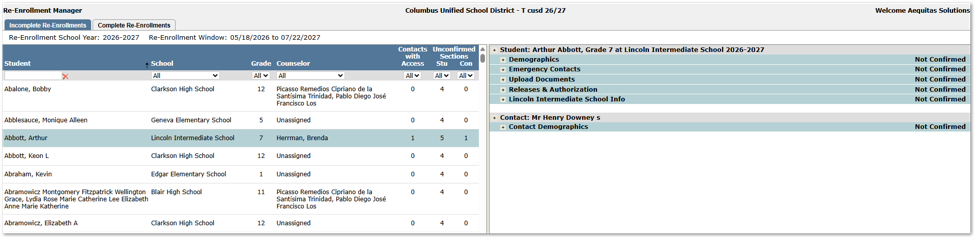
- Re-Enrollment School Year - The school year that students are being re-enrolled for.
- Re-Enrollment Window - The start and end dates of the re-enrollment window. The student list is not displayed until the window has opened. 'Window has not yet opened!' displays before the start date and 'Window has closed.' displays after the end date. The list is still available after the window closes.
- Student - Click a student to view their re-enrollment details. Type the first few letters of a student's last name in the box below the heading to filter the list. Click the red X to clear the filter.
- School - The school the student is enrolled in for the re-enrollment school year. The School column is only displayed while logged in to a district track. While logged in to a school track, only students enrolled at that school for the re-enrollment school year are listed. For example, a student moving from an elementary school to a middle school is listed at the middle school.
- Grade - The student's grade for the re-enrollment school year.
- Counselor - The student's counselor for the re-enrollment school year.
- Contacts with Access - The number of the student's contacts who have access to complete Re-Enrollment. Students with 0 do not have any contacts who can complete Re-Enrollment.
- Unconfirmed Sections: Stu - The number of student update steps that require confirmation and have not been confirmed.
- Unconfirmed Sections: Con - The number of contact update steps that require confirmation and have not been confirmed, added up for all of the student's contacts with access. A contact's confirmation counts for all of that contact's students.
- Filters - Use the drop-down lists below the column headings to filter the list. Filter selections are remembered until the browser tab is closed. Click a column heading to sort the list by that column.
The Complete Re-Enrollments tab lists students enrolled for the re-enrollment school year who have no unconfirmed sections. Every update step that requires confirmation has been confirmed for the student and for each of the student's contacts with access, either by the parent/guardian in ParentConnect or by staff using the Mark Confirmed By Staff button. The tab is only available to users with the ManageCompleteReenroll or Administrator right.
Only Re-Enrollment confirmations made since the start of the current re-enrollment window are counted, so confirmations from a previous year's Re-Enrollment do not carry over.

- Re-Enrollment School Year/Window - Displays the same information as the Incomplete Re-Enrollments tab.
- Student, School, Grade, Counselor - These columns and their filters work the same way as on the Incomplete Re-Enrollments tab. The School column is only displayed while logged in to a district track.
Selecting a student on either tab displays the student's re-enrollment details on the right side of the screen. The details include a bar for the student, followed by a bar for each contact who has access to complete Re-Enrollment for the student. Each person's update steps are listed below their bar.
Expand an update step to view its information. Depending on the step, this may be student demographics, emergency contacts, documents, contact demographics, or fields defined by the district. Fields that are hidden in ParentConnect are also hidden here. If none of the student's contacts have access to complete Re-Enrollment, a message is displayed in place of the details.
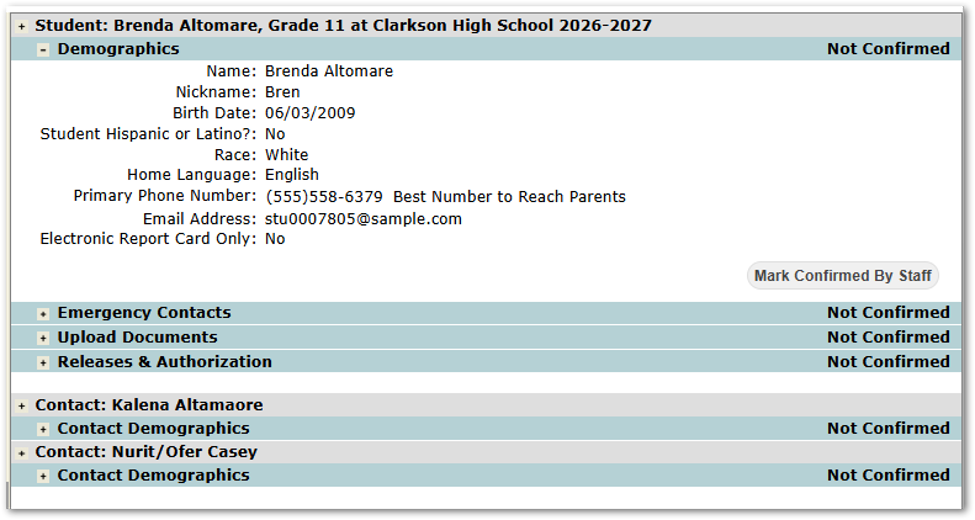
- Expand/Collapse All - Click the icon on the left side of a student or contact bar to expand or collapse all of that person's update steps.
- Expand/Collapse - Click the icon on the left side of an update step to show or hide the information for that step.
- Changes Pending - Displays in red on a student or contact bar when there are pending changes to that person's information.
- Confirmed/Not Confirmed - Displays on the right side of each update step that requires confirmation. Confirmed steps show the date and time the step was confirmed and who confirmed it.
- Mark Confirmed By Staff - Displays below an expanded update step that requires confirmation and has not been confirmed. Click to mark the step as confirmed on behalf of the parent/guardian (the information in the step is not changed). When every step for the student and the student's contacts has been confirmed, the student moves to the Complete Re-Enrollments tab the next time the tab is loaded. This button is only available to users with the MarkConfirmed or Administrator right.
- Open Document - Click the document icon in a documents step to open the document.