
The Service Billing application provides the ability for district staff to bill Medicaid for services provided to eligible students. District staff using the Service Billing application can review existing service records, student eligibility and access procedures for processing claims for the reimbursement of services through Medicaid Billing.
Service Billing is located under the Programs menu in Q.
Tasks may be defined and implemented by System Administrators in the Setup area. Examples of Tasks are:
- Eligibility Inquiry
- Used to generate a file of students receiving services formatted for submission to inquire about Medicaid Eligibility
- Eligibility Response
- Used to import a file of the agency’s response to the Eligibility Inquiry.
- A Claim Submission Error process
- Used to review errors generated by the claim submission process.
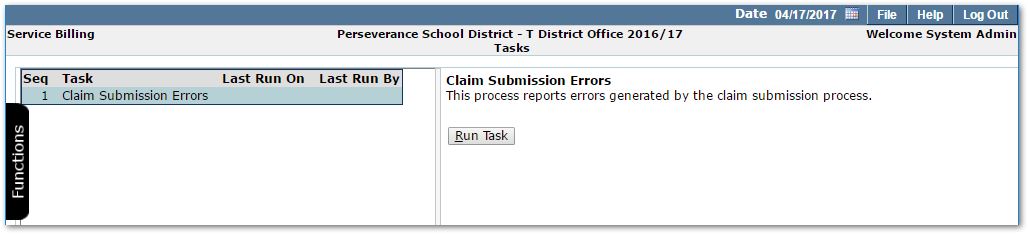
- Used to review errors generated by the claim submission process.
Further information available in Service Billing Implementation Guide.
Select a student using the filters in the Select Student dialog.
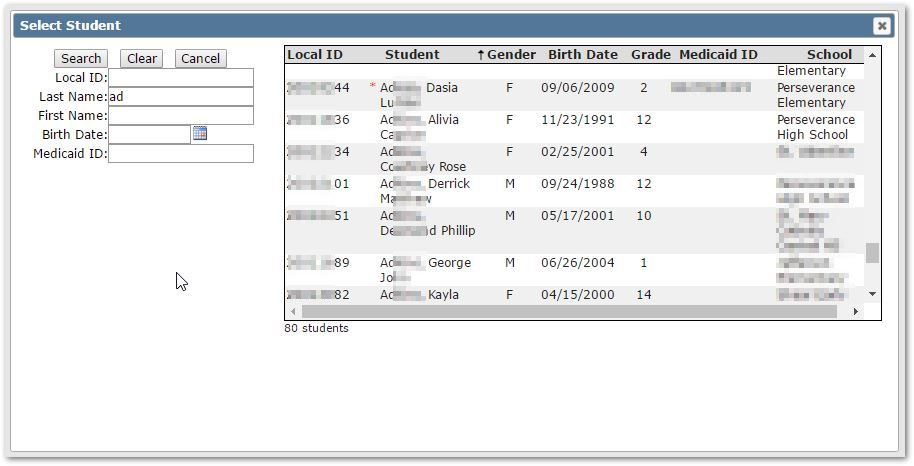
As in Service Tracker, Medicaid Eligibility is indicated by a red asterisk to the left of the student’s name.
In an aggregate database, District will appear as an additional filter field.
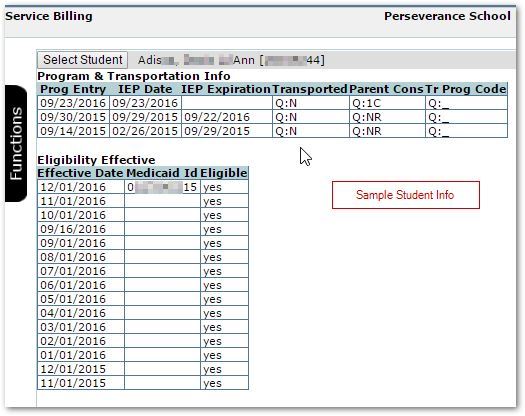
When the student has been selected, any stored procedures configured in Setup will be executed and the results of each procedure will be displayed. Student Info may optionally be implemented by System Administrators. For additional information see Service Billing Implementation Guide.
An example is shown below.
NPI Records
In some states, to bill for certain services a National Provider Identifier (NPI) record is required. An NPI record needs to be created for Physicians first. Then, for students with services requiring NPI information, create records for the student to associate the Physician, the Staff Certification code and the date range of the record.
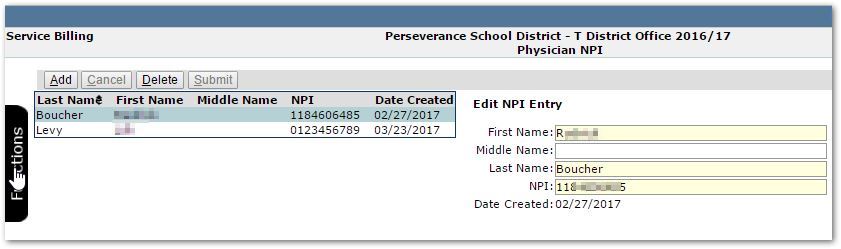
Physician NPI
To create a Physician NPI record, click Add and complete the fields: Name fields, NPI number (the provider’s 10 digit NPI number). Click Submit.
Student NPI
Select a student using the filters in the Select Student dialog, like that shown in Student Info above.
Student NPI records may be added, edited or deleted.
To create an NPI record:
Click Add and complete the following fields:
- Select the Provider from the set of existing Physician NPI records
- (Staff) Certification code
- Begin Date
- End dates
Submit the record when complete.
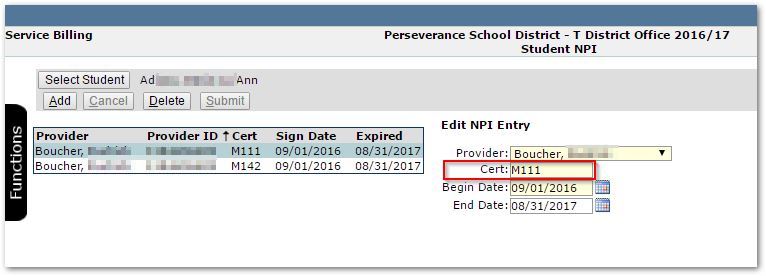
Sample student’s NPI records
The Certification code needs to be the Staff Certification code related to the service.
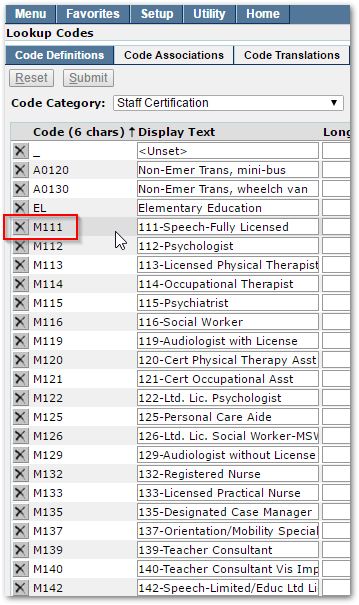
Sample Staff Certification codes from Q System – Lookup Codes
To review and edit student’s service status, from Edit Service Status function, set the filters for:
- Practitioners – either All Practitioners or a specific practitioner
- Month – select the service month
- Students – choose one of the following: All Students, All Eligible Students, All Ineligible Students, or Select Student.
To choose an individual student, set the Student filter to Select Student and then click the Select Student button. Use the Select Student dialog to find the desired student.

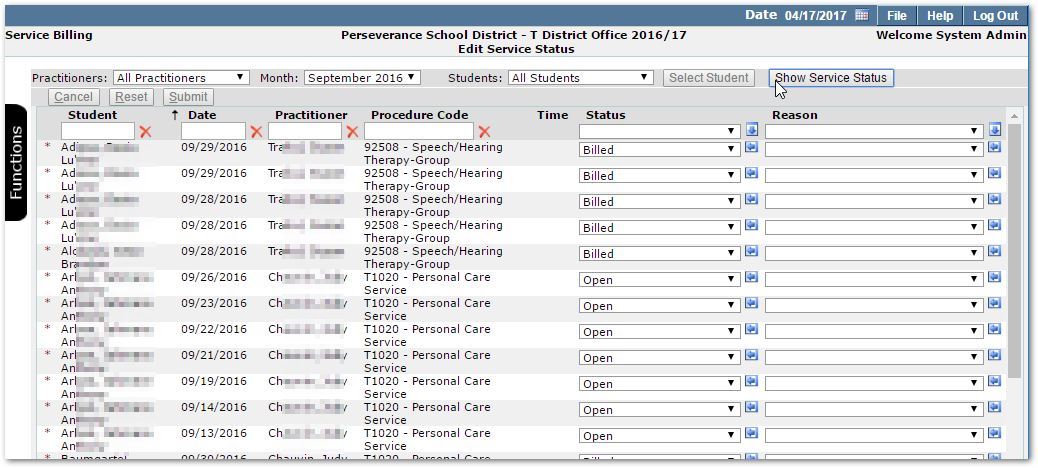
The Status field of individual records can be changed by using the drop-down lists or setting the value at the top of the column and using the ‘Fill’ arrow button.
- Open - This is the value initially given to all records as they are created. Records remain editable by the recording practitioner while open.
- Ready To Bill – All procedures completed for the record to be billed.
- Billed –Record has been submitted to appropriate agency for remuneration.
- Closed - When confirmation of remuneration is received through the billing process, records are changed from ‘Billed’ to ‘Closed’. These records remain non-editable.
- Failed – Resubmitted - When a record has been billed and returned as unpaid, it may be flagged as Failed – Resubmitted. This will automatically create a duplicate, editable version of the record for later submission.
- Failed – Not resubmitted - When a record has been billed and returned as unpaid and it is determined that the record is either not billable or not able to be resubmitted, it may be flagged as Failed – Not Resubmitted for proper tracking purposes.
If you make a change in the Status, select a reason for making the change in the Status Reason column to the right.
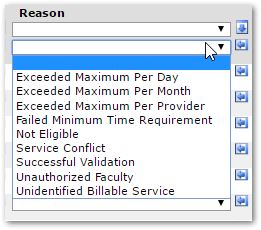
Click Submit to save your changes.
This screen enables you to view each student’s Bill Amount up to a defined date, for the selected practitioner.
Select a Practitioner, select an Effective Date, and click on the Display Services button to view student names and amounts.
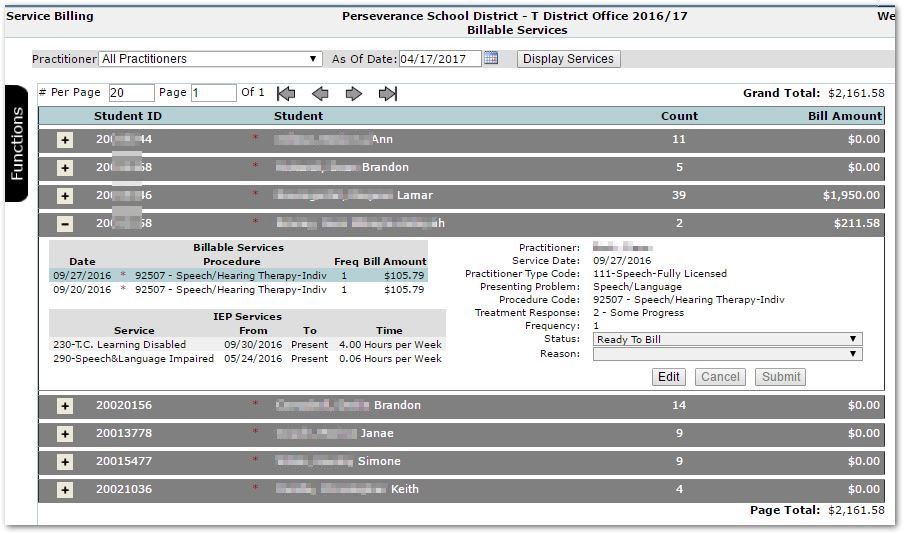
Individual service status and reasons may be edited if needed. Expand the individual student row by clicking the + sign and then select the service. Click Edit and adjust the Status or Reason fields, as needed, at right. Submit the change. Changing the individual service records does not affect the Monthly History record.
Using this function, a claim submission file may be generated or a previous submission file may be downloaded.
A Zip file in the required 837 file format will be created that compiles all billable items from all practitioners up through the effective date. This file will then be submitted Medicaid website using your school district account.
To generate a new claim submission:
- Click ‘New Submission’
- Set the effective date. This date will be the latest date for which eligible Service Records are included.
- Click ‘Create Submission’ button.
To download a previous submission:
- Click ‘Previous Submission’
- Select the submission from the Claim Submission drop-list
- Click Download or Delete to remove a submission.
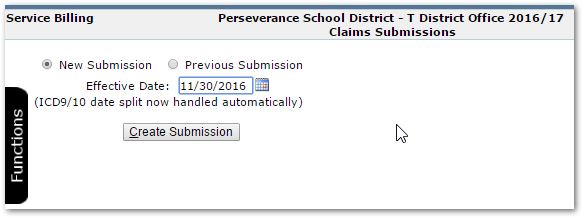
To generate a claim, the following needs to be in place:
- Students:
- Are Eligible with a Medicaid Service ID
- Have a Primary Disability:
- Primary Disability is mapped in Code Translation (ICD9 and ICD10)
- Students need an NPI record associating them with an NPI Physician:
- NPI Physician with an NPI ID
- NPI Student Record
- Associates them with an NPI Physician
- For a specific date range (i.e. year)
- Specific Medicaid Certifications
- Service Records where:
- Provider of Service has Medicaid Certification (in Staff Certifications) associated with the Student’s NPI record
- Service codes are CPT codes, with modifiers
- Status is ‘Ready to Bill’
- Associates them with an NPI Physician
Claim Error Submission Process will report:
- No ready-to-bill service records present.
For students with Ready-to-Bill service records:
- Students without a Medicaid ID.
- Students without a Disability
- Students with a Disability that is not translated to ICD9 and ICD10 codes in the Code Translation area of Lookup Codes. (See Service Billing Implementation Guide for further information.)
Some claims for services will be approved by Medicaid, some may not be. This file is the agency’s response to your district’s 837 Claim. After you download it from the agency’s web site you can import it using Service Billing ‘Claim Advice/Payment’ function and it will automatically make adjustments to the service records as needed.
Select the Choose File and navigate to the file to be imported and then click Upload File.
From the Billing Code descriptions, when the response file is uploaded:
| C | Closed | When confirmation of payment has been made through the billing process, records are set to closed. Record may not be edited. |
| D | Failed – Not Resubmitted | When a record has been billed, and returned as unpaid and it is determined that the record is either not billable or not able to be resubmitted, it may be set to this state. Record may not be edited. |
| F | Failed - Resubmitted | When a record has been submitted, and returned as unpaid, it may set to this state. This will automatically create a duplicate record for later submission. The failed record may not be edited. The new duplicate record may be edited. |
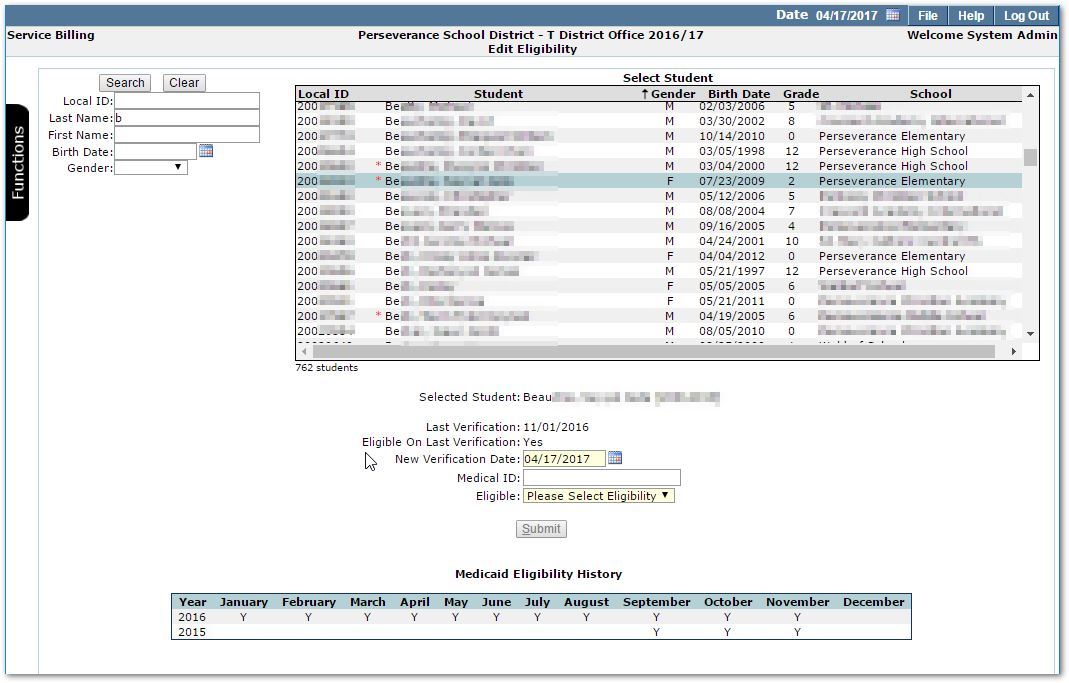
Edit Eligibility
Select a student to manually set their Medicaid Eligibility as of a specific date or set their Medicaid ID.
The student’s Medicaid Eligibility History is shown in a calendar form at the bottom of the screen.
Service Rates
In Service Rates function, you may edit existing Service Rates or create new Service Rates.
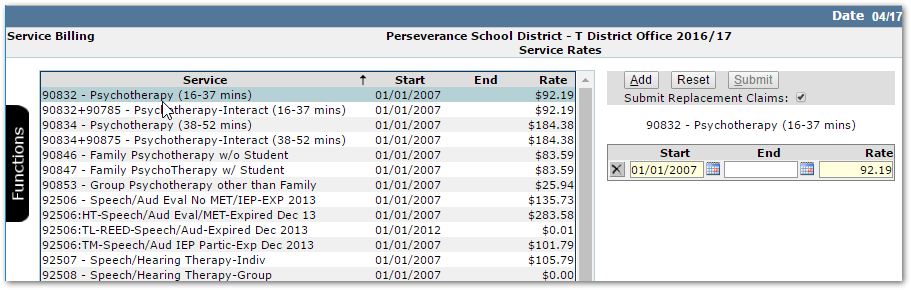
When you select a service from the list of services, the Rates details will be displayed at right. To add a new Rates record, click the Add button. Otherwise to edit an existing record, proceed to make the desired changes. In either case, when complete, click Submit.
When editing an existing Rate record, the ‘Submit Replacement Claims’ checkbox defaults on. When checked, replacement claims will be generated for services previously submitted and processed that were performed after the rate change date, when a claim file is generated.
This is an info callout
Rate values are required to be greater than zero.
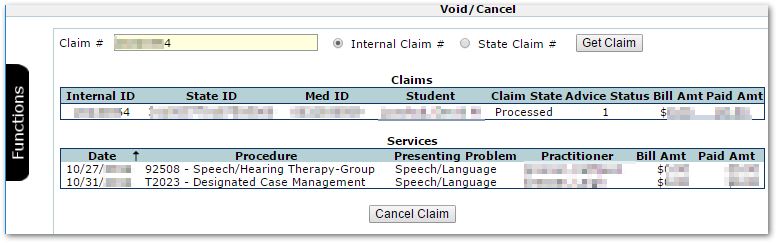
The Void/Cancel function enables you to create files used to void previous 837 claims.
Enter either the Internal or State Claim # and select whichever is appropriate.
Click Get Claim
To cancel the claim, click Cancel Claim
When complete, the Claim State will change from Processed to Cancel.
Billable Services Detail Report
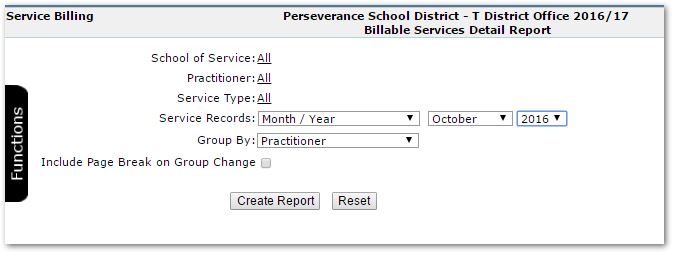
Set report options by either accepting the default settings or adjusting the filter selections:
- School of Service – defaults to all schools, but you may filter on specific school or multiple schools.
- Practitioner – defaults to all practitioners, but you may filter on a single or multiple practitioners.
- Service Type – defaults to all types, but as with the other selection options you may select a single or multiple Service Type.
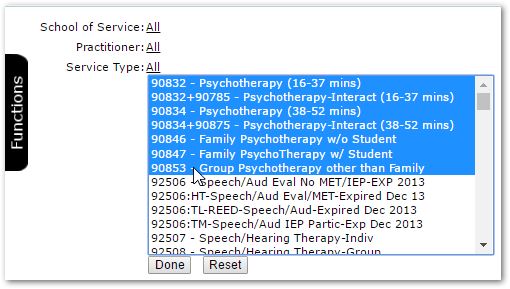
When selecting multiple items within a report option, click Done to complete the selection.
- Service Records – Select either the Month and Year or open the drop list and select Date Range to set a specific date range.

- Group By – Select from among: Practitioner, Presenting Problem, and Service Type.
- Page Break on Group By – check on to have the report start each new group on a new page.
Click Create Report when the options are set as desired.
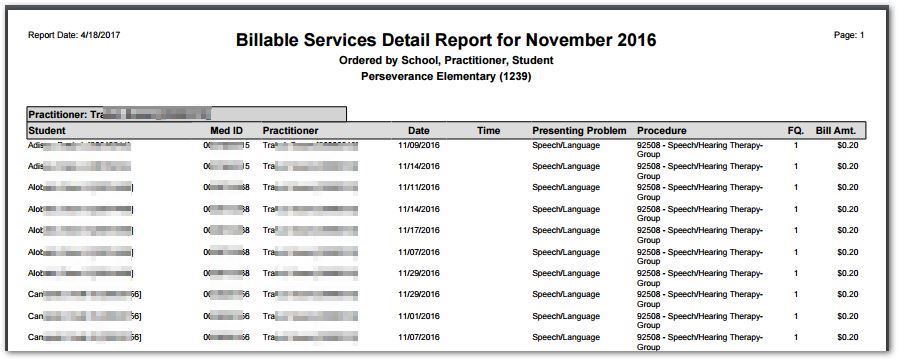
Billable Services Detail Report Sample
Billable Services Summary Report
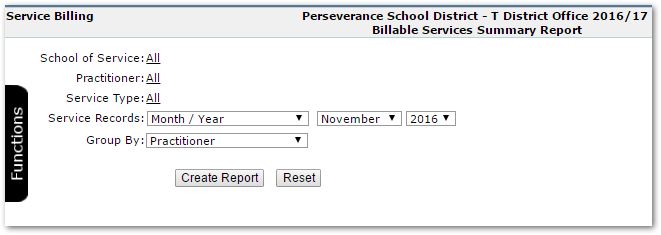
Set report options by either accepting the default settings or adjusting the filter selections:
- School of Service – defaults to all schools, but you may filter on specific school or multiple schools.
- Practitioner – defaults to all practitioners, but you may filter on a single or multiple practitioners.
- Service Type – defaults to all types, but as with the other selection options you may select a single or multiple Service Type.
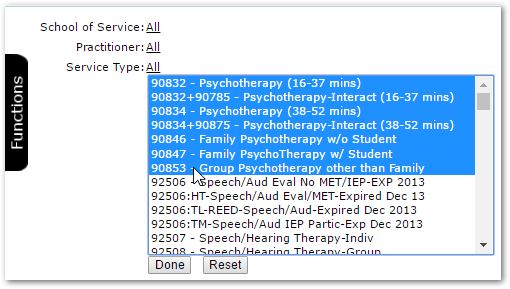
When selecting multiple items within a report option, click Done to complete the selection.
- Service Records – Select either the Month and Year or open the drop list and select Date Range to set a specific date range.

- Group By – Select from among: Practitioner, Presenting Problem, and Service Type.
Click Create Report when the options are set as desired.
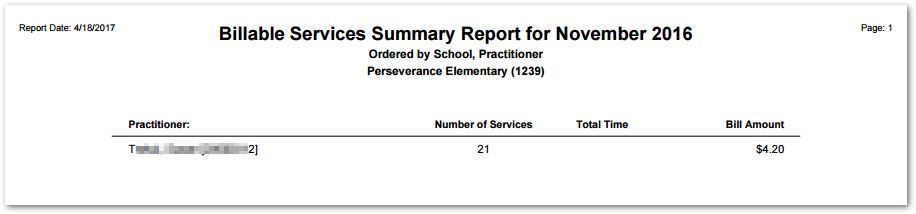
Billable Services Summary Report Sample
Billing Accounting Detail Report
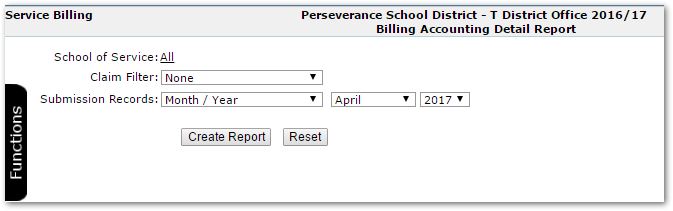
Set report options by either accepting the default settings or adjusting the filter selections:
- School of Service – defaults to all schools, but you may filter on specific school or multiple schools.
- Claim Filter:
- None will return all claims in the specified time frame
- Internal Claim – enter the specific claim number
- State Claim– enter the specific claim number

- Submission Records – Select the Month / Year or drop open the filter and select a specific Date range of the Submission record itself (not the service records billed).
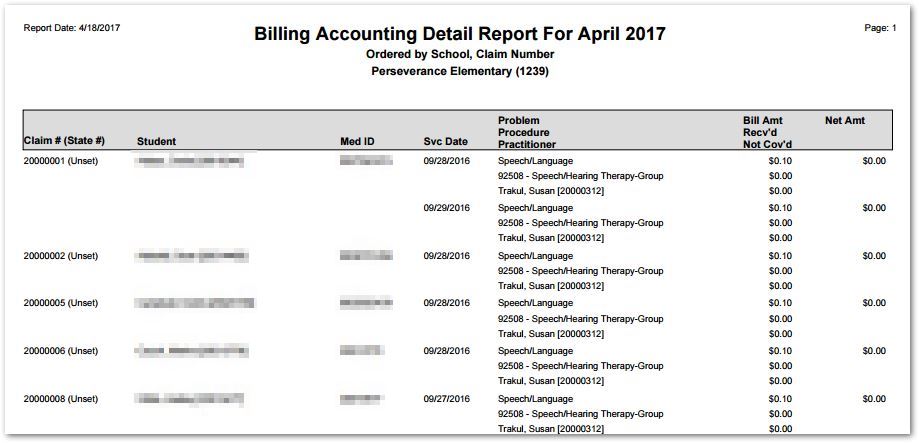
Billing Accounting Detail Report Sample
Remittance Advice Detail
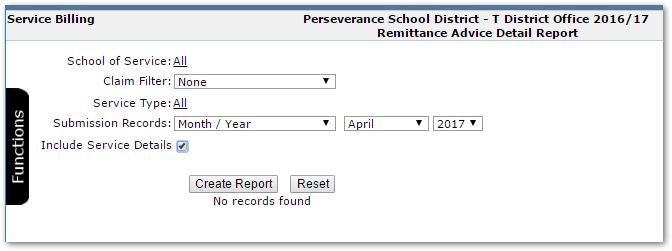
Set report options by either accepting the default settings or adjusting the filter selections:
- School of Service – defaults to all schools, but you may filter on specific school or multiple schools.
- Claim Filter:
- None will return all claims in the specified time frame
- Internal Claim – enter the specific claim number
- State Claim– enter the specific claim number
- Submission Records – Select the Month / Year or drop open the filter and select a specific Date range of the Submission record itself (not the service records billed).
- Include Service Details – Check this box on if you would like Service Details included in the report.
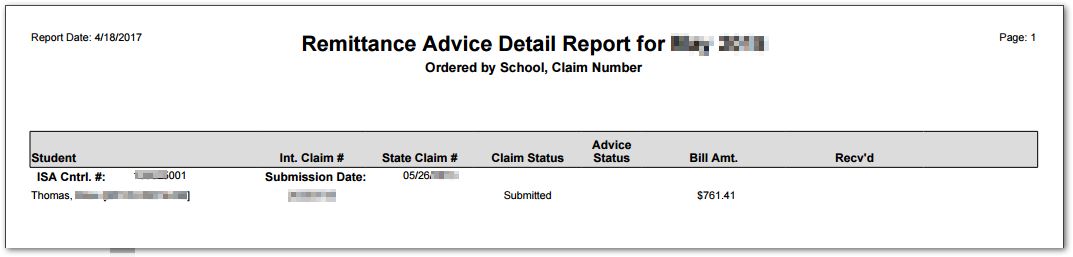
Remittance Advice Detail Report Sample
Remittance Advice Summary
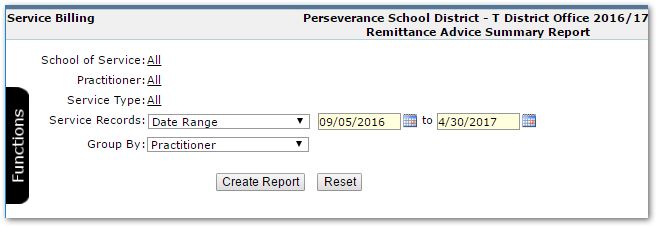
Set report options by either accepting the default settings or adjusting the filter selections:
- School of Service – defaults to all schools, but you may filter on specific school or multiple schools.
- Practitioner – defaults to all practitioners, but you may filter on a single or multiple practitioners.
- Service Type – defaults to all types, but as with the other selection options you may select a single or multiple Service Type. When selecting multiple items within any report option, click Done to complete the selection.
- Service Records – Select either the Month and Year or open the drop list and select Date Range to set a specific date range.
- Group By – Select from among: Practitioner, Presenting Problem, and Service Type.
Click Create Report when the options are set as desired.
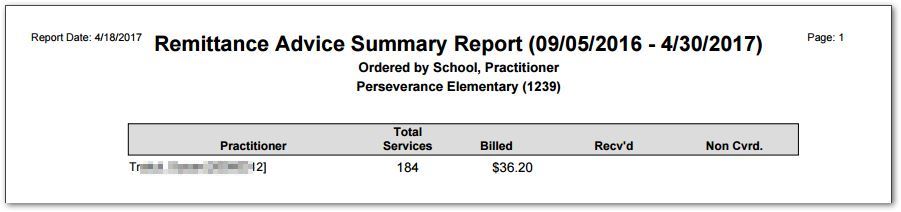
Remittance Advice Summary Report Sample
Replacement Claim Detail
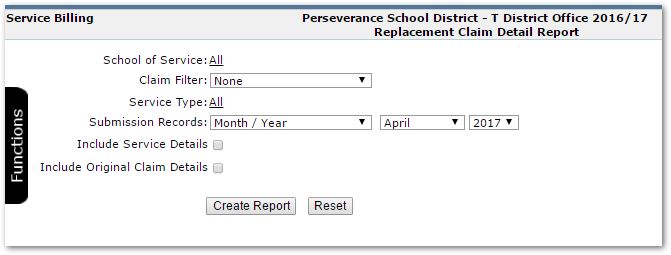
Set report options by either accepting the default settings or adjusting the filter selections:
- School of Service – defaults to all schools, but you may filter on specific school or multiple schools.
- Claim Filter:
- None will return all claims in the specified time frame
- Internal Claim – enter the specific claim number
- State Claim– enter the specific claim number
- Service Type – defaults to all types, but as with the other selection options you may select a single or multiple Service Type. When selecting multiple items within any report option, click Done to complete the selection.
- Submission Records – Select the Month / Year or drop open the filter and select a specific Date range of the Submission record itself (not the service records billed).
- Include Service Details – Check this box on if you would like Service Details included in the report.
- Include Original Claim Details – Check this box on if you would like the original claim details included in the report.
Click Create Report when the options are set as desired. 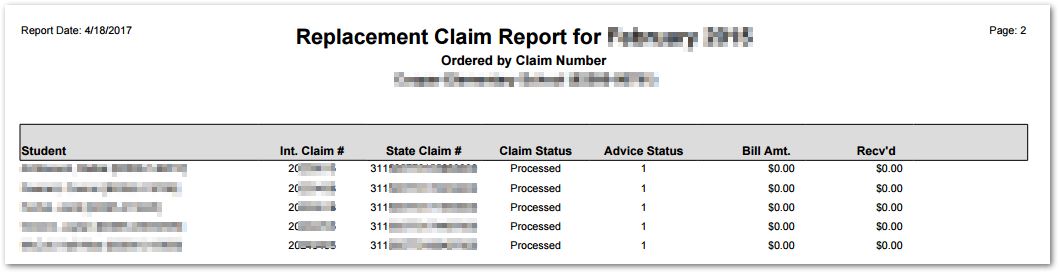 Replacement Claim Report Sample
Student Services History Summary
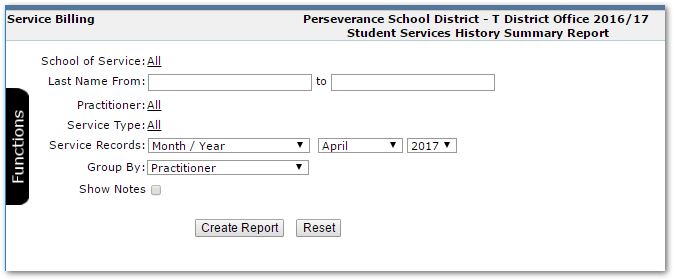
Set report options by either accepting the default settings or adjusting the filter selections:
- School of Service – defaults to all schools, but you may filter on specific school or multiple schools.
- Last Name from: if filtering students, input the name range
- Practitioner – defaults to all practitioners, but you may filter on a single or multiple practitioners.
- Service Type – defaults to all types, but as with the other selection options you may select a single or multiple Service Type. When selecting multiple items within any report option, click Done to complete the selection.
- Service Records – Select either the Month and Year or open the drop list and select Date Range to set a specific date range.
- Group By – Select from among: Practitioner, Presenting Problem, and Service Type.
- Show Notes – Check this box on to include Practitioner’s Service Notes in the report.
Click Create Report when the options are set as desired.
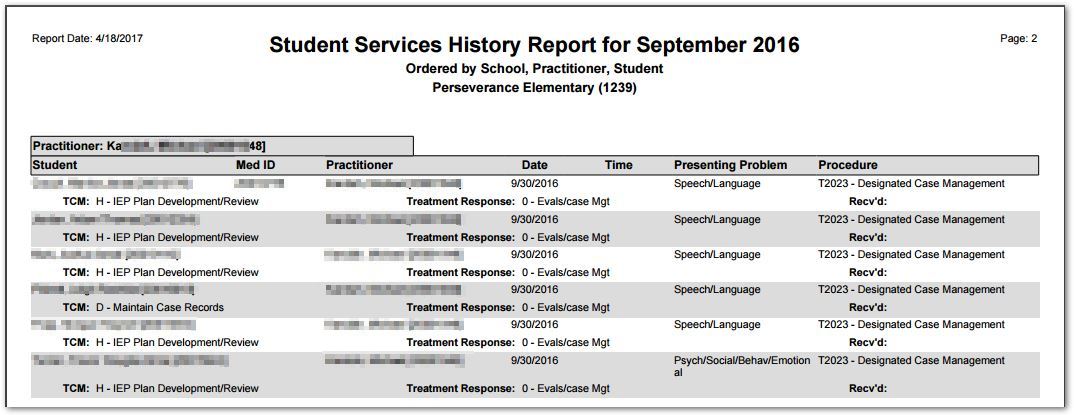 Student Services History Report Sample
Void/Cancel Claim Detail
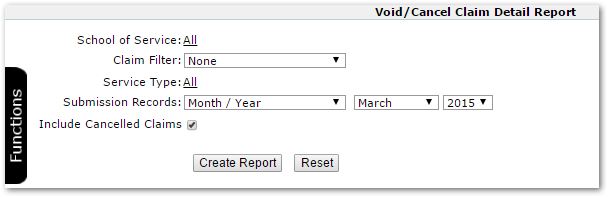
Set report options by either accepting the default settings or adjusting the filter selections:
- School of Service – defaults to all schools, but you may filter on specific school or multiple schools.
- Claim Filter:
- None will return all claims in the specified time frame
- Internal Claim – enter the specific claim number
- State Claim– enter the specific claim number
- Service Type – defaults to all types, but as with the other selection options you may select a single or multiple Service Type. When selecting multiple items within any report option, click Done to complete the selection.
- Submission Records – Select the Month / Year or drop open the filter and select a specific Date range of the Submission record itself (not the service records billed).
- Include Cancelled Claims – Check this box on if you would like Cancelled Claims included in the report.
Click Create Report when the options are set as desired.
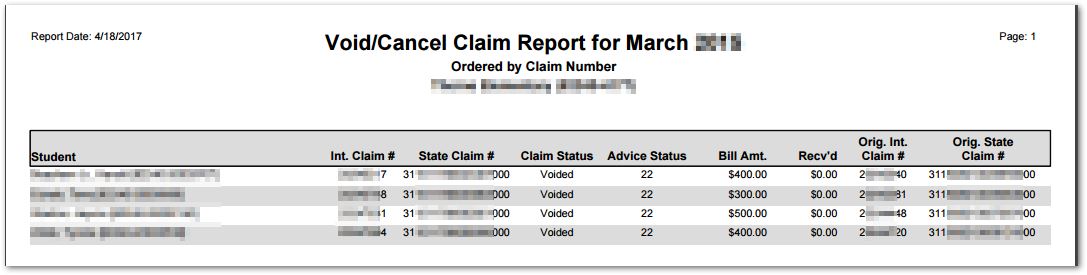 Void/Cancel Claim Report Sample
