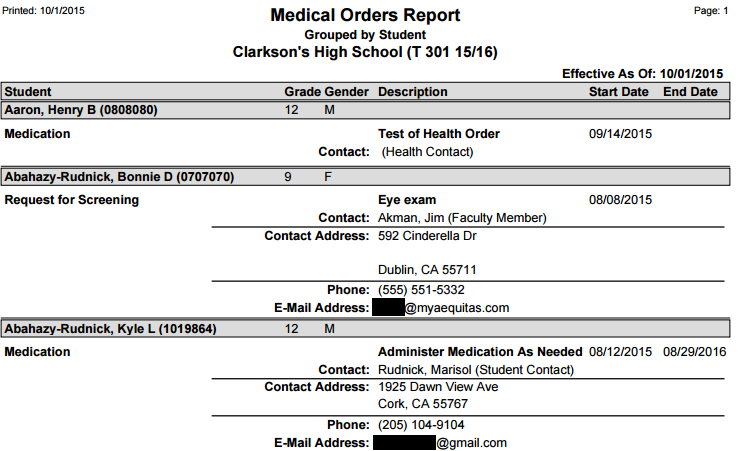
This report prints a listing of Medical Orders for each student.
While details specific to this report will follow, users can find general information about reports within the Reports documentation.
Medical Orders Report is located within Reports in the Health menu in Q.
Report Options
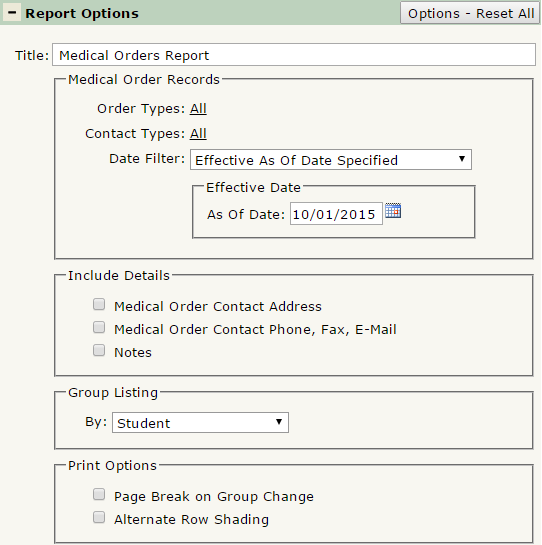
The Medical Orders Report offers the following report options:
- Title: Displays at the top of the printed report. Rename here if necessary.
- Medical Order Records: Order Types: Select which Medical Order Types you wish to print in the report. Choose from the following list:
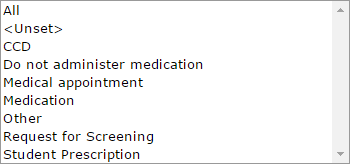
Ctrl-Click to select multiple Order Types. Click Done to save your selection.
- Medical Order Records: Contact Types: Select which Contact Types you wish to print in the report. Choose from the following list:
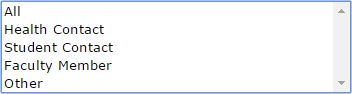
Ctrl-Click to select multiple Contact Types. Click Done to save your selection.
- Medical Order Records: Date Filter: The report can be filtered by date As of a Specified Date, or Within a Specified Date Range. Choose from either of these options and enter the desired date(s).
- Include Details
- Medical Order Contact Address: Check to include the Medical Contact’s Address.
- Medical Order Contact Phone, Fax, E-Mail: Check to include the Medical Contact’s Phone, Fax, and E-Mail Address.
- Notes: Check to include any notes associated with each Medical Order.
- Group Listing By: Defaulted to group by Student, select how the report will group results. Other options are by Medical Order Type, or by Medical Order Contact.
- Print Options
- Page Break on Group Change: If checked, the report will jump to a new page when the group changes. This only takes effect if you’ve selected something in the Group Listing by section.
- Alternate Row Shading: If checked, the report will print shading on every other line, for easier viewing when a large data set is printed.
Example Reports
Report run with default settings, with Alternate Row Shading enabled:
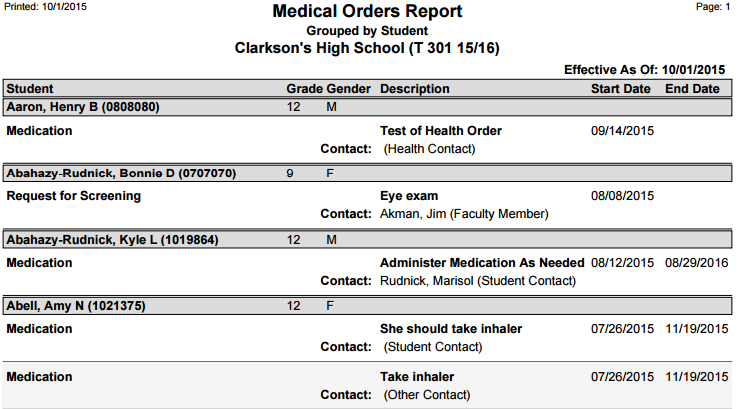
Report run with default settings, included Medical Order Contact Address, and Medical Order Contact Phone, Fax, E-Mail: