
This report provides administrators with a list of specified student enrollment status changes in a specified date range.
While details specific to this report will follow, users can find general information about reports within the Reports documentation.
Enrollment Status Changes is located within Reports in the Enrollment menu in Q.
Report Options
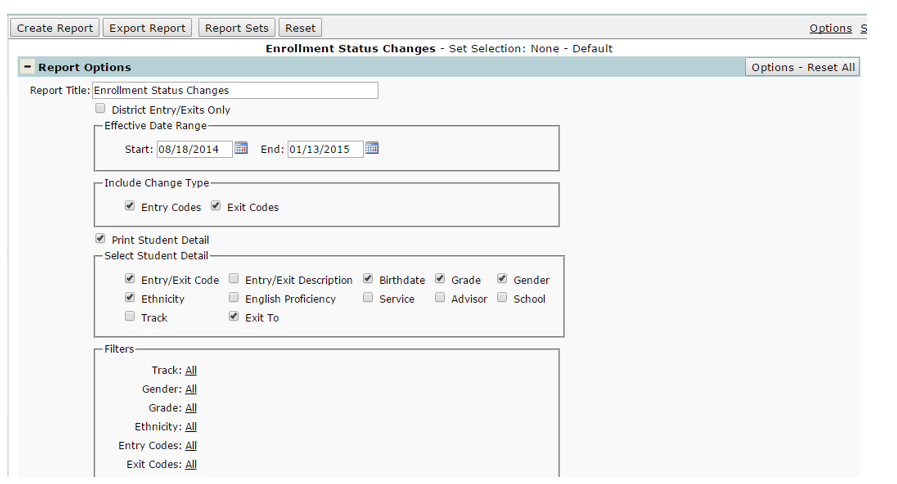
- Report Title: a user-defined title can be entered for the report.
- District Entry/Exits Only: checking this box on will only include students who are entering the district for the first time or exiting the district.
- Effective Date Range: users can enter a specific date range to run the report for.
The default range is the first day of the school year to today. - Include Change Type: users can choose to include just entry or just exit codes, or both. *At least one must be selected.
- Print Student Detail: users can choose if they would like to print details of the changes, or if they just want to include the number of entry and exit changes. This option is defaulted on, but may be deselected.
- Select Student Detail: if Print Student Detail is checked on, the user can select which information from Select Student Detail to display. The Default choices include: Entry/Exit Code, Ethnicity, Exit To, Birthdate, Grade, and Gender. Additional choices available are: Track, Entry/Exit Description, English Proficiency, Service, Advisor, and School.
- Filters: there are filter options for Track, Gender, Grade, Ethnicity, Entry Codes, and Exit Codes. These are all defaulted to ‘All’, but can be narrowed down by users for a more specific report. Note: you can choose to filter by Entry Codes or Exit Codes separately.
Sort Options
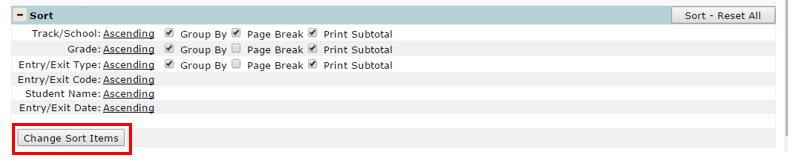
- The primary sort field is Track/School, ascending. There are three check boxes users can turn on:
- Group By – this will group the same track/school together.
- Page Break – this will add a page break after each track/school.
- Print Subtotal – this will print a subtotal for entries and/or exits for each track/school.
Example Reports
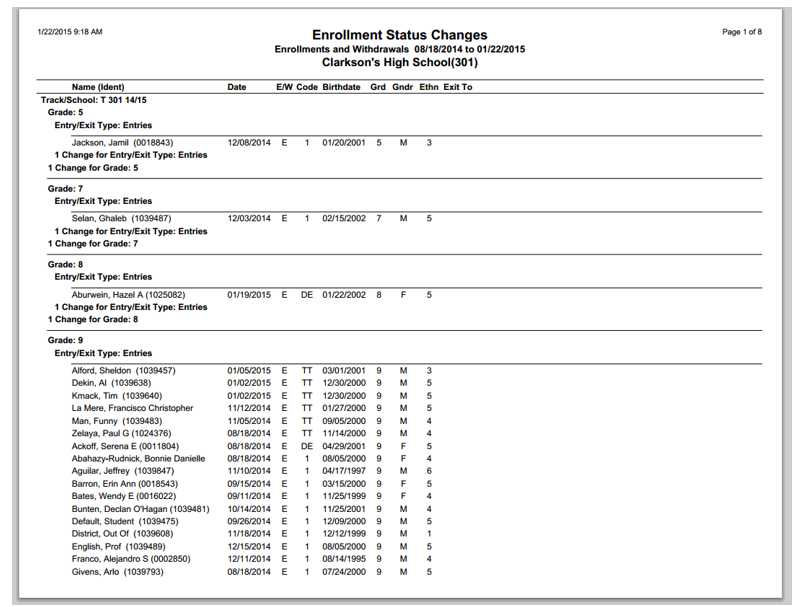
(Sample Report with Print Student Detail ON)
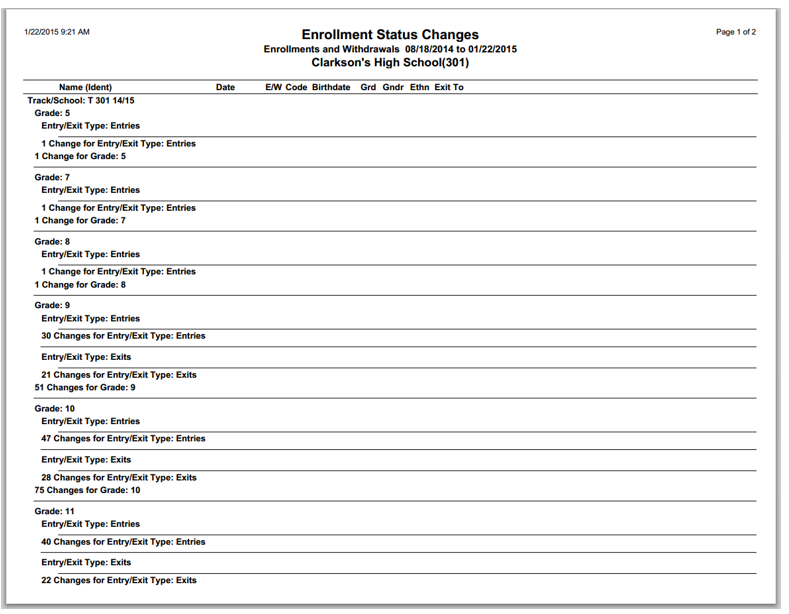
(Sample Report with Print Student Detail OFF)
Videos
