Configuring MTSS involves the use of the MTSS Setup application and the Success Plan Manager. Both applications are located under the Analysis menu.
The Success Plan Manager is used to define indicators and rubrics for Success Plans and MTSS. Indicators and rubrics are used in MTSS as part of Intervention Types which provide student performance information for MTSS evaluation.
Through the series of tabs in the MTSS Setup application districts may assign facilitators for schools, define Intervention Types, and configure the MTSS Student Profile, Teacher Observations, and Referral Concerns, etc. All configuration needs to be performed while logged into the District Office track.
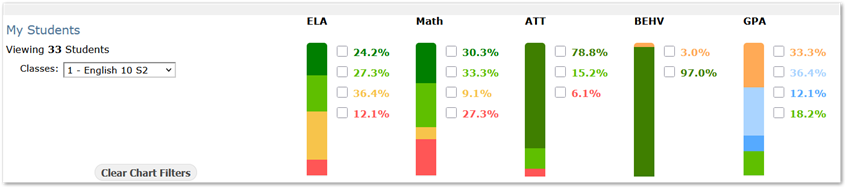
Let’s take a look at how teachers and facilitators will see and use MTSS. In the view shown, a teacher is logged into the MTSS application. The chart in the upper portion of the screen shows performance information for the set of students selected. The stacked columns, i.e. ELA, Math, etc. are chart filters and are defined in MTSS Setup as Intervention Types.
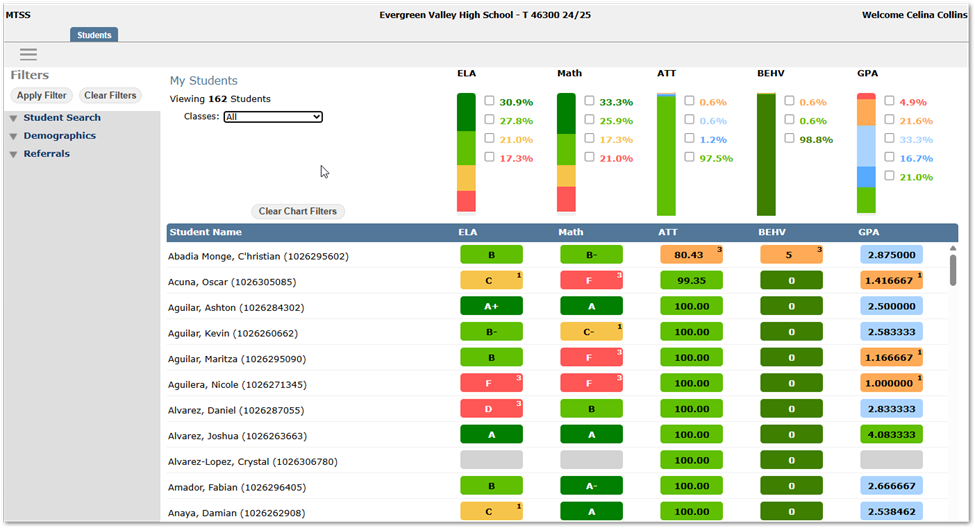
In the example shown, the teacher is viewing 162 students. These are the teacher’s own students. The list may be filtered in a number of ways, by selecting a class from the drop-list, by using the filters at left (Student Search, Demographics or Referrals) or by clicking on either a color segment or the checkbox at right for any of the chart filters.
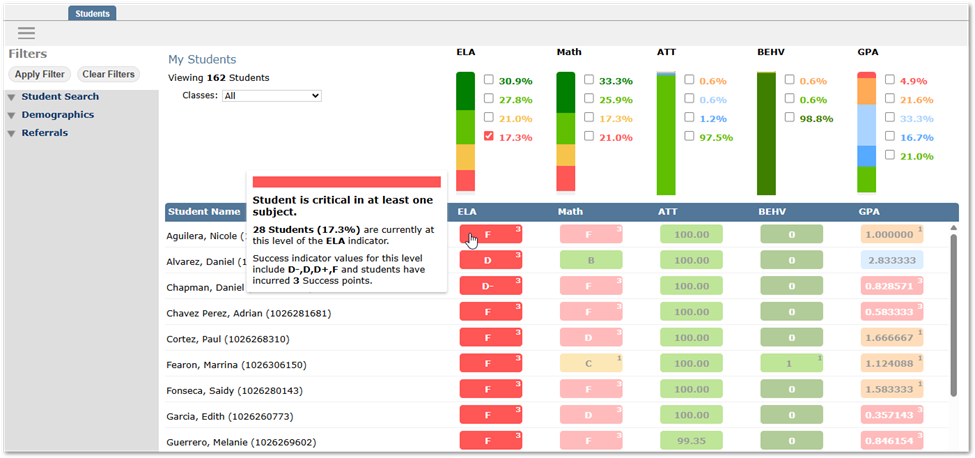
For example, either clicking on the red portion of the ELA column or checking the box next to 17.3% in red font will filter the list of students to those whose performance in ELA is at the level specified by the selection. As the teacher mouses over the color segments a pop-up will tell them the number of students at this level and the criteria for it, as shown. Users may select multiple performance measures from the various chart filters available to further narrow the set of students. (The small number at top right in an individual student’s value for a measure is the number of Success Points the student has accumulated.)
One of the first configuration decisions that needs to be made is to determine what performance measures or chart filters to provide on the MTSS application screen for teachers, facilitators and other staff. The district defines the set of performance measures or chart filters to use district wide. Unlike Success Plan by Class where the user can add or remove chart filters, in MTSS there is a single set defined for all users.
In the MTSS Setup application these are defined under the Intervention Type tab. The MTSS application will support displaying up to 8 chart filters, but typically 4 to 5 are used, performance measures for ELA, Mathematics, Attendance, Behavior and a Social Emotional filter. The foundation for defining an Intervention Type are the Indicators and Rubrics defined in the Success Plan Manager. (If districts find the set of Indicators available in Success Plan Manager does not meet their needs, please reach out to us.)
We’ll take a look at how a sample of Intervention Types were configured. As Intervention Types are configured, use the MTSS application to view the results.
MTSS Setup – Intervention Type Tab
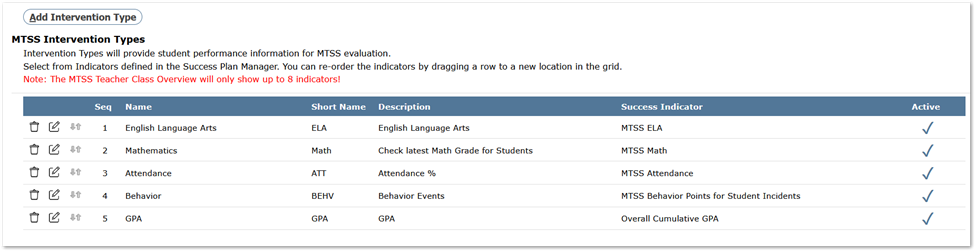
Intervention Types display left to right across the top of the MTSS application in the sequence set.
To change the display order, drag the intervention type row to a new sequence position using the arrow buttons. The MTSS application will support displaying up to 8 active types.
To add an Intervention Type, click the ‘Add Intervention Type’ button.
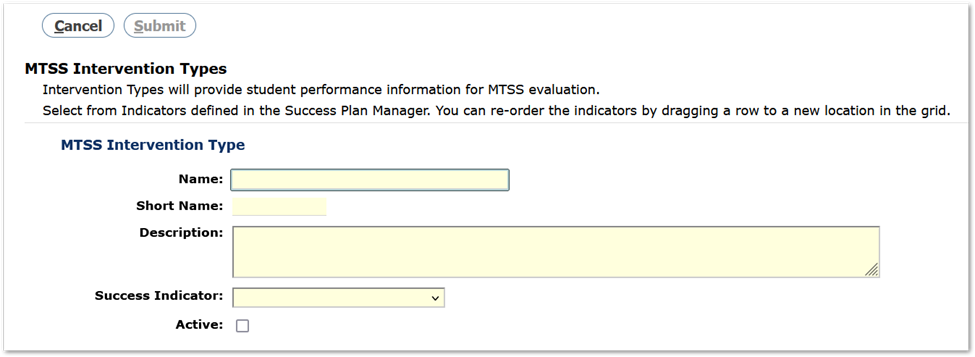
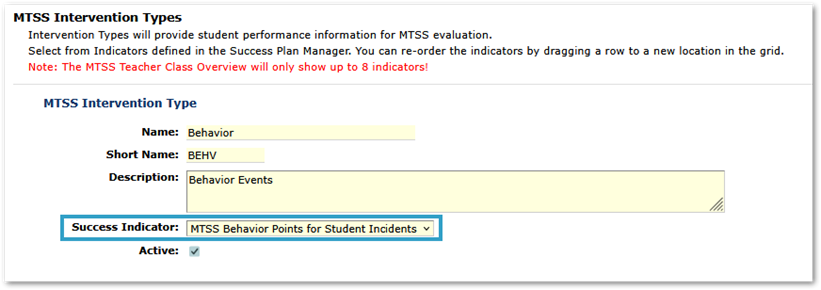
Give the Intervention Type a Name, Short Name and Description. The Short Name appears at the top of the Intervention column in the MTSS application (shown above), i.e. ‘ELA’ and the Name appears on mouse over of the column header, i.e., ‘English Language Arts’.
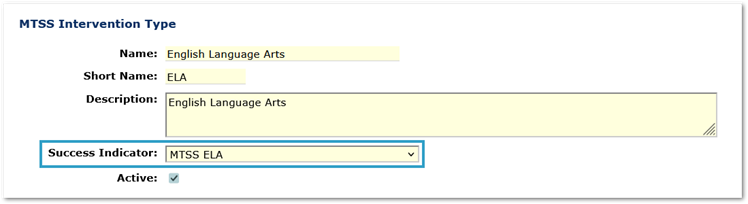
Select the Success Indicator from the drop-down list. Success Indicators in the drop-down list are defined in the Success Plan Manager application.
Check the Active checkbox to make the Intervention Type appear in the MTSS application.
Intervention Types may be made inactive by editing them and unchecking the Active checkbox.
Sample Setup of Intervention Types, Success Indicators and Rubrics
We recommend naming Indicators and Rubrics for use in MTSS with an MTSS prefix in the name.
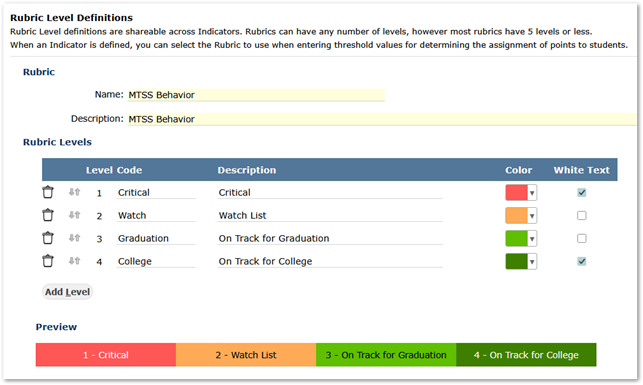
It is also recommended that the rubrics used in MTSS align to show ‘Good’ to ‘Focus’ in the same direction across all indicators shown.
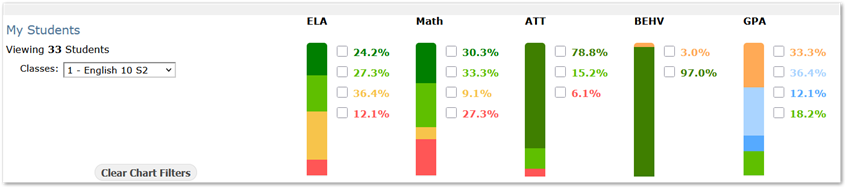
The example shown below does not follow that guidance making it easy to see the issue. In this example, the first three indicator rubrics (ELA, Math, and ATT) show Good (green) to Focus (red) from top to bottom, but the last two (BEHV, GPA) show Good to Focus in the opposite direction, from bottom to top. It would be easier for the viewer if all the rubrics aligned and were consistent.
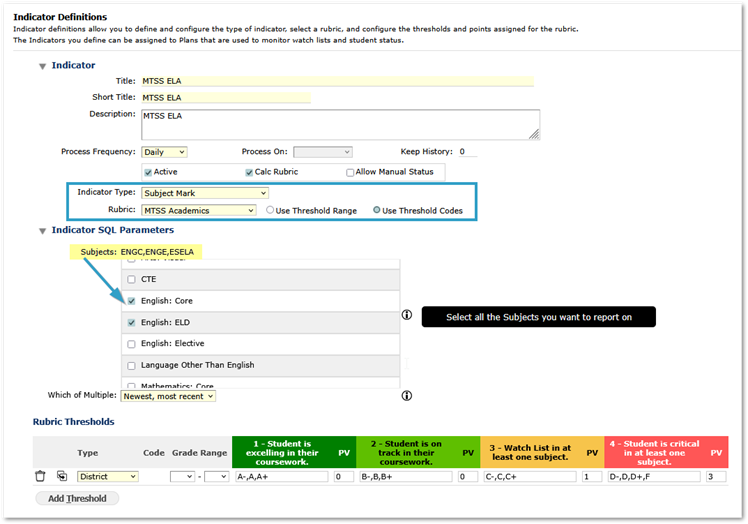
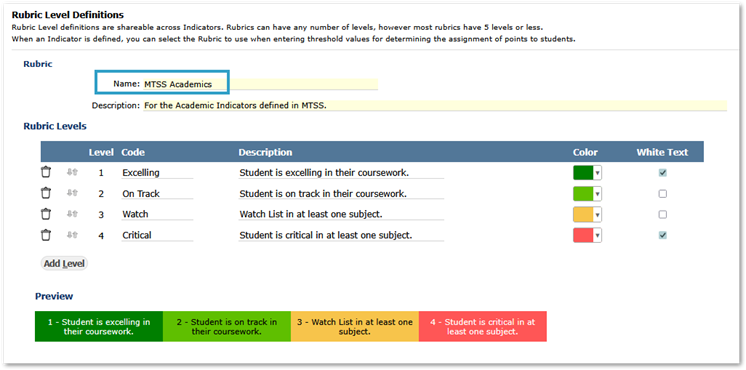
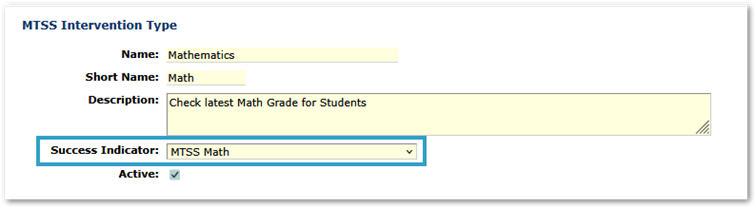
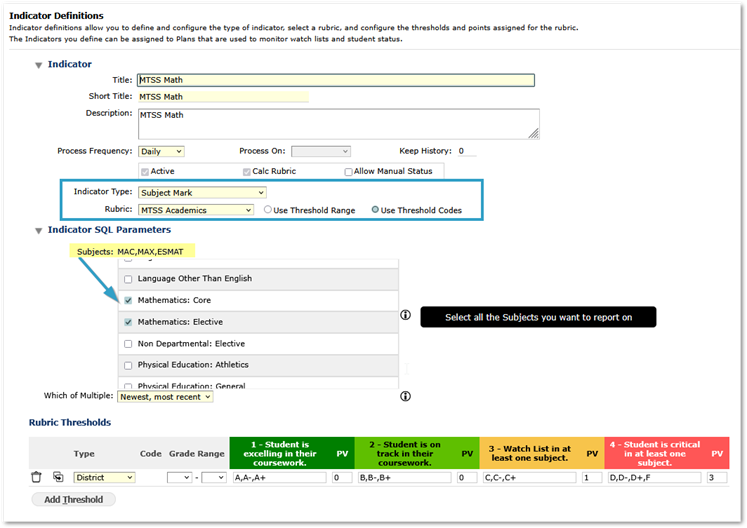
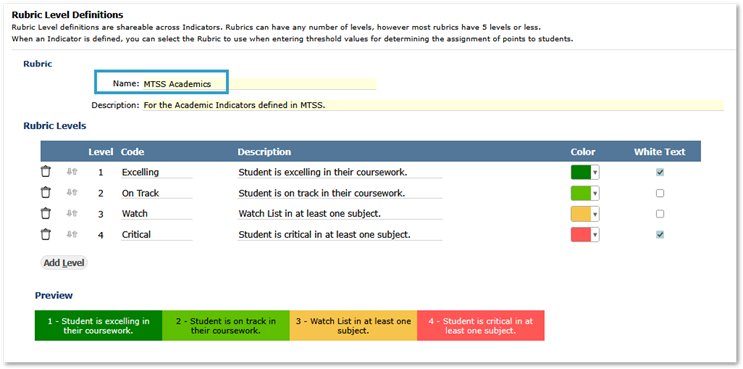
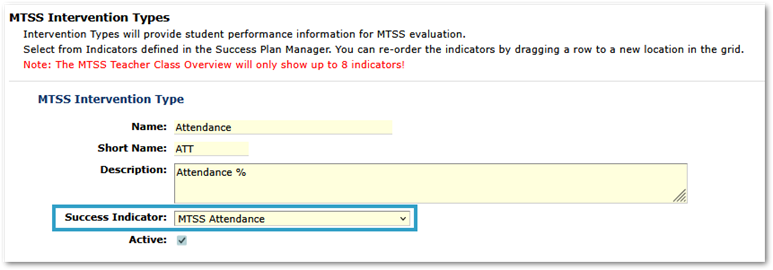
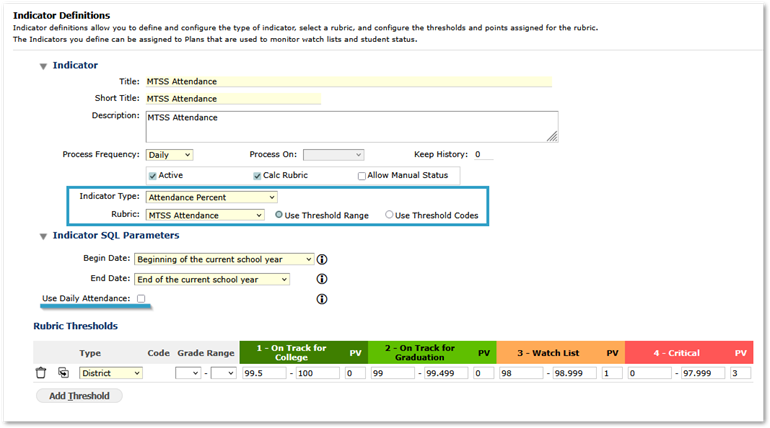
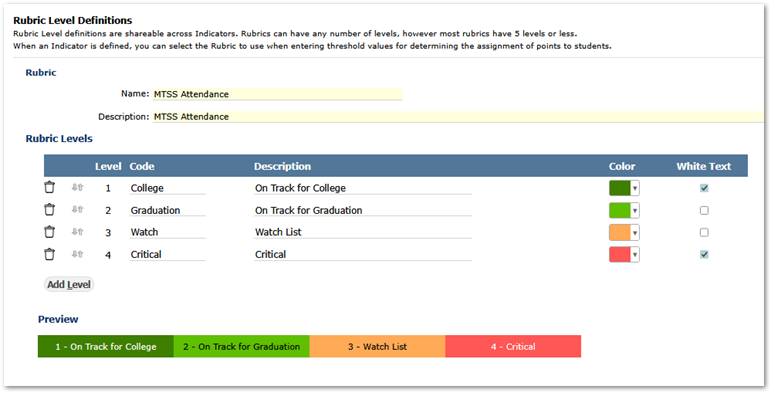
For each sample intervention type below, the Intervention Type Definition is shown followed by the associated Indicator Definition and then the associated Rubric Definition.
English Language Arts – ELA Example
Mathematics Example
Note
The same Indicator Type and Rubric are used as for ELA.
 Attendance Example
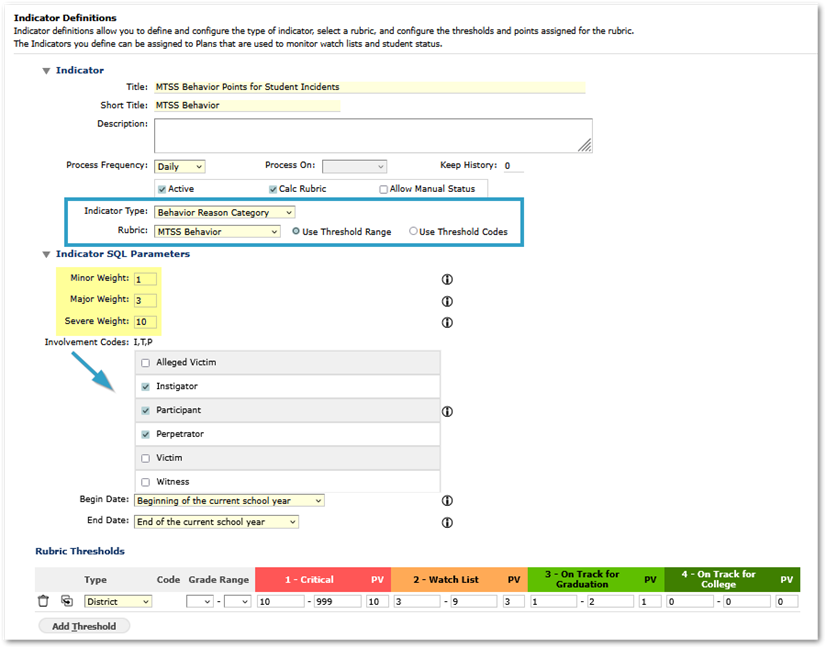
Behavior Example
Note
The Indicator Type ‘Behavior Reason Category’ used here makes use of the ‘Reason Category’ value defined in the Lookup Category for Behavior Reasons.
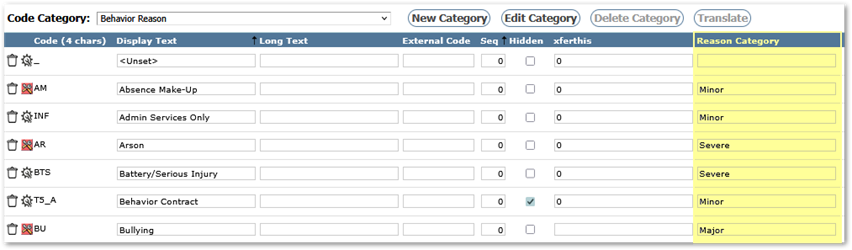
Each reason may have a value of Minor, Major or Severe. The default setting was ‘Minor’. Districts implementing Success Plans and MTSS need to review their Behavior Reason codes and set desired values for each to Minor, Major or Severe in the Reason Category column. When configuring the Indicator, the Involvement codes need to be selected, and the weight value set for each Reason Category. To exclude Minor Reasons, as an example, set the weight value to zero.
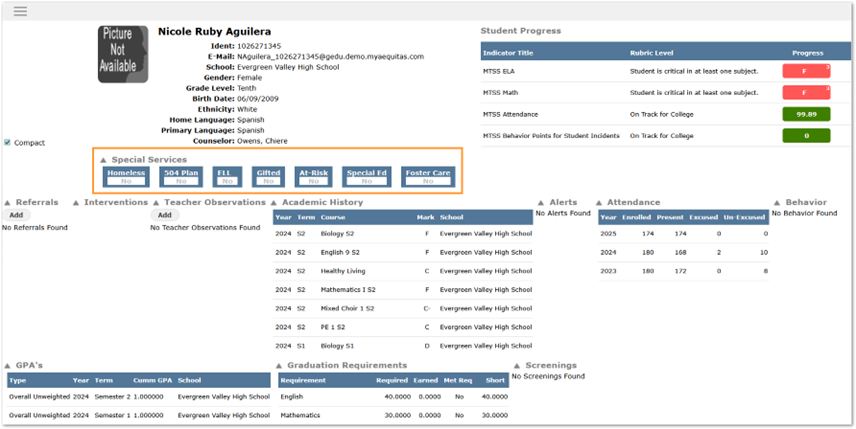
When a user in the MTSS application selects a student to view or work with, their view of the student is called ‘Student Profile’. Districts may define Special Services Indicators to display for the student and configure Profile Information areas that are displayed below Special Services Indicators.
MTSS Setup – Student Profile Tab
Special Services:

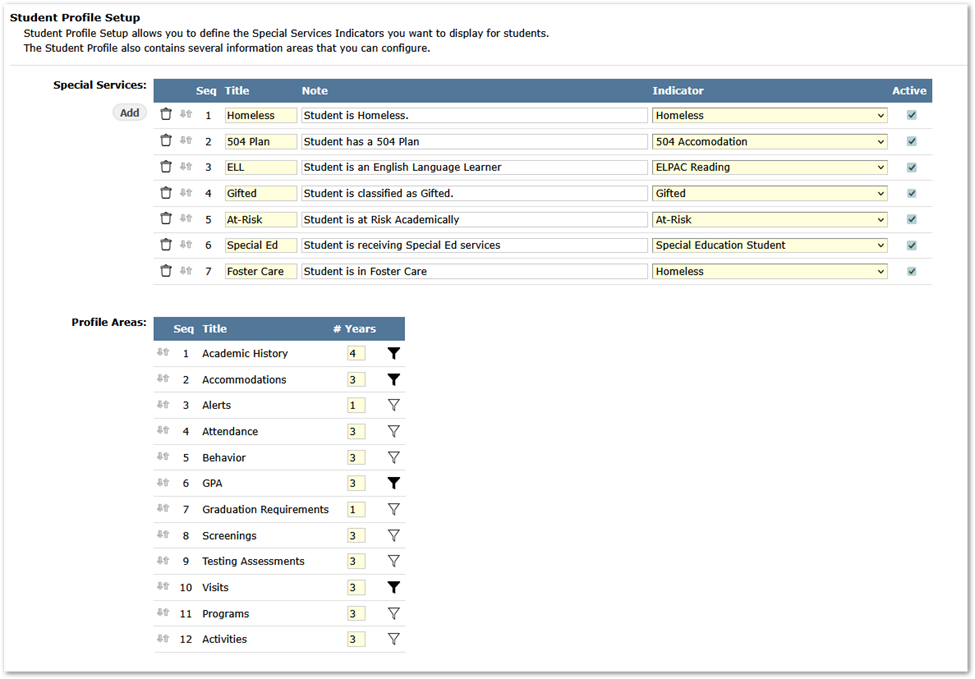
Under the Special Services section, add each Special Service the district wishes to display by clicking the ‘Add’ button, and entering a Title, Note and selecting an Indicator. Indicators are defined in Success Plan Manager, on the Indicators tab. The Special Service will default to ‘Active’. Uncheck the Active box to hide the Special Service from MTSS.
The Special Services will appear from left to right based on the sequence in the Setup. To adjust position of a Special Service, use the mover arrows beside the Seq number in the grid to move the service to the desired position. Special Services may either be made inactive, as mentioned, or removed altogether by clicking the trash can icon to delete.
Profile Areas:
The Profile areas appear below Special Services on the MTSS Profile page. Districts may:
- Adjust the sequence using the mover arrows at left.
- Set the number of years of data to display:
- Zero (0) indicates display the current year
- 1 will display the current year plus the previous year
- 2 will display the current year plus 2 prior years, etc.
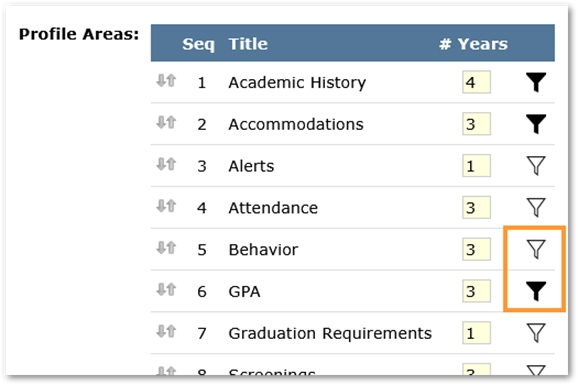
- Use the Filter icon, highlighted below, to set filters to control the schools that will display the data and in some cases, types of data to display. The black filter icon indicates that filtering of the data has been set and no longer defaults to all relevant data for all schools.
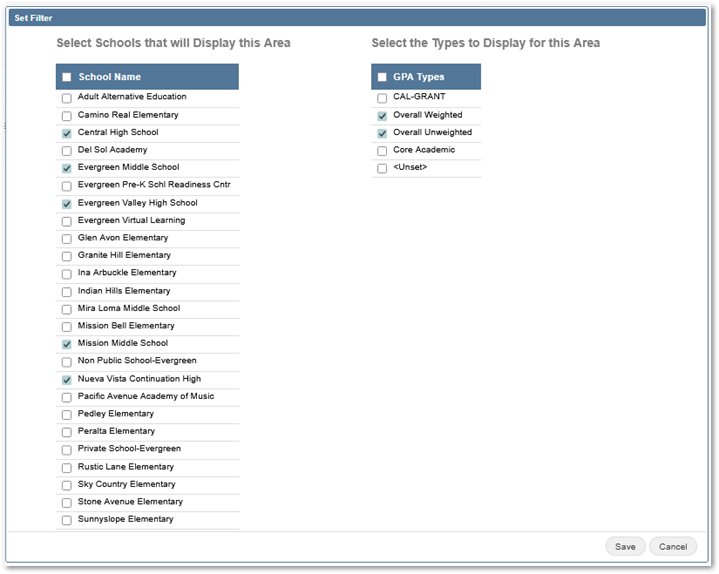
When filtering data, districts may deselect schools from seeing the area by unchecking the school. In this example, only secondary schools will see the GPA area (left column) and when shown, the GPA’s displayed will only be those selected from the column on the right.
Surveys for teachers to record their observations of student academic performance, behavior, concerns, etc. may be defined on the Teacher Observations Tab.
When they are made ‘active’, they will be available for teachers to select when adding an observation for a student in the MTSS application. In MTSS for a teacher, on the Student Profile page, the teacher will see an option for Teacher Observations and will be able to view any existing observations for their students or add a new observation for one of their students.

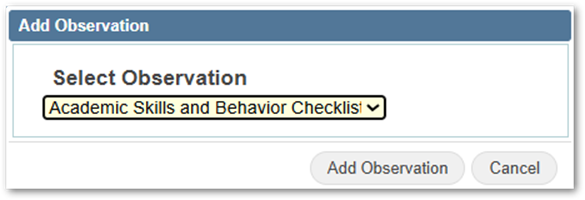
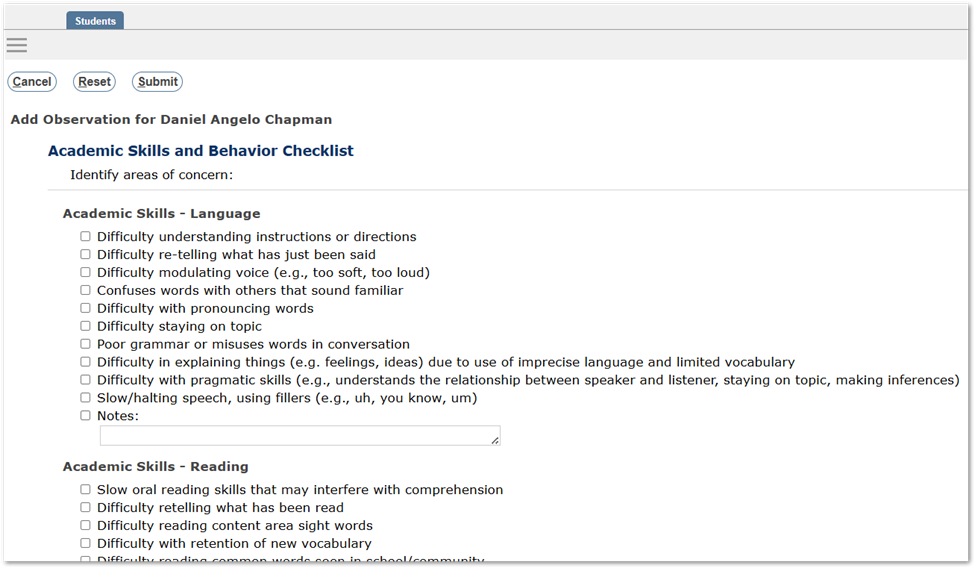
Observations may either be designed as responses to a series of checkboxes as shown above, or they may be a scaled response to an item based on a rubric, as shown below. In either case, comments may optionally be made available for any item.

MTSS Setup – Teacher Observations Tab
Defining an Observation involves defining a series of related elements:
- Creating the Observation includes giving it a name, providing instructions for teachers, and choosing whether it will be a checklist style (Yes/No) or a rubric.
- Create at least one Version of the Observation
- Define Categories
- And, for each Category, define its Items.
To create an Observation, click the ‘Add Observation’ button.

Add Observation
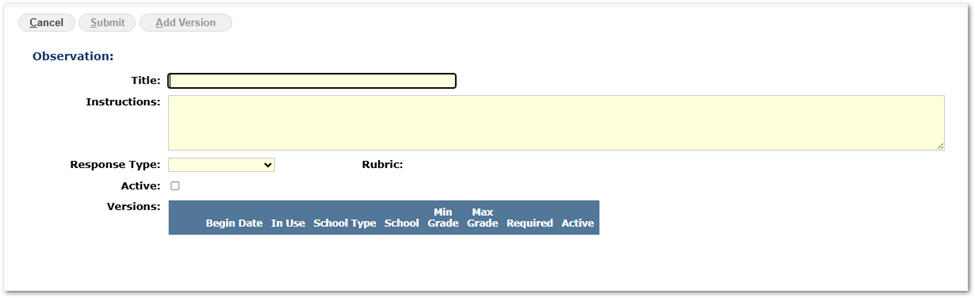
Give the Observation a Title and provide instructions for teachers in the ‘Instructions’ area.
Response Type: ‘Yes/No’ or ‘Rubric’
- To create checklist style observation, set the Response Type to ‘Yes/No’, or
- If using a scale response, select Rubric from the dropdown menu, and choose the desired rubric from the Rubric dropdown. Rubrics are defined in the Success Plan Manager.
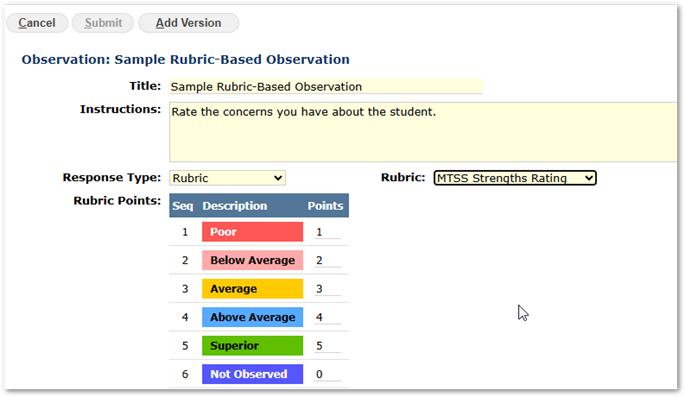
For a rubric, set the points in the column at right. For a ‘Not Observed’ selection, set the point value to zero.
When Active is checked, the Observation will be made available to teachers in the MTSS application. Check it Active when the observation definition is completed and ready for use. Submit to save changes.
After the Observation is initially submitted, the ‘Add Version’ button will be enabled. Click on it to proceed to define the version. Cancel to return to the previous level.
Add Version
Versions of Teacher Observations:
- Enable districts to make different Teacher Observations for particular grade levels and schools or school types.
- We recommend that districts create a generic ‘District’ level template, without any grade restrictions, and then copy the version to tailor it and apply it to specific grades and / or school types or schools, repeating this process to cover the variations needed across schools and grade levels. In this way, students will always have a ‘District’ option that may be applied if their specific grade or school is not represented by other versions.
- Support districts making changes over time without invalidating data entered in a previous survey.
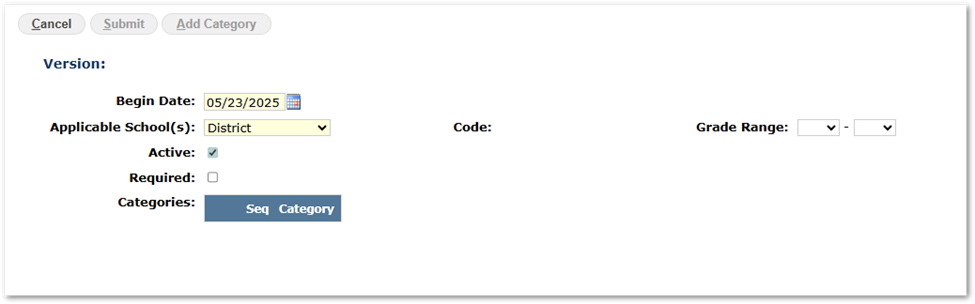
To create a version:
- Set the Begin Date.
- Select Applicable School(s) and select from either District, School Type or specific school, and select the specific school or type.
- Optionally, set the grade range.
- The version will default to ‘Active’.
- If the creation of a Referral requires the observation to be completed by the person completing the referral, set the Required checkbox on.
Note
See ‘Options’ to set the number of days prior to today that a required Teacher Observations must be updated to be considered completed when creating a Referral.
Submit to save changes and then proceed to create the categories.
Add Category
When creating a category, check if the Category is Required, and enter the Category description. Each category will then need items defined for it. Add the desired categories and submit to save changes.
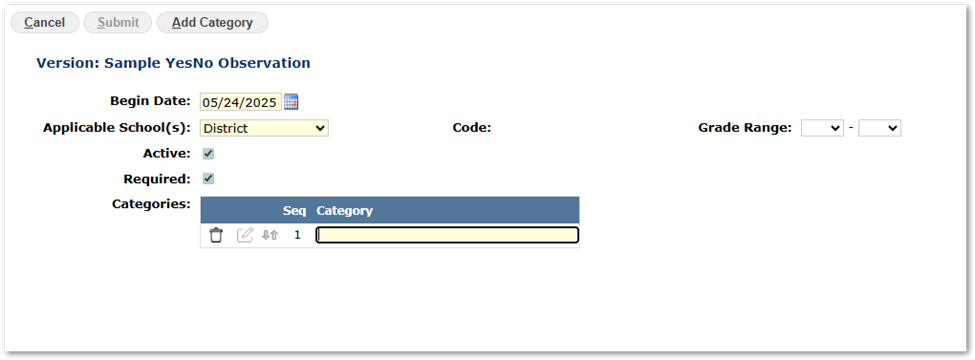
When the categories are defined, the sequence of the categories may be changed by using the arrows icon and dragging the category to the desired position.
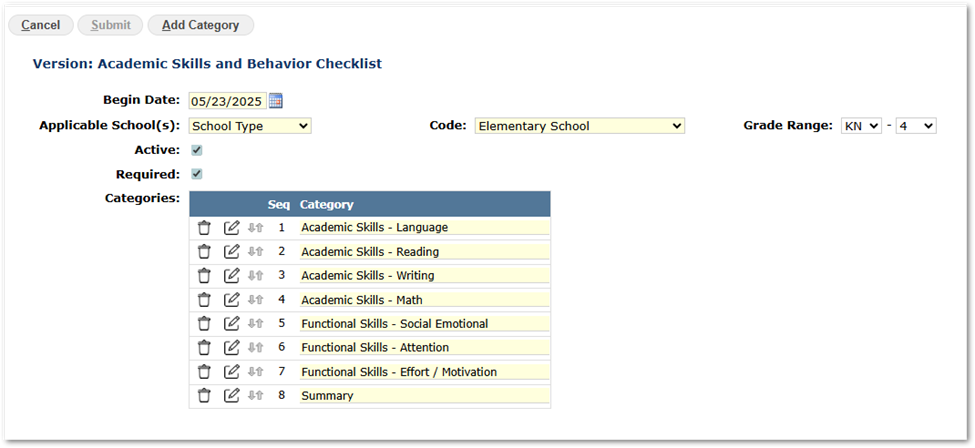
Use the pencil icon to edit each category in turn and add items to it.
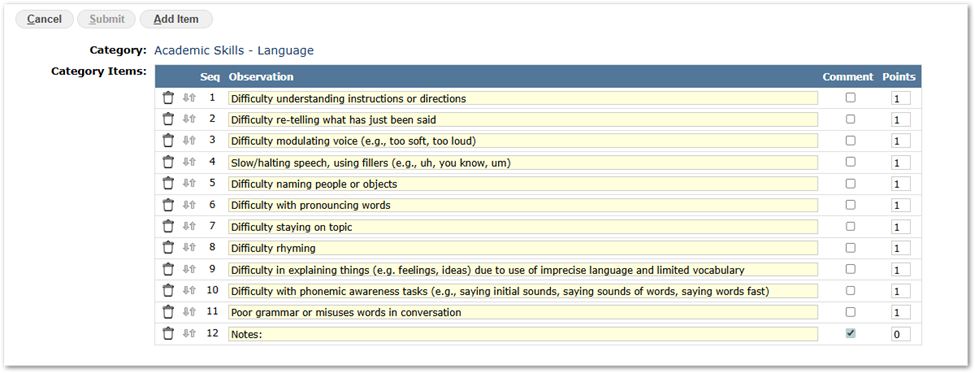
Add Item
Click ‘Add Item’ and enter the Observation. Check ‘Comment’ to have a text area available below the item. The items can be sequentially adjusted by using the arrows icon to move the items up or down. Submit to save changes.

A sample Language activity with its items is shown below. In this example, we’ve added a single item at the end for the teacher’s notes and checked Comment on, but we could alternatively checked Comment on for any item.
Managing Versions
Preview
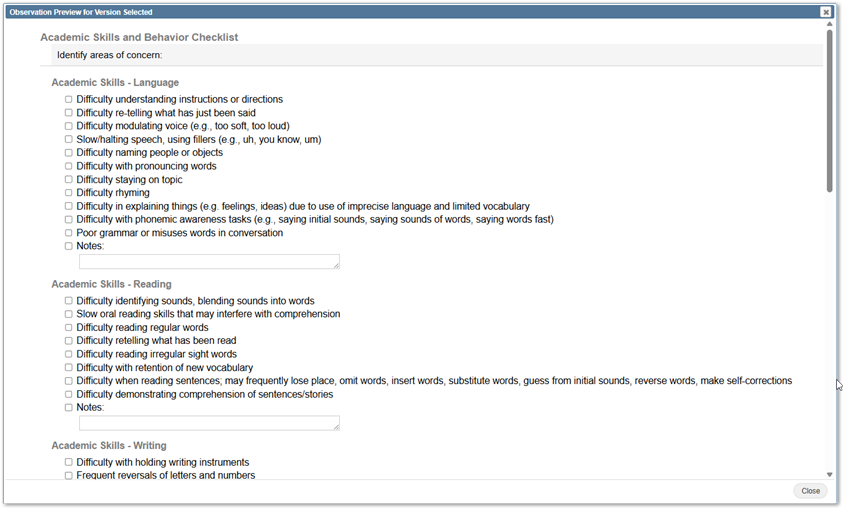
When the full Teacher Observation has been defined with its version, categories and each category with its items, it’s helpful to preview the version using the View icon with the magnifying glass.

The Preview will open in a popup window that may be scrolled to view the whole Observation.
Copying Versions
When the full Teacher Observation has been defined with its version, categories and each category with its items, it can be helpful to copy it and make variations of it for different grade levels or school types. In the example below, there are 3 versions of the Academic Skills and Behavior Checklist Observation: one for grades Kindergarten through 4, another version for grades 5 through 8, and the third for grades 9 to 12.
The MTSS application will select the version for the student based on their grade and display the most recent active Teacher Observation corresponding to their school of enrollment, school type, or district.
It is recommended districts create a generic ‘District’ level template, without any grade restrictions, and then copy the version to tailor it and apply it to specific grades and / or school types or schools, repeating this process to cover the variations needed across schools and grade levels.
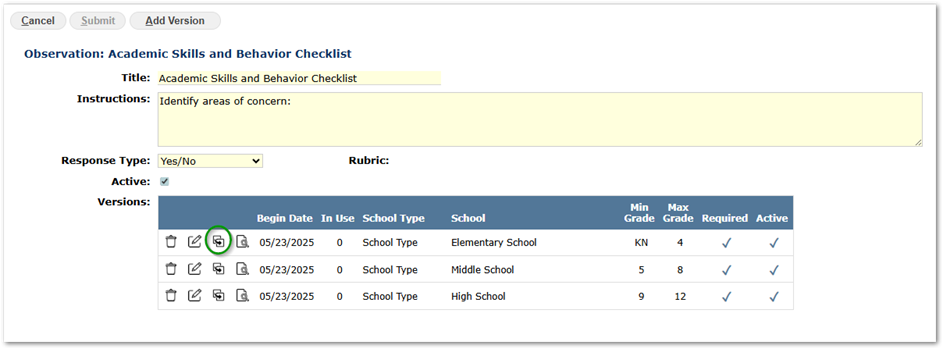
For the version you wish to copy, use the Copy icon between the Pencil and View icons to copy the version.
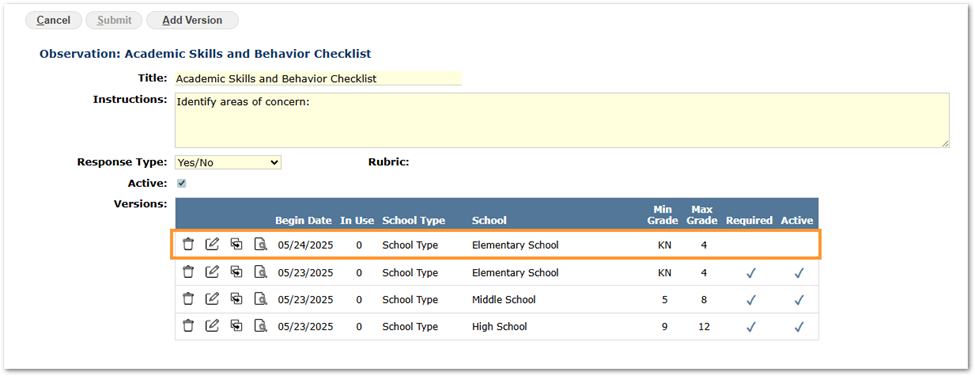
After clicking the copy icon from the Elementary School version, the copy appears in the list of versions. Note that the date defaults to Today’s date, and the Required and Active checkboxes are not set. Use the pencil icon to edit copied version at each level (version, categories and items) for this new version.
Versions In Use & Removing Versions
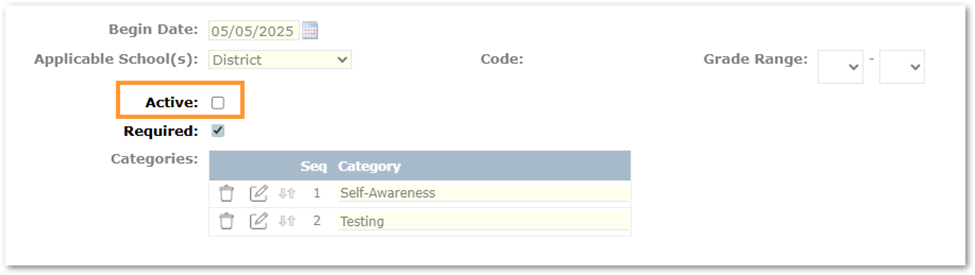
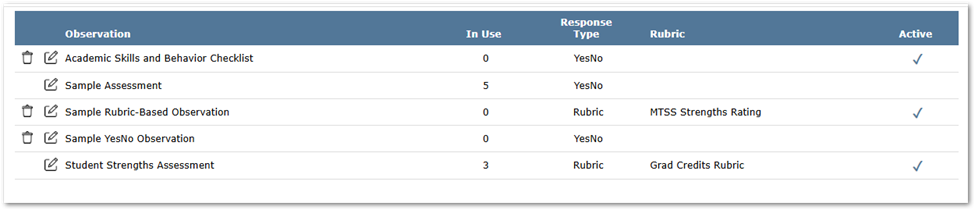
When a Teacher Observation is not in use, the trash icon will appear at far left and it may be used to delete the version. But, when the version has been used and completed, it may not be deleted to preserve recorded data. It may be made inactive by editing the desired version and unchecking the active checkbox so that it will no longer appear in the list for teachers to select when adding an observation.

In this example we selected the ‘In Use’ version that we want to inactivate and clicked the Edit / Pencil icon. When a version is in use, as this one is, we cannot edit the categories or their items. We can check or de-select Active and Required.
Managing Observations
For Observations also, when they are not in use, a trash can icon appears at left and it is possible to use it to remove the observation. When they are in use, they may not be removed but may be edited and the ‘Active’ checkbox de-selected. In this way, they will no longer appear on the list for a teacher to add as an observation.
Referrals may be added by teachers or other staff in the MTSS application from the MTSS Student Profile page. They may be configured to require one or more Teacher Observations before the person creating the referral can set the status of the referral to ‘Submitted.’
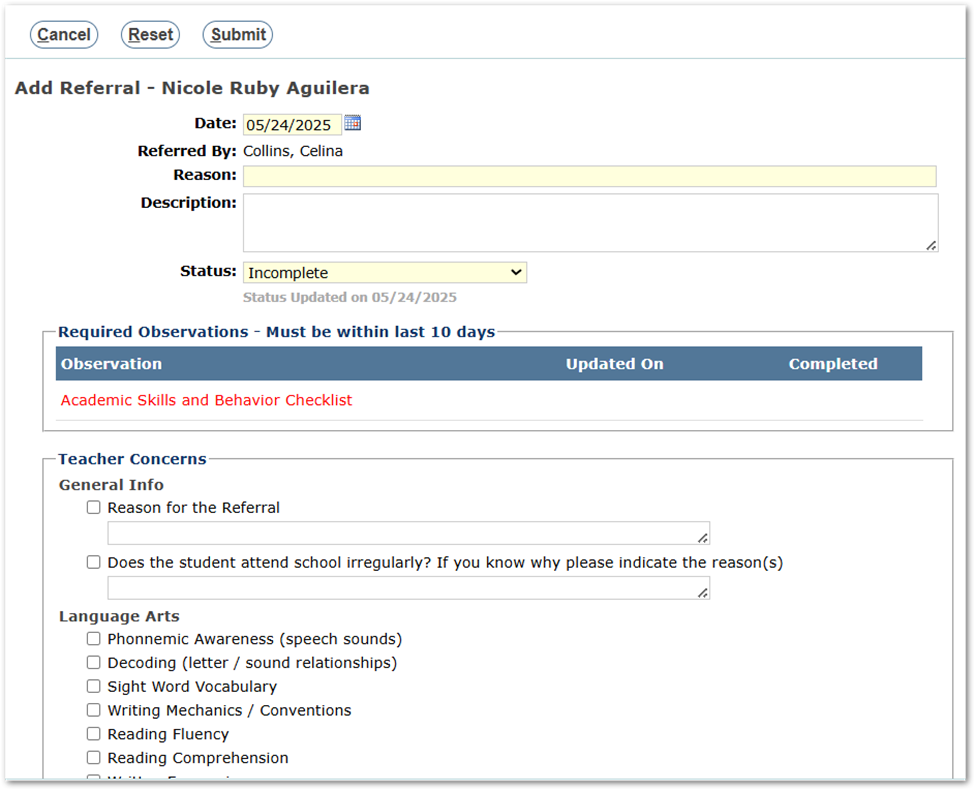
The details and prompts or questions in the referral are configured in the MTSS Setup application on the Referral Concerns Tab. Optionally, a set of Referral Reasons maybe created on the Referral Reasons Tab. The following example shows a referral requiring that an Observation for Academic Skills and Behavior Checklist be completed, along with the referral concerns themselves.
MTSS Setup – Referral Reasons Tab
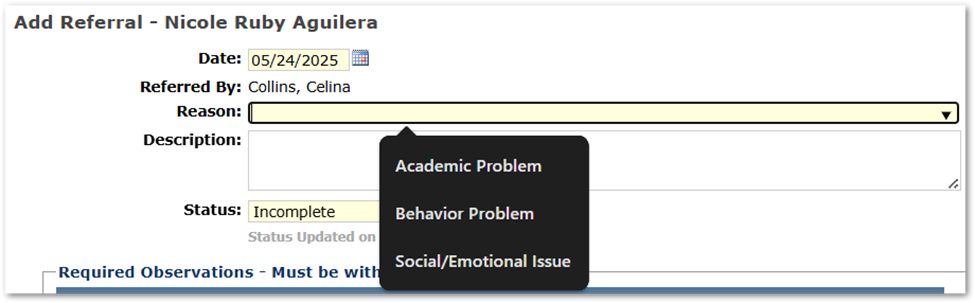
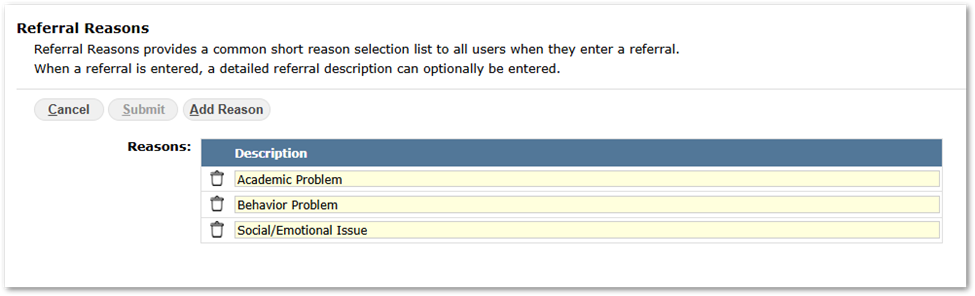
Referral reasons may be set up to provide a set of selection options for the reason when a user is creating a referral. They may select from the list of reasons or enter their own description.
The following image shows the interface in the MTSS application when someone is entering a referral. The field is stored as text, not as a coded lookup value. The user may enter their own text as a result.
Within MTSS Setup on the Referral Reason tab, click ‘Add Reason’ and enter the description to add to the list. Repeat to add as many reasons as desired. Submit to save changes.
MTSS Setup – Referral Concerns Tab
Referral Concerns are entered for a School Type. When a referral is created, the referral concerns will be determined by the school type the student attends. The referral concern acts as a template for teachers to assess the capabilities of the student being referred for intervention. Once a referral concern has been used in a referral, the configuration of the referral concern may not be edited or deleted.
To create a Referral Concern template, click Add Referral Concerns.

- Select the School Type.
- Set the Begin Date. It will default to Today’s date but may be changed.
- Active will default ON making it available in the MTSS application to those entering Referrals.
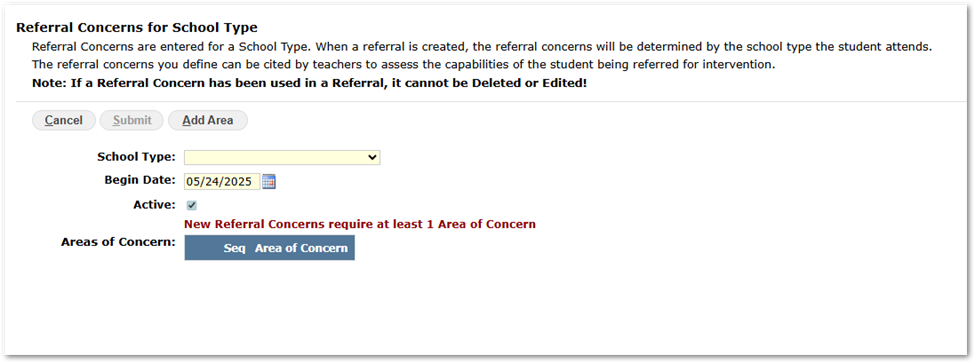
- Click ‘Add Area’ to create an Area of Concern.
- Enter the description of the area.

- Repeat, adding all the areas desired.
- Submit to save the Referral Concern with areas defined.
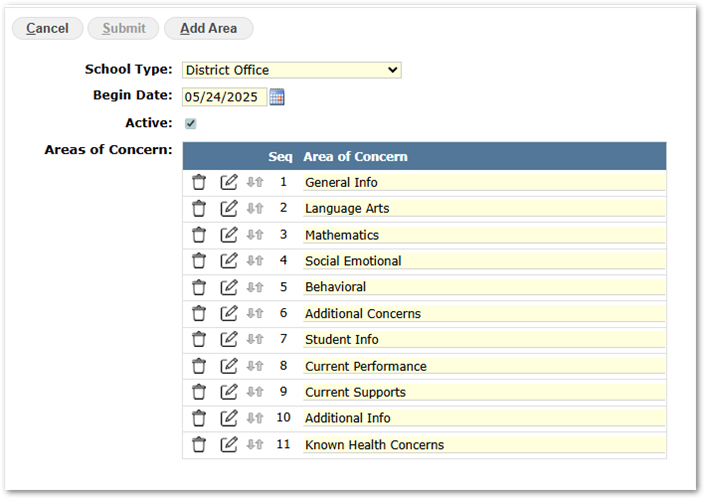
The areas may be moved in the sequence of the list using the arrows icon and dragging the area to its new position.
Use the pencil or edit icon to edit each area and add the items for response to the list. The following is a sample of a Language Arts Referral Concern area. Use the ‘Add Item’ button to add an item. Enter a description, and if a comment area needs to be available to the user, click the Comment checkbox.
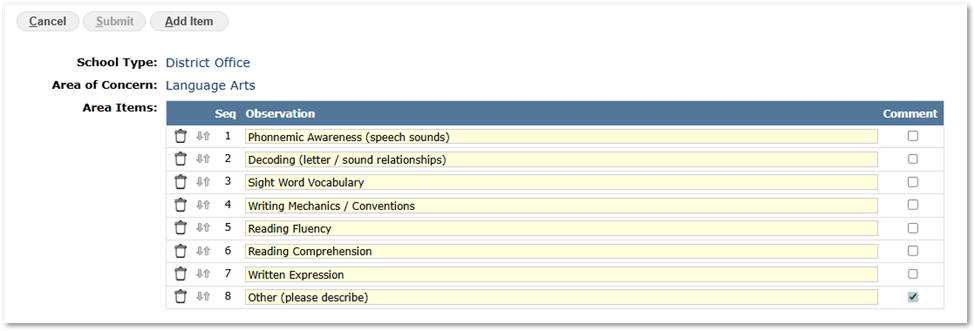
As with all such lists in MTSS Setup, the list may be sequentially changed using the mover arrows and items may be deleted when the trash can icon is available.

When all areas and their items have been added, from the top-level Referral Concerns view, the Referral Concerns may be:
- Edited using the pencil / edit icon
- Copied using the copy icon
- Previewed using the magnifying glass icon
- Deleted, if not in use, using the trash icon.
If changes are needed to a Referral Concern, copy an existing Referral Concern, set the begin date to an appropriate date (Today or future date) and make the needed changes in the copy. De-activate the prior version by editing it and unchecking ‘Active’, ensuring the newer version is set to ‘Active’.
It is recommended districts create a generic ‘District’ level template, without any grade restrictions, and then copy the version to tailor it and apply it to specific grades and / or school types or schools, repeating this process to cover the variations needed across schools and grade levels.
MTSS Setup – Referral Worksheet Tab
Districts may define a Referral Worksheet template to collect data in a referral meeting. Worksheets are defined by School Type and Grade Level and will contain sections to be completed by the meeting committee.
An example of a Referral Worksheet appearing in the Referral Details from a Facilitator’s view of MTSS:
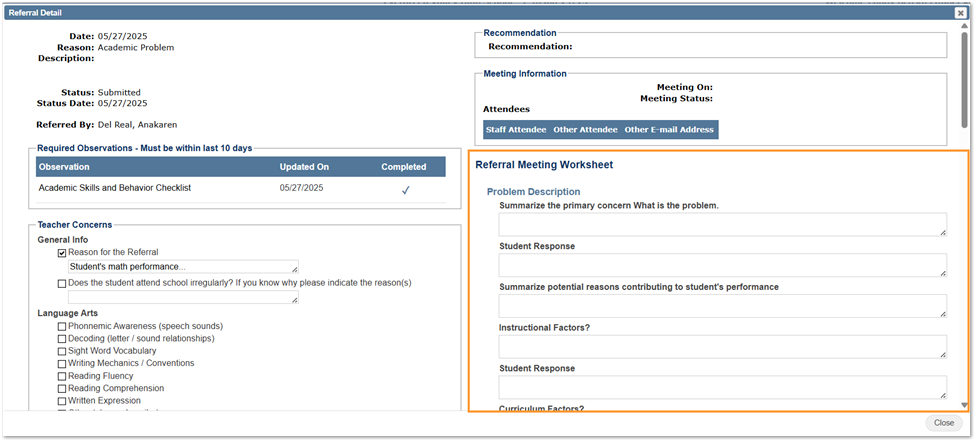
Once a worksheet has been used in a referral, its configuration may not be deleted, but versions of the worksheet may be created, copied and activated or deactivated to support districts managing their worksheets over time.

To create a Referral Worksheet:
- Click ‘Add Worksheet’ button and give the worksheet a title, enter any instructions and click submit.
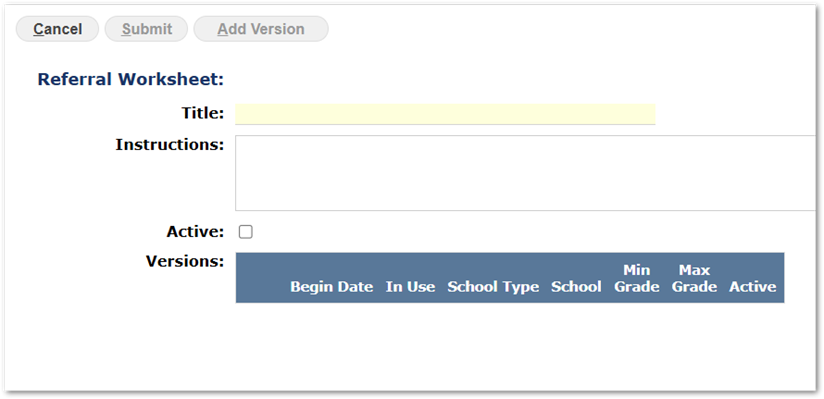
- Click ‘Add Version’. Select Applicable School, and code if selecting a school type or school, and enter a grade range if desired. Click ‘Add Section’ and enter the Section description. Repeat to add all the sections for the version. Submit to save changes.
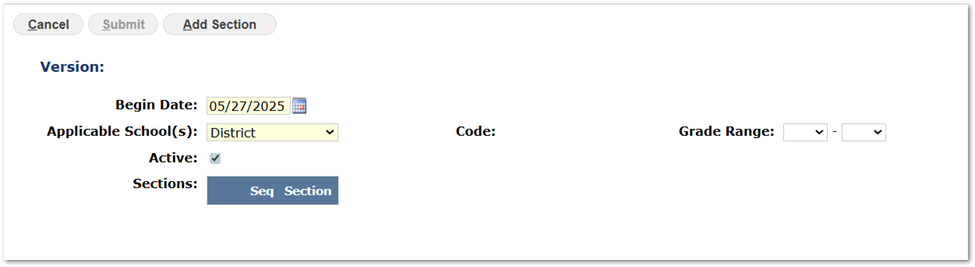 Sample version with sections and items in the screenshots below.
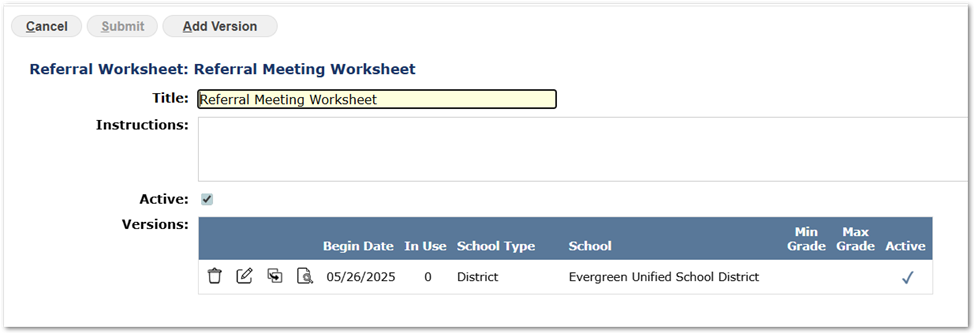 Sections
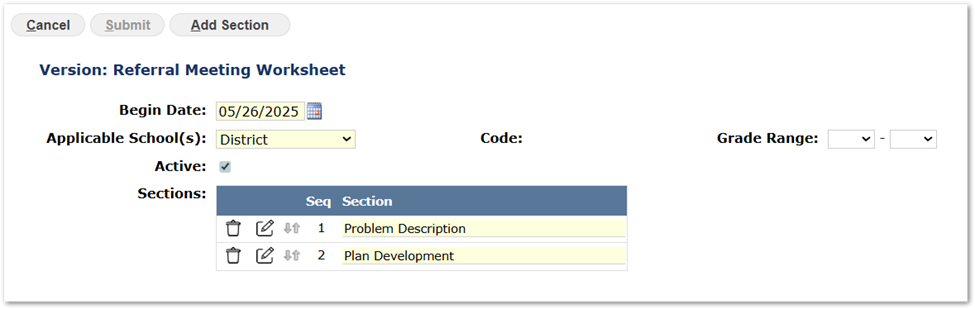 Items
Items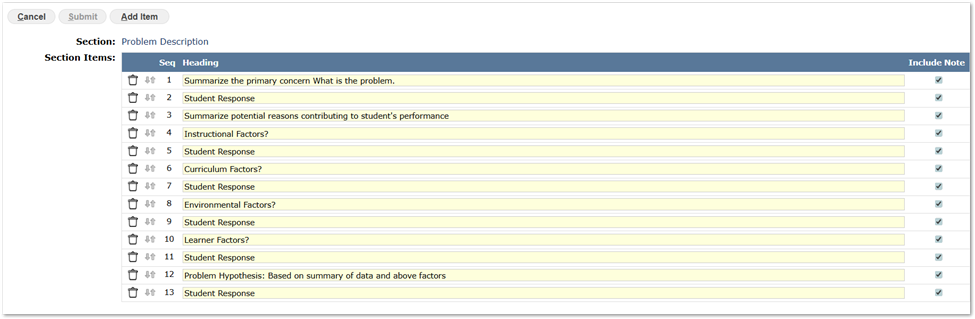

As with Referral Concerns or Teacher Observations, when creating or editing Referral Worksheets:
- Sections or Items may be sequentially adjusted by using the mover arrows and dragging a section or item to the desired position in the list.
Versions may be:
- Edited using the pencil / edit icon
- Copied using the copy icon
- Previewed using the magnifying glass icon
- Deleted, if not in use, using the trash icon.
If changes need to be made to a Worksheet, copy an existing Worksheet, set the begin date to an appropriate date (Today or future date) and make the needed changes in the copy. De-activate the prior version by editing it and unchecking ‘Active’, ensuring the newer version is set to ‘Active’.
The MTSS application will select the version of the Worksheet for the student based on their grade and display the most recent active worksheet corresponding to their school of enrollment, school type, or district.
It is recommended districts create a generic ‘District’ level template, without any grade restrictions, and then copy the version to tailor it and apply it to specific grades and / or school types or schools, repeating this process to cover the variations needed across schools and grade levels.
On the Options Tab in MTSS Setup, options may be configured to refine the behavior of MTSS, including enabling Referral Comments and configuring the number of days an Observation must be completed prior to today for a Referral.
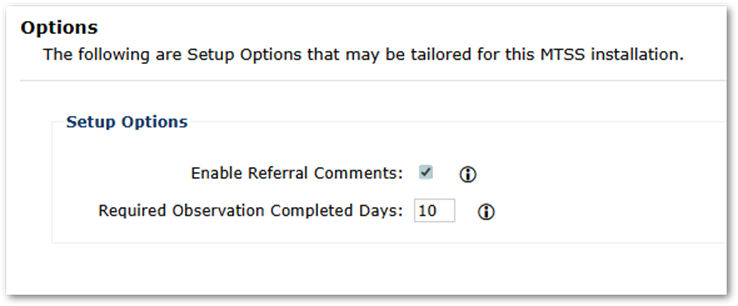
- Enable Referral Comments – Check ON to enable users to Add or View Comments on Teacher Referrals.
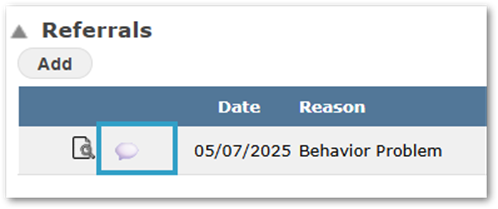
- Required Observation Completed Days – Set the number of days prior to today that a Required Observation must have been updated within to be considered completed.
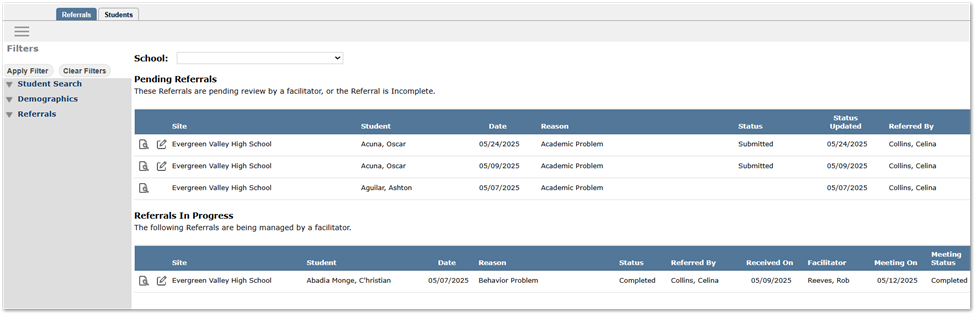
Facilitators manage the teacher referrals in a school. Within the MTSS application, facilitators will have access, based on their permissions, to a Referrals tab showing Pending Referrals and Referrals in Progress, as shown below.
MTSS Setup – Facilitators Tab
Facilitators are added and associated with a school in MTSS Setup on the Facilitators Tab. The number of active and total referrals is shown for each facilitator.
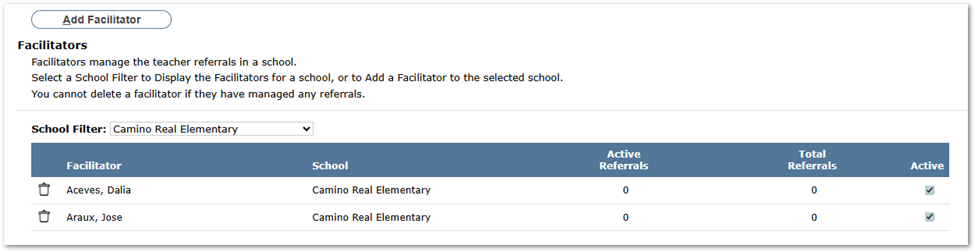
Select a School Filter to Display the Facilitators for a school.
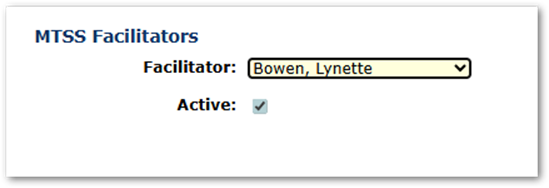
To add a facilitator:
- A school must be selected in the School Filter dropdown to enable the ‘Add Facilitator’ button.
- Select a faculty member from the Facilitator dropdown.
- Active checkbox defaults on.
- Submit to save changes.
Facilitators may not be deleted if they have managed any referrals, but their referrals may be transferred to other facilitators, and they may be made inactive to prevent more referrals being assigned to them.

To transfer referrals to another facilitator, click the arrow button.
After responding to the confirmation message asking if you are sure you want to transfer referrals from the facilitator, a list of the facilitator’s referrals will appear for selection. Check the specific referrals to transfer and select the new facilitator from the drop-list. In this way, if the facilitator had a large caseload of referrals, it could be divided up and some referrals given to one facilitator, and others to another, etc.

Submit to save changes.
Permissions
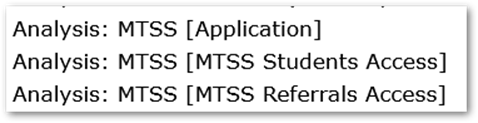
Facilitators will need permission for the MTSS application for the appropriate school tracks, including MTSS Student and MTSS Referrals Access.
Intervention Strategies can be set up and maintained for all interventions the district utilizes.
The Strategies you define can be assigned to Referral Intervention Plans that are used to monitor and track student progress toward intervention goals.
Intervention Plans are coming soon.

To add an Intervention Strategy, click the Add Strategy button.
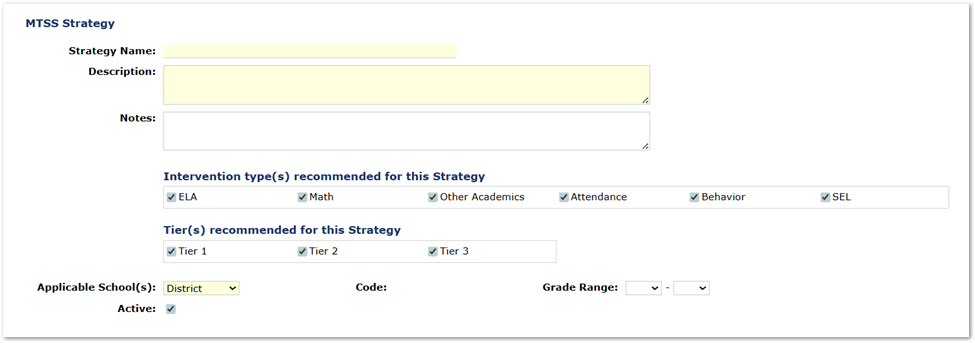
Complete the form providing required fields: Strategy Name, Description, and Applicable schools. Set a grade range if desired. The Intervention Types, Tiers, and Active flag are all checked on by default, but may be changed. Notes may optionally be entered.
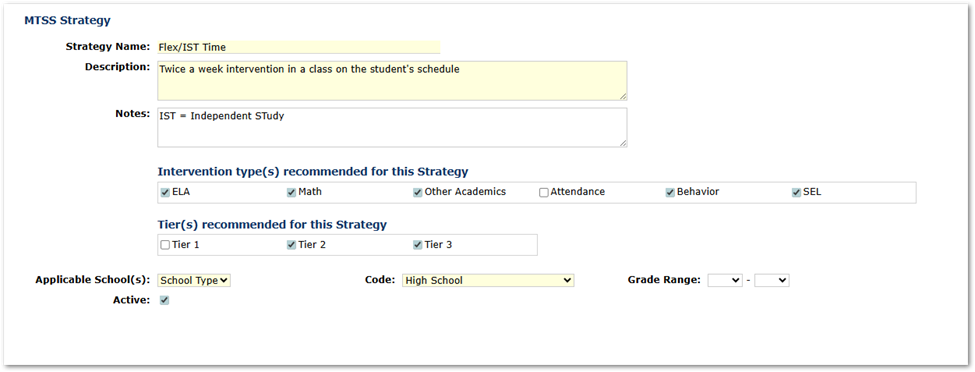
A sample Flex/IST Time Strategy is shown below.
This application area is coming soon.
This application area is coming soon.