
The Track Course Setup application is used to assign courses defined in the District Courses application to individual tracks. Courses may be assigned to individual tracks or to multiple schools and tracks depending on the user’s permissions. Once linked to a specific track, courses become available for scheduling in that track.
Track Course Setup is located under the Schedule menu in Q.
When logged in to the District Track, the Track Course Setup launches with the Course Assignments tab displayed. This area is used when you are assigning courses to more than one track at a time (details on adding and removing courses to multiple tracks from a district login provided later in this document). Click the Course Selection tab to assign courses to one track at a time.
District Login 
When logged in to a School Track the Course Assignments tab is not available. The opening screen displays the Course Selection tab and defaults to the first track defined for the logged-on school site (ascending alphanumeric).

School Login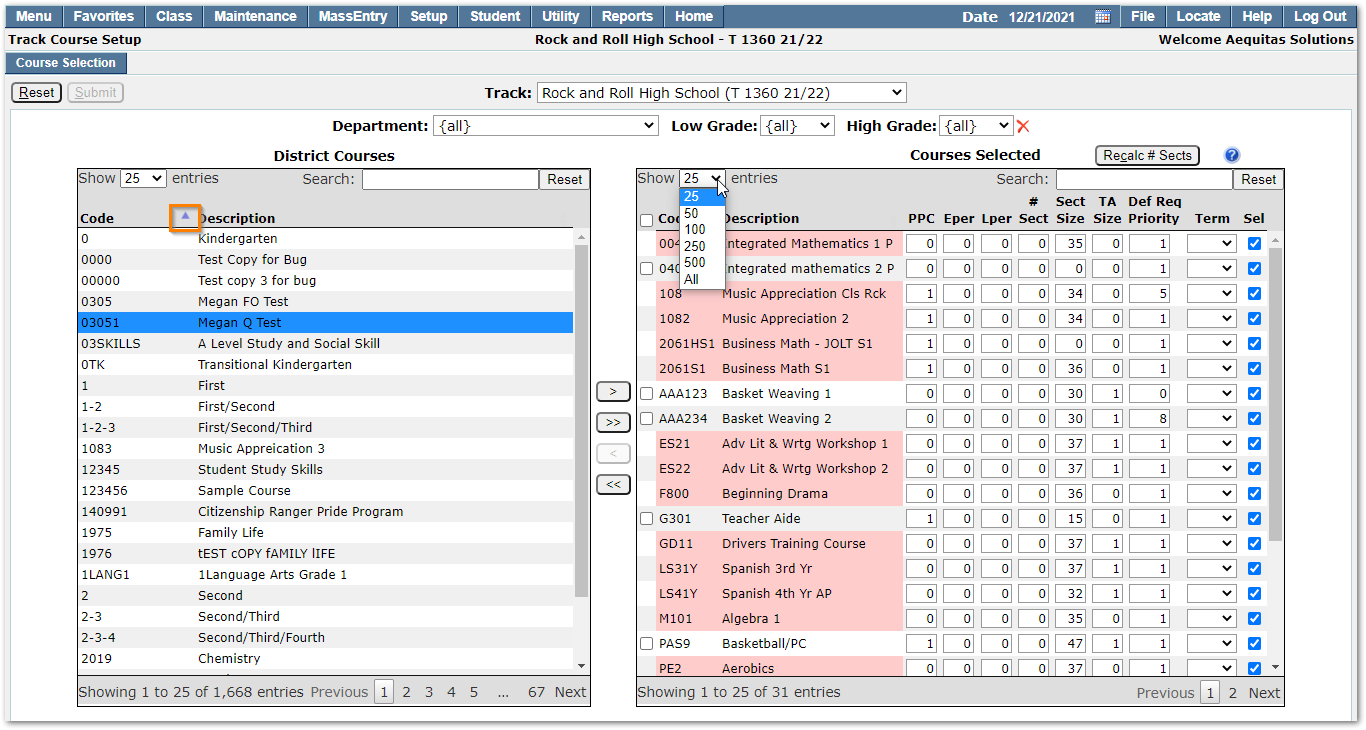
- Records in both the left and right grids may be sorted by any field.
- Click on a column header to designate that field as the primary sort field.
- A small pointer arrow in a column header indicates which field is the current primary sort field. The direction of the sort, ascending or descending, can be toggled by clicking the column header of the primary sort field. The pointer arrow will indicate the direction of the current sort.
- The number of courses displayed defaults to 25 entries but may be set higher or to show all courses using the drop-down list. The total number of Courses for the district display on the bottom left and for the track at the bottom right. The number of Courses displayed may also be filtered by selecting from one or any combination of the following:
- Department
- Low Grade
- High Grade
- Entering any part of the course code or description in the provided search boxes will also limit the number of courses displayed.
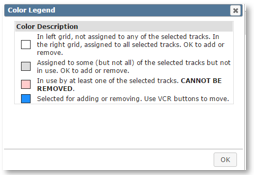
Clicking the  icon opens a pop-up menu with the color legend. There are several possible statuses a course can have in the process of course assignments. For example, a course that is already in use by a track cannot be unassigned from that track, or a course may already be assigned to some but not all the selected tracks, and so on. The color codes help you keep track of this data.
- White—In the left column: the course is not assigned to any of the selected tracks. In the right column: the course is assigned to all the selected tracks. OK to add or remove.
- Grey—Assigned to some (but not all) of the selected tracks. OK to add or remove.
- Pink—In use by at least one of the selected tracks. CANNOT BE REMOVED. (A course is used by a track if it has been incorporated into the Master Schedule, Course Requests, Master Builder, or Class Rules.)
- Blue—Selected for adding or removing. Use the arrow buttons to move.
- To finalize the assignment click the Submit command (or Reset to cancel).
To assign courses to an individual track:
- Login to the school you want to assign courses.
- Select the desired track from the Track drop down list.
Edit mode. This track has no courses assigned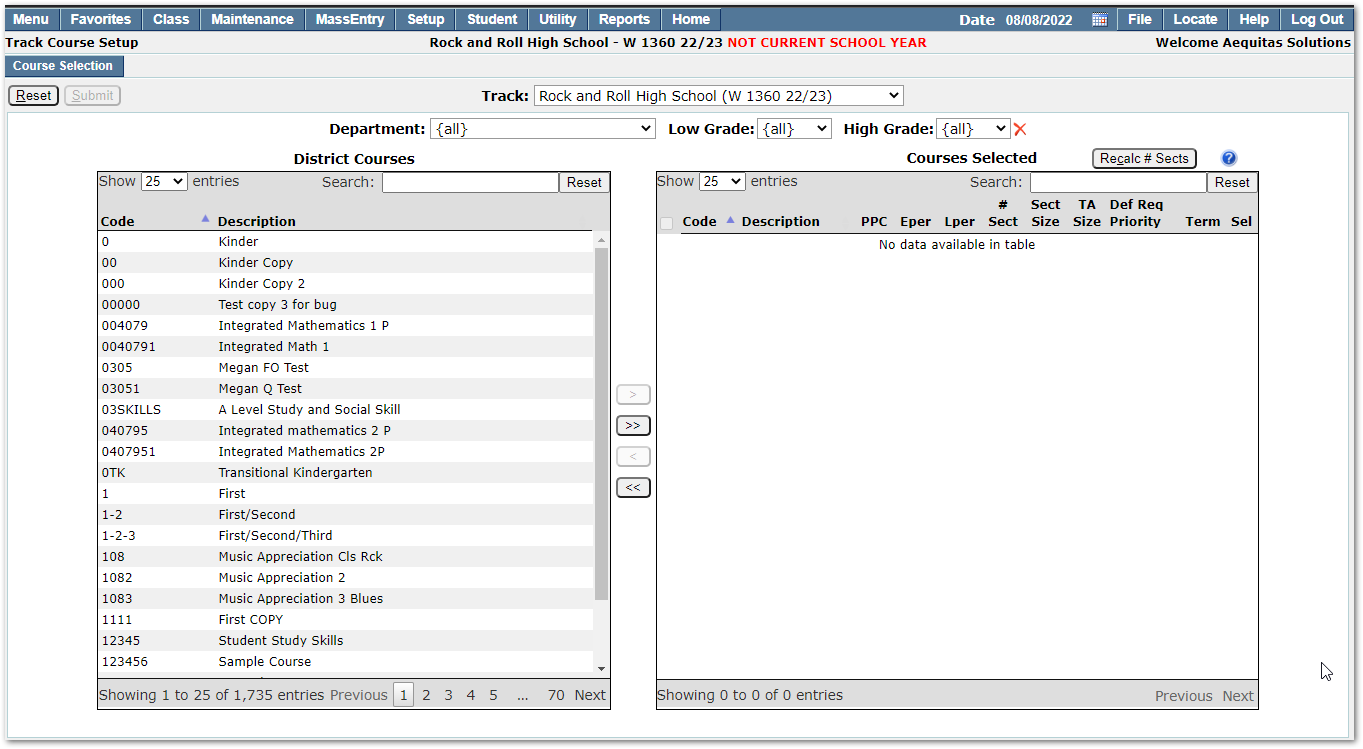
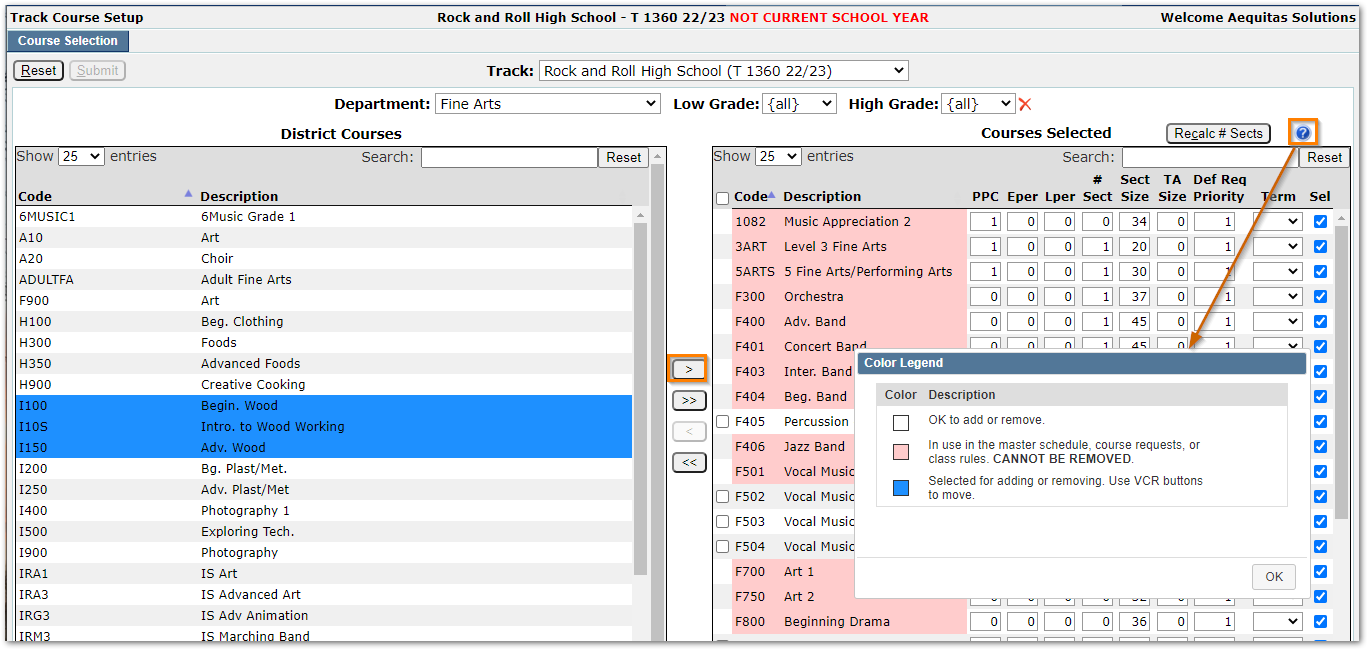
- Select course from District Courses list by clicking on the individual course. The selected courses will highlight in blue.
- To select a contiguous group of courses, hold down the shift key and click the first course and the last course in the range.
- To select multiple noncontiguous courses hold the Ctrl key down while selecting individual courses.
- When all selections have been made, click the single arrow button > that points to the right to move the selected courses over to the right-hand grid and assign them to the current track.
- If you want to assign ALL available courses to your track, you can simply click the double arrow button >> that points to the right. ALL courses will be moved over to the right and be assigned to the track.
Courses selected for assignment on the left are highlighted in blue. Courses on the right side have been assigned to the current track.
- When your courses appear in the right-hand grid, they have been successfully assigned to your track and are now available for scheduling in that track. Click the question mark icon to display a color legend for courses
- Click the Submit button at left top of the screen to save the selections or Reset to start over.
To remove (un-assign) a course from a track:
- Simply reverse the above process by selecting the course(s) to remove on the right side and clicking the <single arrow button pointing left.
- To remove ALL selectable courses from a track, click the << double arrow button that points to the left. ALL courses that are not pink (indicating in use in the master schedule, course requests or class rules) will be removed from the track.
- Courses that are pink may not be removed from a track. If you need to remove them, you must first remove any existing course requests, sections in the master schedule manager, sections in the builder and any associated class rules. Once these are removed the course will turn white and have a selection box allowing it to be moved out of the track and back to district courses.
Once courses are assigned to a track there are several fields where course scheduling attributes can be defined. They are not mandatory for saving the track assignment, but they are helpful in many ways to various scheduling processes in Q.
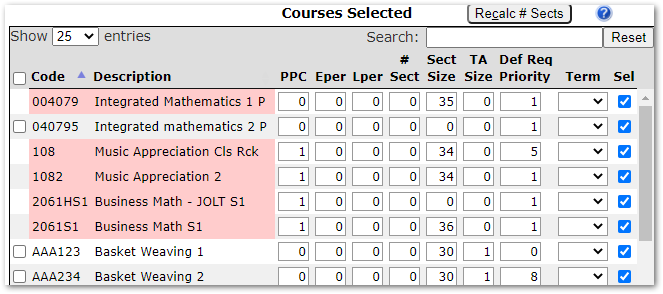
- PPC (Periods per Cycle)—The number of periods this course will meet during one complete rotation of the school's cycle day pattern.
- Eper (Earliest Period)—This feature is not in use currently.
- Lper (Latest Period)—This feature is not in use currently.
- #Sct (Number of Sections)—The number of sections that will be taught for this course. This value is used by the Master Schedule Builder application and various pre-scheduling analysis reports when designing a Master Schedule. When courses are first assigned to a track the number of sections might not be known.
- Recalc # Sects—When the number of sections is known the numbers may be entered manually or automatically using the Recalc button. The recalculation will be based on the current number of primary requests for each course and the sections sizes specified in the Sect Size You may recalculate the number of sections at any time using the Recalc # Sect button at the top of the screen, however, any manual entry of numbers will be overridden by using Recalc.
- Sect Size—The number of seats entered in this column will override the district default sect size entered in district courses.
- TA Size—The number of seats entered in this column will override the district default TA Sect Size entered in district courses.
- Def Req Priority—Default Request Priorities may be defined in the District Courses application. Priorities entered in District Courses will be overwritten by the priority entered in this column. Priorities may be further set for individual students in Student Schedules when entering course requests.
- Term—There is no need to populate this field as it is not currently in use.
- Sel (Select)—Place a check in this box to make this course available for course request selection by students when logged in to Student Connect.
When logged in to the District Track, The Track Course Setup application displays another tab, Course Assignments. When using this part of the application multiple courses may be assigned or removed from multiple tracks at the same time. Although the Track Course Setup application is accessible from the Scheduling menu in all tracks, the Course Assignment tab is only available when logged in to the District Track.
The Course Assignments area of Track Course Setup gives users the ability to:
- Select multiple courses at the same time based on course Categories and Departments. (The course Category and course Department properties must be defined for each course in the District Courses application).
- Assign selected courses to multiple schools/tracks at the same time. This is useful when a new course is created and must be associated with many existing tracks.
- Remove selected courses from multiple schools/tracks at the same time.
When the application is launched the default screen displays two blank columns: Courses Not Selected on the left side and Courses Selected on the right side.
Default screen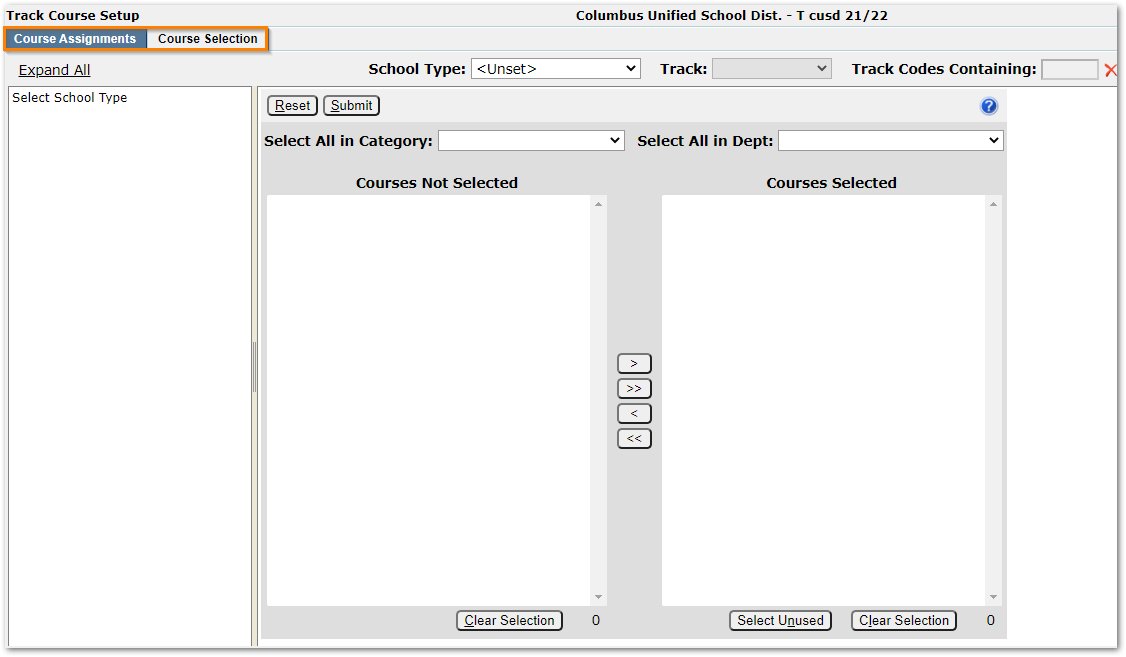
To assign courses to multiple schools:
- Populate the School Type column with a list of qualifying schools by selecting a School Type from the School Type drop down list at the top of the screen. (School type is set in the School Editor application).
- The retrieved school names for the selected Type (or all schools in the district) will be displayed in the Schools
Sample list: filtered to retrieve High Schools only
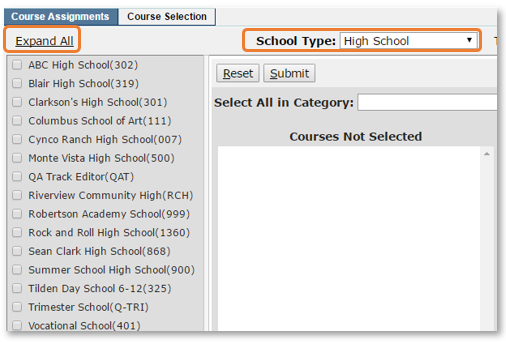
- Click the Expand All link to display all tracks associated with the selected schools.
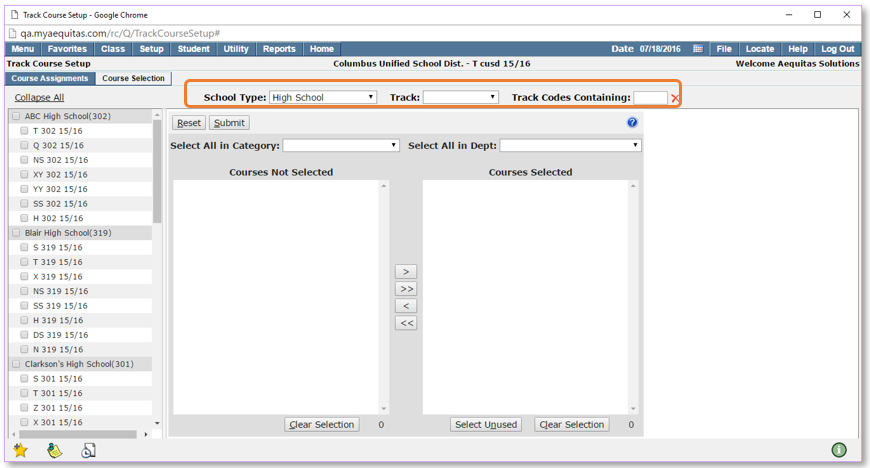
- Individual tracks may be selected by using the filters at the top of the page.
- All tracks—when this is selected from the Track drop down list the application auto-selects all tracks for all schools in the selected school type.
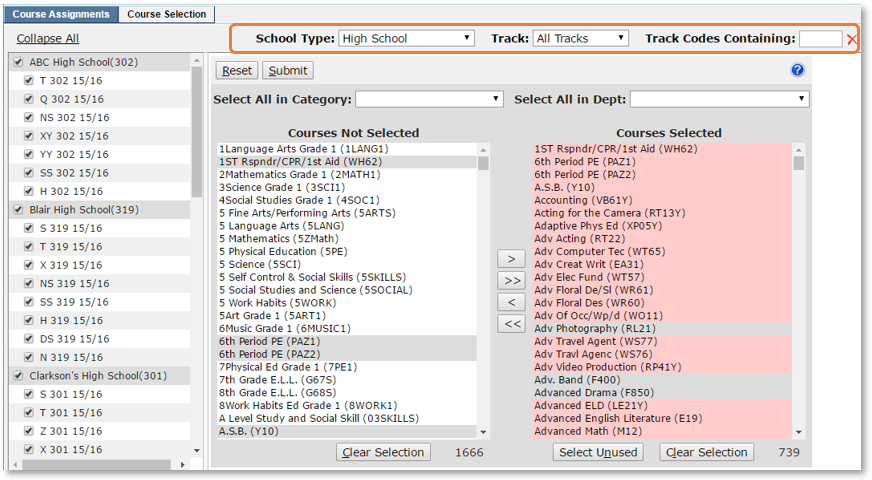
- All tracks—when this is selected from the Track drop down list the application auto-selects all tracks for all schools in the selected school type.
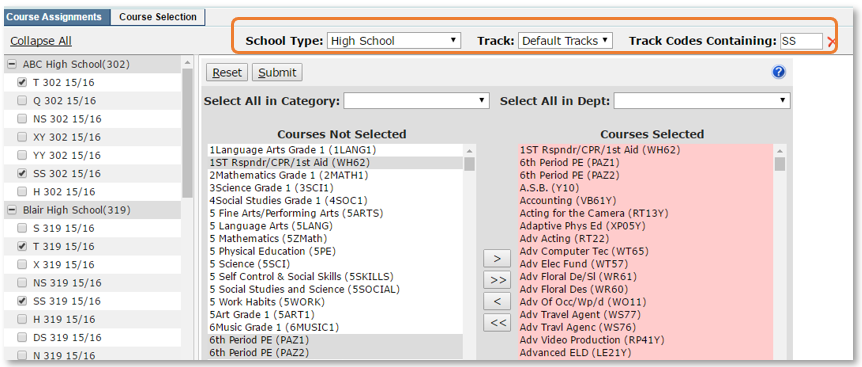
- Default tracks—When this option is selected from the drop down list the application retrieves all tracks from the selected school type but auto-selects only the default track of each school plus any tracks that qualify for the search string entered in the Tracks with track codes containing field, if enabled. (The default track for a school is defined in the School Editor application. It is normally the ‘traditional’ or ‘main’ track in a school.)
Sample ‘Default tracks result with optional Track Codes Containing SS applied
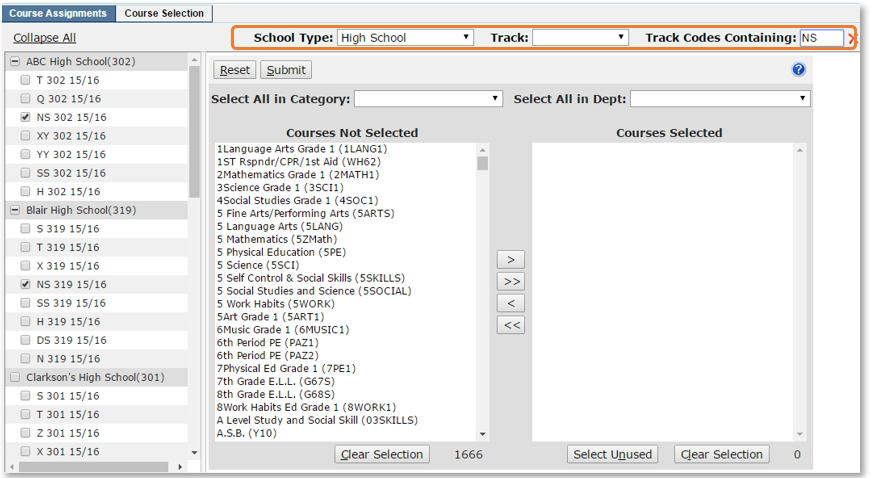
- No track selection—when this option is selected from the drop down list the application retrieves all tracks but does not auto-select any of them - unless they qualify for a search string entered in the Tracks with track codes containing
Sample no Track selection with optional Track Codes Containing NS applied
Assigning courses
Once the desired tracks have been selected, courses may be selected from district courses to assign to the selected tracks.
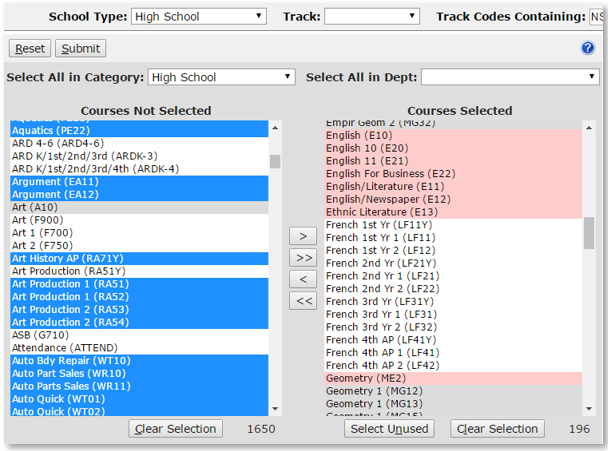
- Several courses may be selected at once by selecting a course Category from the drop-down list in Select all in category and/or a course Department from the drop-down list in Select all in Department. (For example, if the selected tracks are from the school type, ‘High school’, you could select all High School courses in the Courses Not Selected list by selecting the course Category of ‘High School’ in the Select all in category)
Course Category: High School selected from drop down. Blue courses have been pre-selected for moving
- Fine-tune your set of courses before moving them by further selecting and deselecting entries.
- To select or deselect more than one course at a time, press the Ctrl key while clicking. To clear all selections, click on the Clear Selection
After the courses have been selected use the arrows as follows to move them to Courses Selected on the right.
- The single right arrow button will move a selected course or set of courses from the Courses Not Selected column to the Courses Selected
- The double right arrow button will move all available courses, selected or unselected, from the Courses Not Selected column to the CoursesSelected
- The single left arrow button will move a selected course or set of courses from the Courses Selected column to the Courses Not Selected
- The double left arrow button will move all courses that are not in use by the current set of tracks from the CoursesSelected column to the Courses Not Selected
Multiple courses can be removed from multiple tracks (except for courses that are already in use by a track). This procedure is basically the same as assigning courses, except the final step is done in the reverse direction.
- Select schools, either by multi-selecting directly from a list of schools or from a list of school types.
- Once the list of schools is established, define a set of tracks.
- Once the tracks are selected, the set of courses currently assigned to the set of tracks is displayed in the Courses Selected column on the right side. Color codes will indicate the disposition of each course in the list. For example, if a course is assigned to only some of the selected tracks it will be displayed in grey. Courses displayed in pink cannot be selected or removed because there are in use by the tracks. Select the courses to remove by multi-selecting from the Selected Courses Selected courses will be highlighted in blue.
- Select unused courses. Click on the Select Unused button to auto select all courses that are not being used in the current set of tracks. Then click the < single left arrow button to remove them from set of courses. This is a quick way for cleaning up the Courses Selected list without having to scroll down and manually click on each unused course for removal.
There are two permission items for Track Course Setup in addition to the application permission.
Track Course Setup: (Course Assignments)—when this is given a user can only assign courses to active or future tracks in which they have a status record. This rule prevents users from one school altering course assignments for another school.
Track Course Setup (Course Selection)—this is for users who are authorized to log on to the District Office; these users can assign courses to any track in the district.
