
Options in two request-related reports, Course Request List and Course Request List & Tally, can be used to help us gage whether requests have been entered, see how far along the grade levels are with requests, and find students with exceptions like those who have too many or too few requests.
In all these situations log into Next Year’s Track.
 Are there any requests?
- Run Course Request List & Tally Report with report defaults to see counts of requests by course.
To see students without any requests
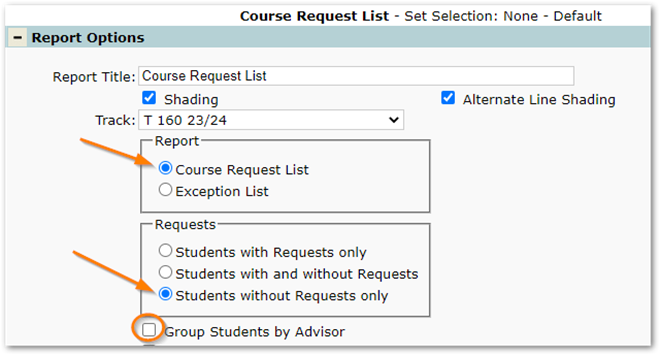
- Run Course Request List Report with these settings:
- Report Option: ‘Course Request List’ > Requests: ‘Students Without Requests Only’. Note the report defaults to ‘Group Students by Advisor’ but this may not be appropriate for your purpose, uncheck or check as needed.
OR
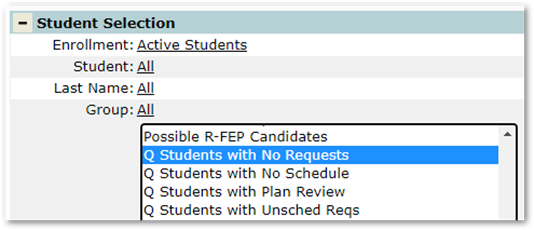
- From any student banner application or report use Group filter and filter on group named ‘Q Students with No Requests’ (The standard Q groups shown were originally released with Q at end of the name, but we recommend districts change to prefix group name with Q to make them easier to find, so your district’s group name may sort under ‘Students with …Q’).
To see counts of requests by course
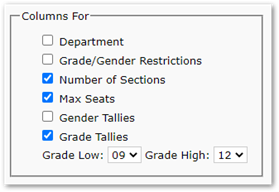
To quickly see counts of requests by course and compare the counts to the number of sections and size per sections, use Course Request List & Tally, uncheck most columns, except leave ‘Number of Sections’ and ‘Max Seats’ checked, and leave ‘Detail Listing’ unchecked.
Note
Number of Sections’ comes from # Sect column in Track Course Setup. These numbers will remain the same until they are either manually updated in Track Course Setup or recalculated by clicking the Recalc # Sects button in that application which will divide the Total requests by the Max seats to calculate the number of sections.
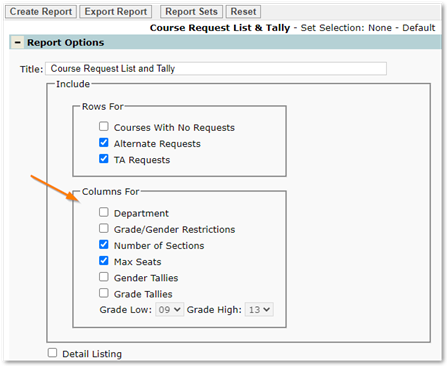
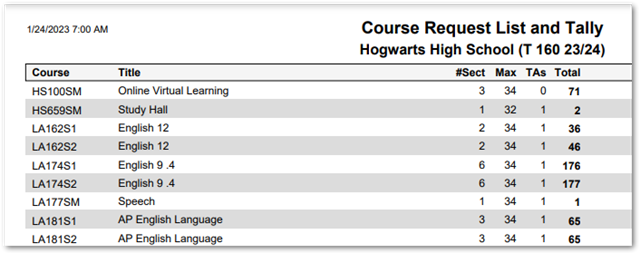
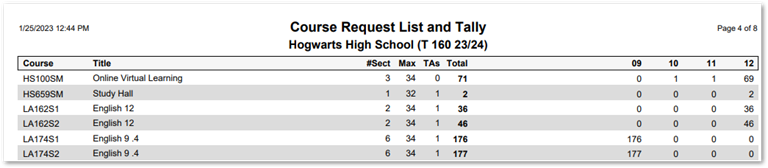
The report will be easy to read with fewer columns, just focusing on the total counts:
Or to see counts by grade level, turn on the ‘Grade Tallies’ Columns option and set the desired grade range. In middle schools where most students take the same core classes, the report can be helpful to see if the same number of students have requests for each core course. The number of requests may also be compared to the total number of students in a grade level.
If you see counts of requests for courses and want to see student details
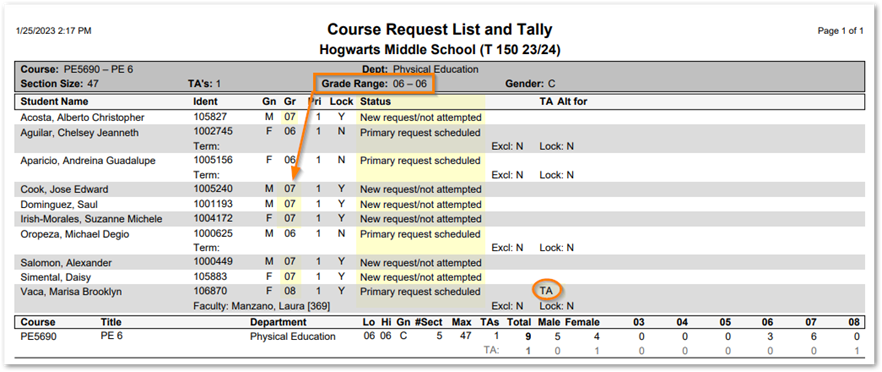
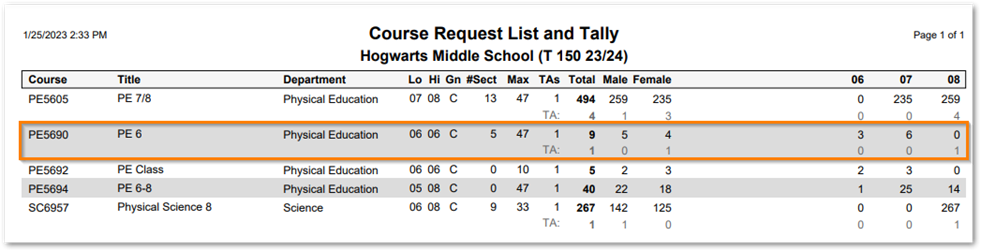 Checking ‘Detail Listing’ and selecting the course(s) in the Filters area below will display the names of students who have requested the selected course(s). In the sample above, we can see 7th graders have requested a 6th grade PE class, and one 8th grader has requested it as a TA.
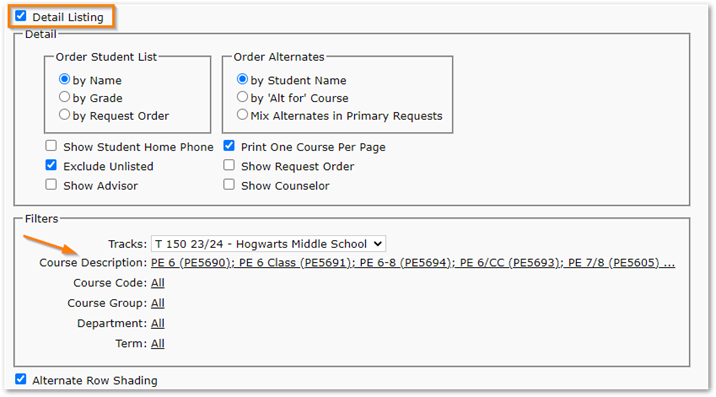 Using the ‘Detail Listing’, we can see a list of the students with requests for the selected courses and, if the Loader has been run, their request status is shown.
To find students with too many or too few requests
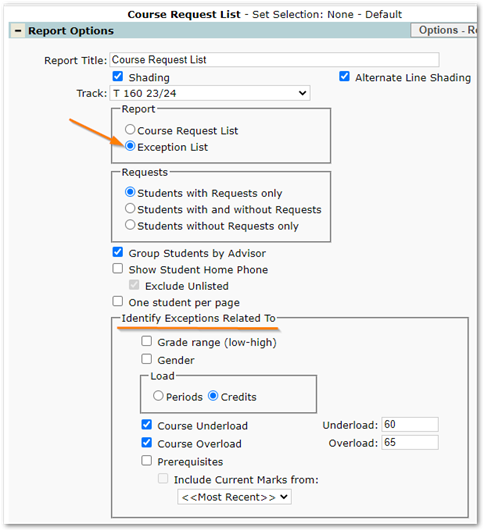
Use the Course Request List Report, select Report option ‘Exception List’. When this option is selected, ‘Identify Exceptions Related to’ items become available. Select whether to use Periods or Credits and then check ‘Course Underloaded’ and if using credits, set the underload value to a credit value below which you consider students to have too few requests, and do the same for Course Overload, setting an appropriate credit value as a threshold for too many requests. Using Periods as a basis for comparison can sometimes be difficult if your track is defined with more periods than students will be scheduled for.
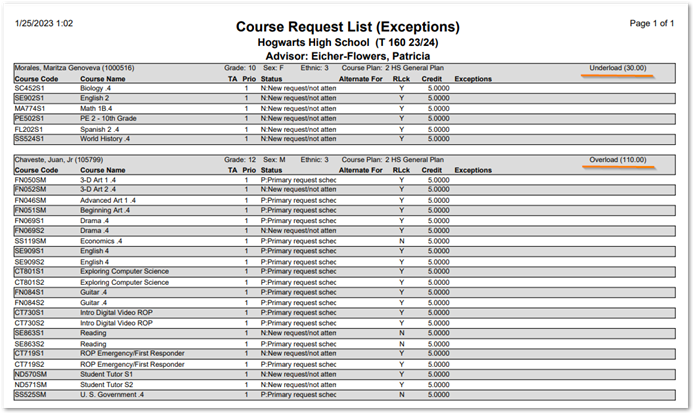
This sample report shows a student with too few requests ‘Underload’ and it shows the student’s requests amount to 30 credits and a student with too many requests or ‘Overload’ with 110 credits.
Verify grade-specific courses do not have requests from students in other grades
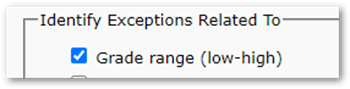
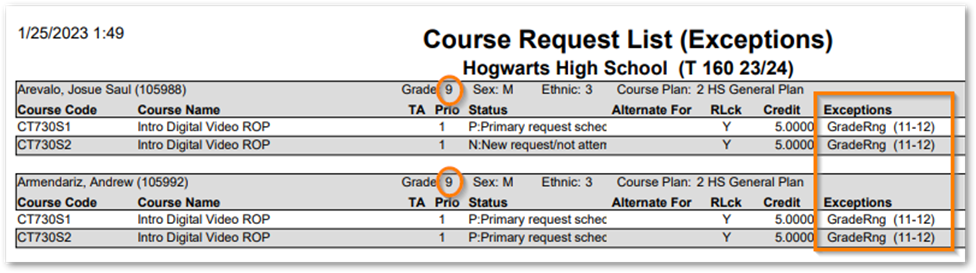
Use the Course Request List with the Exceptions List option selected, as discussed just above, but this time select ‘Identify Exceptions Related to’ and check ‘Grade Range (low-high)’. This is useful for situations where schools have courses configured for specific low and high grade levels. We can see if students from grades outside the range are requesting the course, as shown in the sample below where 9th graders are requesting a course intended for 11th and 12th graders.
These are just some of the many ways these two reports, Course Request List and Course Request List & Tally, may be used to work with requests.