
The Assign Course Plan application allows the user to select a Course Plan and mass assign it as a ‘Base Plan’ to selected students using the student selection filters.
Course Plans are made up of a sequence of courses to create a common academic plan for students to complete over multiple years. They are defined in Course Plans Setup application.
When a student has been assigned a ‘Base’ Course Plan, the Student Course Plan application may be used to add an Additional Plan, CTE Pathways, or additional courses. The student’s plan may be customized and designed to meet the student’s individual learning plan.
Course requests may be generated for a set of students from within the Course Plans Setup application or for individual students from within Student Schedules or Student Course Plan applications. Whenever course requests are generated, requests are generated for all items in the student’s individual plan for the track and year, and not just for the items in the student’s Base Plan.
Assign Course Plan is located under the Schedule menu in Q.
When logged in to a school track the Assign Course Plans application displays all available course plans for the logged in track. This includes plans created for All Schools as well as Plans created for the Logged-in school. The batch assignment of Base Course Plans will overwrite any previous Base Course Plan assignments, unless the ‘Students selected with no Course Plan’ option is selected, in which case the selected course plan will only be assigned to students who do not currently have a Base Course Plan, skipping all other students.
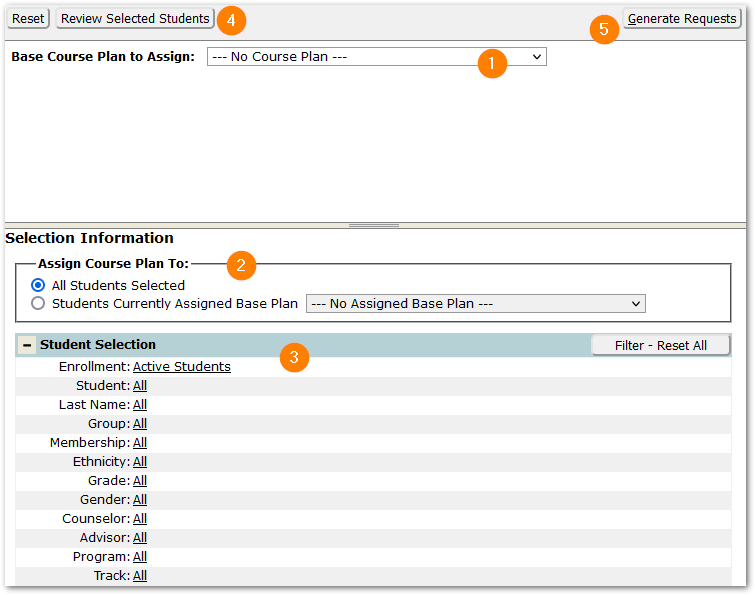
To assign course plan:
- Select the desired Course Plan from drop down list.
- Select Assign Course Plan To:
- All students selected—Select this option to assign the Plan to all students matching the criteria in the Student Selection filter, and overwrite any existing plan assigned as a Base Plan.
- Students Currently Assigned Base Plan—Check this option and select a Base Plan from the drop-list, either ‘No Assigned Base Plan’ or one of the existing assigned Base Plans. The mass assignment process will then set the selected Course Plan for selected students.
- Select students using the Student Selection filter options.
- Once selections have been made, click Review Selected Students
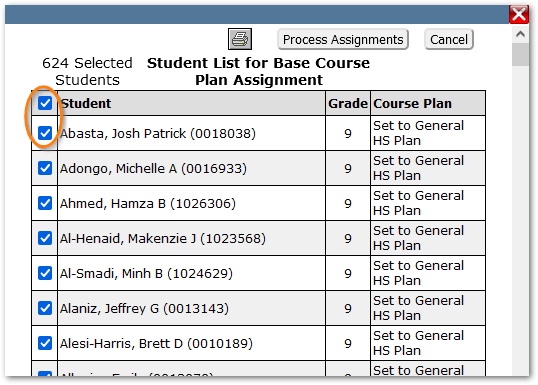
A pop-up list will appear with selected students listed. Under the Course Plan column, the application will display what will occur. In the example above, ninth grade students without an assigned base plan are being set to General HS Plan.
- To prevent the change applying to one or more of the students, click the checkbox at left. Clicking the checkbox at the top of the form will de-select all students, and then individual students may be checked on to include.
- To print the list, click the printer icon.
- To make the changes, click Process Assignments.
- Click Cancel to make no changes.
After the assignments have been processed a pop-up displays the number of students processed.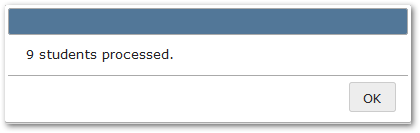
- To generate requests for students, click the Generate Requests button at top right.
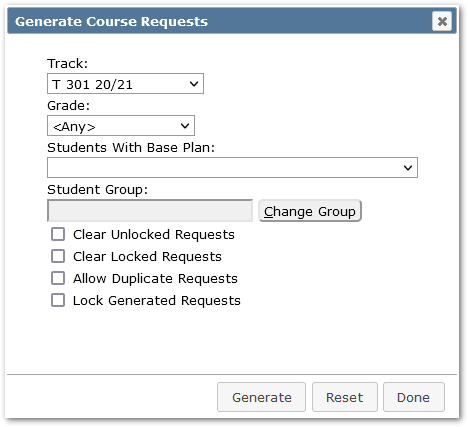
When requests are generated, they are generated the set of students selected, for all items in their individualized Course Plan for the selected track year, assuming the courses have been assigned to a student’s school and track via the Track Course Setup application. Courses in a student’s course plan, but not assigned to the school track for the year, will not appear as course requests for that student when the request generation process has been run. Students without any items in their Course Plans, will also not have any requests generated by the process.
Select students to generate requests for by setting the selection options:
- Track– Select the target track that course requests will be generated for. If you are working on Next Year, make sure to pick the next year’s track.
- Grade– Select the Grade Level to Generate the Course Requests for.
- <Any> - this selection means that Course Requests will be generated for ANY Grade Level that is part of your selected Course Plan.
- (Grade level) – If a grade is selected, it will narrow down your Course Plan selection to ONLY generate Course Requests for students in the selected grade in the selected track.
- Students With Base Plan – To generate requests ONLY for students with a specific base plan, select the plan from the drop-list.
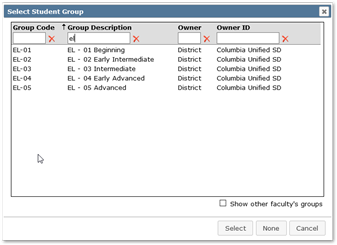
- Student Group – Used to designate the group of students selected to generate Course Requests. If a group is selected, the generation process will ONLY generate requests for students in that group, based on your other Course Plan selections on this screen.
- Change Group – Click this button to make the group selection. A pop screen will launch with a list of all available groups. You may use the filters at the top of the screen to search for the desired group.
- Clear Unlocked Requests – Checking this box will clear out any previous Course Requests that have been left ‘Unlocked’. These might be Course Requests left over from a previous Course Plan Generation Procedure (which are entered as ‘Unlocked’ by default), or manually entered Course Requests that were designated as ‘Unlocked’ in Student Schedules. If you are ‘building’ one Course Plan for ‘adding’ Requests to another that has already been generated (you want to keep the Requests from both Course Plans), DO NOT check this on or you will lose the previously generated, ‘Unlocked’ Requests. If you want to regenerate a Course Plan and clear away all the old Requests that resulted from previous runs of the Course Plan Generation Procedure, DO check this on. All Course Requests generated by Course Plans default to ‘Unlocked’.
NOTE: Requests entered by students in Student Connection are unlocked. Be careful not to clear unlocked requests if student-entered requests have not been reviewed and locked.
- Clear Locked Requests – WARNING - Checking this box will clear out any previous Course Requests that have been defined as ‘Locked’.
- Allow Duplicate Requests – In some cases, students may need to take the same course more than once during a school year. Selecting this option will allow duplicate Course Requests.
- NOTE: It will allow duplicate requests for all students selected.
- Lock Generated Requests – Check this option on to lock requests generated by this process.
- Generate– When you are finished making your selections and are ready to start the generation process click Generate.
A confirmation message will appear. When you proceed by clicking Yes, the process will generate requests for all selected students for all items in their individual plans. A completion message will appear showing the number of requests added when complete.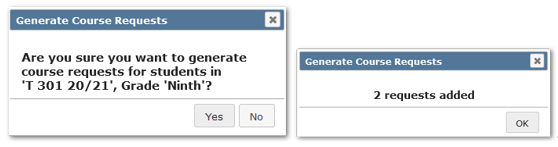
- Reset – Resets all selections.
- Done – Will close the dialog.
- Use Student Schedules or Student Course Plan applications to review individual students’ plans and schedules or add requests for individual students.
- Students may also be given options through Student Connection:
- to enter course requests
- to make changes to their Course Plans.
See StudentConnect Manager, Modules page.
Tools for Managing Plans & Requests
| Plans | Requests |
Mass Assign Plans
| Mass Generate Requests
|
Adjust Individual Plans
| |
| Individually Assign Plans ∗ Student Course Plan – Primary Application
| Individually Add or Generate Requests:
|
NOTE: When requests are mass generated, the requests for each student are based on their individualized course plan for their grade level in the logged in track.
The Mass Requests scheduling application may be used to add, remove or modify requests for a set of students, but it will do so without regard for the students’ course plans.
* For districts who utilize the full features of Student Course Plans to support individualized learning plans, including enabling students to edit their own Course Plan in Student Connect, students should NOT also be allowed to enter course requests in Student Connect. Their course requests will instead be generated based on their Course Plan.
Reporting
The Student Course Plan Report may be used to report on by student or by plan on Course Plans.
