
Do you have parents in Q that have more than one log in and are associate to multiple students with different account? If so, you can use the Duplicates Tab in the Contact Editor to identify and clean up any duplicate contacts.
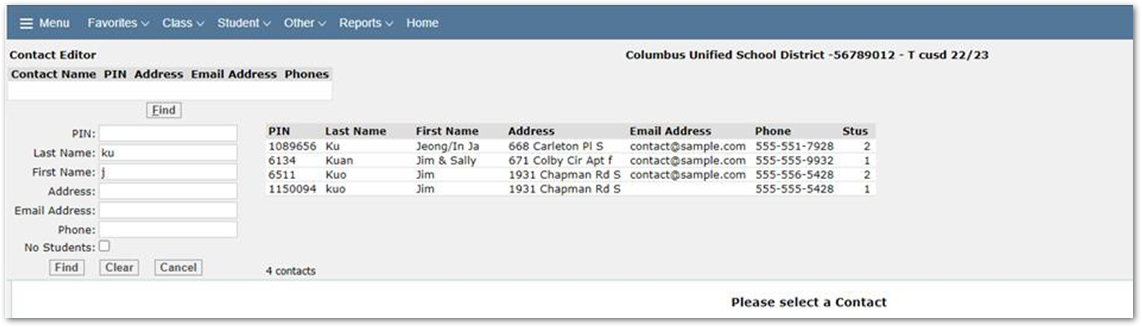
Using the find function you can search for a specific contact using known criteria including name, email address or phone number.
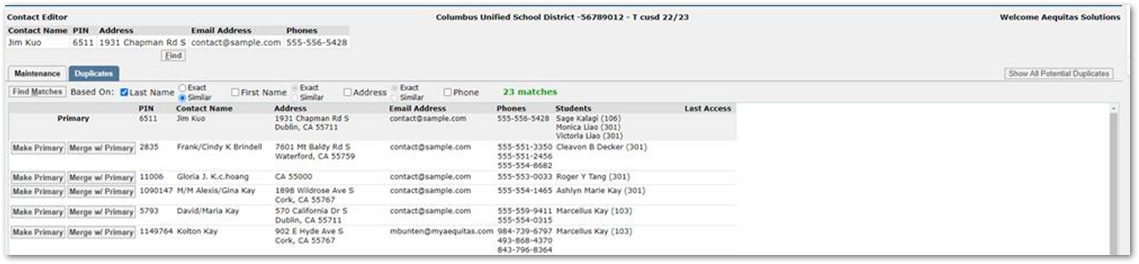
After finding your contact, a list of potential duplicates appears using the provided “Based On” criteria selected.
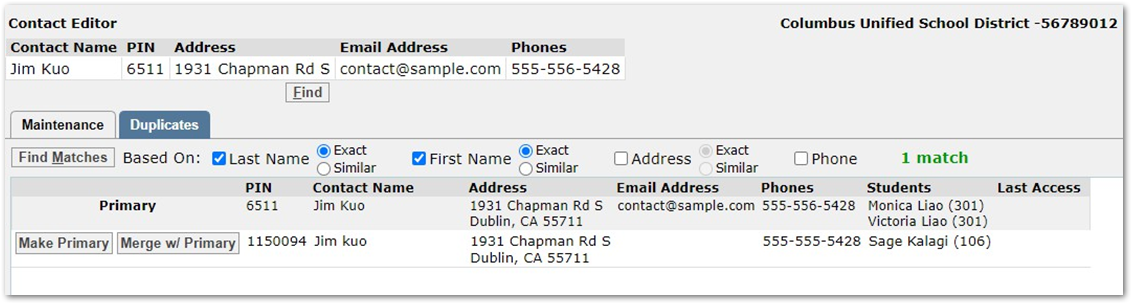
If too many potential duplicates are returned, users can narrow the results down further by change the “Based On” options, selecting either Exact or Similar matches to be returned for each criteria.
Once you identify your duplicate contacts, one will be displayed as the Primary record (which is the contact you have searched for initially in the banner), and you have the option on the duplicate contact record to either “Make Primary” or “Merge w/Primary”
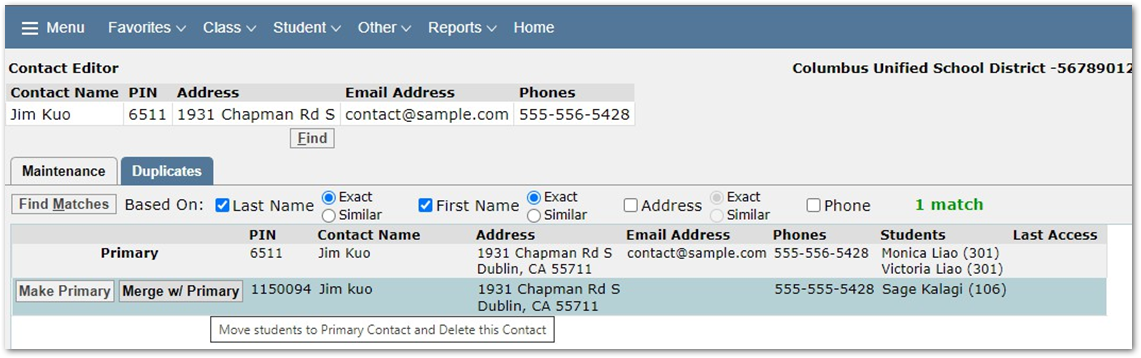
Make Primary – select this option and the contact’s information will be the one kept in the merge process.
Merge w/Primary – move all students associate with the selected duplicate contact to the primary contact. A pop up window will display which contact will be kept and which contact will be deleted, and you can review all information before the records are merged. Once you review all information click Move Student & Delete Contact.
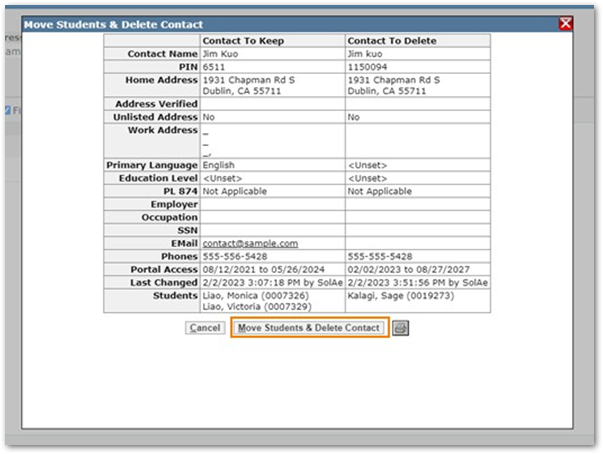
Now the contact’s multiple records have been merged to one, associated to all their students now in the single record.
