
Are there reports that you find yourself running frequently? Would you like to free up some resources in Q when running long or frequently recurring reports? A quick setup of your reports through the Report Server Queue can help you be more efficient and allow users free movement on to other applications within Q without having to wait for the report to complete.
Note
Q canned reports may be run using the Report Server, but it does not currently support running Mail merge reports, Report Writer reports, or Decision Support Tool reports.
1. To access the Report Server Queue application and the ability to create recurring reports first a user will need to be given the following permission items:
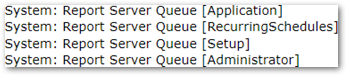
2. Scheduling reports can be done within the report itself using the ‘Schedule’ button, or through the Report Server Queue app under the Recurring Report Schedule Tab, using the ‘Add’ button.
Note
Reports must be configured to use the report server in the Setup tab in Report Server Queue application in order to schedule reports.
Keep in mind that setting the Start Date, End Date, Frequency, Run Time, and Days Offset will dictate how the recurring schedule will work for the report you need:
- Start Date - Set the first date you wish the report to run
- End Date - Set the last date you with the report to run
- Frequency - Set the frequency you want the report to run : Daily, or Monthly
Note
To run report Weekly select ‘Daily’ and then select only one day under the ‘Days’ area. Run Time - Set the run time for the report
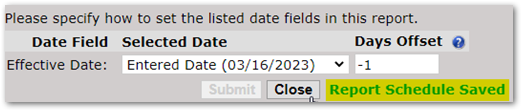
- Days Offset - This allows you to specify the number of days from the selected date either later (a positive number) or earlier (a negative number). As example, if you want to schedule an attendance-related report to run from beginning of the track through the day prior to the report being run, you could set the days offset values as shown below:
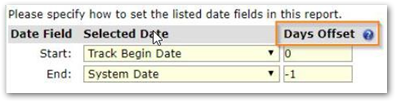
Report:
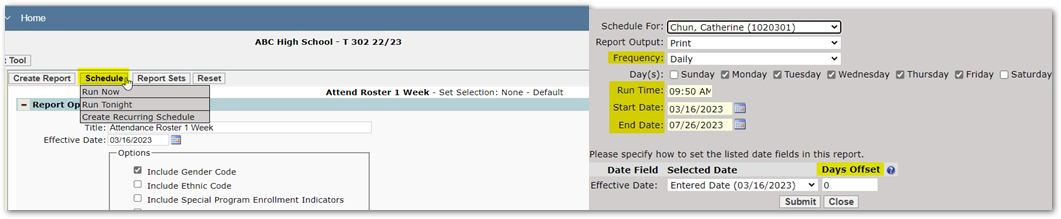
Report Server Queue:
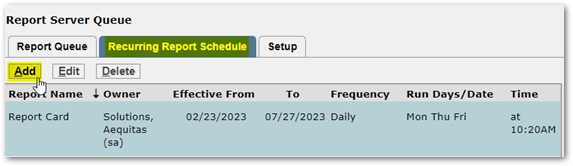 3. After making selections for the report to your liking, a message will appear indicating the report has been scheduled.
4. Now that you’ve scheduled your report, there are two places to locate them within Q. The Report Queue Tab or the Scheduled Reports Widget.
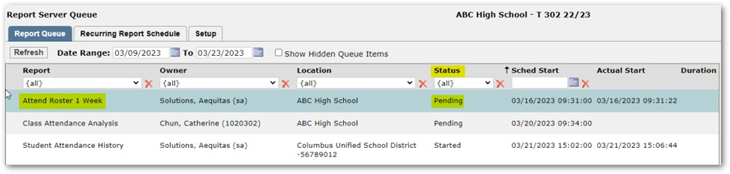
From the Report Queue Tab, the set of queued reports is displayed with information about their status
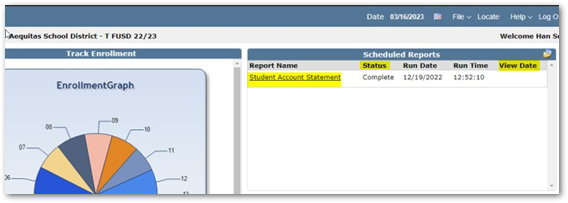
From the Scheduled Reports Widget clicking the link to the report will download the report, additional information is also available like the status and the last time the report was viewed.