Contact Editor offers users an alternate way to manage student contacts. The Contact Editor uses contact names for its primary records instead of student names. In the contact Editor the user can select a contact name and then assign that contact to an existing student or students. Users have the ability to add, edit, and delete existing contacts for students.
Contact Editor is located under the Enrollment menu in Q.
To avoid potentially duplicate contacts you should search the database first to see if the contact that you are wanting to add already exists. Even if you are confident that your contact is new to the database this search must be done to eliminate the possibility that the contact exists with a different spelling.
To search for contacts in the Maintenance tab
- Search for a contact in the system, click the Find button to search by the contact’s PIN, last name and / or first name, address, phone, or contacts with no linked students. Once you have entered your search criteria, click Find to run the search, Clear to clear any changes, or Cancel to return to the previous screen.
- Tip: Entering only the first few letters of the contacts first and last name will allow for the detection of possible spelling variations in the contact you are searching for. The search engine looks at all contacts registered in the district, regardless of the logged in school.
Caution: It is possible that there are two or more contacts with the same first and last name but they are actually different individuals. To help with accurate identification, each contact’s address, phone numbers, and assigned students are displayed in the selection list. 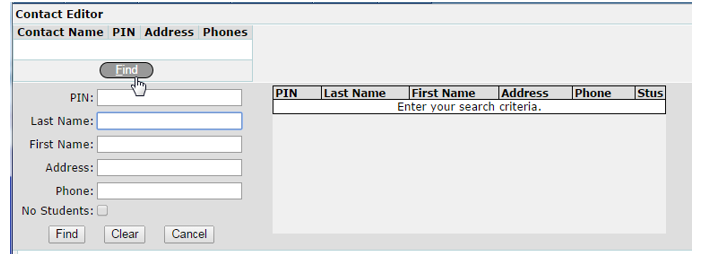
Ownership and Access to Student Records
When accessing the Contact Editor from a specific school site for this process, you will only have access to student records from the logged in school. Users with access to the District Office login can access all students in the district for linking to the current contact. This is to facilitate creating links for contacts who have siblings enrolled in different schools. If you do not have access to the District Office login and you need to assign a student in a different school, you must save the current contact record, close the Contact Editor, switch to the target school, reopen the Contact Editor, and then find the contact record and the student you want to link up. Student records can also only be edited or deleted when logged in to their primary site or from the district office.
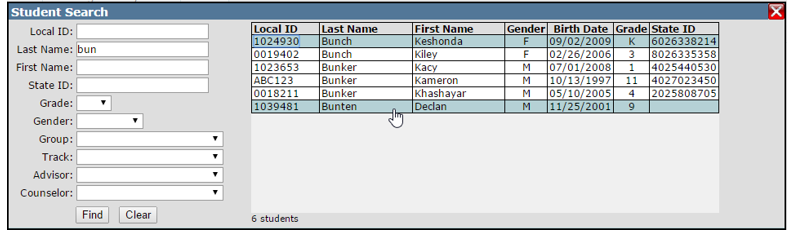
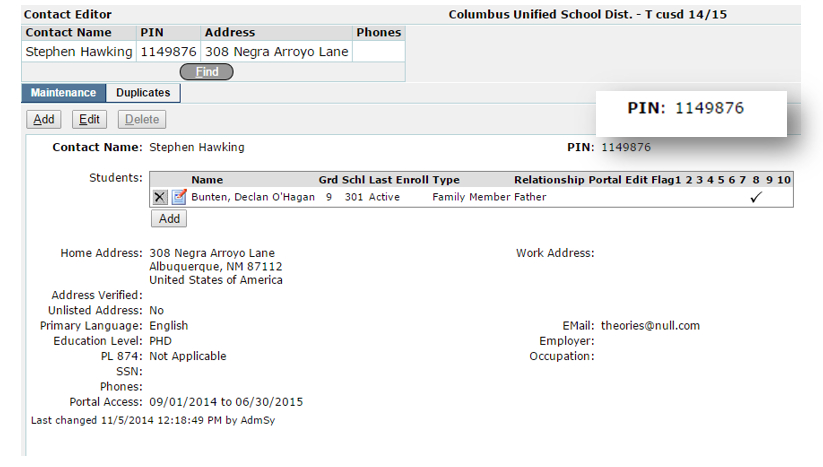
Student Declan Bunten is Active at the logged in school. When logged in to Clarkson’s High School, a user can only edit or delete student Declan Bunten. To edit or delete student Jasen Johnson a user must be logged in to site 104.
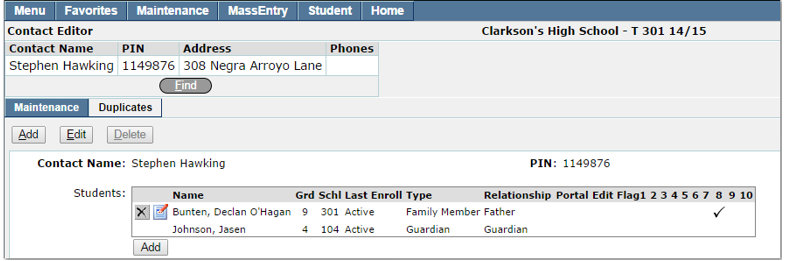
To edit or delete the Contacts Relationship to the Student
- Click the relationship icon located to the left of the student name in the student listing to edit the student / contact relationship.
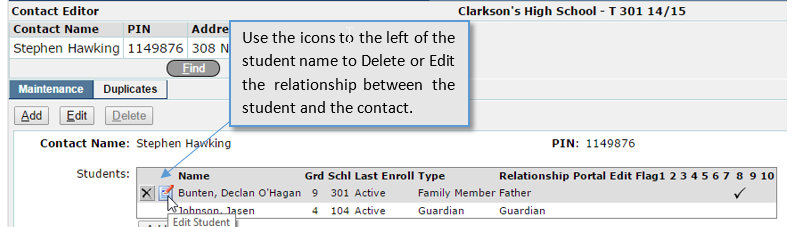
2. Make the necessary changes to the relationship and click Submit to save.
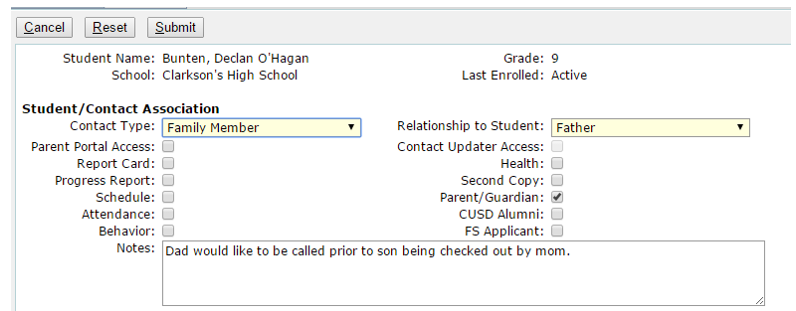
To edit a Contact
To make changes to a contact through the Contact Editor use the Add, Edit, or Delete buttons located in the Maintenance tab.
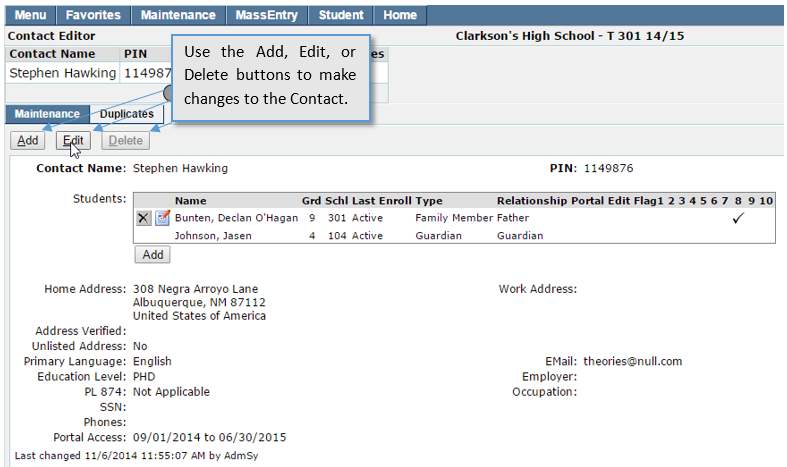
Click Edit to make changes to the contact record or the contacts password. Once all changes have been made click Submit to save the record, Reset to clear any changes that have been made since the previous save, or Cancel to return to the previous page.
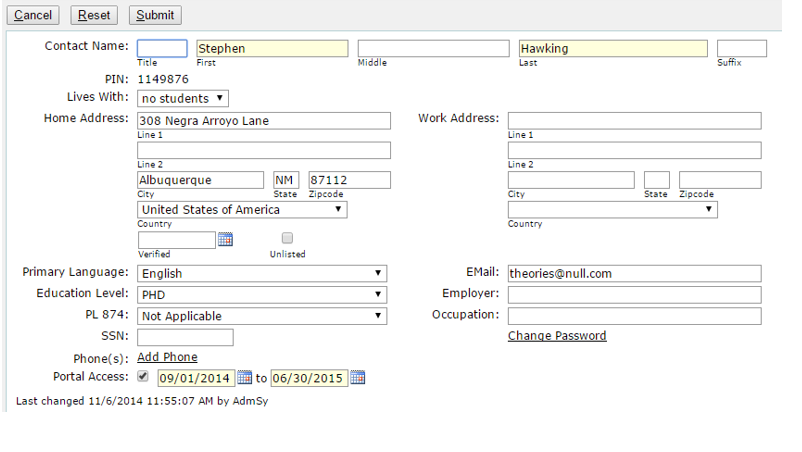 Adding a New Contact
From the Maintenance tab, click Add.
Enter the Contacts first and last name and click Continue.

Enter contact information, yellow fields are required. Click Submit to save your changes, Reset to clear your entry, or Cancel to return to the previous page.
Note: If your district has enabled Smarty Streets for address validation, you will need to validate the address prior to saving the new contact.
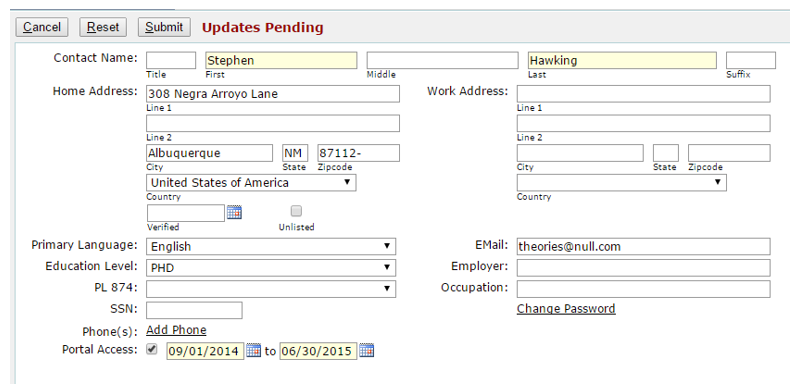
Checking for Potential Match in Existing Contacts
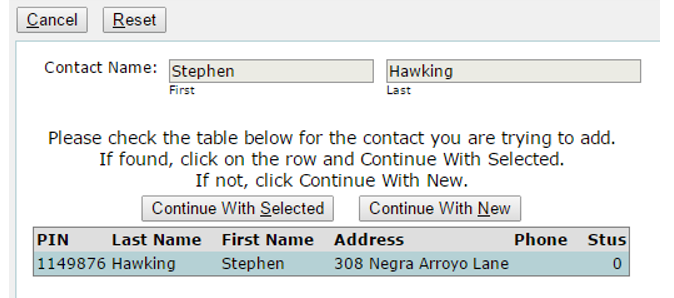
After the contact Last Name and First Name are entered in the name fields, the system will automatically check if that name combination already exists in the database. If a matching name combination is detected, a Possible Duplicate contact will be displayed. The addresses of possible duplicates will be displayed in a list. When an address is selected, the phone numbers and students assigned to the contact will be displayed at the bottom to help verify the identity of the contact. If the address of the new contact appears in the list of possible duplicates, highlight the entry and click, Continue With Selected. This action will open the existing contact record, thus preventing a duplicate record from being created. From here, you may edit the existing contact data and / or close the record. If the contact that you are trying to add is different than the one that is displayed, click Continue With New to continue adding the new contact.
- Tip: After the above step is completed, you can Save the new contact record at any time and later return to finish data entry using the Find command to retrieve the record and the Edit command to activate the edit mode.Continue With Selected: To add contacts for an existing contact, click Continue With Selected.
- The contacts information will be displayed, click Add in the Students section to begin associating students to the contact. The Student Search window will display. Enter search criteria and click Find to return the list of matching students.
- Enter Student / Contact Association: Complete the required information and, if configured enable flags for contact mailing. A free form notes field is available to enter notes that may be specific to the contact that is being added.
- Once all information has been added, click Submit to save your changes.
PIN for Parent Portal
Parent Connection is a web based application that allows parents to access their children’s school data over the Internet. Parents or Contacts that have been authorized to use parent portal will need a PIN (personal identification number) and password to access information. A contact’s PIN is system generated at the time the new contact record is created. It will be displayed in the PIN field and is read only.
 Passwords for Parent Portal
Parent Connection passwords will be visible to authorized Q users in the User Manager application and can be changed in the User Manager, Student Editor and in the Contact Editor by users with the appropriate permissions. The contact also has the ability to change their password in the Parent Connection. If the contact forgets their password, there is a preference that can be defined by the district to allow the contacts to retrieve it themselves by an email function in Parent Connection.
To add or change a contact’s password:
- Click Edit to open the contact profile.
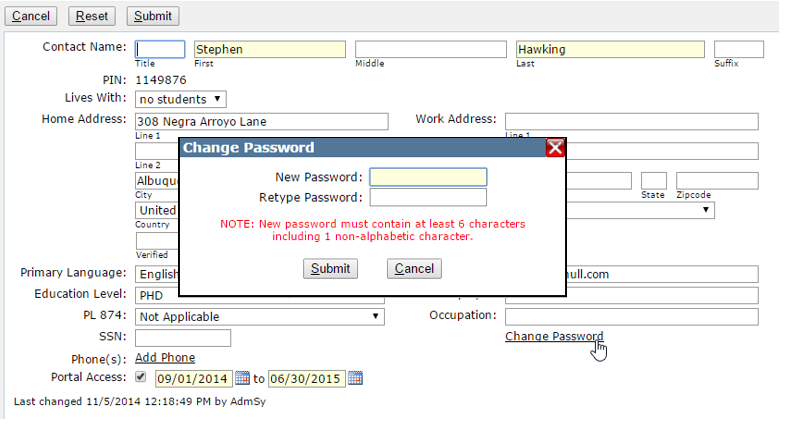
- Click the Change Password link to open the Change Password dialog box.
- To Add a new password, enter the New Password, Verify the Password, and click Submit.
The Duplicates tab allows users to review potential duplicates and merge contacts making one of the contacts primary and merging the duplicate records. This tab is available based on permissions.
Using the Find Function:
From the Duplicates tab, enter search criteria and click Find. Search by the contact’s PIN, last name and / or first name, address, phone, or contacts with no linked students. Once you have entered your search criteria, click Find to run the search, Clear to clear any changes, or Cancel to return to the previous screen.

A list of potential duplicate contacts will be displayed based on the search criteria entered. To filter the list of duplicates, refine the match criteria based on Last Name, First Name, Address, and Phone.

Make Primary: Will flag the selected contact as the Primary contact and move them into the Contact Banner, if they are not already there. This action will flag the selected contacts information as the information to keep when moving on to the merge process.
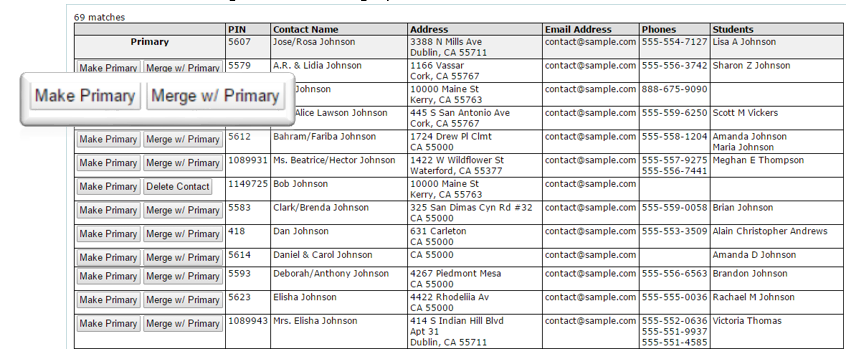
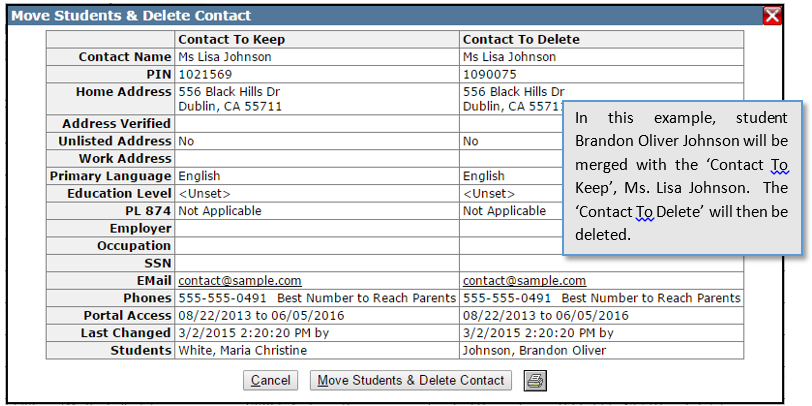
Merge w/Primary: Selecting to Merge w/Primary will move all students associated with the selected contact to the contact that was flagged as the Primary in the previous step. The selected contact will then be deleted. Click Move Students & Delete Contact to complete the Merge process, or Cancel to abort the process and return to the previous screen.
Tip: The print icon allows you to print out the contact information for both contacts prior to the merge.
Important Note: It is crucial that both contacts are reviewed to ensure that the correct students are being merged with the correct contact. Once the Merge Process is complete, the student’s information will be displayed and shared with the Primary Contact selected.
Delete Contact: The option to Delete Contact will be available if the contact has no associated students.

NOTE: For districts using Extra Curricular, Account records are added to Contact Editor, but will not display the associated student.
Show All Potential Duplicates
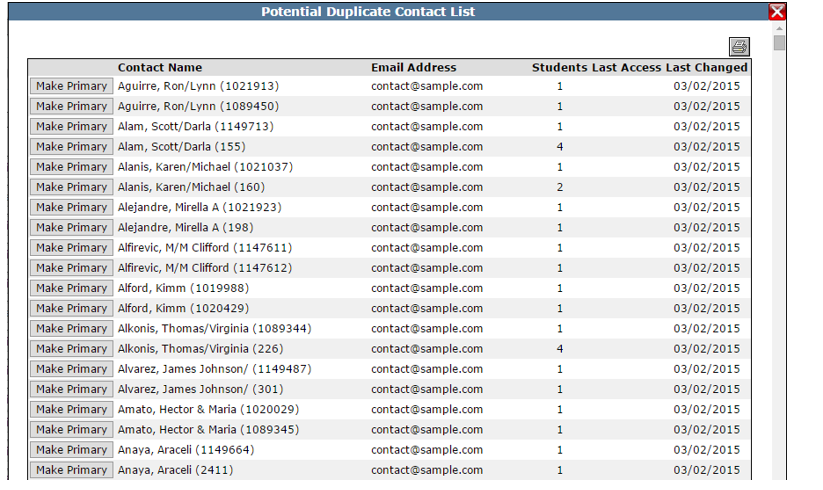
To search for duplicate contacts that have an exact First Name, Last Name match click Show All Potential Duplicates. A results list will be displayed with the names, email addresses, number of associated students, date the Parent Portal was last accessed and last changed date. Click the Printer icon in the upper right hand corner to print a list of Potential Duplicate Contacts. To work with contacts in the list of potential duplicates, select one by clicking 'Make Primary'. The application will then behave as described above with the selected contact in the banner, as primary, and the potential matches displayed below. From there, work with the contacts as described above.