The Q Extension Editor provides the ability to add fields, documents and links to screens that are not part of the core set of data included in Q. This added information resides in extension tables. The Extension Editor may be used to define these new fields and determine where they appear on the screen. Access to the application is controlled by permissions and would normally be limited to district DBAs since an understanding of the attributes of field definitions needs to be handled by someone that understands the implications for the database.
Extension Editor is located under the System menu in Q.
When the application is launched, the only applications listed are those that support the addition of extension data.
Columns listed in the application are populated by the developer and guide the district DBA defining extensions. The columns are:
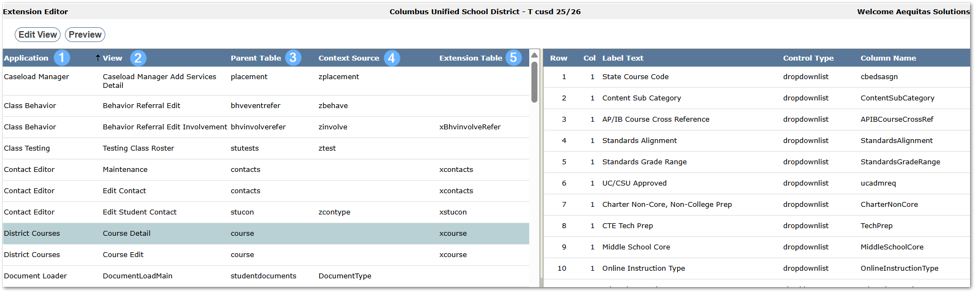
- Application—name of application
- View—name of the view it is referencing
- Parent Table—table information is tied to
- Context Source—the table that defines the types of the parent record.
- Extension Table
- If an extension has been defined the column shows the name of the table.
- If no extension has been defined the column is blank.
For some extension areas there may be pairs of views, one view for the editing of the data and another for viewing data often called ‘Side Details’ or ‘Browse.’ When creating extensions for two related views, it is possible, and may be easier, to define the screens for the ‘Edit’ mode and then copy the view fields to the ‘Browse’ view using the Copy function. See the Copy Information section of this documentation.
The Q Extension Editor is used to define extension data areas including labels, fields, grids, documents, and links and specify where these items will display on the screen.
- Select Application from application list.
- Double-click or click Edit View.
Each view will need an extension table associated with it. The view may already have an Extension table defined or you may need to select an existing one, change to another table, or create a new extension table.
- Click either Choose Table or Change Table to associate an existing table with the view.
- Select the desired table from the list of tables.
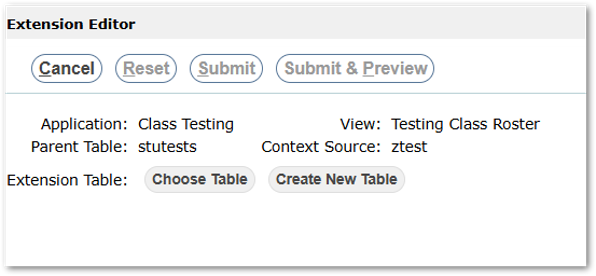
If there is not an existing table that will meet your needs, you may choose to create a new extension table. This may be done by a DBA through the backend, or it may now be done within the Extension Editor:
3. Click Create New Table—to create a new extension table.
When creating a new table:
- Define table name
- Click Save.
For non-DBA’s this step will create an actual table in the database. Subsequent steps to create fields will create actual fields in the table. These functions are typically performed by the Database Administrator (DBA) who has knowledge of table and field data structures and naming conventions. Please consult with your District’s DBA before undertaking the table and field creation steps to ensure your district’s ongoing success.
Once the table has been named and saved, you can add the extension items in the view.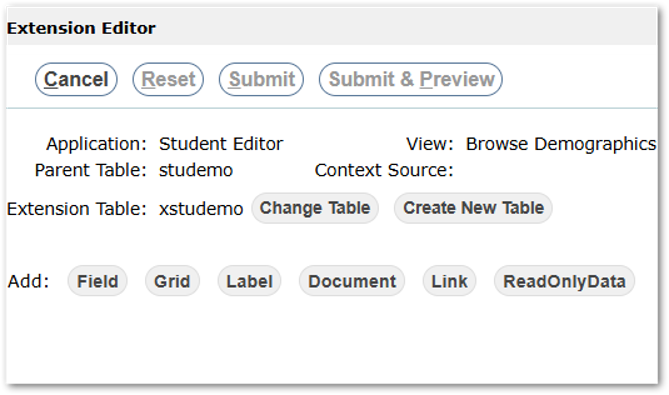
You may choose to add to your extension area any of these items:
- Field
- Grid
- Label
- Document
- Link
- Read Only Data
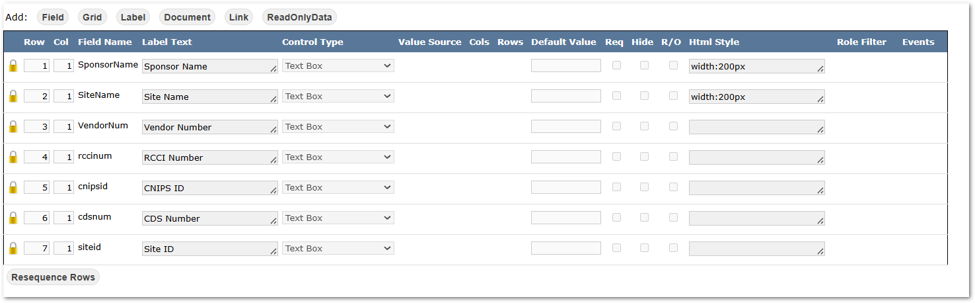
Once an item has been added there are attributes that will need to be set or adjusted. These attributes define the position of the item on the screen, the text that identifies the item, the style of that text, any default value, whether the item is required, hidden or read only, whether the item is locked from being changed by non-system administrator users, and if applicable, the context within which the item will appear, i.e. in a Program History extension area one program may have different fields than another program. In the Program History extension view, the programs define the context.

Row – defines the line or row where the item will appear on the screen and is set by default when adding an item.
Column – defines the column position for the item. If you are working in an Edit view you may want to define fields to appear across the page one beside another. To do this, define the fields with the same row number and increment the Col or Column value. Browse or Side Detail pages force all fields down the left most column. As a result, column indicators on these Browse or Side Details pages are overridden by the application.
Field Name – the database field name.
Label Text – the text as it will appear on screen to label the field for the user.
Control Type – defines how you want the user to interact with this data: using a Text box, Date box, Check box, Check box (reversed) [a checkbox followed by the label], Drop down list, or Text area.
Value Source – This field only shows when the Control Type is set to Drop Down List. Value Source defines where the application will look up the values to display as available selections in the drop down list.
The Value Source may be a Code Category, Custom Category Code, the name of a table or view that contains a ‘Descript’ or ‘DisplayText’ column, or a SQL SELECT statement that returns columns named ‘Code’ and ‘DisplayText’.
The DisplayText/Descript values will display to the end user in the drop down list. When a user saves a selection from the drop down list the associated Code value will be stored in the extension field.
Cols – when a Text Area is selected as the control type, this attribute defines how many columns wide the text area should be on the screen.
Rows – when a Text Area is selected as the control type, this attribute defines how many rows high the text area should be on the screen.
Default Value – When a Drop down list is selected for control type, then you may set a default value.
Req – If the field needs to be required, set this flag.
Hide – If the field is to be hidden, set this flag.
R/O – If the field is meant to be a display field and not edited by anyone, set this flag.
HTML Style – If you want the item to look different than the default appearance you may enter html style instructions such as width of drop-list field, text style to be bold etc.
Style Builder – This tool is intended to help you configure the html style attributes 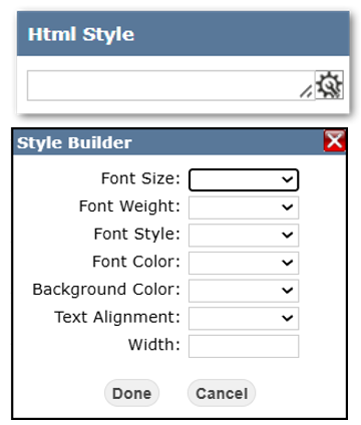
Context Filter – On some extension views a Context Filter option will appear with a link to Add a context such as a specific program, activity, visit type etc. When a specific context filter is set for the item then that item will only appear in that context. If no context filter is set for an item that could have one, then the item will appear in every program or activity etc.
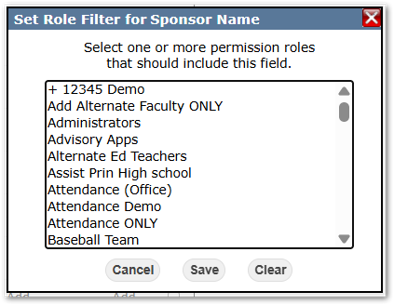
Role Filter – If the field should only appear for users with specific role permissions, but not all users, use the Role Filter to select one or more permission roles that should include this field.
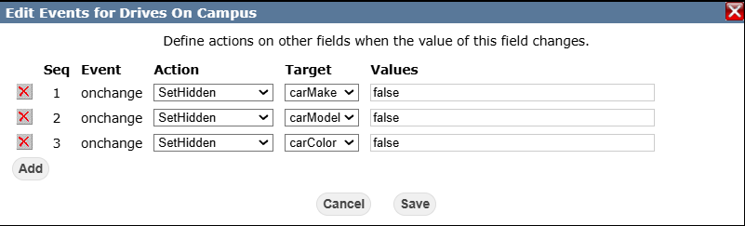
Events - This attribute may be used to define actions on other fields when the value of the selected field changes.
Lock – Only System Administrator users will see the Lock flag attribute. Checking this flag will prevent other users from making changes to the field attributes in the Extension Editor, if they have permission to the application.
Fields
- Click Add Field.
- Choose a field from the drop-down list OR select Create New TableColumn.
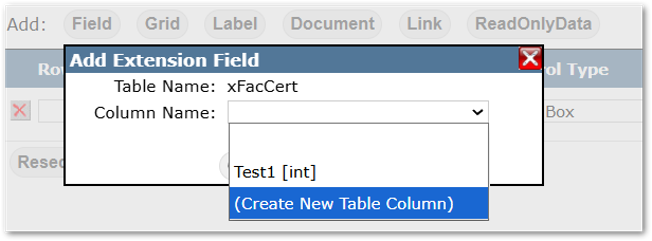
- To create a new column:
- Select Create New Table Column from drop down.
- Name the new column.
- Select data type.
- Enter desired length, if appropriate.
For non-DBA’s this step will create an actual field in the table. Typically these functions are performed by the Database Administrator (DBA) who has knowledge of table and field data structures and naming conventions. Please consult with your District’s DBA before undertaking the table and field creation steps to ensure your district’s ongoing success.
Submit.
Once the column has been created, adjust or set the applicable attributes. Refer to ‘Setting Item Attributes’.
Grids
Grids may be added to extensions when there are situations that require multiple child records for each parent record.
To add a grid:
- Click Grid.
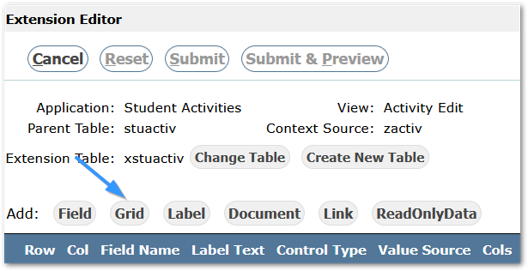
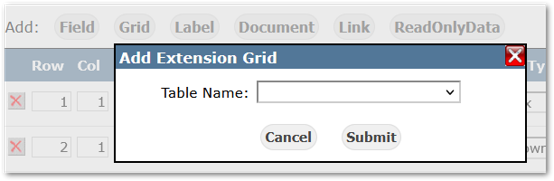
- From the Table Name drop-down list either select the desired table or select Create New Child Table.
- Name the new table.
- Submit.
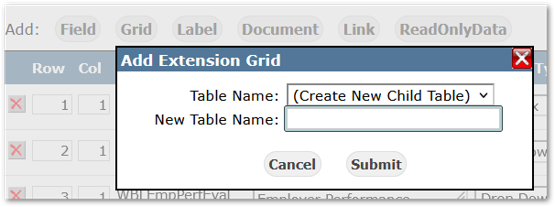
Once the grid has been added, columns can be added to the grid:
- Click Add Columns button in the Grid record you just defined.
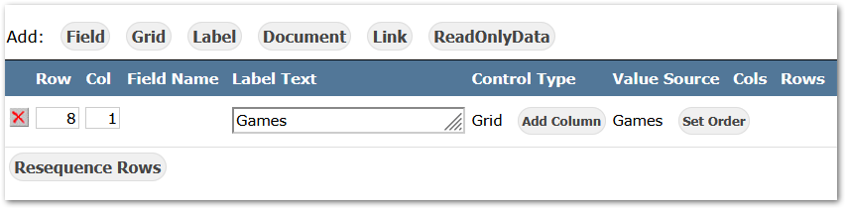
If the desired column does not exist in the list, select Create New Table Column
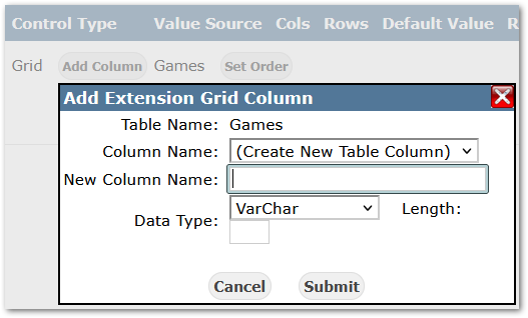
- Name the column
- Enter data type and length
- Submit.
Continue adding columns, as needed.
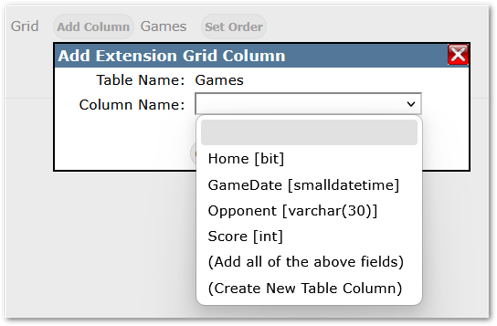
When adding a Grid to an extension view where the columns already exist in the table, the columns will appear in the drop-down list. Either select individual columns to add, or select the ‘Add all of the above fields’ option.
Set the Order of the Columns
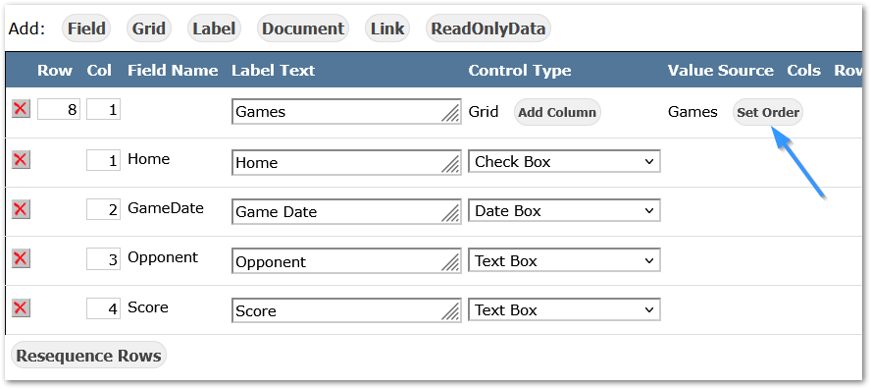
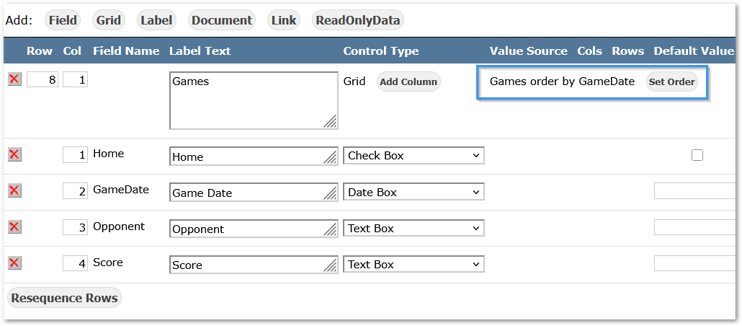
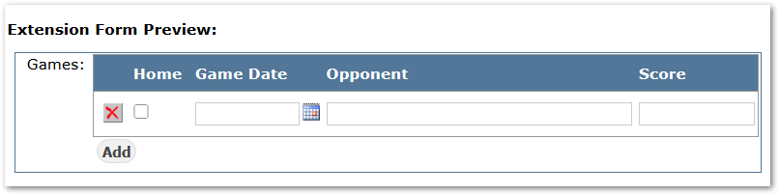
Once all columns have been added to the grid, you may set the sort order the rows of the grid display on screen. In our example we’ve added a grid with information for individual games played for sports team activities. Setting the order to display by Game date will sort all games played by the date regardless of the order they’re entered in the application.
- Click Set Order.
- Select order of columns from drop down.
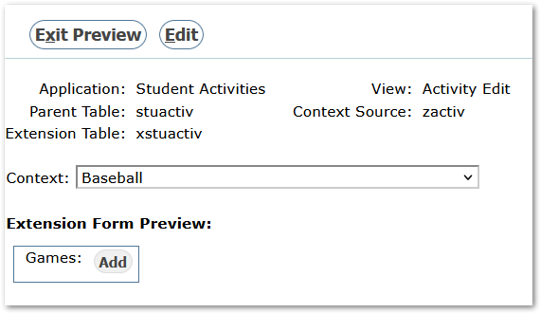
To view the Grid when complete, or as you work on it. Use the Submit & Preview button. 
Labels
To add a label:
- Click Label
- Add the Label Text. This is required when adding a label.

- Adjust or set other item attributes:
- Set the row and column values to define where the label will appear
- Use the Style Builder button if desired, to modify font size, weight, style, color, background color, text alignment, and width.
- Set the context if applicable
- Set Lock if desired
- Click Submit.
To remove a label:
- Click the x delete button
- Click Submit.
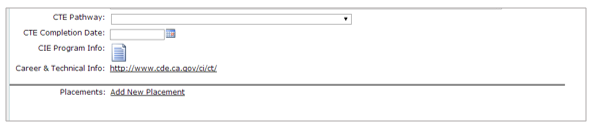
Tip: Use a label to create a line:
- Add a label
- Define the line in the HTML property
- An example to produce a grey line, HTML property:
border-bottom-style:solid;border-color:grey;color:white
This will define the bottom border as solid with a grey color. Label Text will be white and as a result not appear. 
Documents
To add a document:
- Click Document
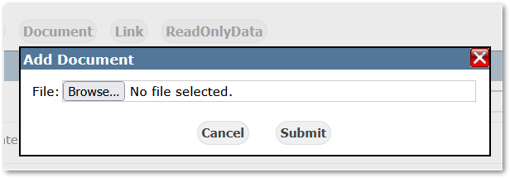
- Choose file and Submit

As with any extension item:
- Adjust the Row and Columns if needed
- Add label text
- Modify the HTML Style either directly or using the Style Builder button if desire.
- Set a context if appropriate
- Lock if desired
- Submit or Submit & Preview.
The document itself may be changed or replaced:
- Click Replace
- Click Choose File
- Navigate and select the replacement file and Submit.
Document Storage
Q is designed to support storing electronic documents in a separate database with a record in the production database pointing to the external data location. This design is intended to support large databases and Educational Service Centers. If a district elects to store electronic documents in an external data location, it will apply both to Student Documents and documents referenced in the Extension Editor. If the storage of the electronic data in the database is desired to be “offloaded” to avoid bloat in a production database, contact Aequitas Solutions for Support.
Links
To add a link:
- Click Link
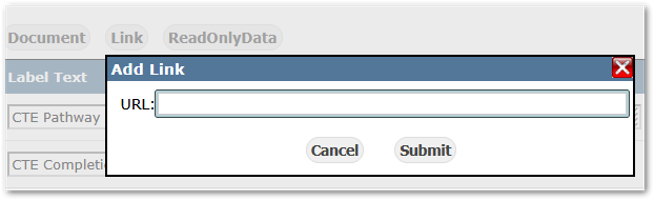
- Enter the URL and click Submit.

ReadOnly Data
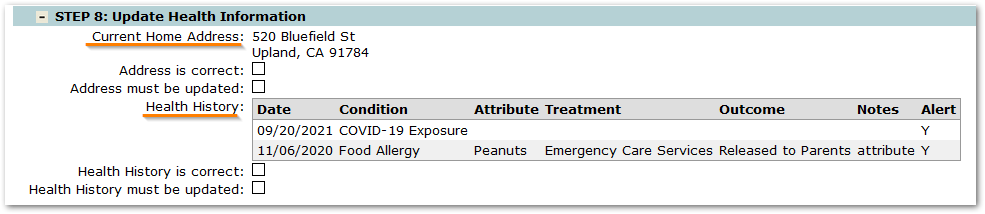
The ReadOnly Data control may be used to display existing data such as a current address, current medications on file or even previous years releases and authorizations using the results of a query which may include HTML for pre-formatted displays. 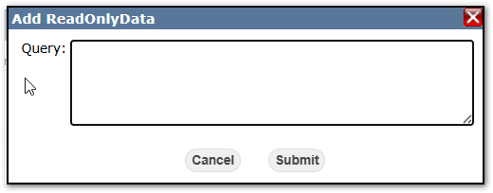
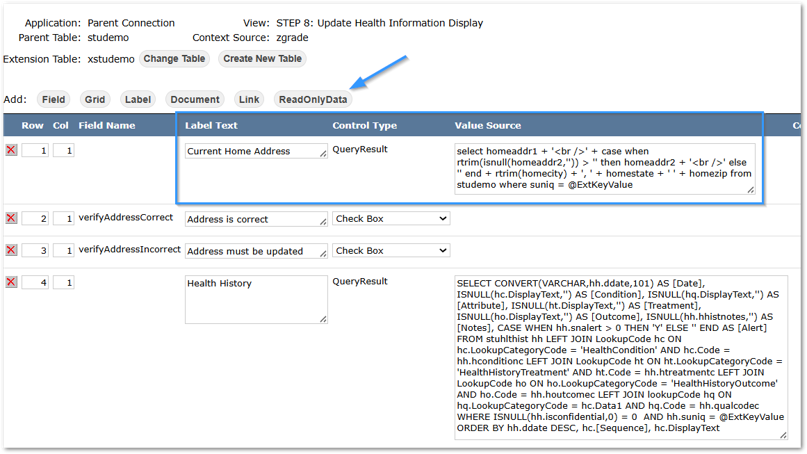
Samples shown from ParentConnect Reenrollment:
See Extension Editor – Using Query Results for Read Only Data
The context filter allows you to select which items to display on screen by tying them to selected parent records. There are times when fields created in extensions aren’t desired in all records for the application. In this example of adding extensions to the student activities, we only want the grid with individual games information to be available for sports team activities.
To set the context filter for extension fields, select the field:
- In the context filter column, click Add.
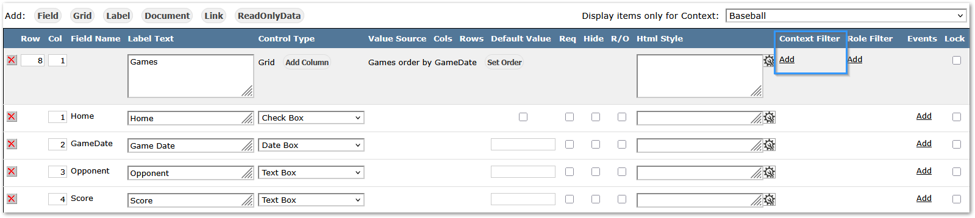
- Select items for context from the drop down list.
- Several items may be selected at one time by holding the Ctrl key while selecting items.
- When all items have been selected, click submit.
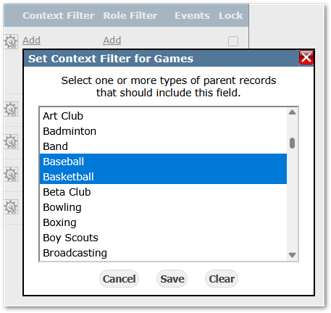
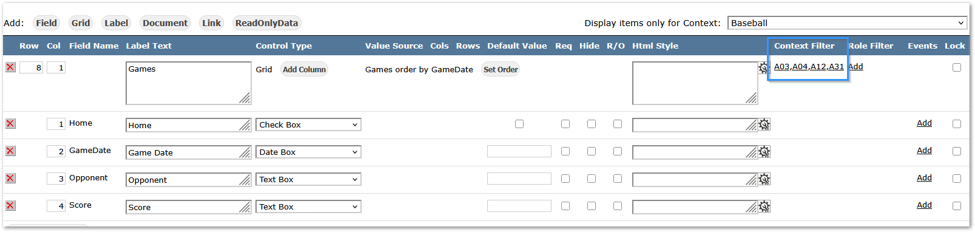
In this example a Grid was added to the student activity table containing information about games for sports teams. Using the Context Filter the grid was associated only with sport activities as other student activities have no need to see or record this information.
Example of Context Filter display in Student Activities application showing when Baseball is set as the Activity, the Game grid appears. 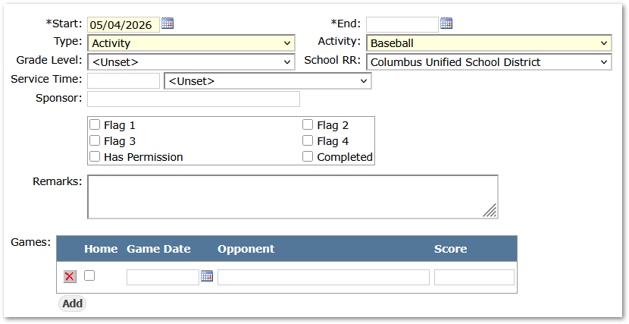
To control which users will see an extension field, use the Role Filter and select permission roles for access. Use the CTRL button to select multiple roles and click Save. 
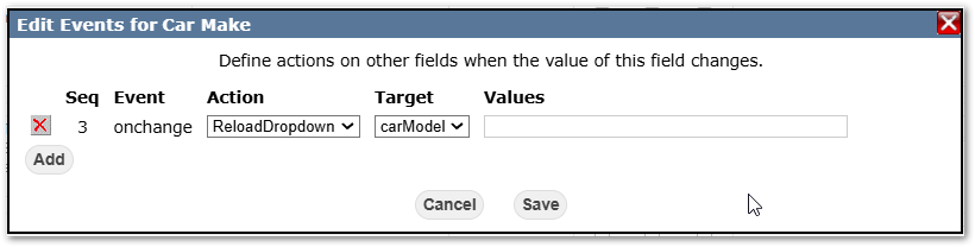
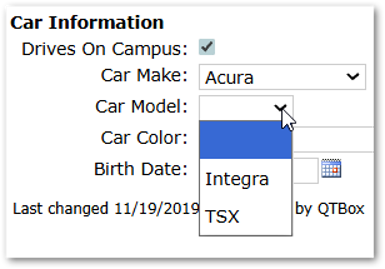
Events may now be defined for extension fields so that when the value of an extension field changes, it can affect a subsequent extension field on the screen. Three actions have been implemented: the ability to reload a drop down field, set a field as disabled and set a field as hidden.

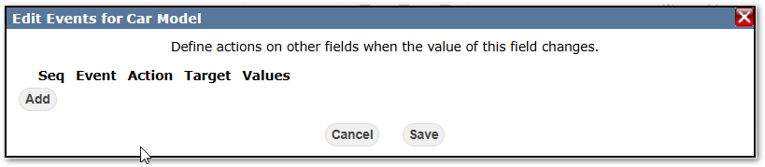
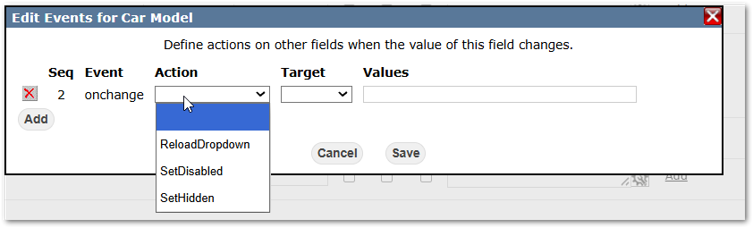
For example, when the Car Make extension field is selected, the Event is defined to reload the Car Model drop-down, so only the models associated with the car make in the referenced Lookup Category will be displayed. 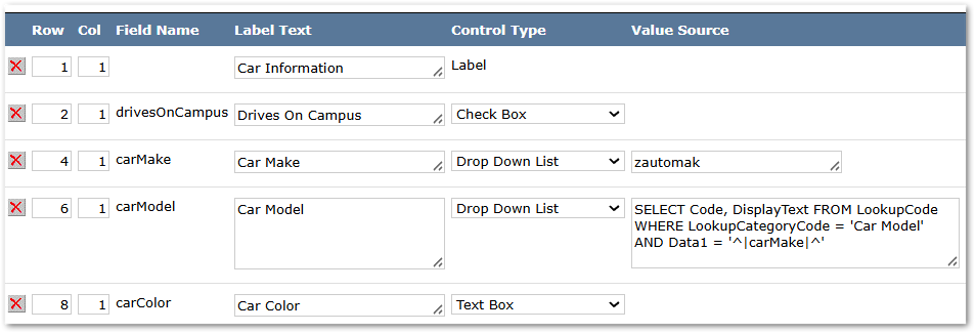
Users with Administrative level access to Extension Editor will have the option to set the Lock flag. Checking this flag will prevent other users from making changes to the field attributes in the Extension Editor, if they have permission to Extension Editor.
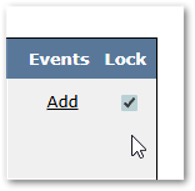
A user with access to Extension Editor, but not an administrator, will not be able to edit the locked fields.
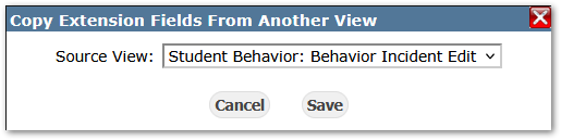
Once all the extension information has been created it can be copied to multiple views. When an application has multiple views, for example display and edit, you can quickly copy what you’ve defined for one view to another using the copy feature. This feature is only available when there are no fields or items defined in the view.
- Highlight desired application.
- Click; Copy fields from Another View button.
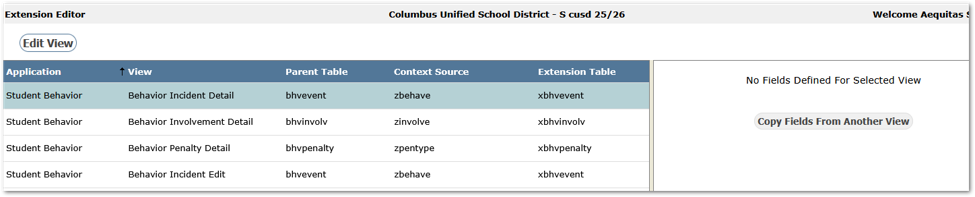
- Select desired source view from drop down.
- Click Save.
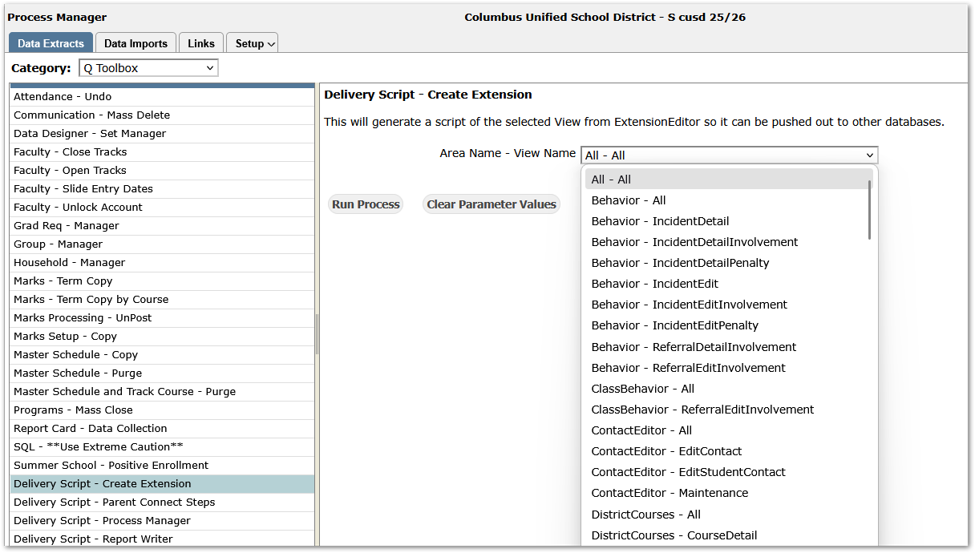
Extensions may be created in one database and moved to additional databases using a Q Toolbox option to generate a delivery script.
- From the System menu, select Process Manager
- Select Q Toolbox
- Select ‘Delivery Script – Create Extension’
- Select the Area (i.e., Behavior – All’) or a specific View Name
- Click Run Process.