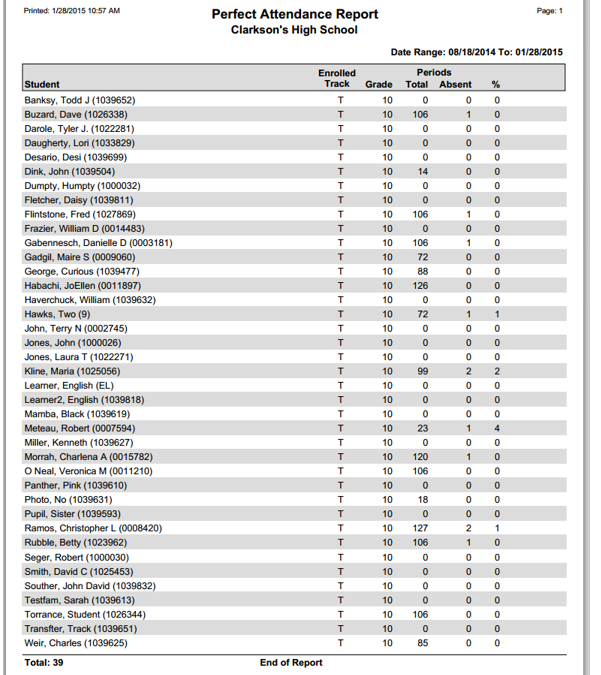
This report will retrieve a list of students who have perfect attendance records within a defined date range. The report compares the number of periods queried with the number of absences or the percentage of absences a student has.
While details specific to this report will follow, users can find general information about reports within the Reports documentation.
Perfect Attendance Report is located within Reports in the Attendance menu in Q.
Report Options
The criteria for perfect attendance is user-defined by setting parameters in the Report Options.
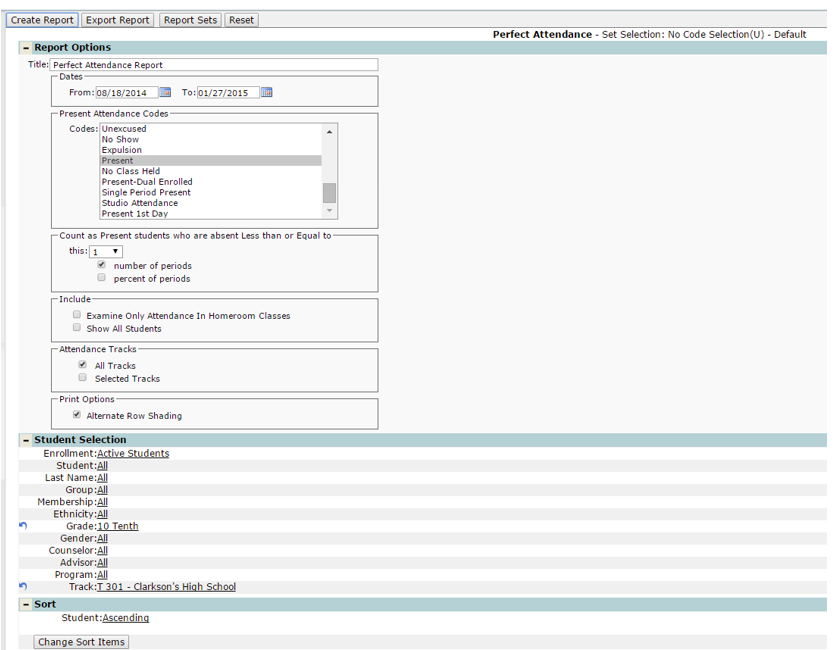
- Title – title is defaulted to “Perfect Attendance Report”, but this can be edited and a user defined title can be entered.
- Dates – set a date range to run the report for.
- Present Attendance Codes – select which attendance codes will be used as ‘Present’ codes.
- Count as Present students who are absent Less than or Equal to – users can select a number of periods or a percent of periods a student must be absent less than or equal to, to qualify as perfect attendance.
- Include:
- Examine Only Attendance in Homeroom Classes – only examines a student’s homeroom class when calculating perfect attendance.
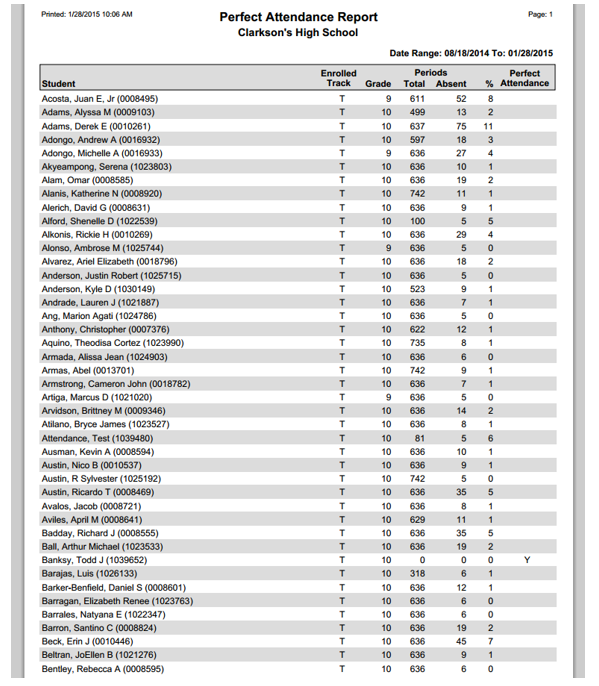
- Show All Students – this field is deselected by default, which indicates that only students who qualify for the perfect attendance criteria will be displayed in the report listing. Note: If this box is checked ON, the report will include students with and without perfect attendance, and an additional column named “Perfect Attendance” will appear on the report and students with Perfect Attendance will be flagged with a Y (Yes) in this column.
- Attendance Tracks – users can select to run the report for all tracks or for a selected track(s).
- Print Options – this is defaulted on, but can be turned off by users if they do not want to print alternate rows with shading.
Example Reports
Sample Report with “All Students Selected” turned ON
Sample Report with “All Students Selected” turned OFF