
Q has many areas where your district can add customization to show more data to your staff, guardians, and students. The following shows how you can add customization to your Student Profile sections by adding custom Headers or Footers. Data from these custom areas can be seen in the Student Profile in Q, and in each of the Parent and Student portals. Within each custom header/footer, you can change what a guardian or student sees, compared to what district staff will see.
To set up a custom Header or Footer in the profile, you’ll first need to create a data source using a SQL stored procedure. In your procedure, you should pass in Student, Contact, and Staff IDs, along with the Track ID.

Where this procedure is run (Q, Parent/Student Portal) determines what variables are sent back. For example, when this is run from Student Connect, a 0 will be returned for ContactID and StaffID. Knowing this, you can add your customization for each section like so:
Check that you’re running this from Student Connect:

If so, begin this section, adding whatever data you want to add here.
If you’re not running from Student Connect, check to see if you’re in Q:
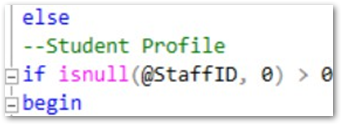
If so, begin this section, if not, then you’re in Parent Connect:
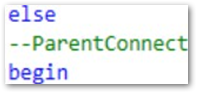
Last item to note on your data source – It must return a string named HeaderHTML or FooterHTML.
Once your data source has been created to your specifications, you can add it to your profile section in System > Student Profile Manager.
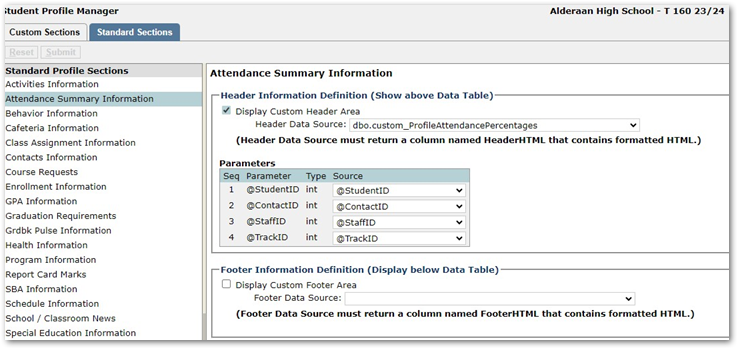
Here you’ll assign the session variables that correspond with your procedure parameters and determine whether you’re adding a custom Header or Footer.
Once saved, re-load Q to see your new custom header or footer:
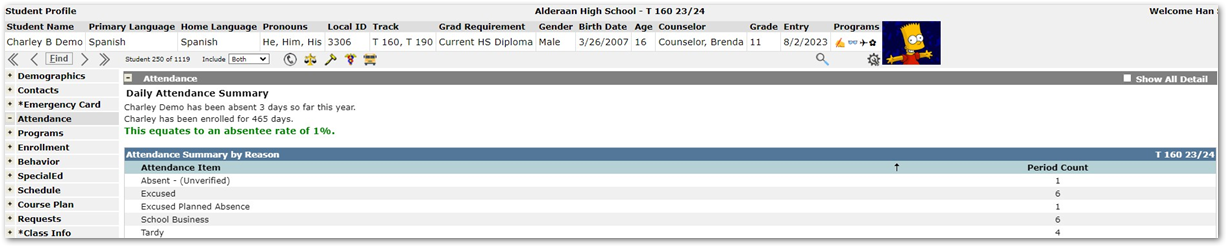
Here’s the same custom header, showing different text/data when viewed from the Parent Portal: 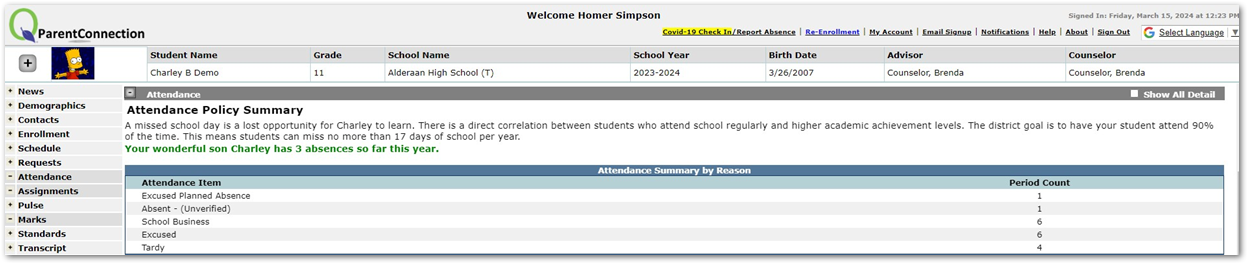
For examples of this custom header or any questions about how to set these up for yourself, please put a ticket into the helpdesk!