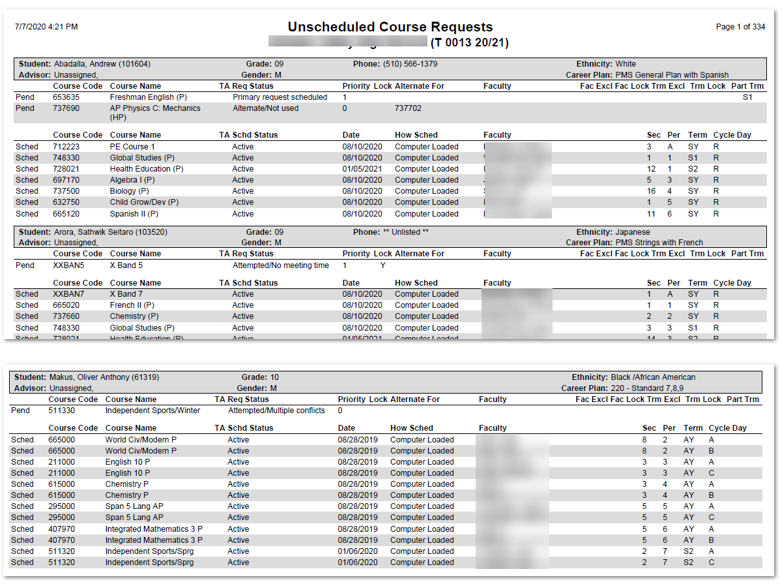
The Unscheduled Course Requests report is typically run after the Loader has finished loading student schedules. The report lists all of a student’s course requests separating the unscheduled requests from those that were scheduled. Information on the schedule and request status, including reasons requests were not scheduled (i.e.: Class Full, Alternate/Not Used, Attempted/Multiple Conflicts) is also included.
While details specific to this report will follow, users can find general information about reports within the Reports documentation.
Unscheduled Course Requests Report is located within Reports in the Schedule menu in Q.
Unscheduled Request Report Options include: 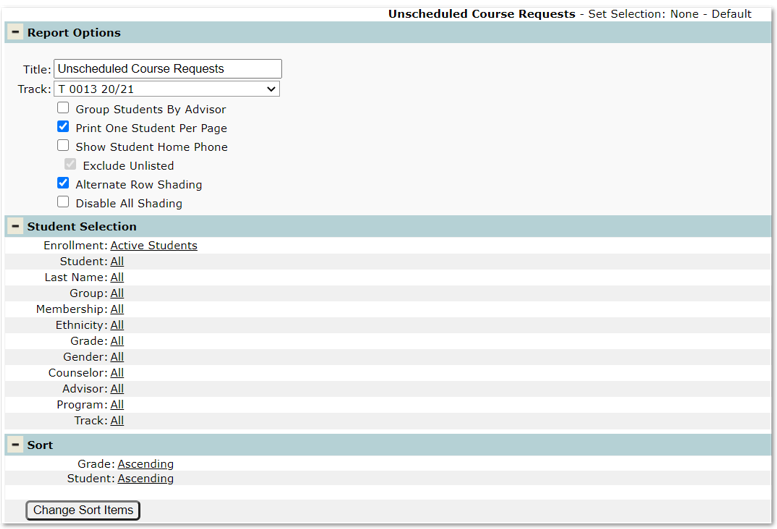
- Title – The default title of ‘Unscheduled Course Requests’ will appear but may be edited by the user.
- Track – The track defaults to the logged in track. If multiple tracks are available, the desired track may be selected from the drop-down list.
- Group Students by Advisor – Check this box to group all students returned in the report by Advisor.
- Print One Student Per Page – Check this box to print one student per page of the report.
- Show Student Home Phone – Check this box to print the student’s home phone.
- Exclude Unlisted – If the show student phone box is checked, checking this will exclude those phone numbers identified in the Student Editor as unlisted.
- Alternate row Shading – Check this box to apply shading to every other row of the report.
- Disable all Shading – Check this box to remove all shading from the report.
Reports may look different depending on the options, selections and sort items chosen.