Q Student Health Screenings is an application that tracks medical screening tests administered for an individual student. The Screening Status and assigned Screening Rule are displayed for the selected student. Health Alerts entered in this program will appear in the selected student's record in the Student Editor and Student Profile.
The Student Health Screening application is a Banner application. You may search for a student in the application by using the arrow keys or the find function, searching by a student’s ID, last name, first name, state ID, or group.
Student Health Screenings is located under the Health menu in Q.
- Locate the desired student using the arrow keys or the Find feature.
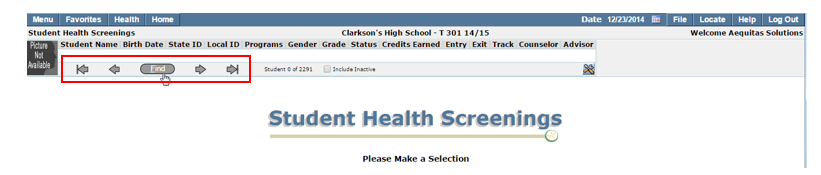
- Once a student has been selected, the upper portion of the screen displays status data as follows. Users have the ability to edit any information in this area.
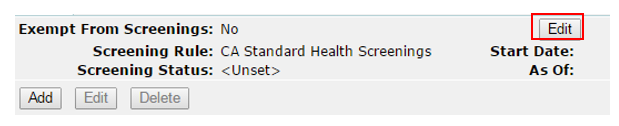
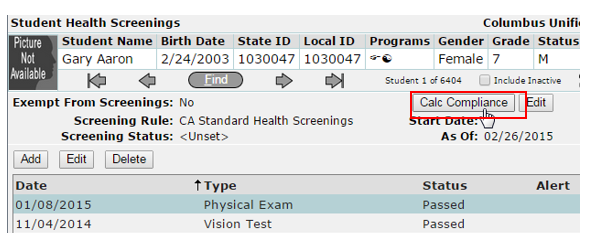
- Exempt from Screenings: If ‘No’ displays in this field, the student’s Screening Status will be calculated according the Screening Rule applied whenever the Calc Compliance command is executed. If ‘Yes’ in this field, the Reason field will be displayed to the right side (reason for the exemption) and the Screening Status value will always be ‘Compliant’ after a calculation is run.
- Screening Rule: this field displays the Screening Rule applied to the student (or ‘Unset’ if no rule is applied).
- Start Date: This date value defaults to a blank field (no value), but a date must be entered (in edit mode) for Compliance to be calculated. This date should be the anchor date prescribed by district policy for Health Screening Rule compliance calculations. It is typically the date of the student’s first day of enrollment in the district (but not necessarily the birth date of the student, as is typical for Immunization Rule calculations).
- Screening Status: This field indicates the status of the screening, whether the student passed or not. A calculated value in this field can be overridden manually by selecting another value while in the edit mode.
- As Of: this field will display the date of the last change in the Screening Status field.
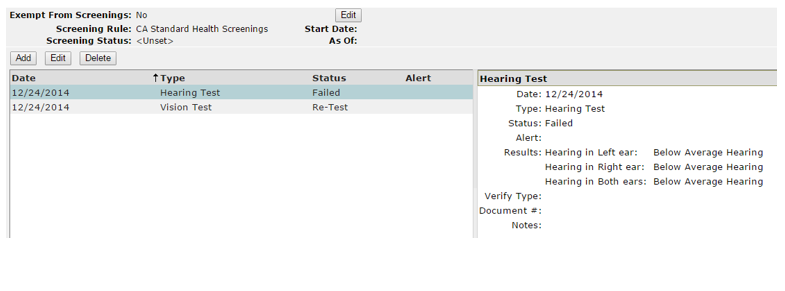
The lower portion of the screen displays a summary list of the student’s Screening records on file and are sorted by the Date field in reverse chronological order. Once you click on a screening, you can see the details on the right hand side of the screening. This list also includes screenings that were administered for a student in Class Health Screenings. Those entries are also editable in the Student Health Screenings application.
Note:
The 'Calc Compliance' button will only appear if a stored procedure is set up to calculate compliance (Menu > System > QLIP Hook Editor). This is something that is usually done at the District level and may vary by district.
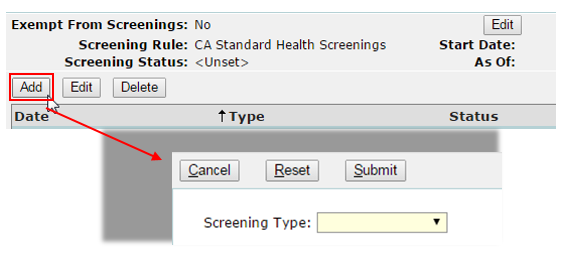
To add a new screening, click the Add tab. Once you click Add, you will be prompted to first select a Screening type.
You will then be taken to the next window to input all details of the screening.
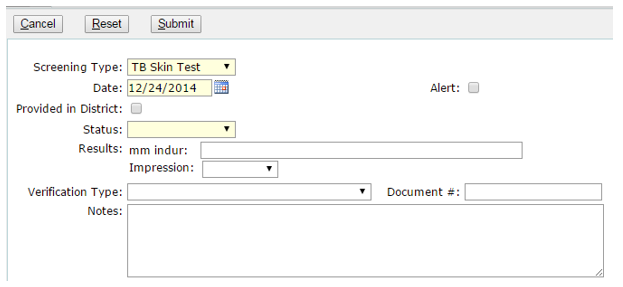
- Screening Type: Select the screening type being entered for the student.
- Date: Enter the date the Screening was administered.
- Provided in District: Check on if the Screening was provided by the School District and you want to record it as such.
- If this is checked on, a ‘With’ field will appear – this is to notify who administered the screening at the District level for the student.
- Must be checked ON if you want this record to be submitted for Medicaid billing.
- Alert: Check this field to generate a Health Alert flag for this student. The Alert will appear in the student’s demographic record in the Student Editor application as well as in the Student Profile.
- Status: Enter the student’s status code in relation to the test.
- Results: Enter the results of the screening.
- Verification Type: Refers to the type of documentation used for the screening.
- Document Number: The verification document identification number.
- Notes: Users can enter comments/concerns about the screening as needed.
To edit a current screening for a student, select the screening in the list that is to be edited, and click the Edit tab.
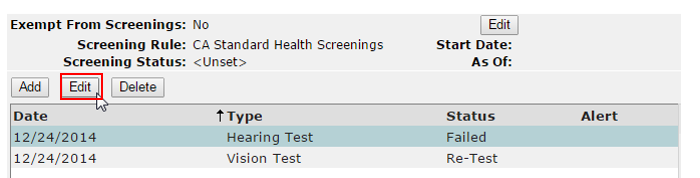
Once a Screening has been marked as either ‘Provided in District’ or not (whether that box is checked on or off), when in Edit mode, users cannot switch this status. It must be marked correctly when the screening is first entered into the system.
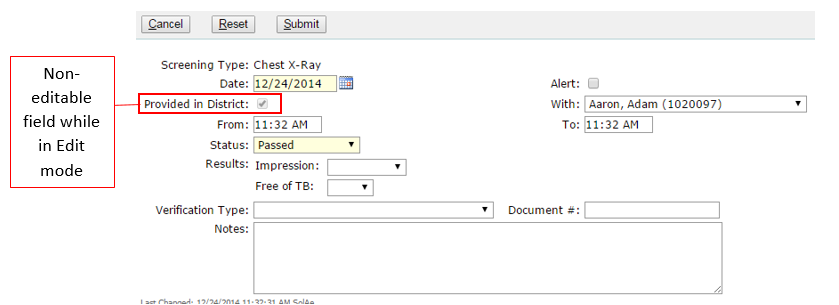
Make all changes necessary, and when finished, either click Submit to continue or Cancel or Reset to return to the previous page.
To delete a current screening for a student, highlight the record you would like to delete from the Screenings list, and click Delete. 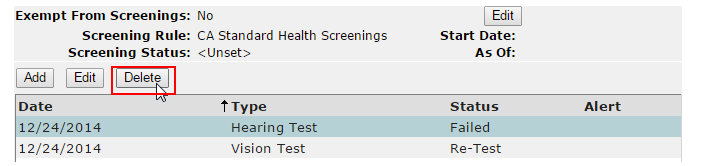
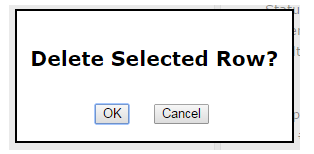
A confirmation window will appear. Select ‘OK’ to confirm the deletion or ‘Cancel’ to return to the previous screen.